

How to Change the Text on Your Add to Calendar/Follow Calendar Button
In this help doc, you can learn how you can adjust the text displayed within your Add to Calendar/Follow Calendar button.
Changing the Text on Your Add to Calendar/Follow Calendar Button
You can adjust the text displayed on the Add to Calendar/Follow Calendar button to your liking (e.g., if you would like "Add to Calendar" to be displayed in a different language).
Add to Calendar/Follow Calendar Button on a Website
If you are copying the source code from the event/calendar details page, you can easily adjust the text displayed in the button by adjusting the text directly within the source code:
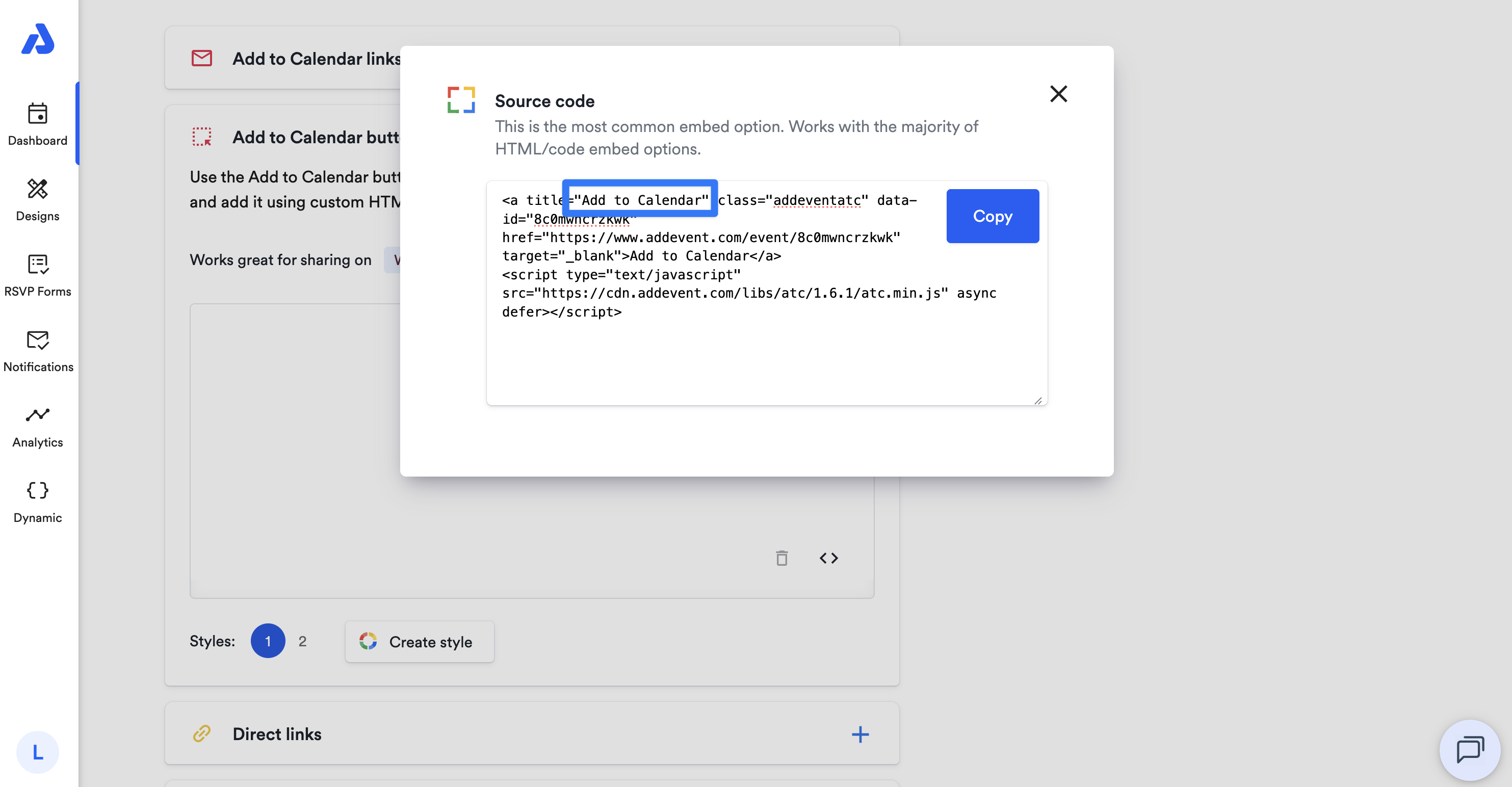
Within the double quotes where "Add to Calendar" / "Follow Calendar" is shown by default (see above screenshot), you can update this text to your liking and then paste the code onto your website.
Add to Calendar/Follow Calendar Button on an Event/Calendar Landing Page or Embeddable Calendar
If you're wanting to adjust the text in the Add to Calendar/Follow Calendar button that exists on your event/calendar landing page or your embeddable calendar, this setting can be adjusted with a design template.
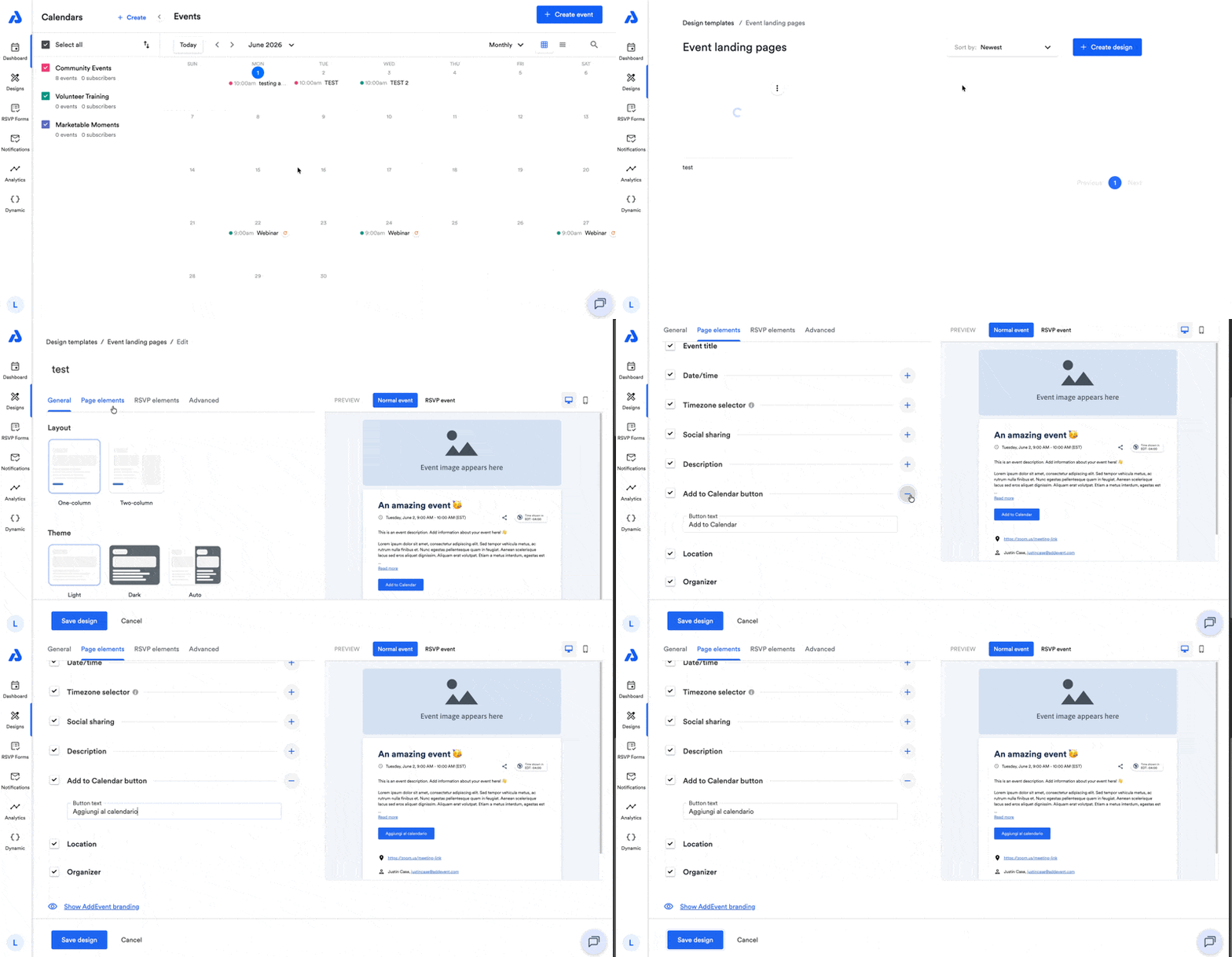
Within event/calendar landing page design templates, you can adjust this setting by:
-
Selecting the Page elements tab for event/calendar landing page design templates.
- For embeddable calendar design templates, select the Elements tab.
-
Scroll down to the Add to Calendar button/Follow button section and click to expand it.
-
Input the desired text in the input field.
-
Save your design.
Please see our Designs help section for more information on design templates: Designs
Updated 5 months ago