

RSVP Elements Tab: Event Landing Page Design Template
The RSVP Elements tab lets you control elements specific to RSVP events. Changes here only apply if your event has RSVP functionality enabled.
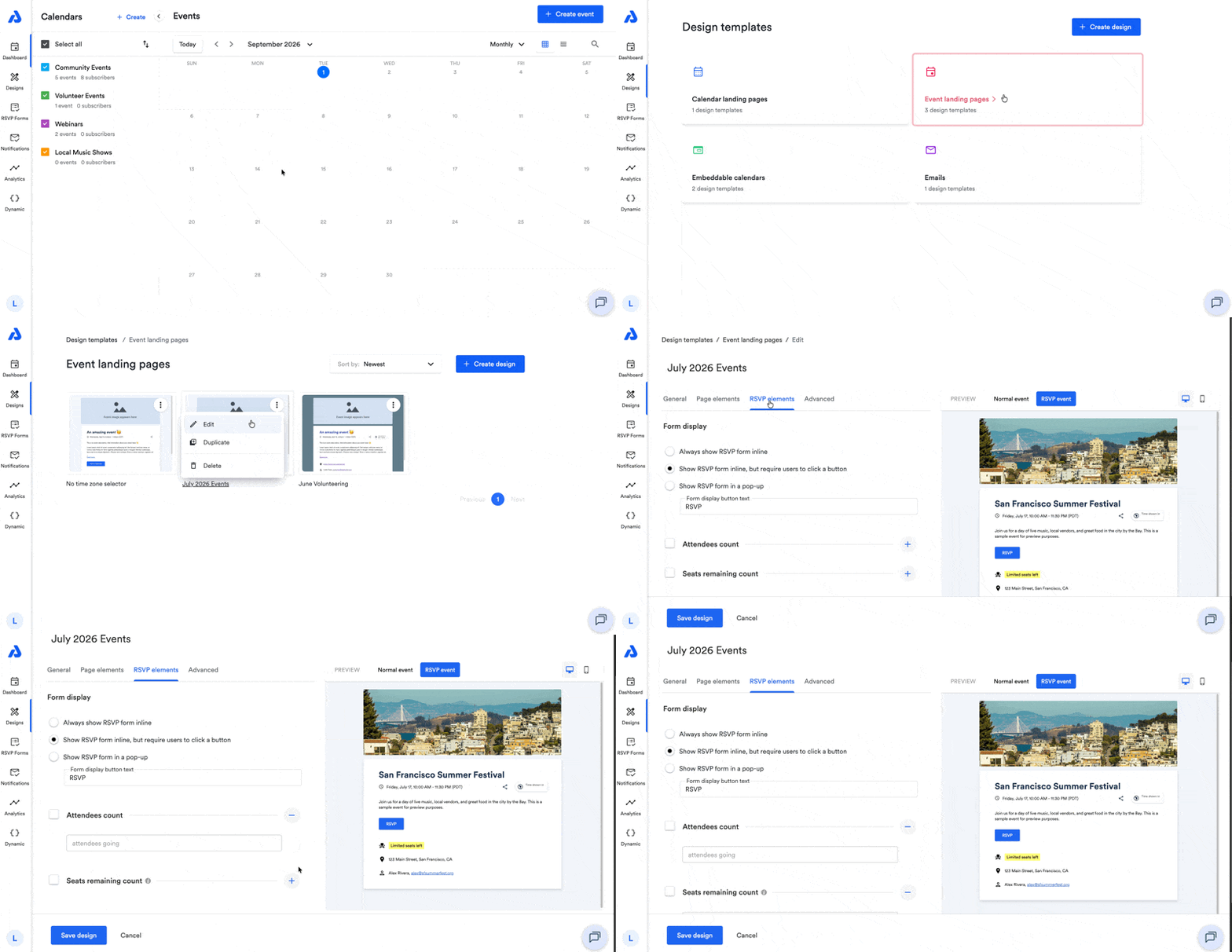
RSVP Elements Tab Settings
Below is a brief overview of each available setting within the RSVP elements tab.
Form Display
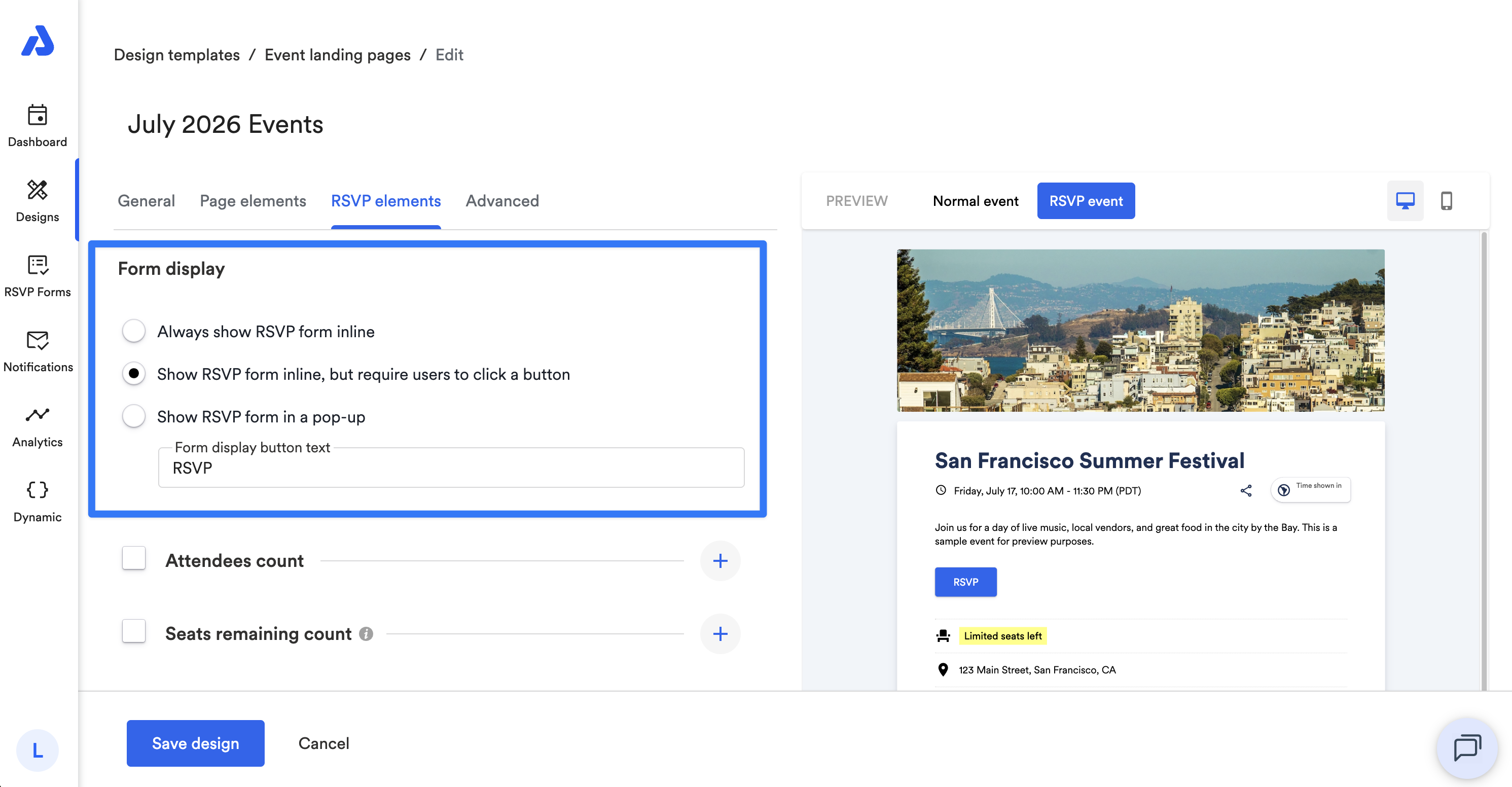
You can choose between the following options for how the RSVP form appears to end-users:
- Always show RSVP form inline
- Show RSVP form inline, but require users to click a button
- Show RSVP form in a pop-up
You can also customize the text displayed for the RSVP button.
Attendees Count
With the Attendees count option, you can do the following:
-
Show or hide the total number of people who have registered as "Going".
-
Customize the label for this field.
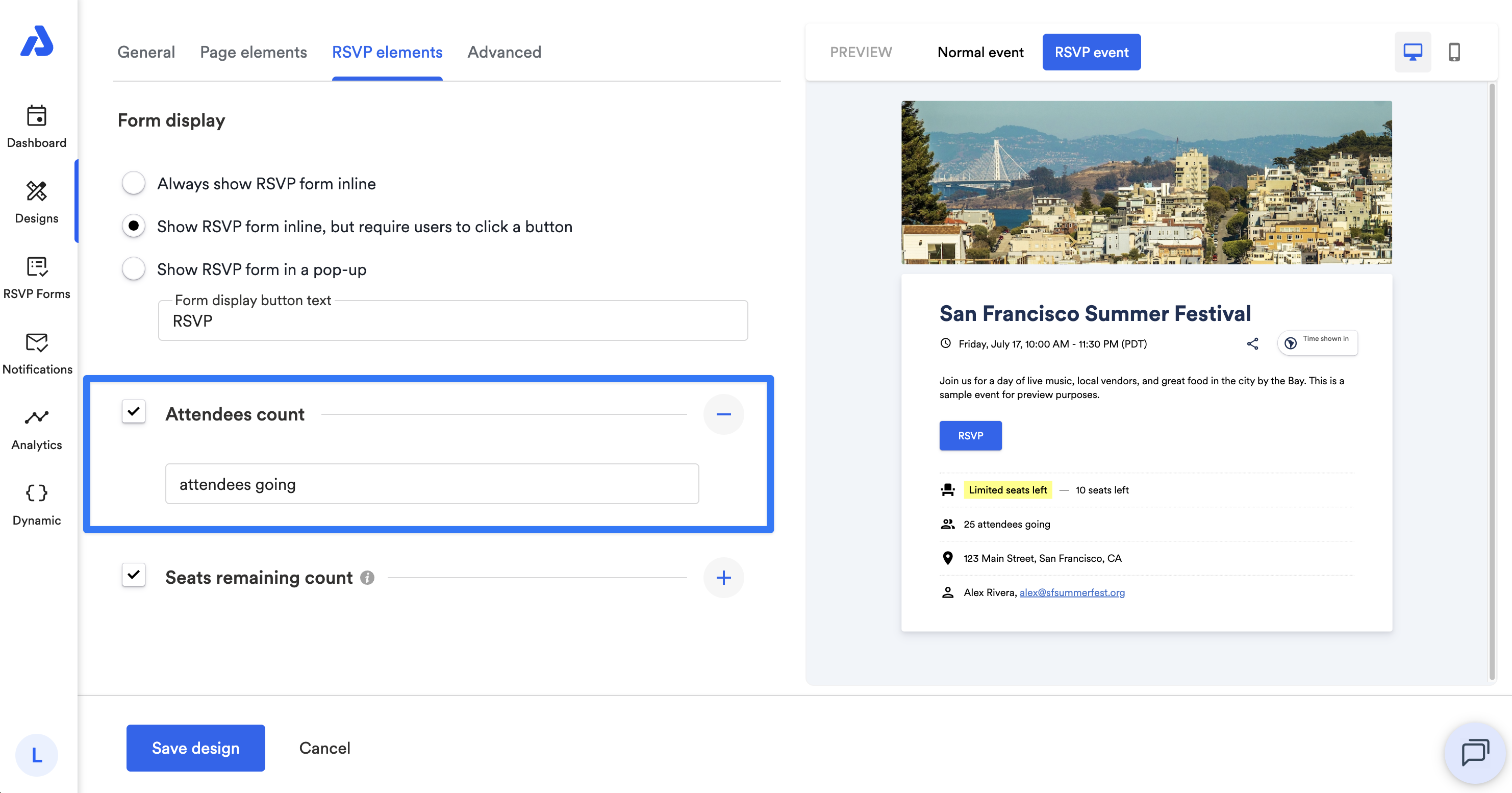
The attendees count only includes "Going" responses and is independent of any seat limit.
Seats Remaining Count
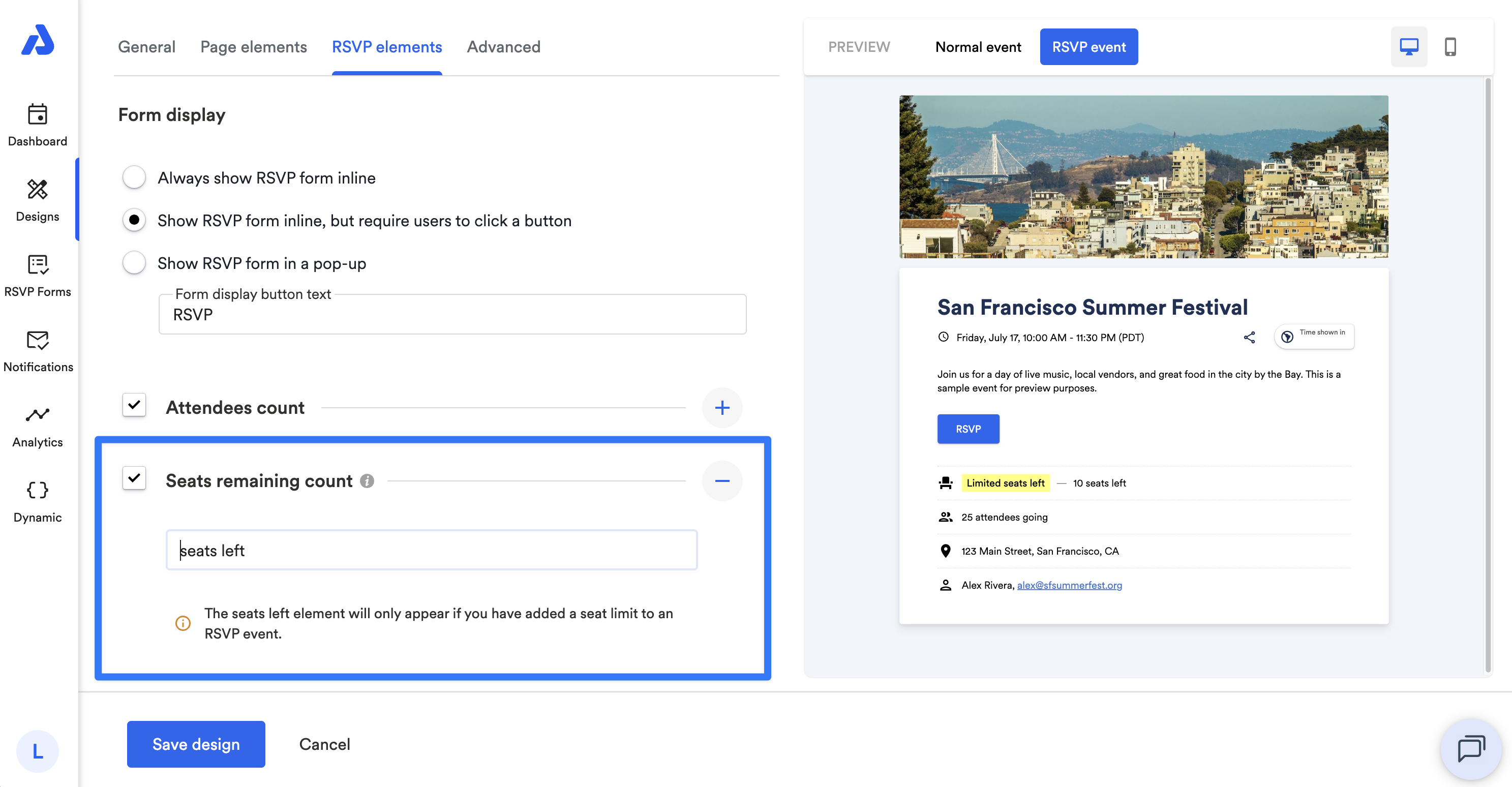
With the Seats remaining count, you can do the following:
- If your event has a seat limit, you can show or hide the number of remaining seats.
- Customize the label for this field.
Updated about 2 months ago
Did this page help you?