

Timezone Selector
This help doc shares information about the timezone selector on your event landing pages.
About the Timezone Selector
The timezone selector is displayed by default on your event landing pages. When an attendee views an event landing page, the page parses their IP and adjusts the time zone accordingly to the IP location.
This change is only visual and does not affect the time zone in which the event will be added to the attendee's external calendar.
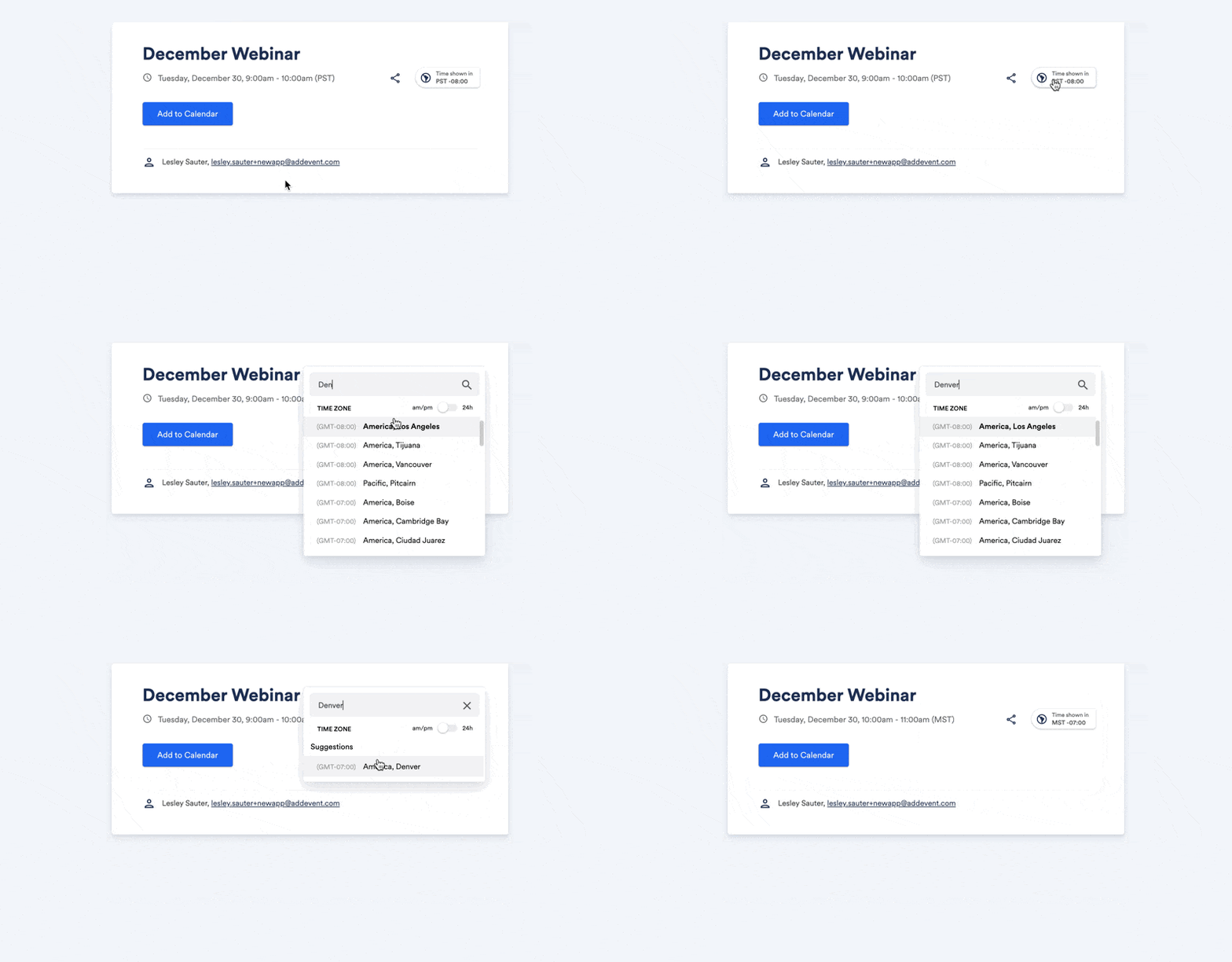
Attendees can use the time zone selector to have the event's time displayed in the time zone of their choice. For example, if they know they will be traveling to another location for the event, they can adjust the timezone to match the timezone of the event destination.
Sometimes, the time zone may be displayed incorrectly when using a VPN or if ISP equipment is located in a different location.
How to Remove the Timezone Selector
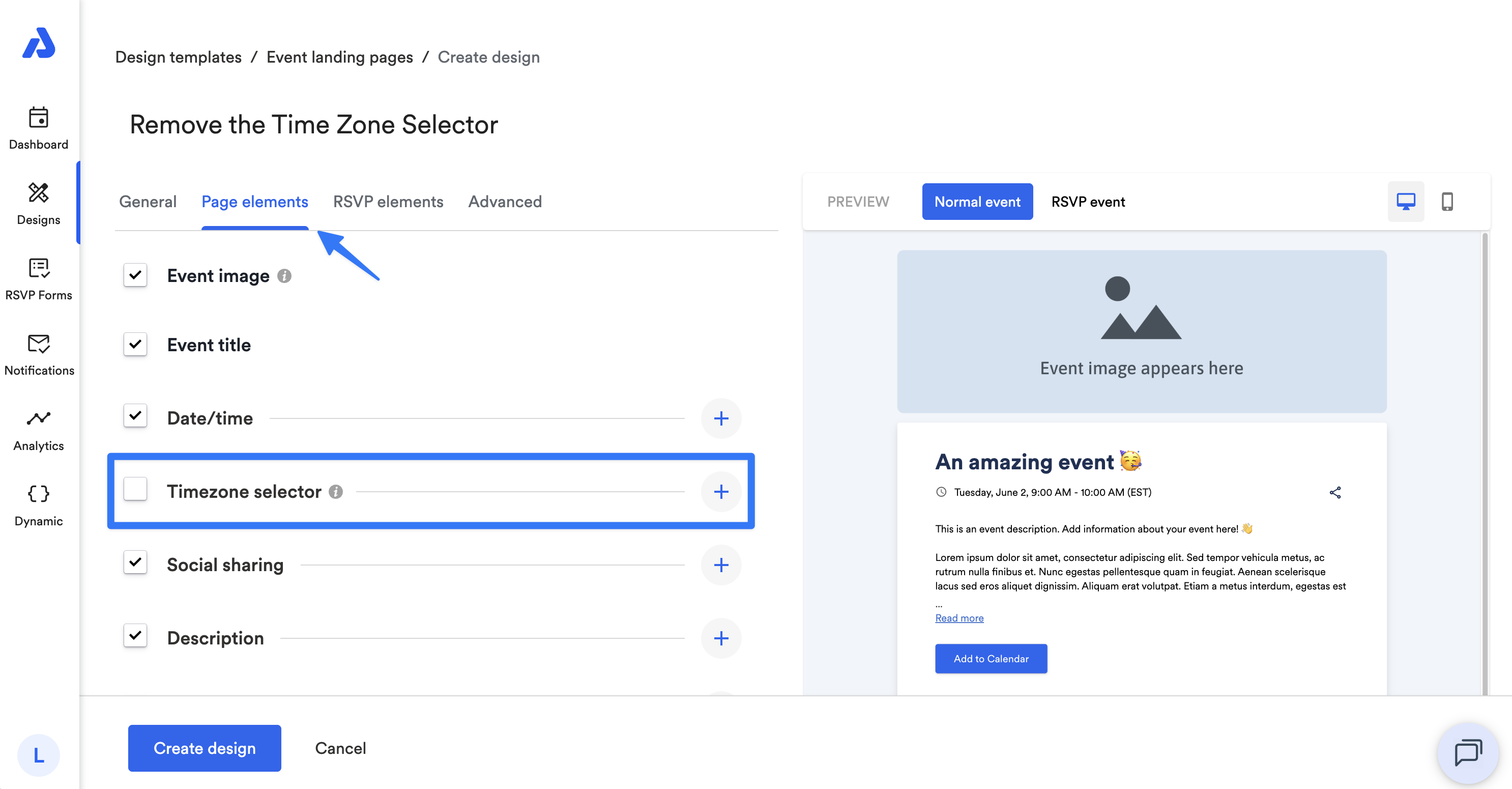
You can remove the timezone selector from your event/calendar landing page by creating a design template and applying the design to your event/calendar on the its details page. If you do this, the event/calendar landing page will display the event's time in the time zone that you set during event creation.
To remove the timezone selector, follow the below steps:
-
Select the Designs tab on the left-side navigation menu.
-
Click on the Event landing pages option for event landing pages, or the Calendar landing pages option for calendar landing pages.
-
Select an existing design template to edit, or create a new design by clicking the + Create design button.
-
Select the Page elements tab.
-
Uncheck the box next to the Timezone selector.
-
Click the Create design or Save design button to save your design.
-
Apply the design to your event or calendar.
To learn more about design templates, see our Designs help section here.
Updated about 2 months ago