

Billing
This help doc shares instructions on how to update account details related to billing. Specifically, the following: change your plan, cancel your plan, update the payment method, add or update the email receipt recipient, and view and download payment receipts.
Change Plan
-
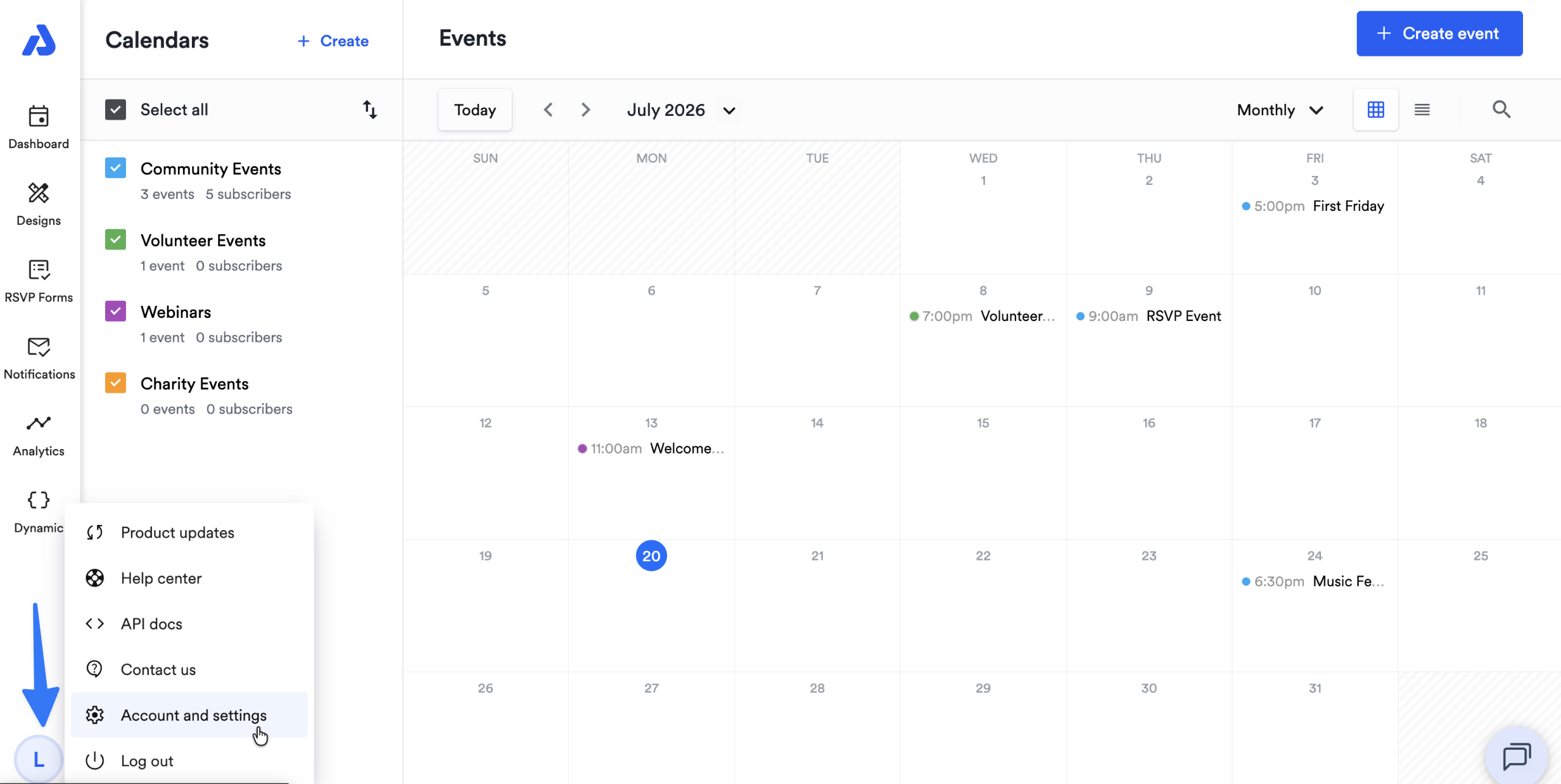
From the Dashboard, click the blue circle in the bottom-left corner of the Dashboard.
-
Select the Account and settings option.
-
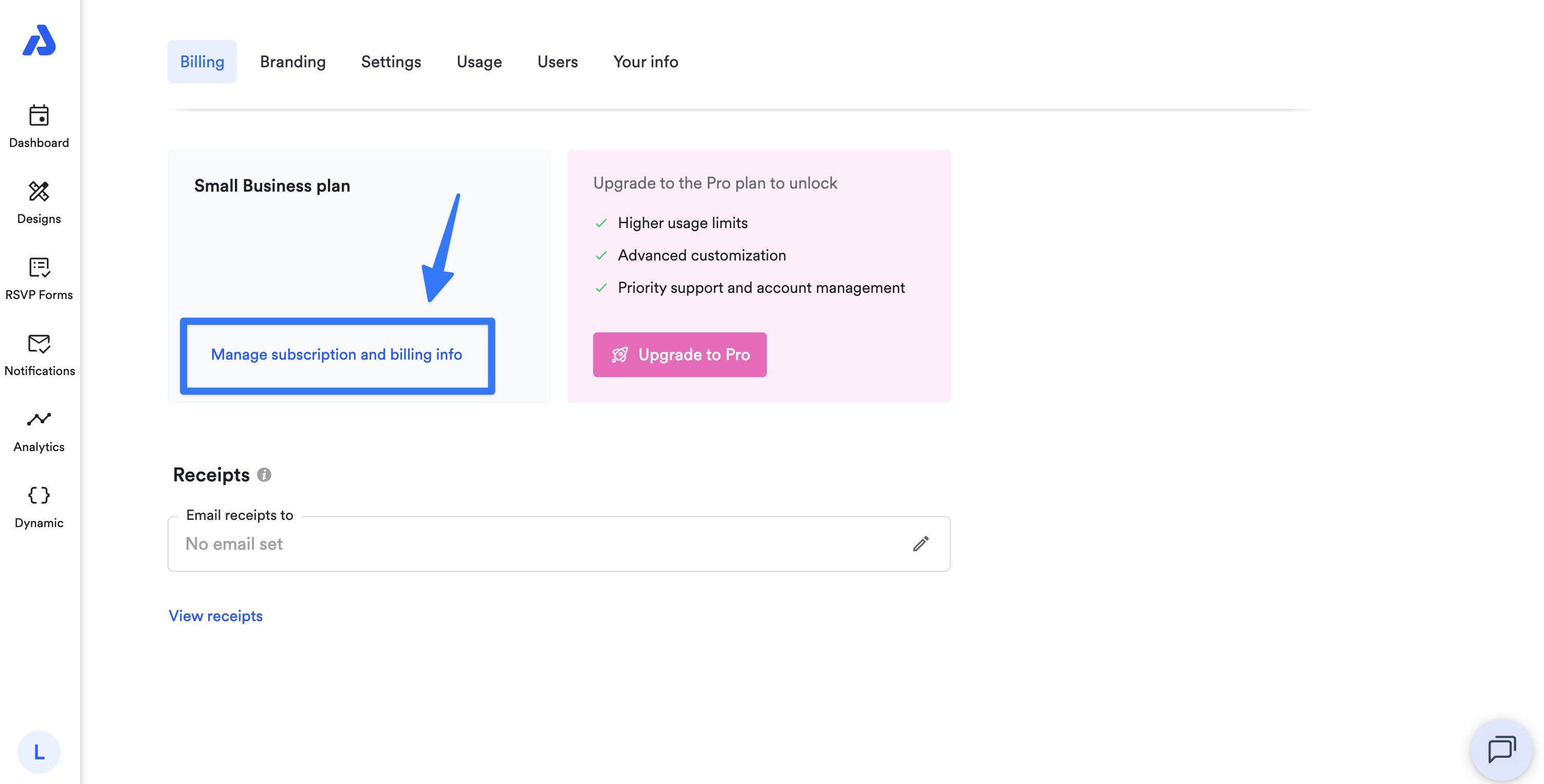
Click the Manage subscription and billing info option.
-
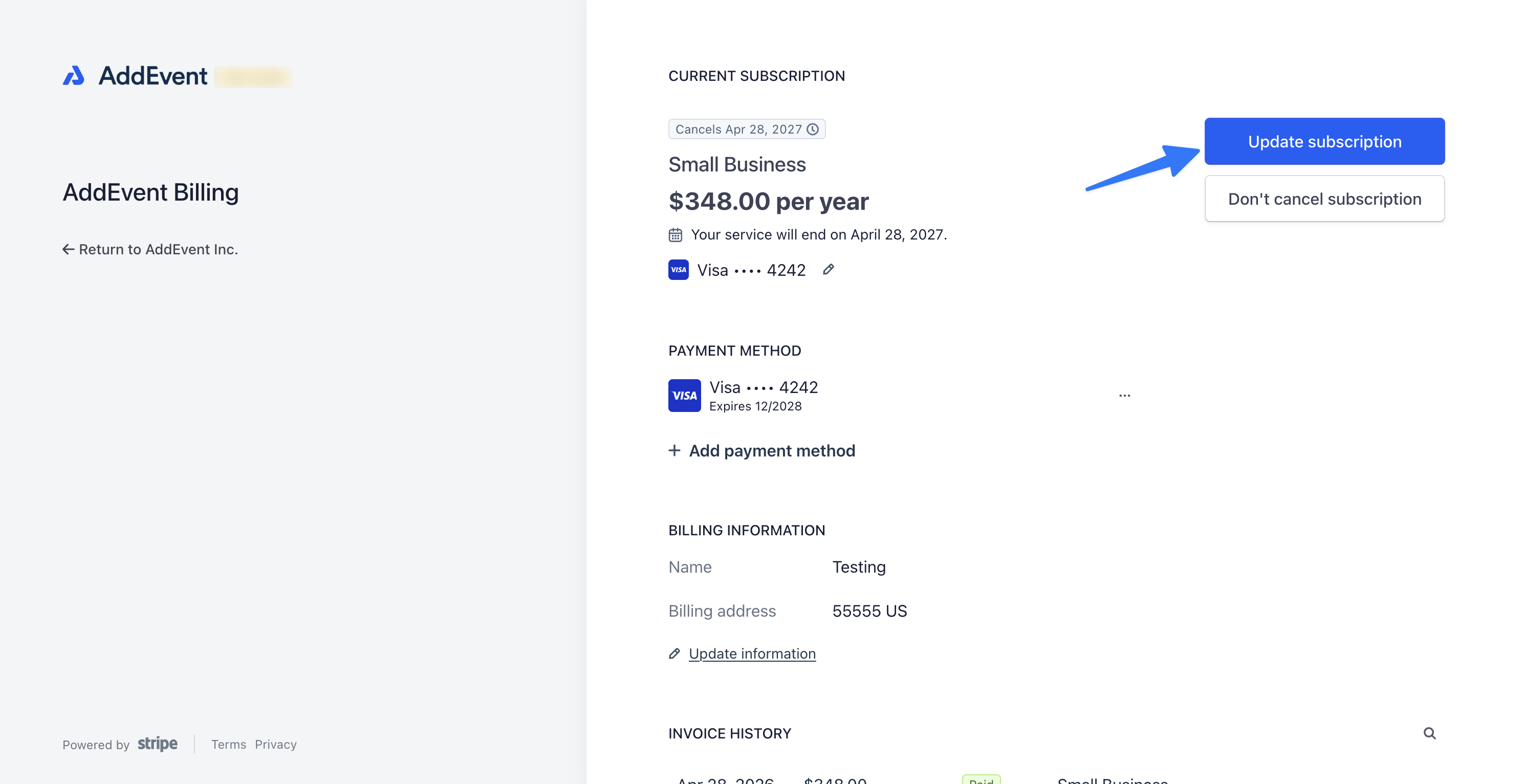
Click the Update subscription button.
-
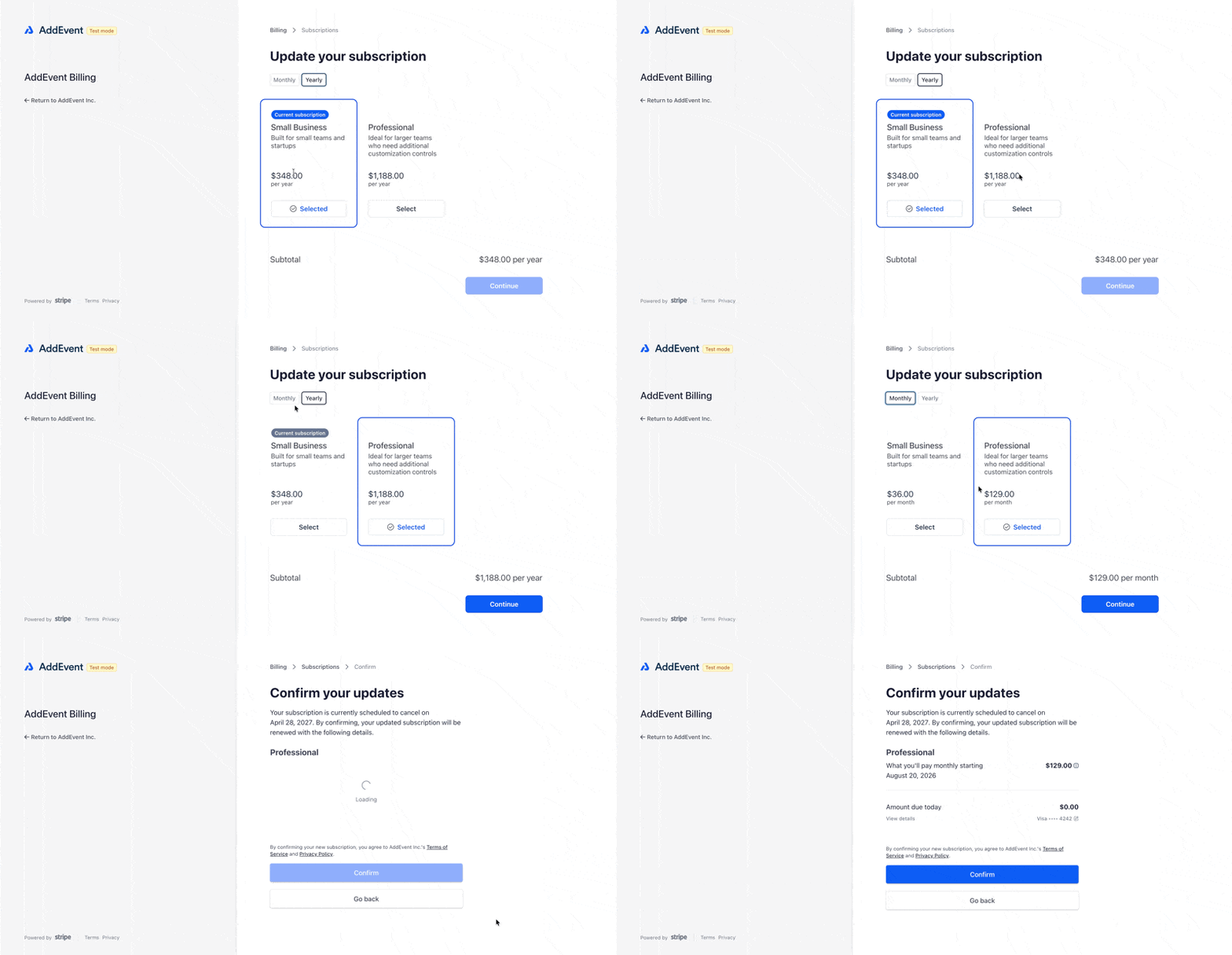
Select the subscription you want to switch to.
-
Select your preferred billing cycle: annual or monthly.
-
-
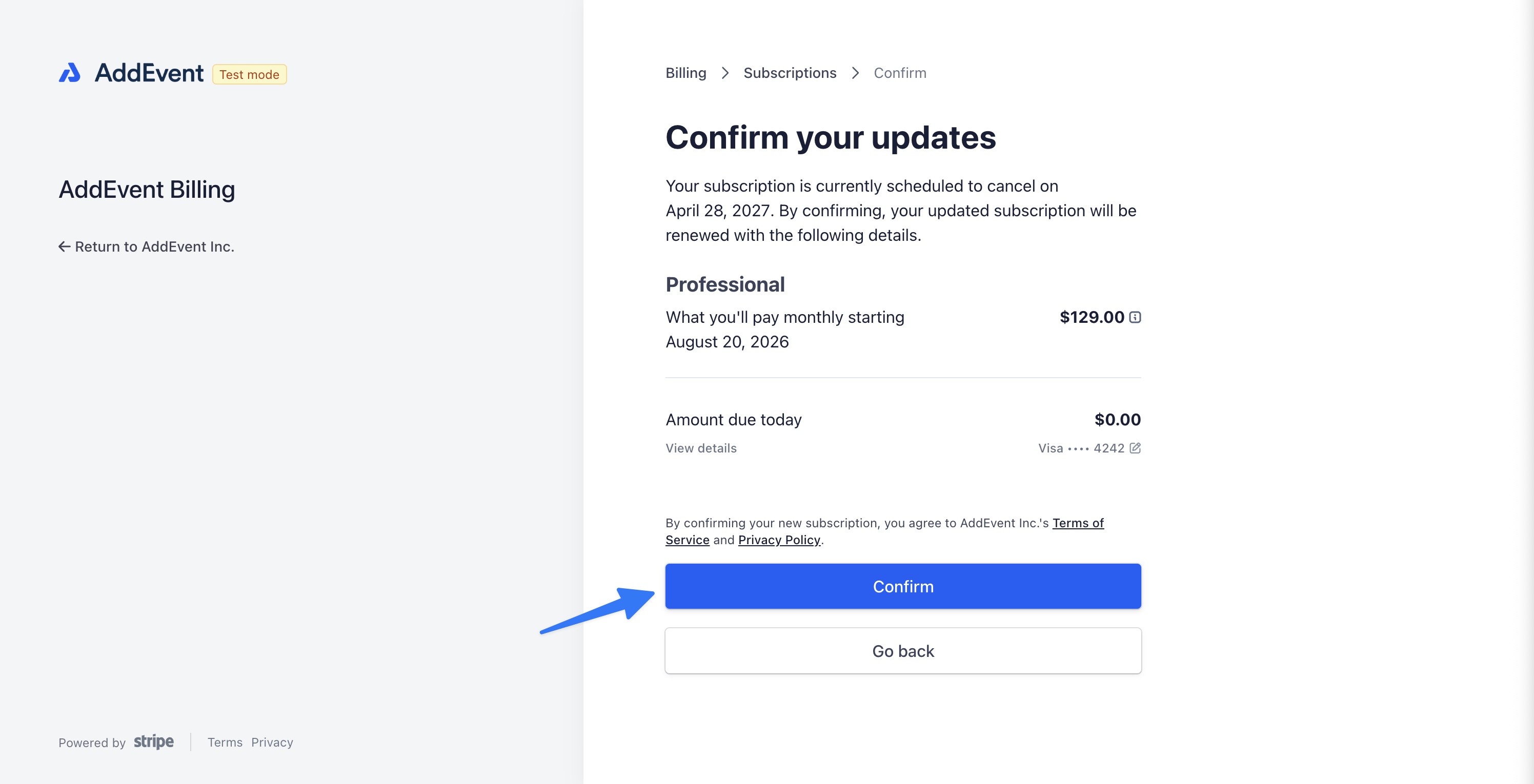
Click the Confirm button.
-
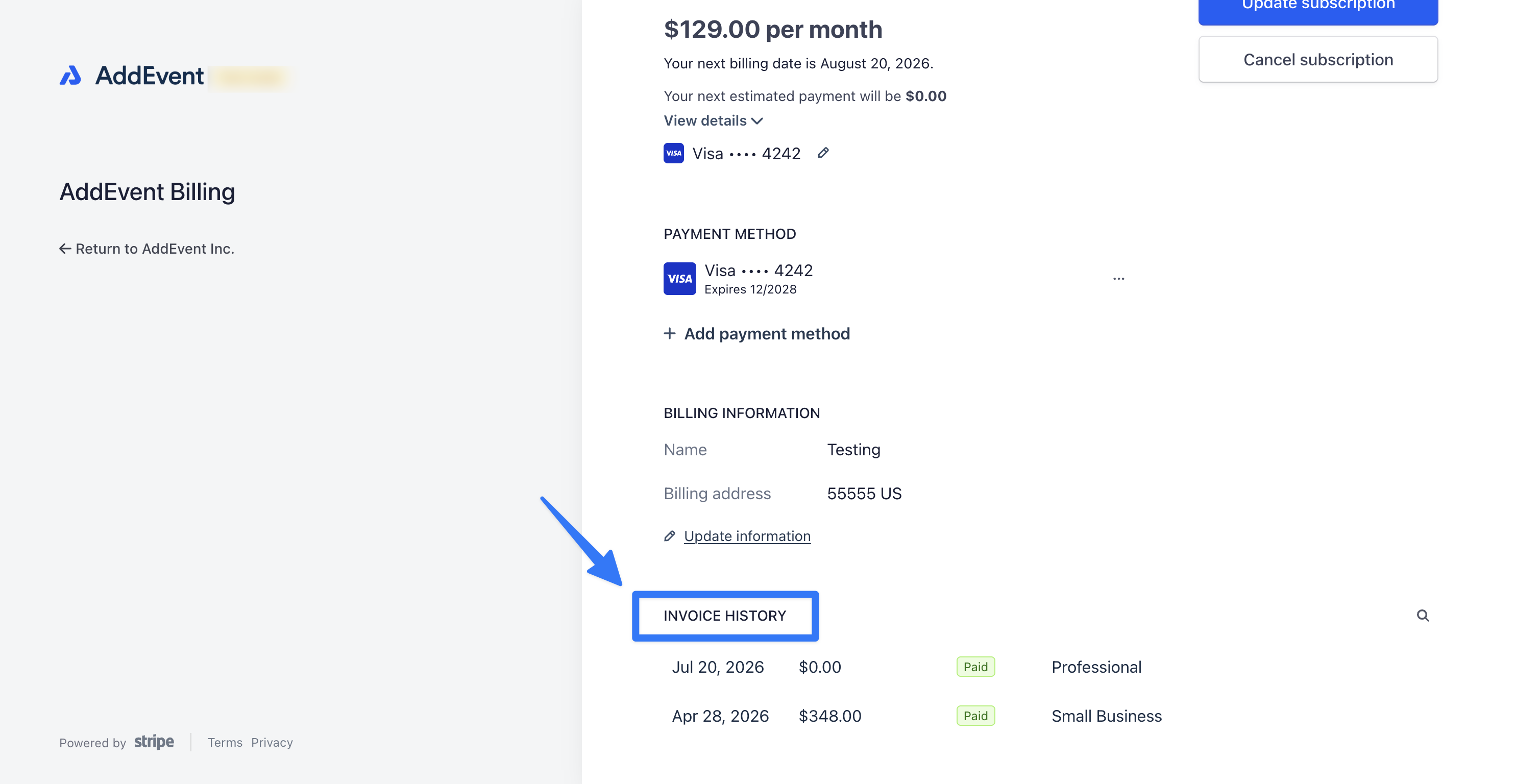
You will then see the new payment receipt in the Invoice History section on the Billing page.
Cancel Subscription
-
To cancel your subscription, navigate to the Account and settings page (https://dashboard.addevent.com/account/billing):
-
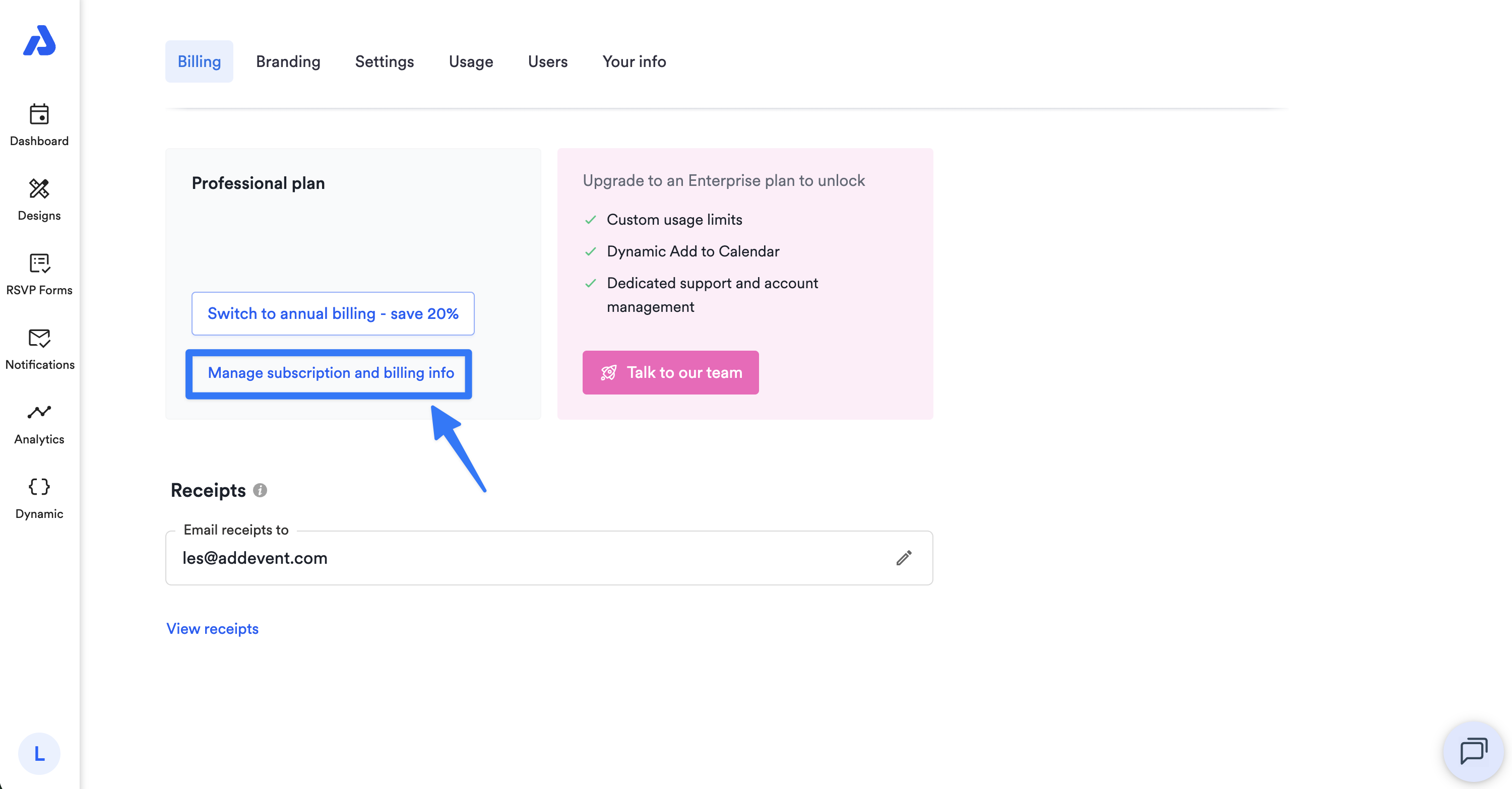
Click the Manage subscription and billing info option.
-
Select the Cancel subscription button. Ensure you follow all steps until your subscription cancellation is confirmed.
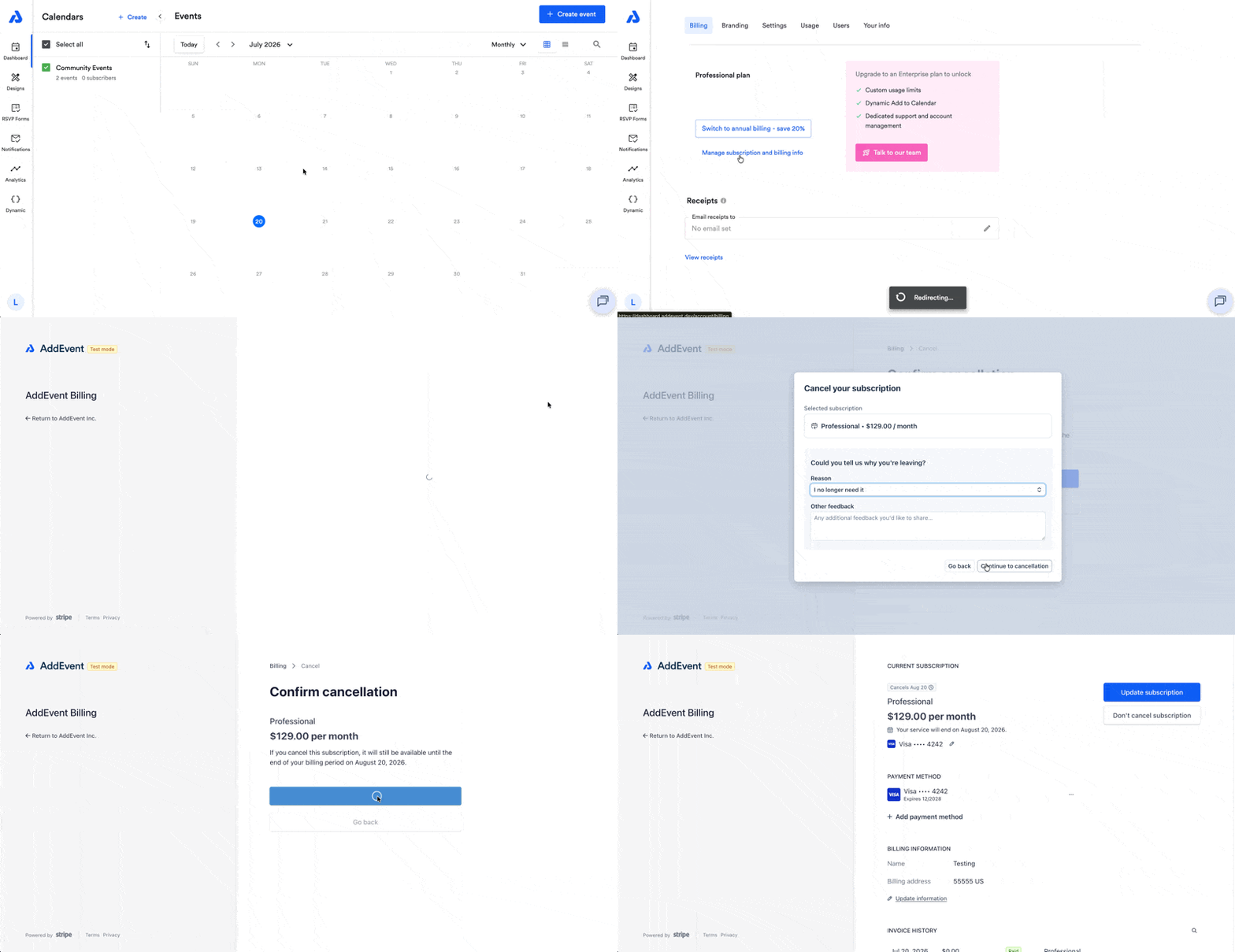
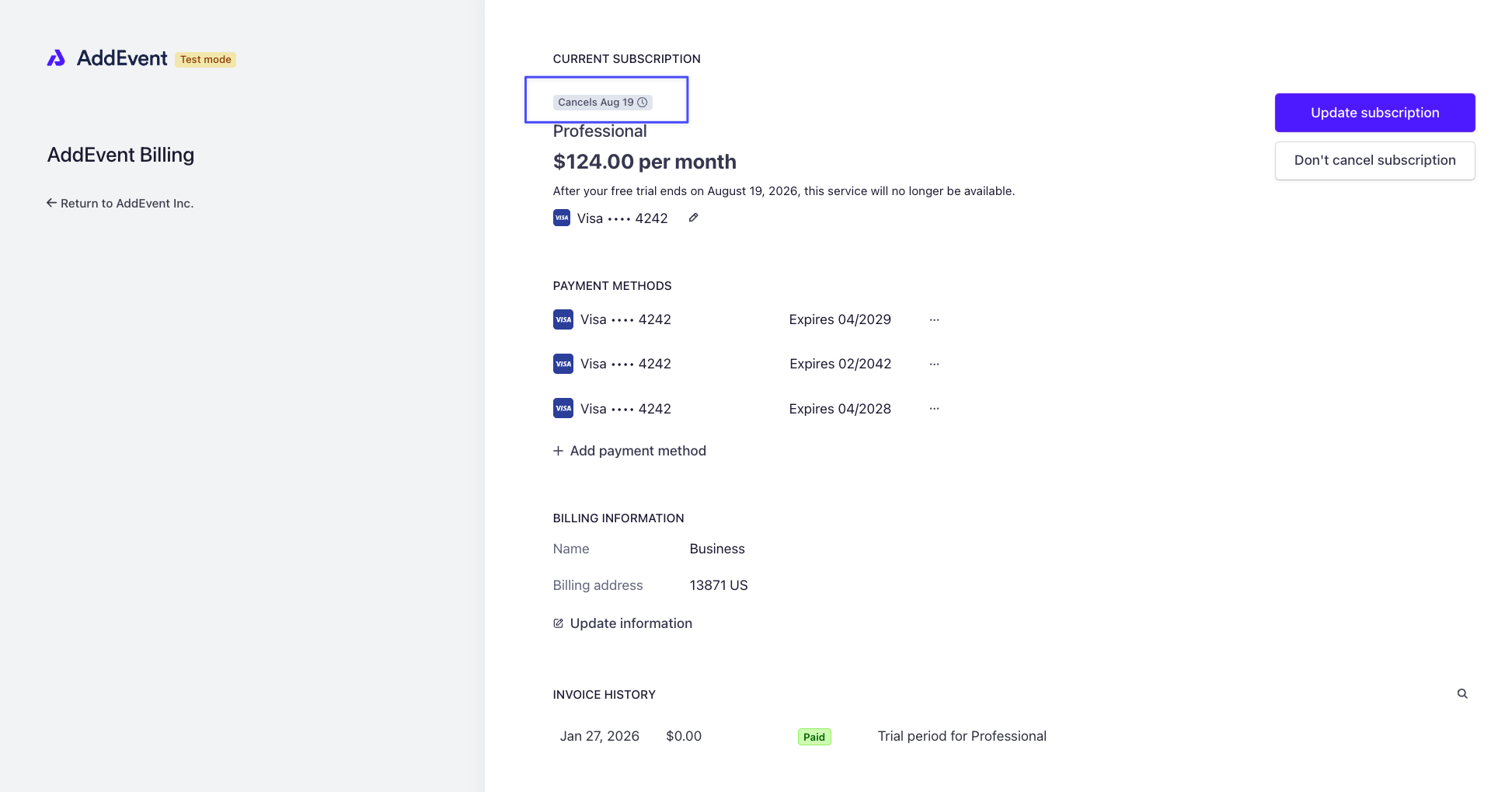
You can also check that your plan has been cancelled already and it will be noted by a "Cancels [date]" tag as shown below:
For Enterprise Subscriptions
For Enterprise subscriptions, please reach out to your account manager or contact [email protected] to cancel your subscription.
Update Payment Method
-
To update your payment method, navigate to your Account and settings page (https://dashboard.addevent.com/account/billing):
-
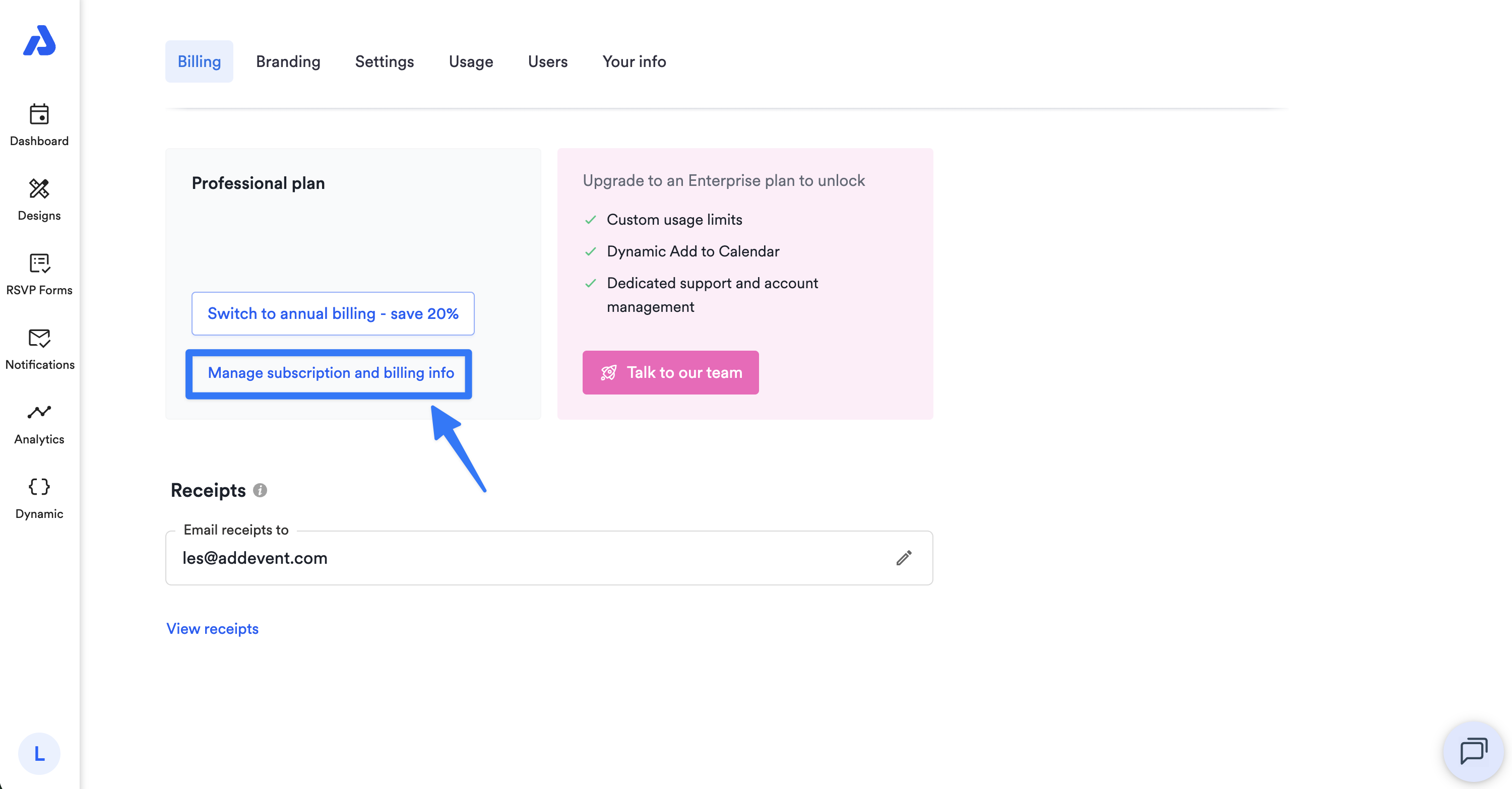
Click the Manage subscription and billing info option.
-
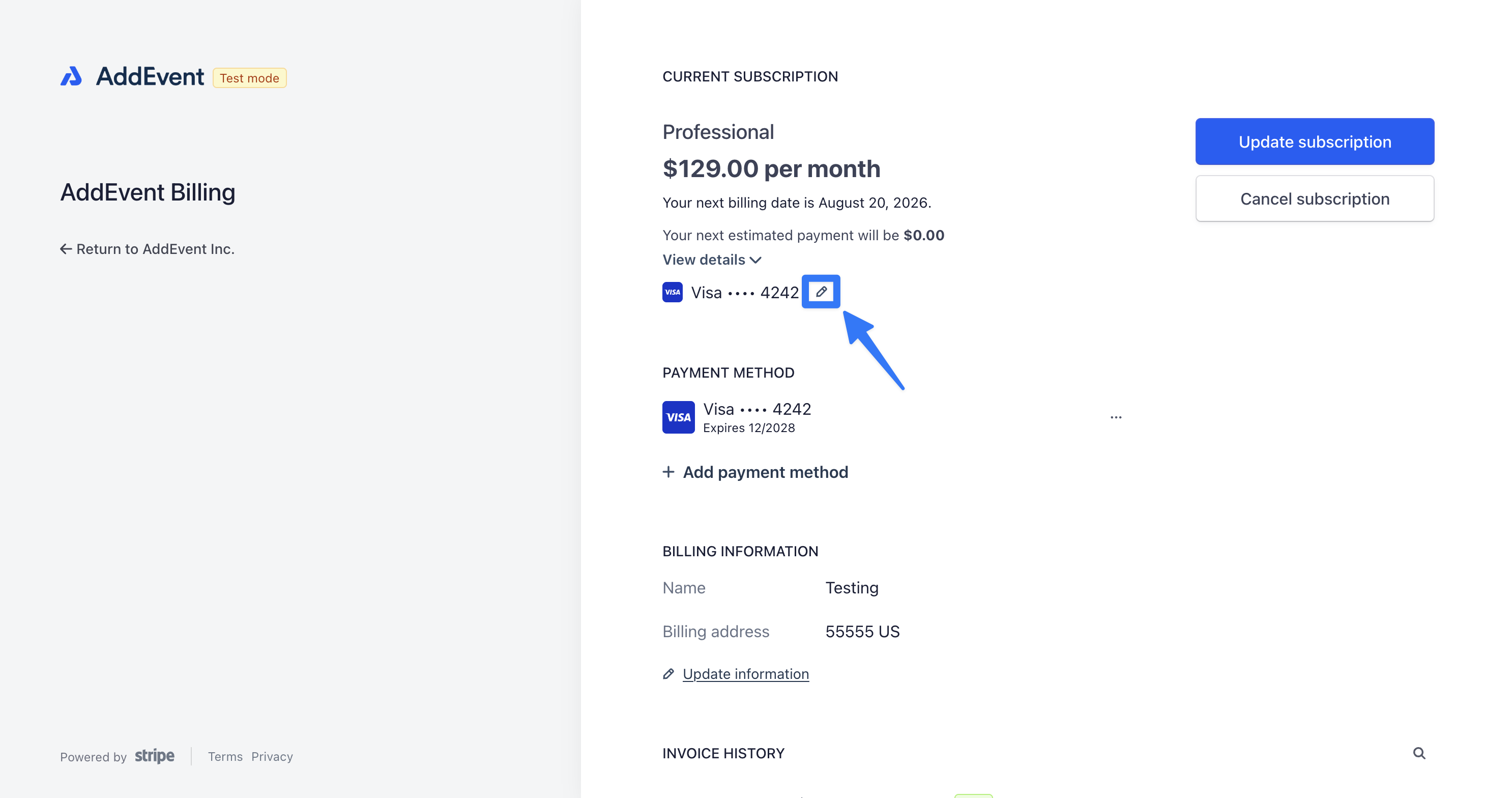
Click the edit icon next to your payment details.
-
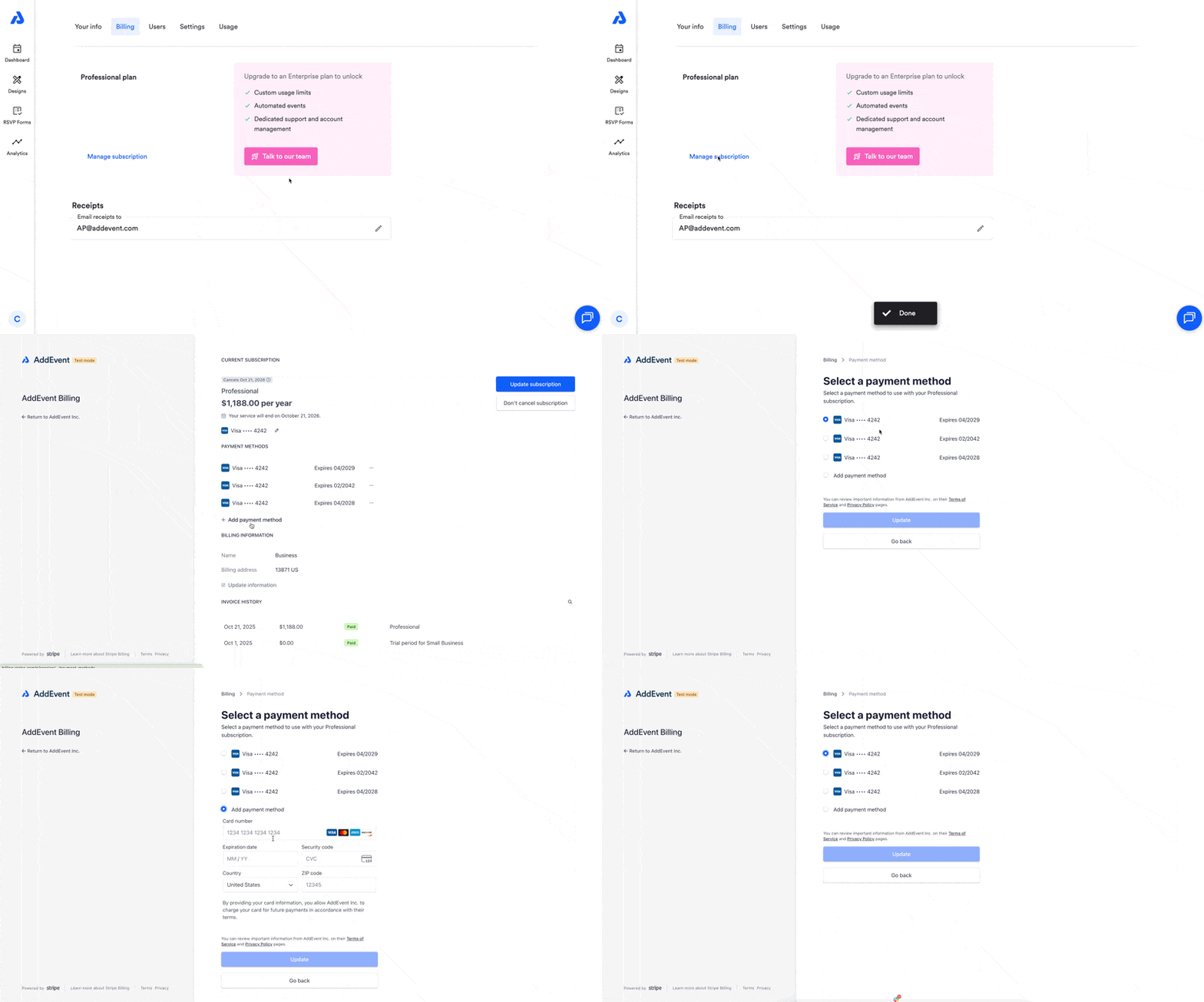
Fill out the details necessary to update your payment method: card details, address, etc.
-
Click the Save card / Update button.
Receive Email Receipts
- To receive payment receipts directly to your inbox, navigate to your Account and settings page (https://dashboard.addevent.com/account/billing):
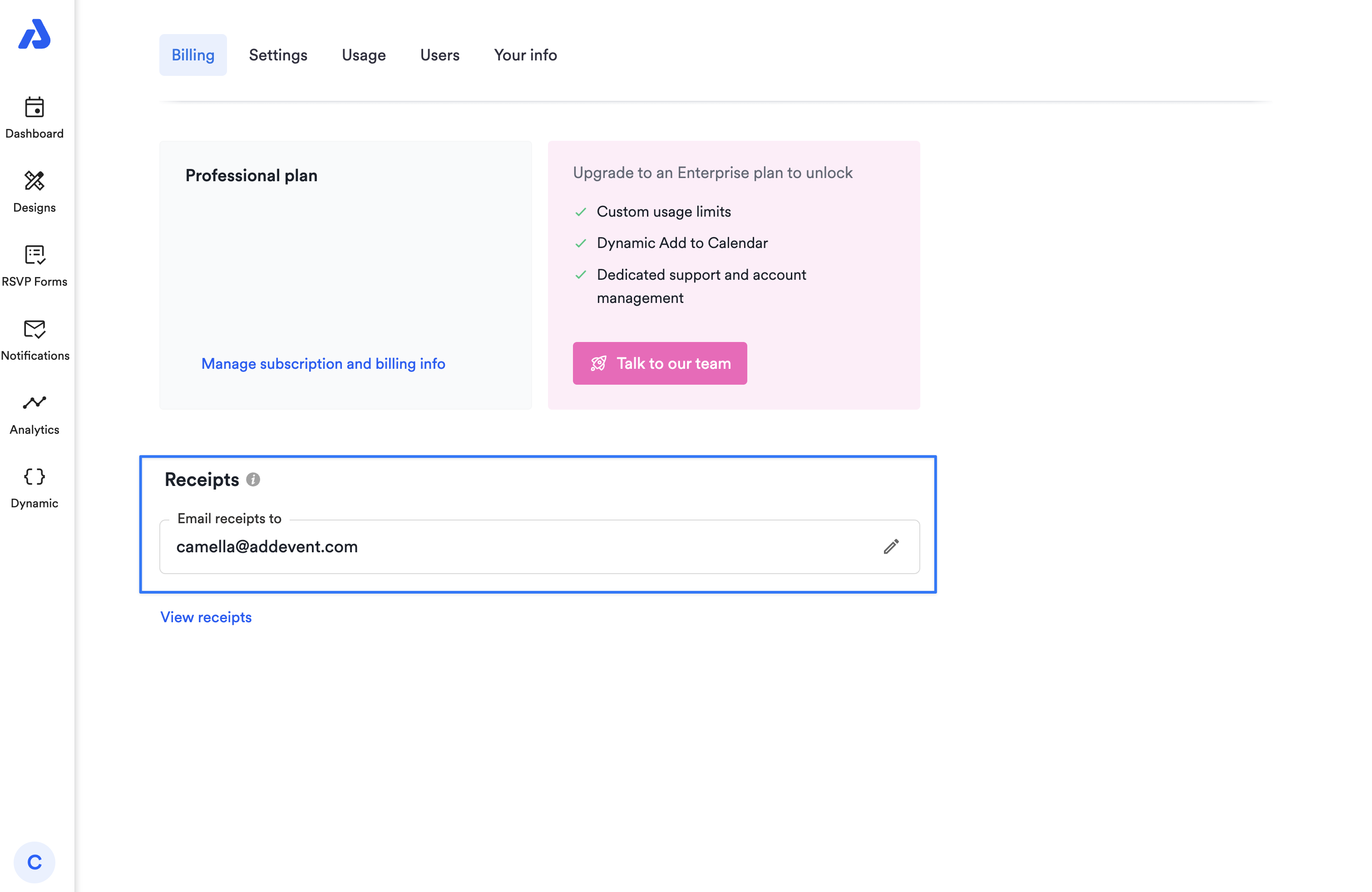
- Scroll down to the Receipts section and click the edit icon to enter the desired email address.
-
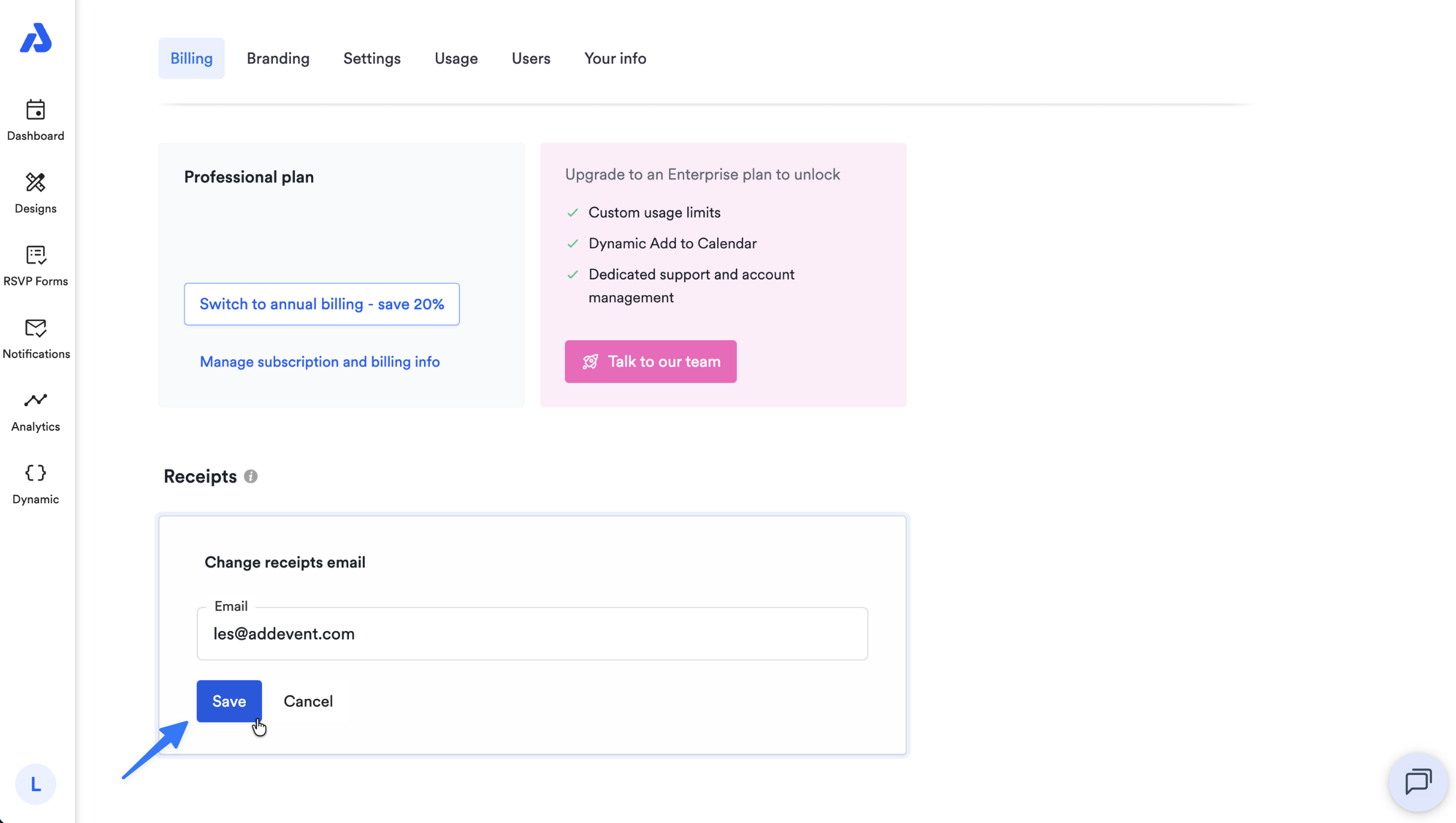
Click the Save button.
View or Download Payment Receipts
-
To view and download receipts, navigate to your Account and settings page (https://dashboard.addevent.com/account/billing):
-
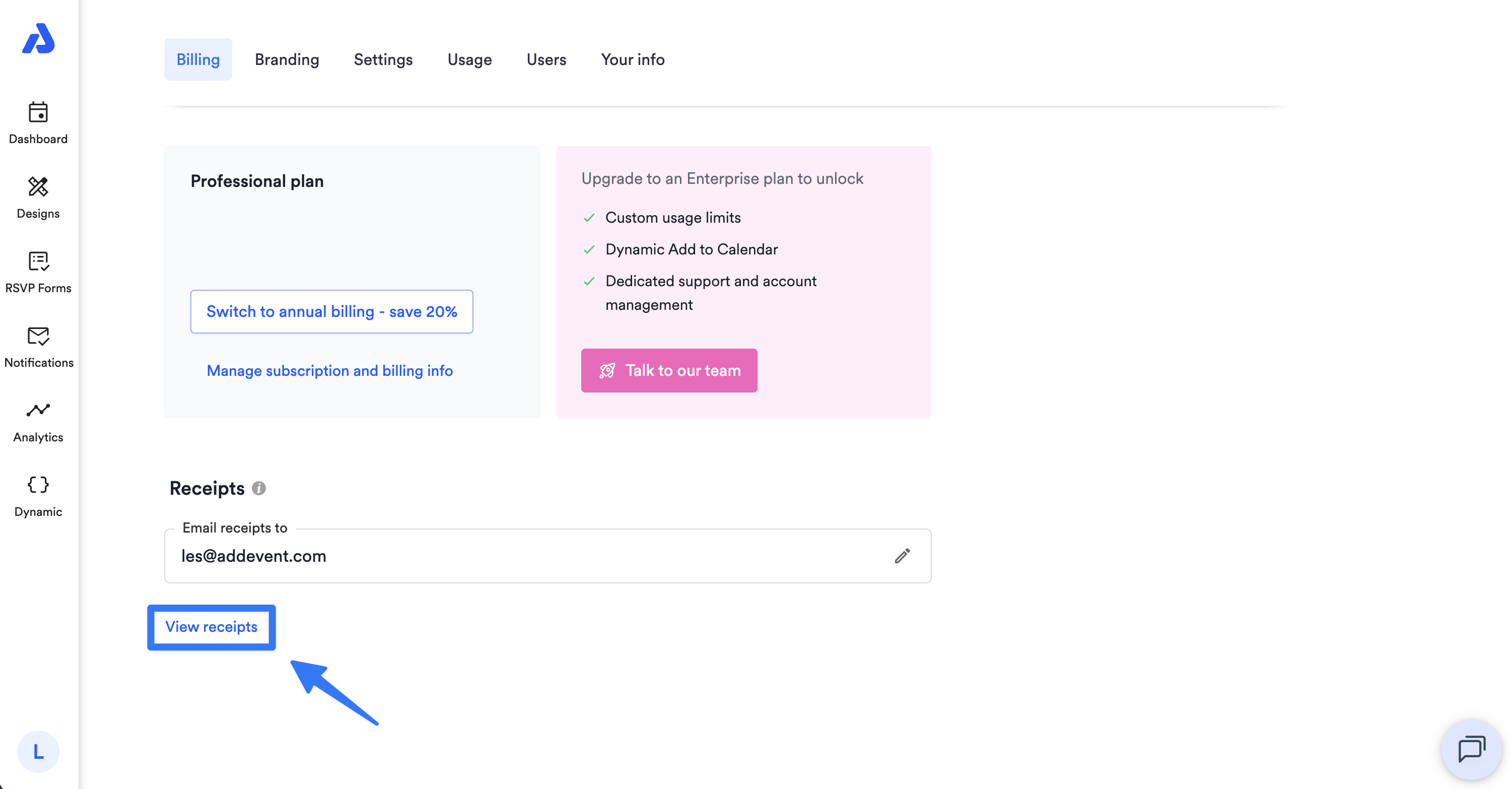
Click the View receipts option located under the "Email Receipts to" field.
-
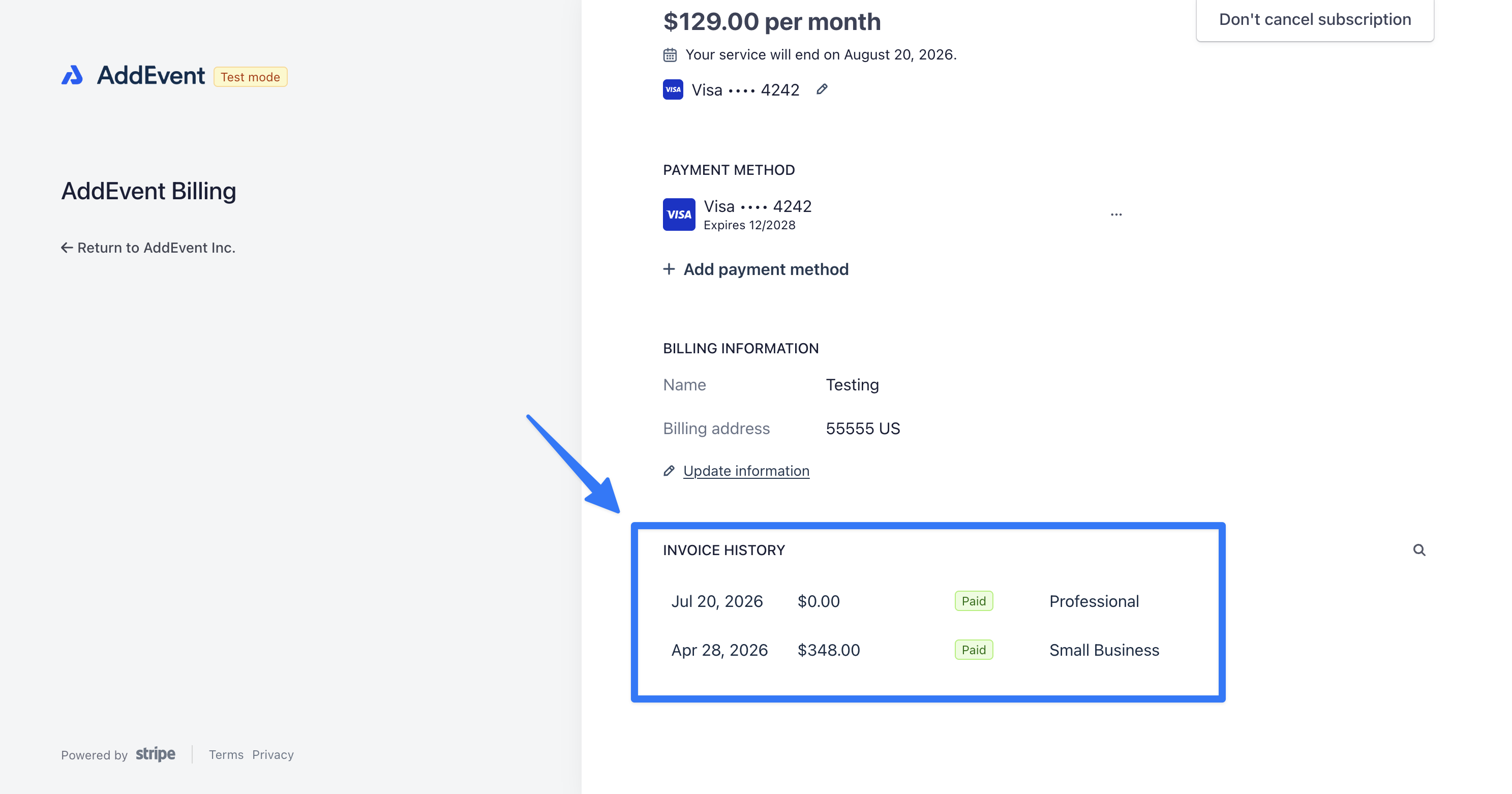
On the following Billing page, scroll down to the Invoice History section.
-
Select an invoice.
-
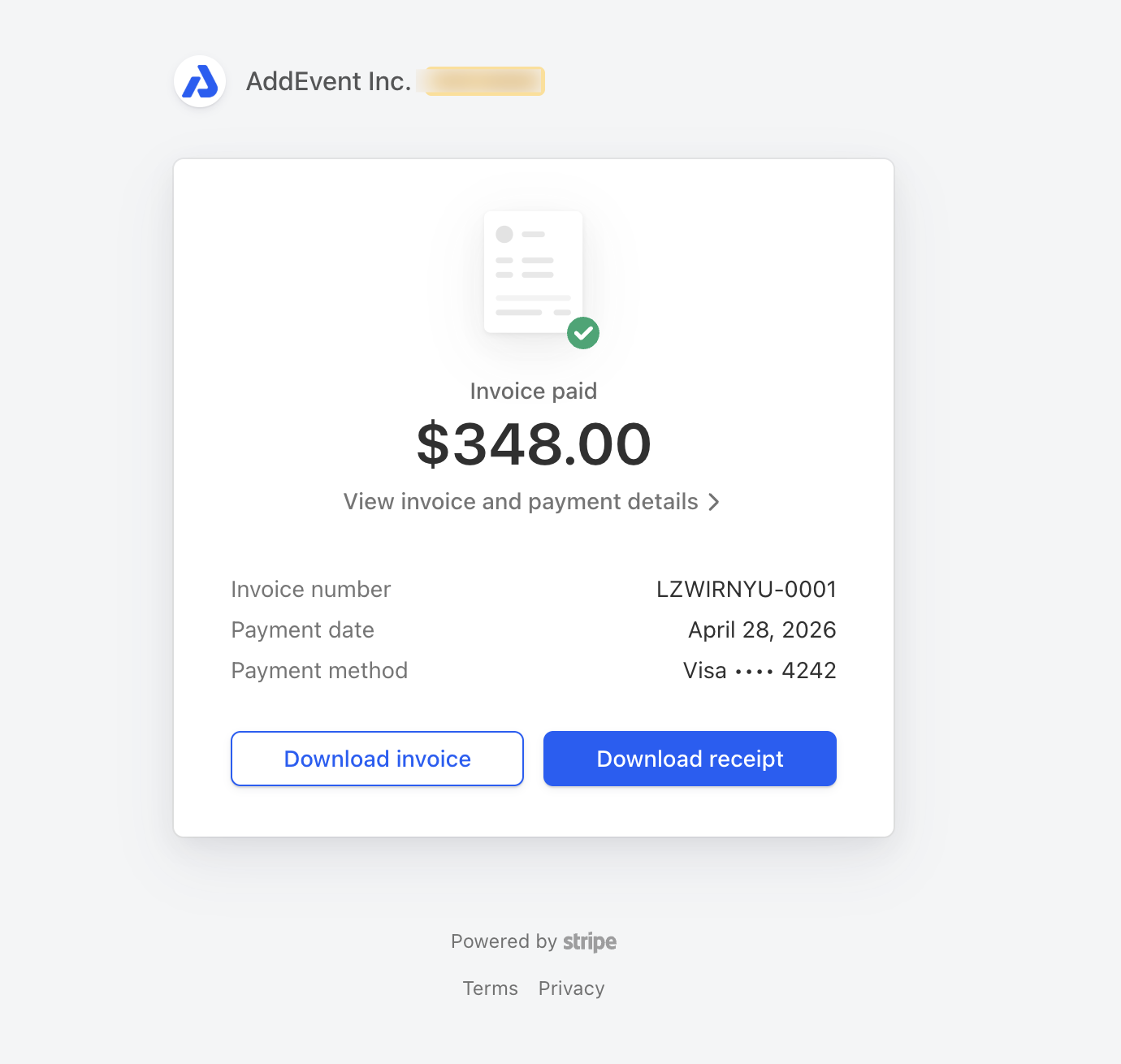
On the following page, you can click both the Download invoice and/or Download receipt option.
Update Billing Information
-
To update your billing information such as the name and billing address, navigate to your Account and settings page (https://dashboard.addevent.com/account/billing).
-
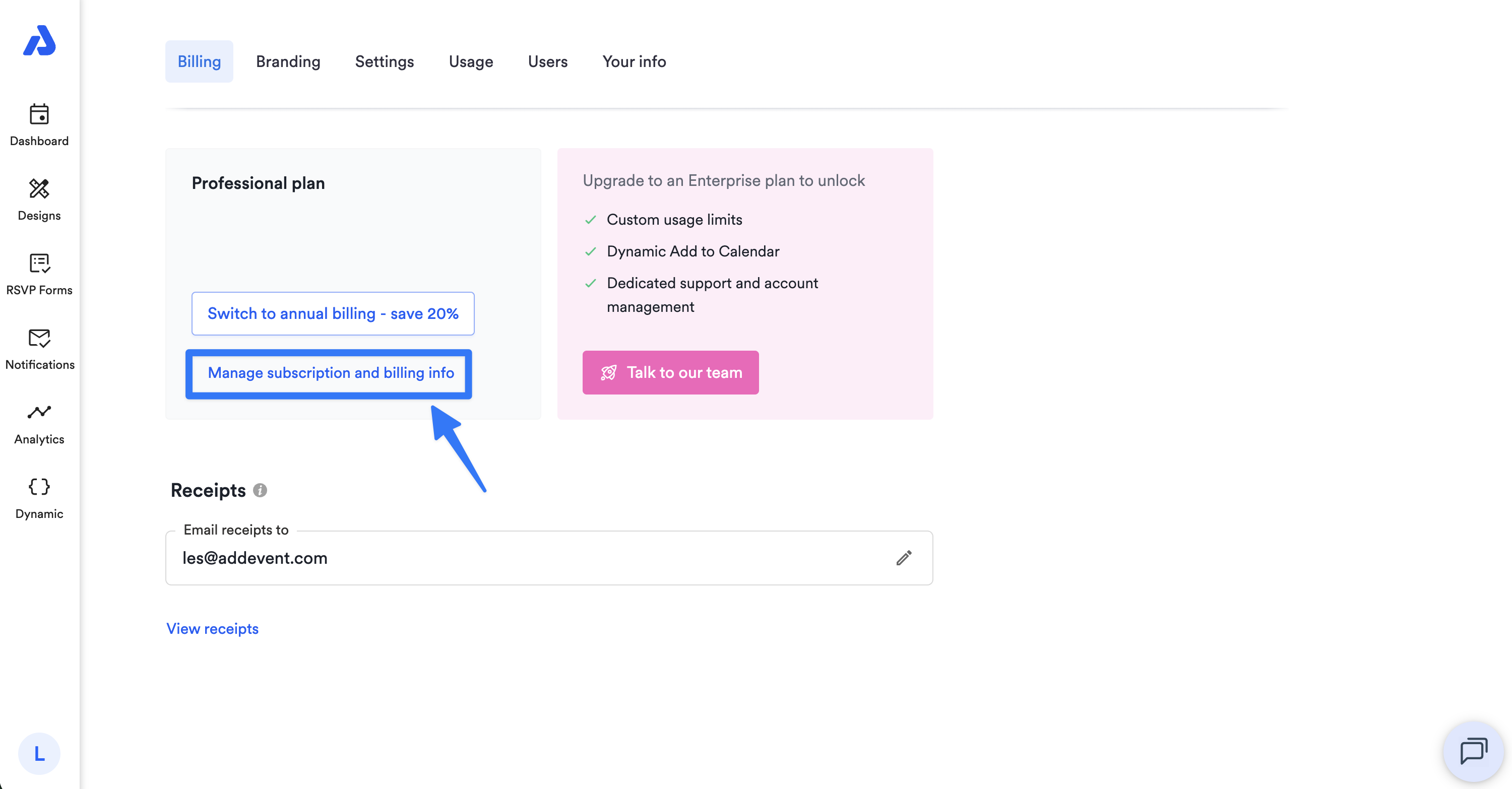
Click on the Manage subscription and billing info link.
-
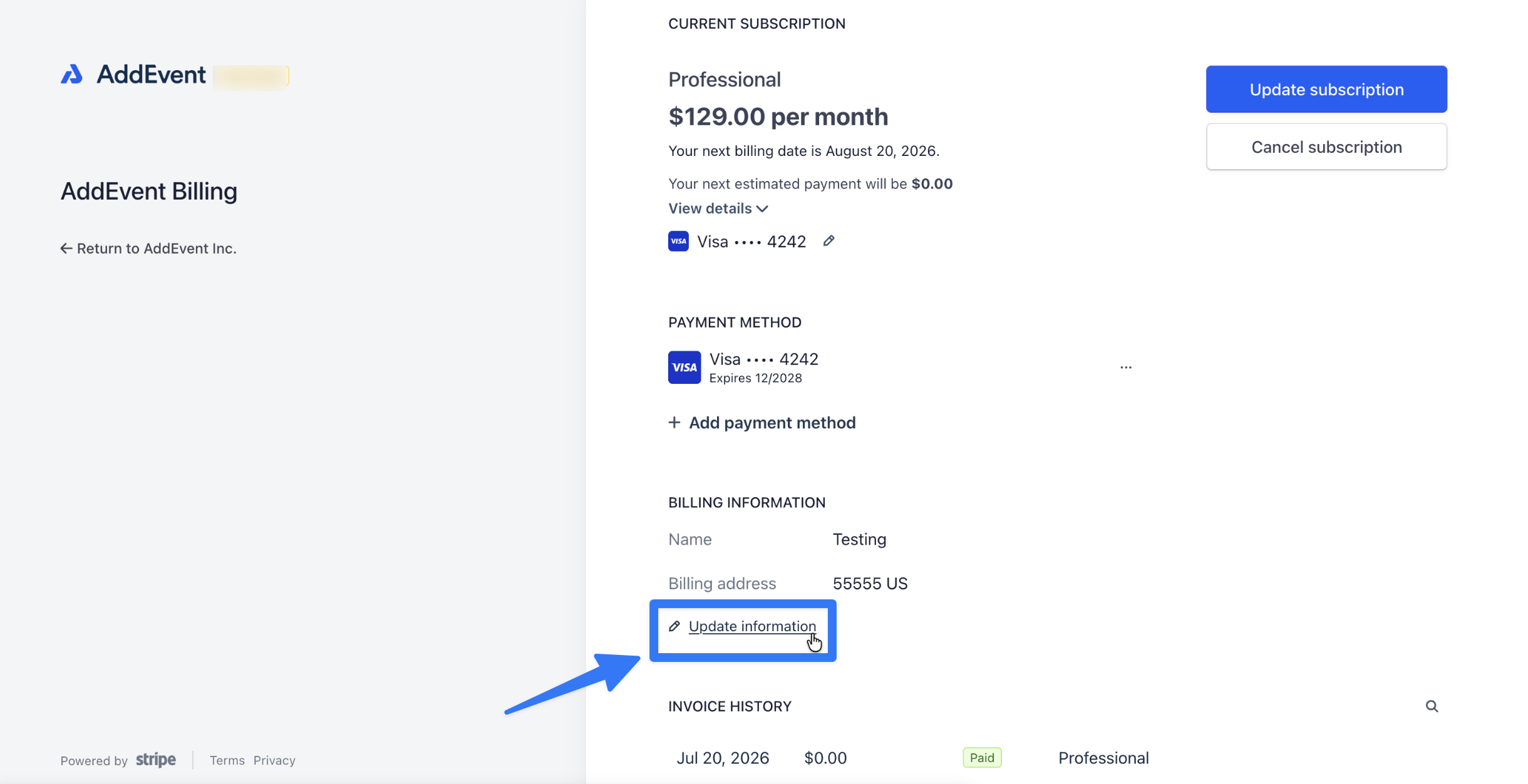
Click on the Update information link located under the existing name and billing address.
-
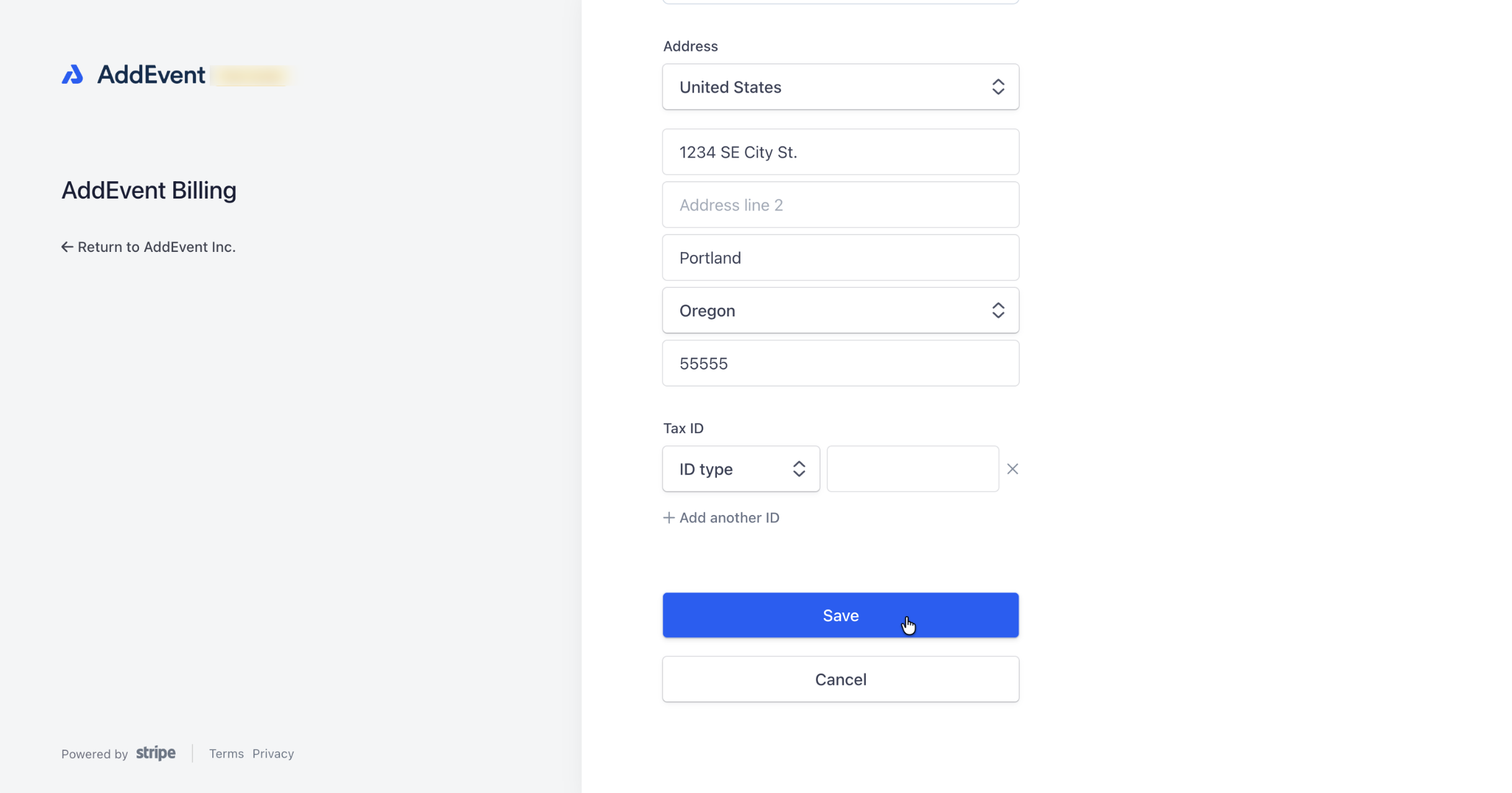
Input your billing information and click the Save button.
Updated 3 months ago