

Create an RSVP Form in AddEvent
This help doc shares instructions on how to create an RSVP Form. RSVP forms allow you to add your own questions (form fields) to your RSVP forms, so you can get the information you need from your registrants.
How to Create an RSVP Form in AddEvent
To create a new RSVP Form, follow the steps below:
-
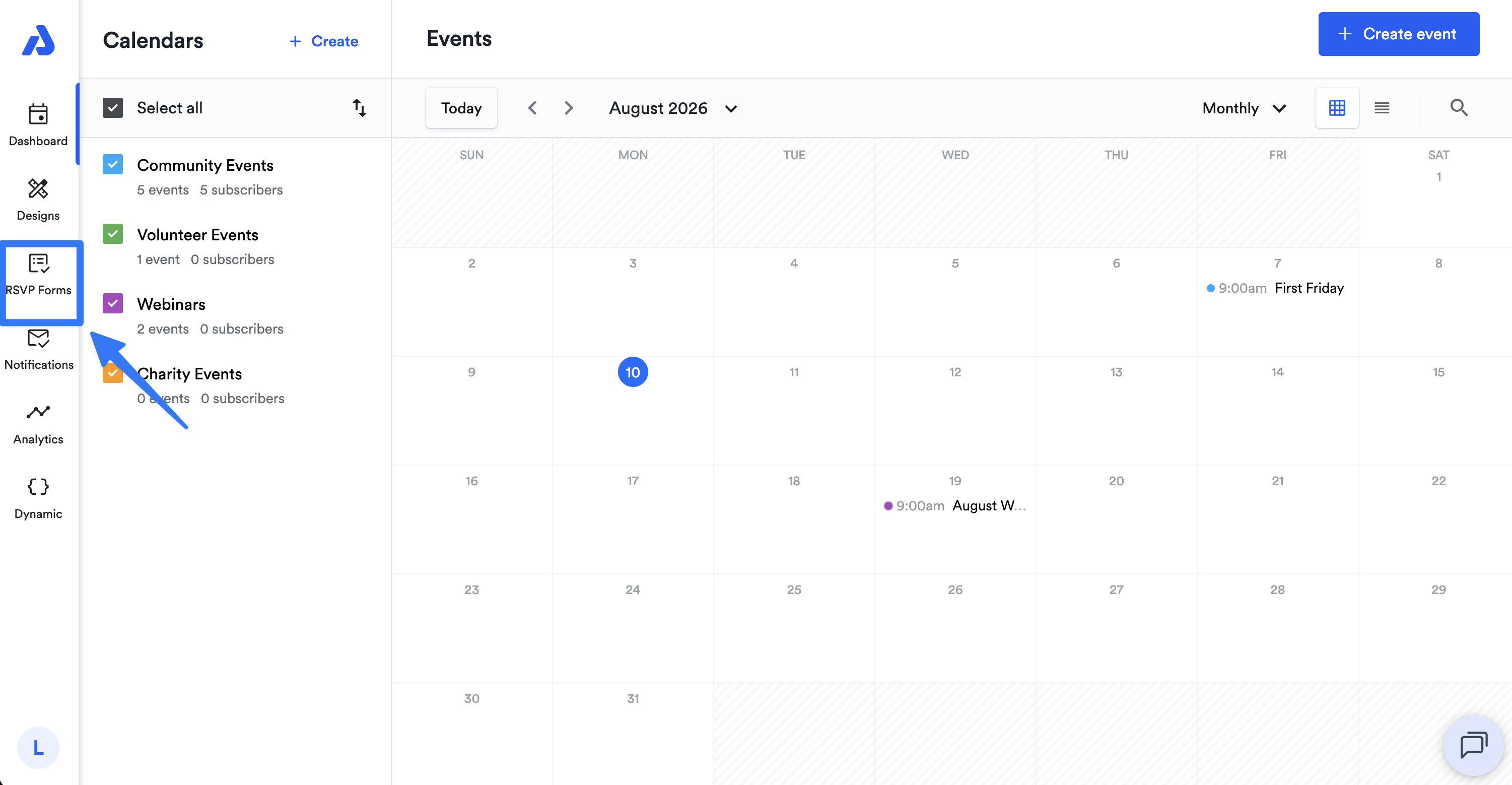
From the Dashboard, select the RSVP Forms tab located on the left-side navigation menu.
-
Click the + Create form button located on the top-right corner of the page.
-
Enter a title for the form.
-
Customize the form to allow collection of the specific information you want to collect from attendees by adding form fields. Click the + Add form field button located at bottom of the form fields list.
-
Select the Settings tab to configure your RSVP form's settings: form title and description, response options, confirmation messages, and form submission button text.
-
Once finished customizing your RSVP form, click the Create Form button located at the bottom left-hand corner of the page.
Please note that RSVP Form settings were previously located within event landing page designs, but have since been relocated. Any customizations for the form's title and description, response options, confirmation messages, and the form submission button text must be done within the RSVP Form's settings.
Updated 8 days ago