

How to Change Account Ownership
This help doc shares instructions on how to change account ownership in your AddEvent account by updating the account name and email address. This is useful when transferring ownership to another team member or new account owner.
How to Change Account Ownership
You can update your account information to change account ownership by following the below steps:
- Sign in to your account at AddEvent.com.
- Click the blue circle in the bottom-left corner of the Dashboard.
- Select the Account and Settings option.
- Select the "Your Info" tab.
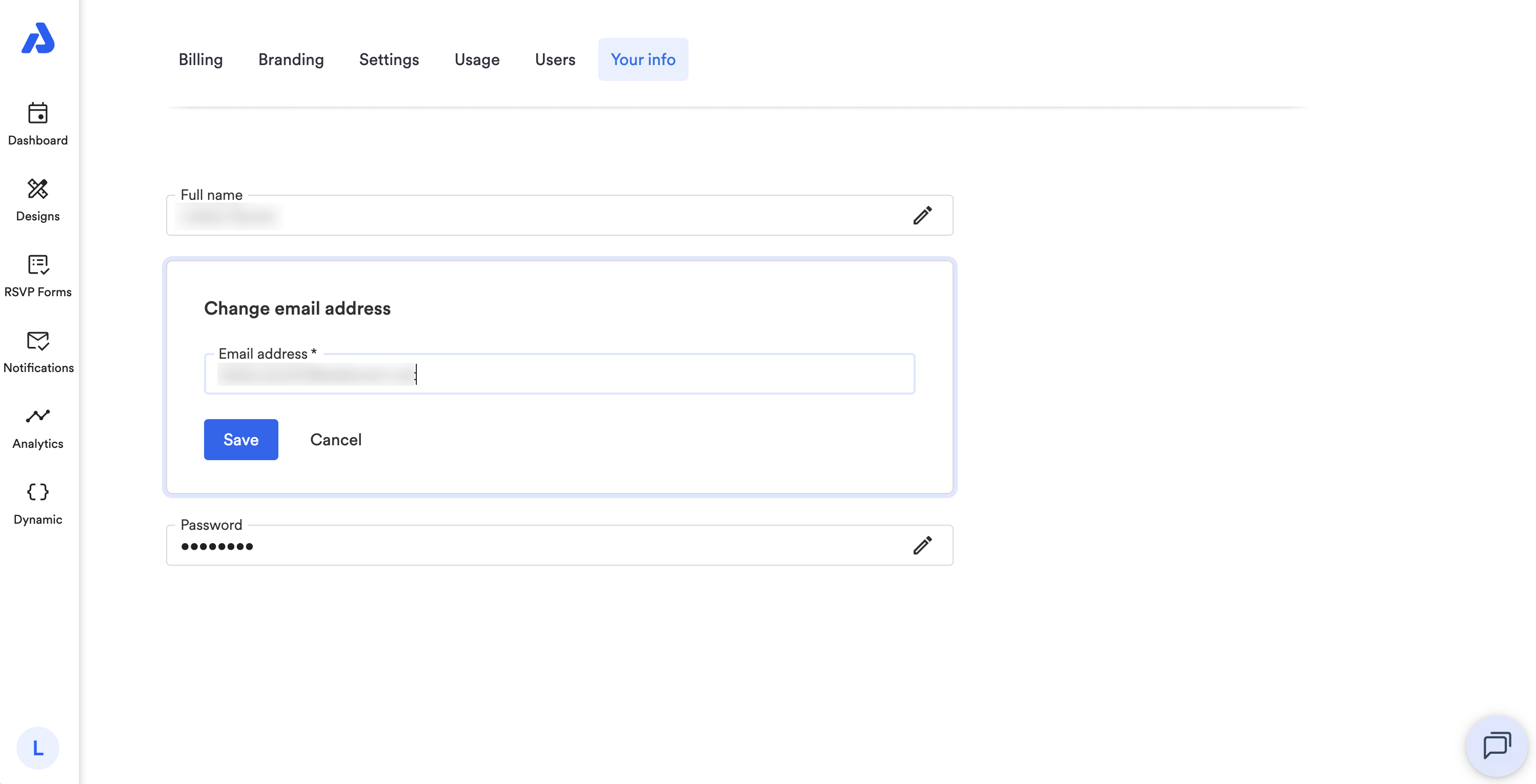
- Click the pen icon to the right of the name and email address.
- Input the new account owner's name and email.
- Click the Save button.
Once updated, the new account owner can use the saved email address to reset their password and sign in to the account.
Please note that any billing details that need to be updated when changing account ownership can be done by first navigating to Account and settings > Billing tab.
You can learn more about updating billing information in our help doc here: Billing
How to Change Your Account's Email When Using SSO (Social Sign-On)
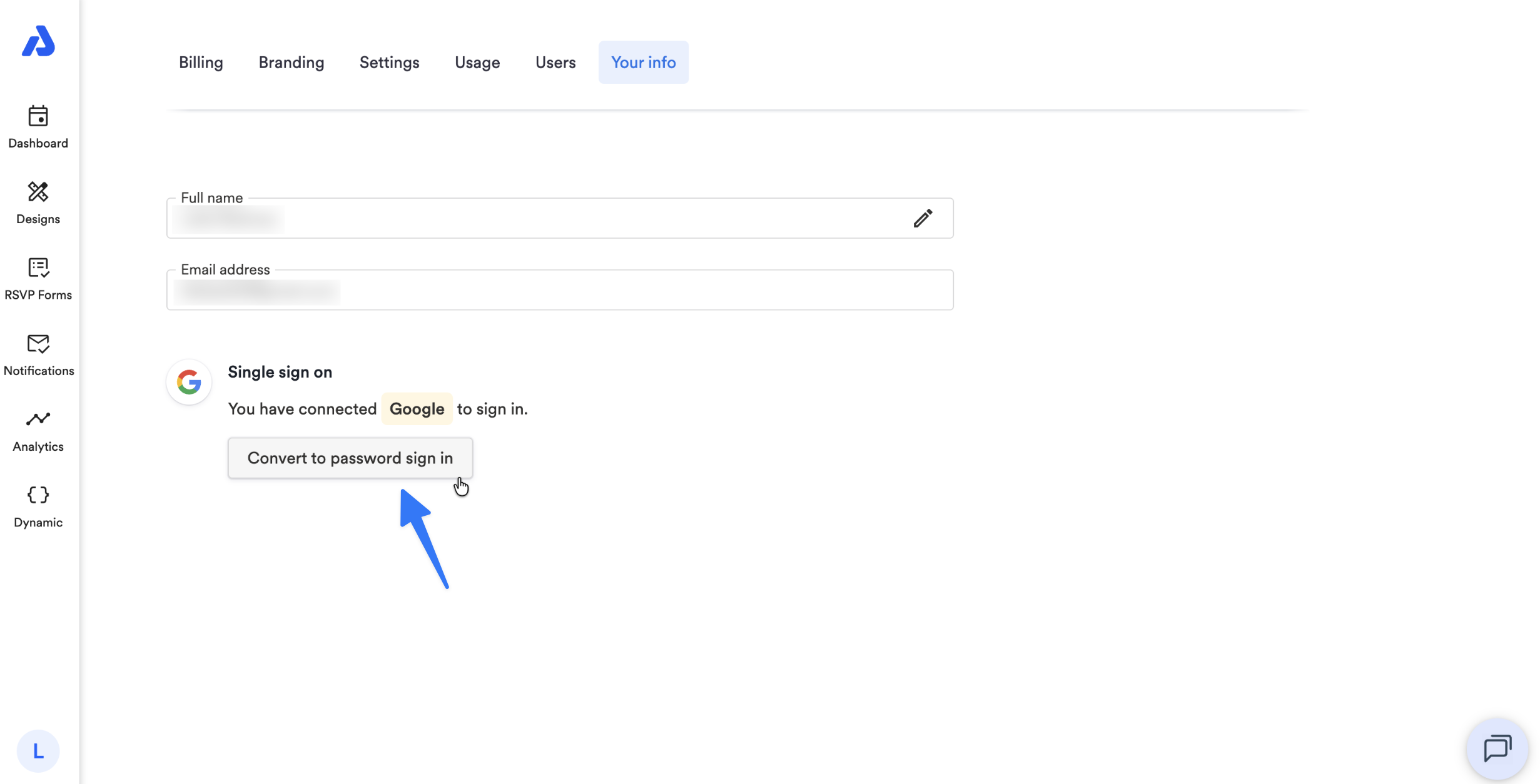
If you do not see the edit icon to the right of the email address field within the Your Info tab, the account user is using SSO (Social Sign-On). You will need to switch to a password login before updating the email address.
Follow the steps below to update the email address for accounts using SSO (Social Sign-On).
- From the Account and settings page, select the Your Info tab.
- Click Convert to password sign in.
-
This will send a password reset email to your current email address.
-
- Open the email from AddEvent and reset your password from the link.
- Log in using your new password.
- Return to the Your Info tab.
- Edit the name and email address by clicking the edit icon located to the right of the name/email address field.
- Enter the new account owner's name and email address.
- Click the Save button.
After following the above steps, the new account owner can use the saved email address to reset their password and sign in to the account.
Updated 2 months ago