

Set a Default Event Landing Page Design Template
This help doc shares instructions on how to set a default event landing page design template for a calendar that will automatically be applied when any new events within that calendar are created.
How to Set a Default Event Landing Page Design Template for a Calendar
To apply a specific event landing page design template by default to all newly created events within a calendar, follow the steps below.
All existing events within the calendar will not be updated with the default event landing page design.
-
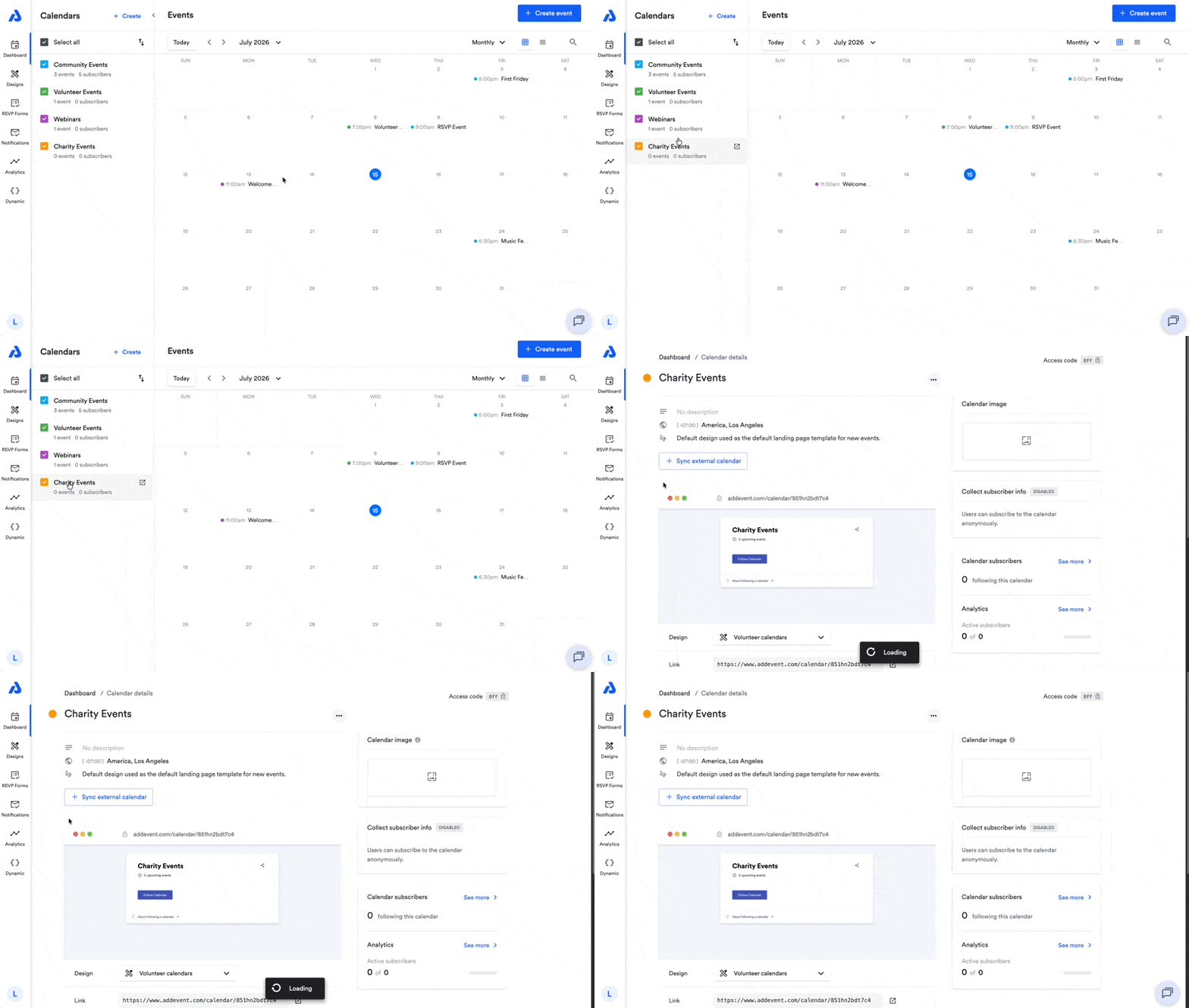
From the Dashboard, click on the calendar's title. You will be directed to the Calendar details page.
-
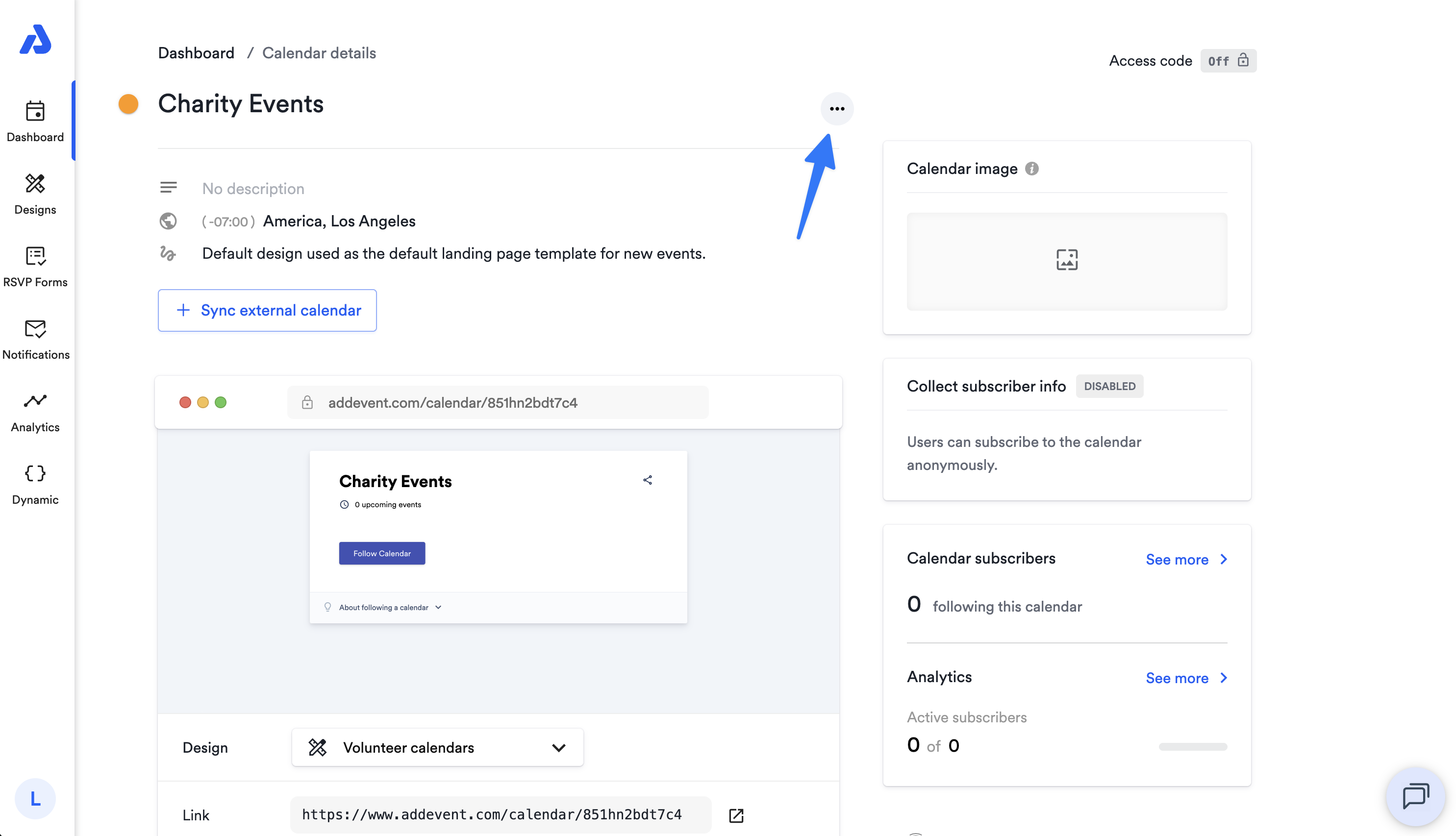
Click the ellipsis icon (...) located to the right of the calendar's title.
-
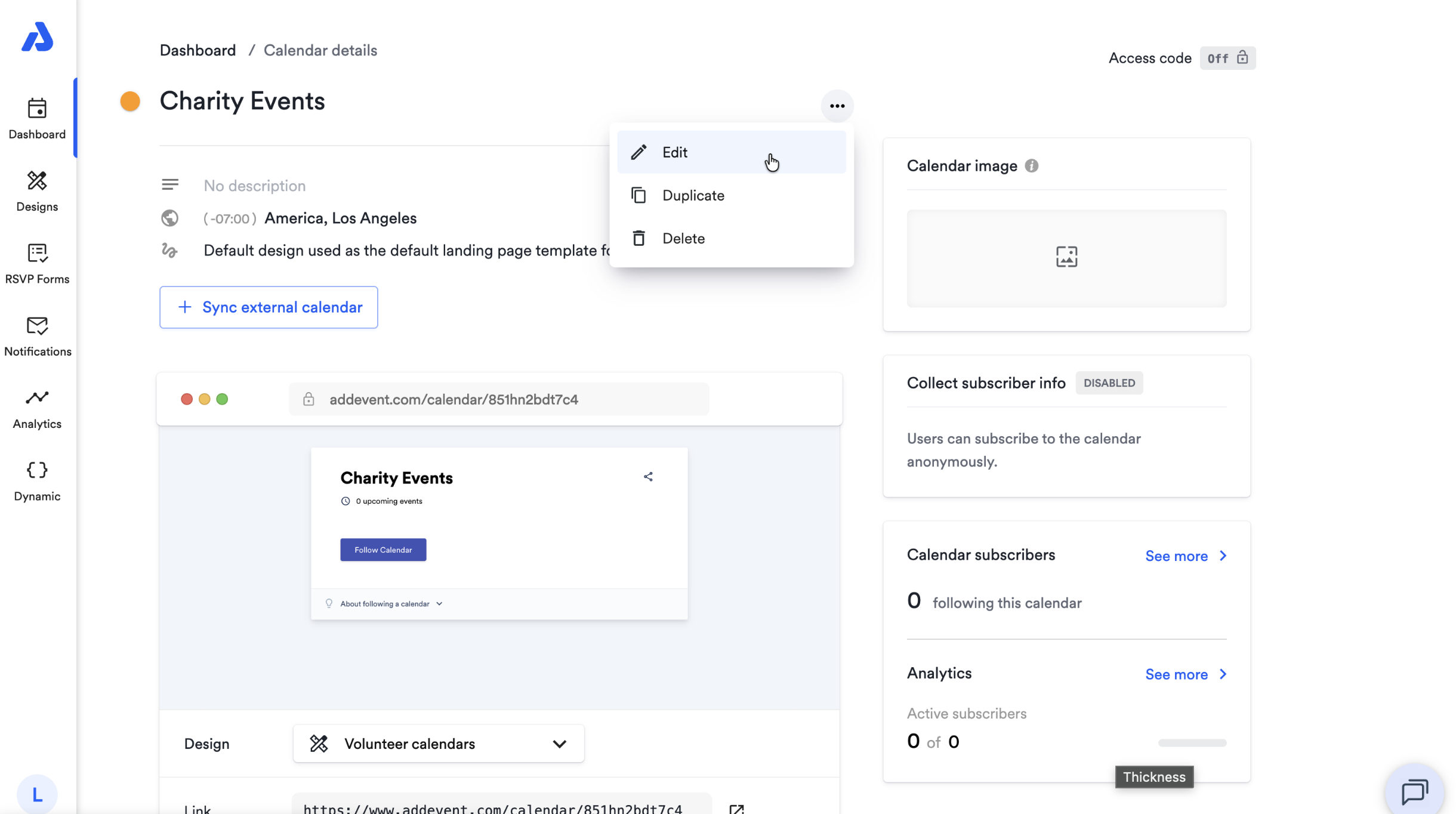
Select the Edit option.
-
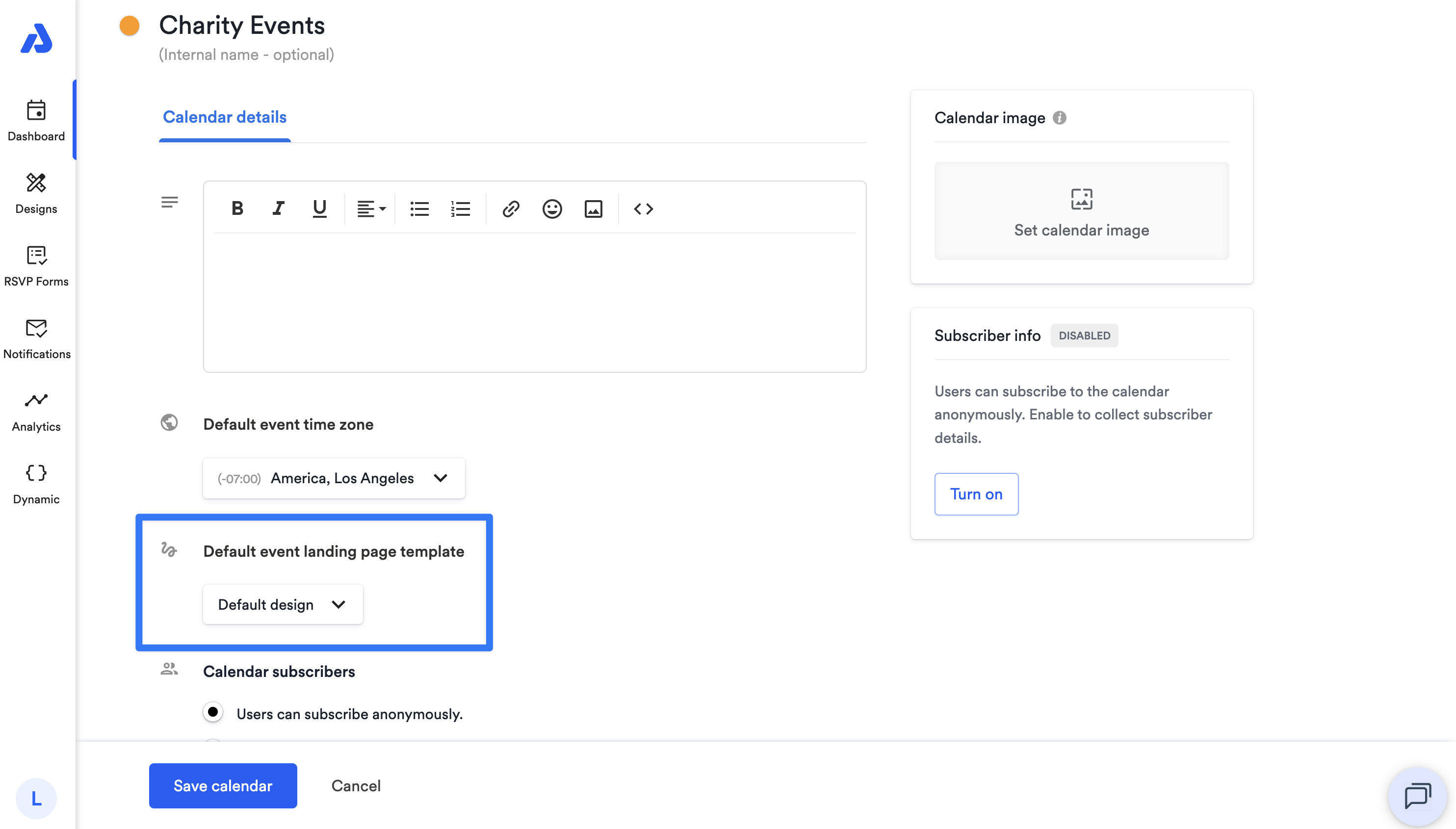
Scroll down to the Default design dropdown and select the event landing page design you want applied to all new events created within that calendar going forward.
-
After selecting your default design template, click the Save calendar button to apply your changes.
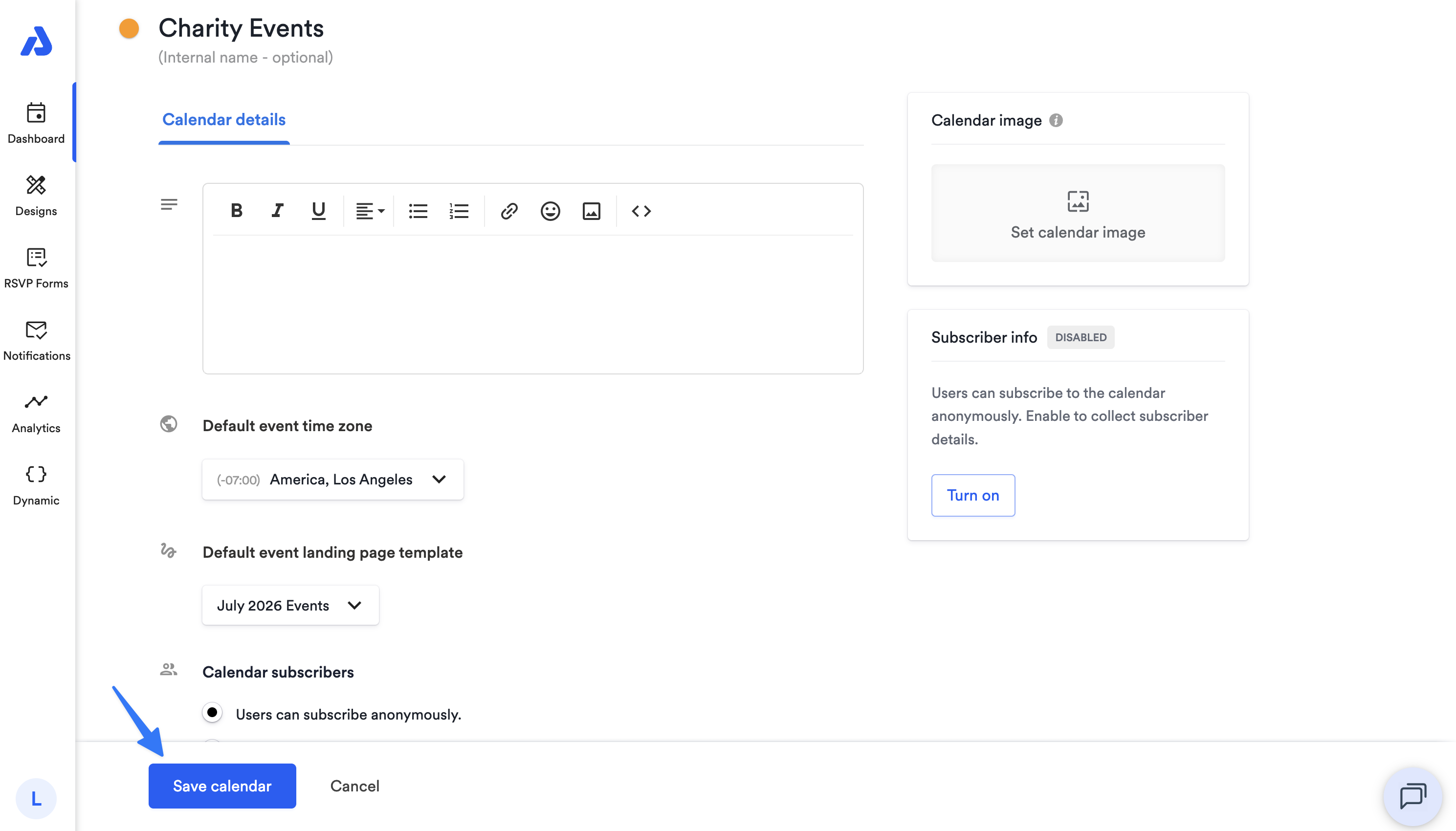
Once set, every new event you create under this calendar will automatically use the selected event landing page design, ensuring a consistent look and reducing setup time.
Updated about 2 months ago