

Testing RSVP Email Notifications
This help doc shares how to test your RSVP email notifications and what to expect from the test emails.
How to Test Email Notifications
Testing your email notifications before sharing your RSVP event allows you to ensure that the confirmation, reminder, and follow-up messages sent to your registered attendees have your desired look and feel and information that you wish to communicate with your audience.
To test your RSVP email notifications, follow the steps below:
-
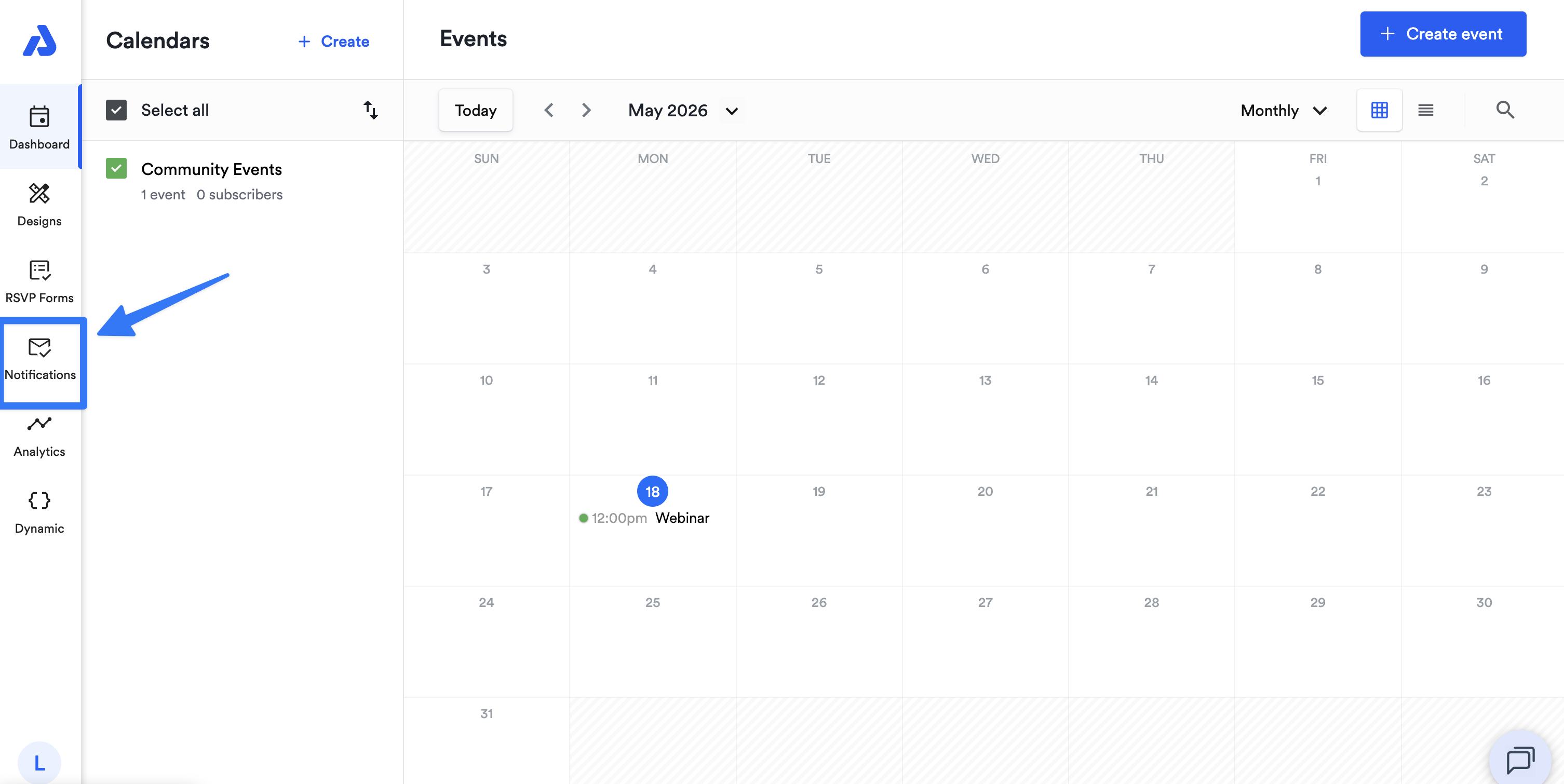
Select the Notifications tab on the left-side navigation menu.
-
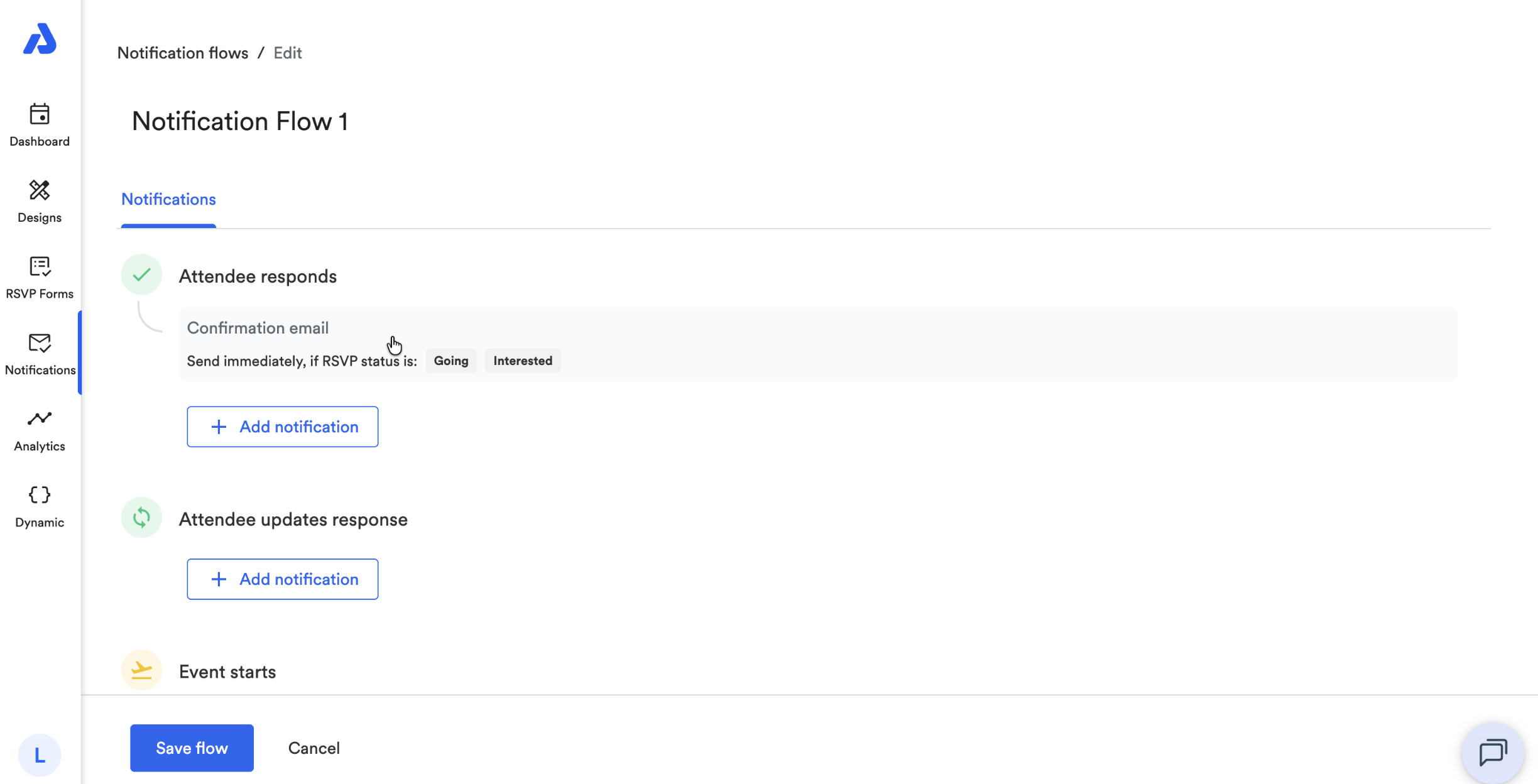
Click the Notification Flow that you have applied to your RSVP event.
- Note: Testing emails is only possible if you have applied a Notification Flow to your RSVP event. If you're using the default Notification Flow, the emails cannot be tested unless you RSVP to your event to receive the default email notifications.
Learn more about creating Notification Flows and how to apply them to your RSVP events with the following help docs:
- Note: Testing emails is only possible if you have applied a Notification Flow to your RSVP event. If you're using the default Notification Flow, the emails cannot be tested unless you RSVP to your event to receive the default email notifications.
-
Click the email notification that you wish to test in order to expand the options.
-
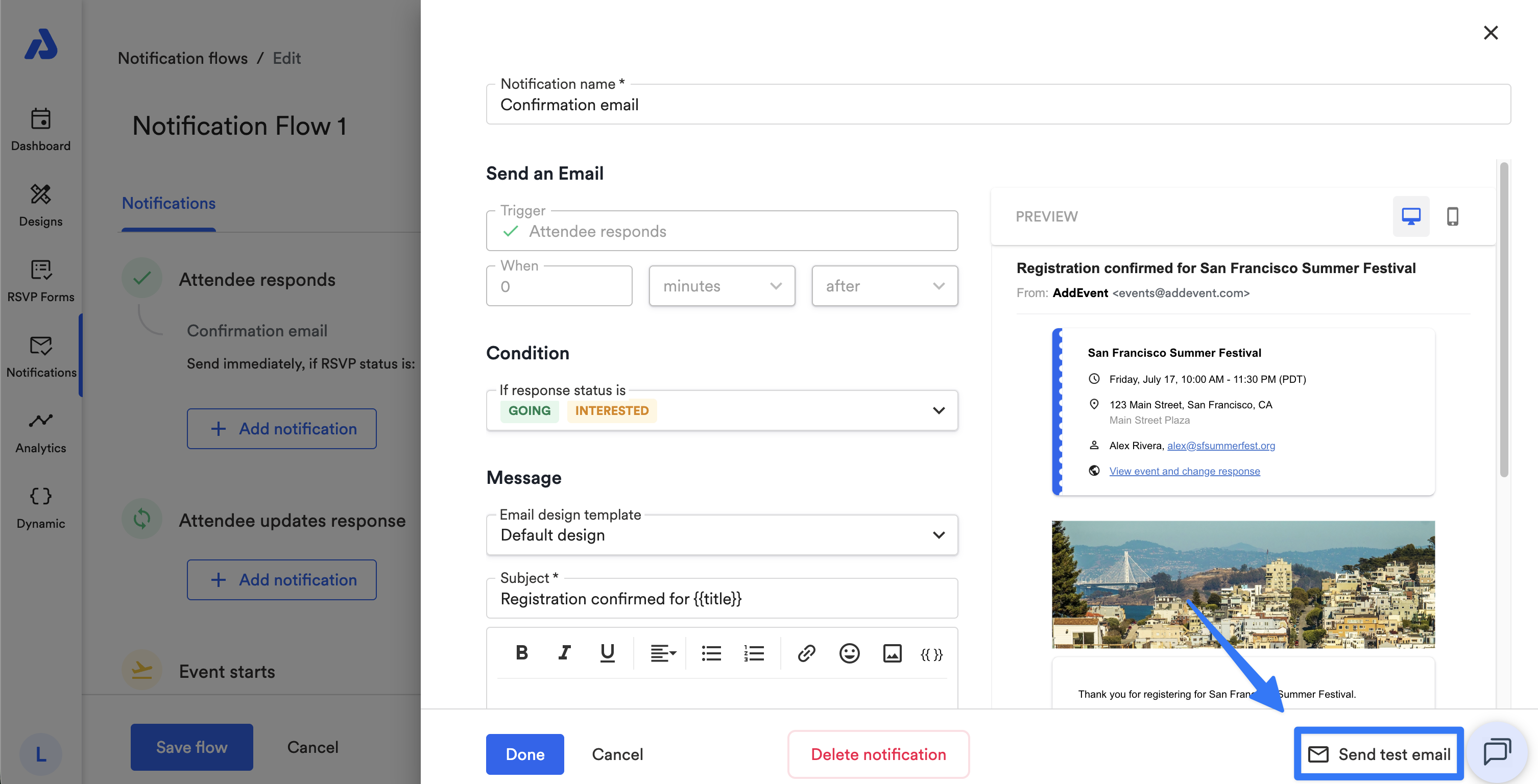
From the email editor window, click the Send test email option located at the bottom-right hand side of the window.
-
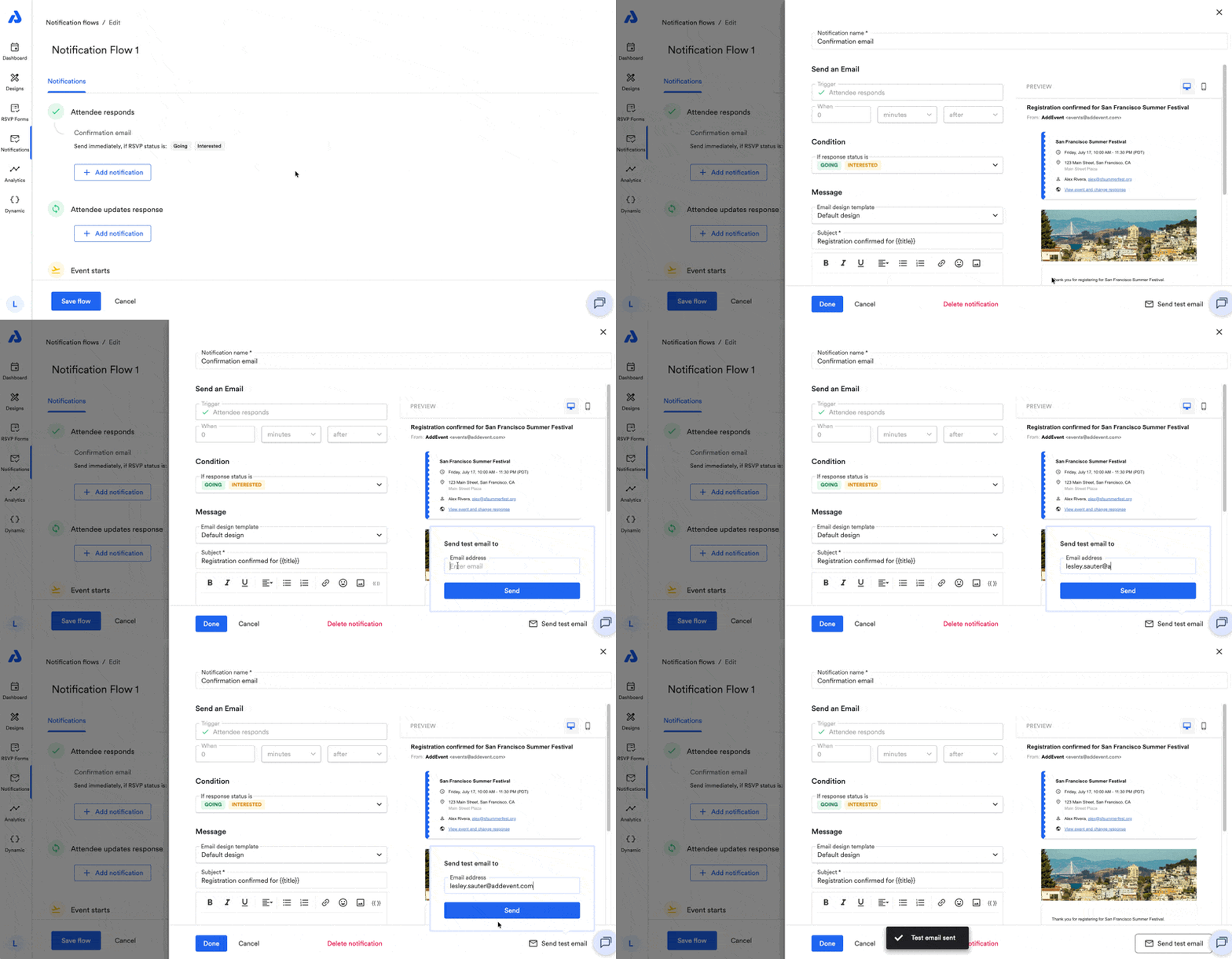
Enter your preferred email address and click the Send button.
What to Expect with Your Test Emails
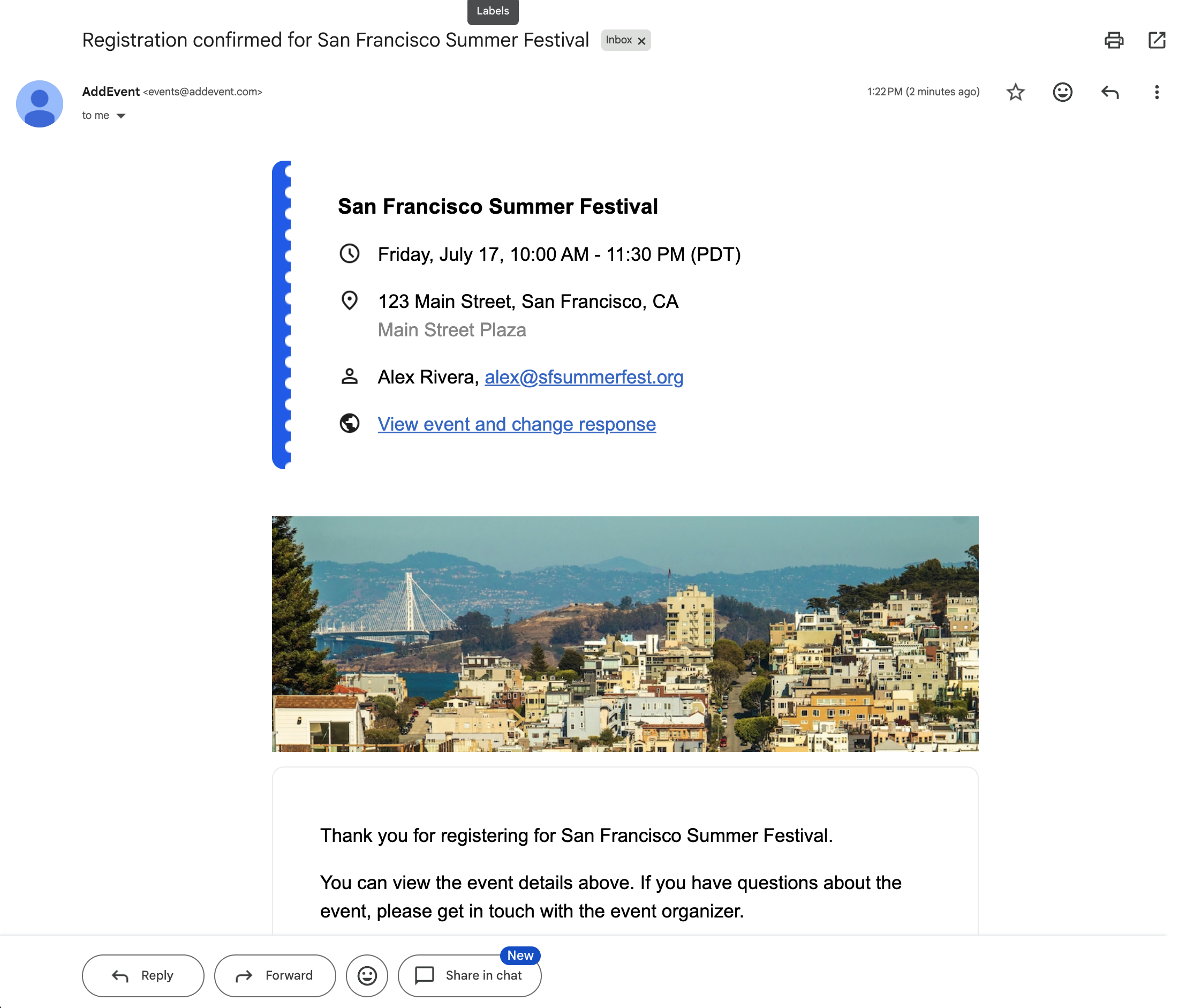
When receiving your test email, mock data will be used within the email. Here's what to expect:
- The sender email address will be [email protected] and the sender name will be "AddEvent". This still applies if you have set up an RSVP email sender name and email address following the steps here.
- The event's name in the test email will be similar to the example screenshot below.
- A sample date/time, location, organizer, and event image for the mock event will be included.
- The event link is only an example URL and should not be shared with your attendees.
If testing your emails in Outlook.com results in black text being displayed in a lighter color, please consider using a different text color in your email design.
Without having to change the text color, configuring the Appearance setting to "Dark mode" within your Outlook.com account can also sometimes help the text display more legibly.
Updated 15 days ago