

Domain Email Setup
Confirmation, reminder, follow-up, update, and other attendee emails can be sent from your account. Sender name, email address, and reply-to email address can also be customized individually within each email design template. To send attendee emails to RSVP attendees from your own domain (like [email protected]) instead of a shared sending address, you'll need to add a few DNS records to your domain provider.
What are Sender Domains?
A sender domain is the domain used to send RSVP and attendee emails from your account.
Examples:
yourcompany.comevents.yourcompany.com
Before you can use the sending domain, you need to verify you own it by adding several records to your domain's DNS records. Once verified, a sender domain can be selected when configuring:
- Default sender email address
- Email design templates
- Notification flow emails
If a non-AddEvent domain is selected:
- The local part of the email address becomes editable
- Example:
[email protected]
What is DNS?
DNS (Domain Name System) is what connects your domain name to services on the internet.
When setting up email sending, DNS records help prove:
- You own the domain
- We’re authorized to send emails on your behalf
- Your emails are trustworthy
What is a TXT Record?
A TXT record is a DNS record that stores text information for your domain.
When verifying a sending domain with AddEvent, you'll need to add 2 TXT records, one verifies that you own the domain, and a DMARC record to authorize sending.
What is a CNAME Record?
A CNAME record connects one domain or subdomain to another domain.
It essentially says:
“This domain alias should point somewhere else.”
CNAME records are commonly used for:
- DKIM email authentication
- Subdomains
- Third-party email services
CNAME records help email providers verify that emails are legitimately sent from your domain.
When verifying a sending domain with AddEvent, you'll need to add 2 CNAME records.
Adding and Verifying a Sender Domain
Before you can send emails from your own domain, you must verify domain ownership.
Free email providers like Gmail, Yahoo, Outlook, or AOL cannot be used as sender domains. You must own and control the domain.
Open Sender Name and Email Settings
- Click the Account icon in the lower-left corner of the dashboard.
- Click Settings.
- Scroll to the Sender name and email address section.
- Click the Edit icon.
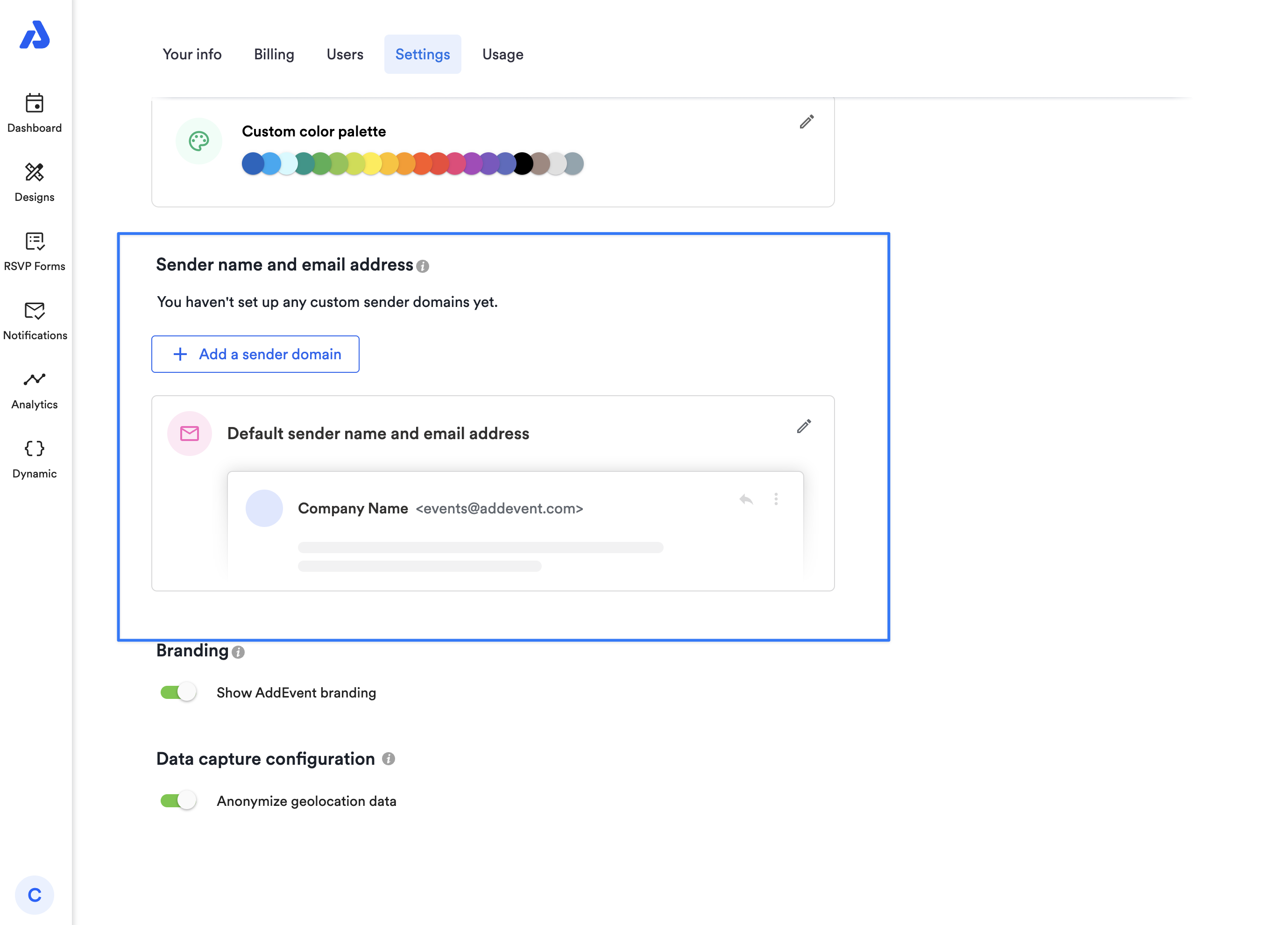
Step 1: Domain
Enter the domain you want to use as your sender domain.
The domain must:
- Be a valid domain
- Not already be verified on another AddEvent account
- Not belong to a restricted provider or free email provider
Configure DNS Records
Step 2: Create a TXT record with the provided name and value
Your DNS provider may take several minutes to apply changes.
Step 3: Add CNAME records
Add the required CNAME records shown in AddEvent.
These records enable DKIM authentication and improve email deliverability.
Step 4: Create a TXT record with the provided name and value
Add the DMARC TXT record shown in AddEvent.
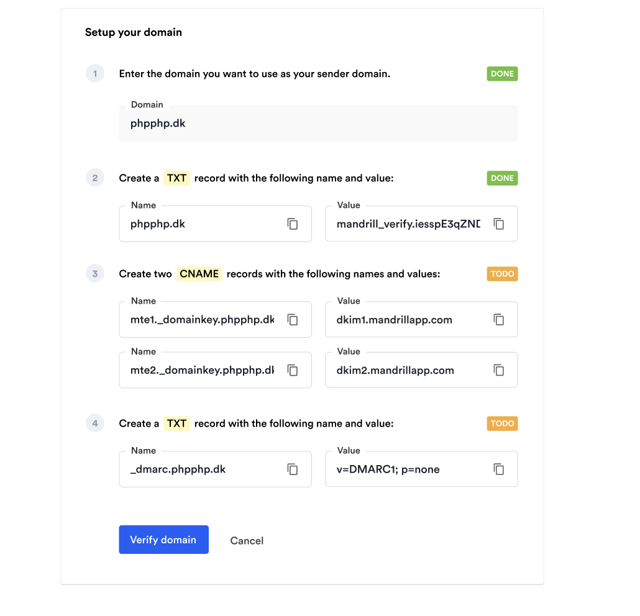
Verify the Domain
After all DNS records have been added:
- Return to AddEvent
- Click Verify domain
If verification succeeds:
- All records will display as Done
- The domain becomes available for sender addresses and email designs
If verification fails:
- Missing or incorrect records will remain marked as Todo
- AddEvent will display which records still need attention
DNS changes may take time to propagate depending on your provider.
Troubleshooting
- DNS records are often cached, so if you're domain is appearing as unverified even after adding the correct DNS records, please wait a few minutes (sometimes up to an hour), and try to verify your domain again.
- If you still have an issue after the hour has elapsed, please reach out to [email protected]
- Reach out to your Dev Ops or Engineering team for the details being requested when verifying a domain.
Multiple Sender Domains
Professional and Enterprise plans allow multiple verified sender domains.
This is useful if you:
- Manage multiple brands
- Send emails for different organizations
- Want separate sender identities
Deleting a Sender Domain
You can remove a verified sender domain at any time.
Deleting a domain will:
- Remove the domain from your account
- Reset affected sender addresses to the default AddEvent sender
- Remove the domain from connected email systems
To delete a domain:
- Click the Delete icon next to the domain
- Type
Deleteto confirm
Deleting a sender domain may affect active notification flows and email designs currently using that domain.
Important Notes
- Sender domains cannot be edited after being added.
- To re-verify a domain, delete it and add it again.
- Test emails are not affected by email design caching.
- DNS propagation can sometimes take several hours.
Default Sender Name and Email Address
Your default sender details are used for the default notification flow or when using the default email design.
Sender name, sender email address, and reply-to email address can also be customized individually within each email design template.
Once you have your sending domain verified, you can select it to be used as your default sender email address below. The default sender name and email address is used for default Notification Flows.

Related Docs
Updated about 2 months ago