

How to Edit the RSVP Confirmation Message
This help doc shares instructions on how to edit the confirmation message that displays after an attendee registers for an RSVP event.
You can customize the confirmation title and message that displays after your RSVP attendees submit your RSVP form for each response option available. To do this, all you need to do is create a custom RSVP form and apply it to your event, or edit your existing form.
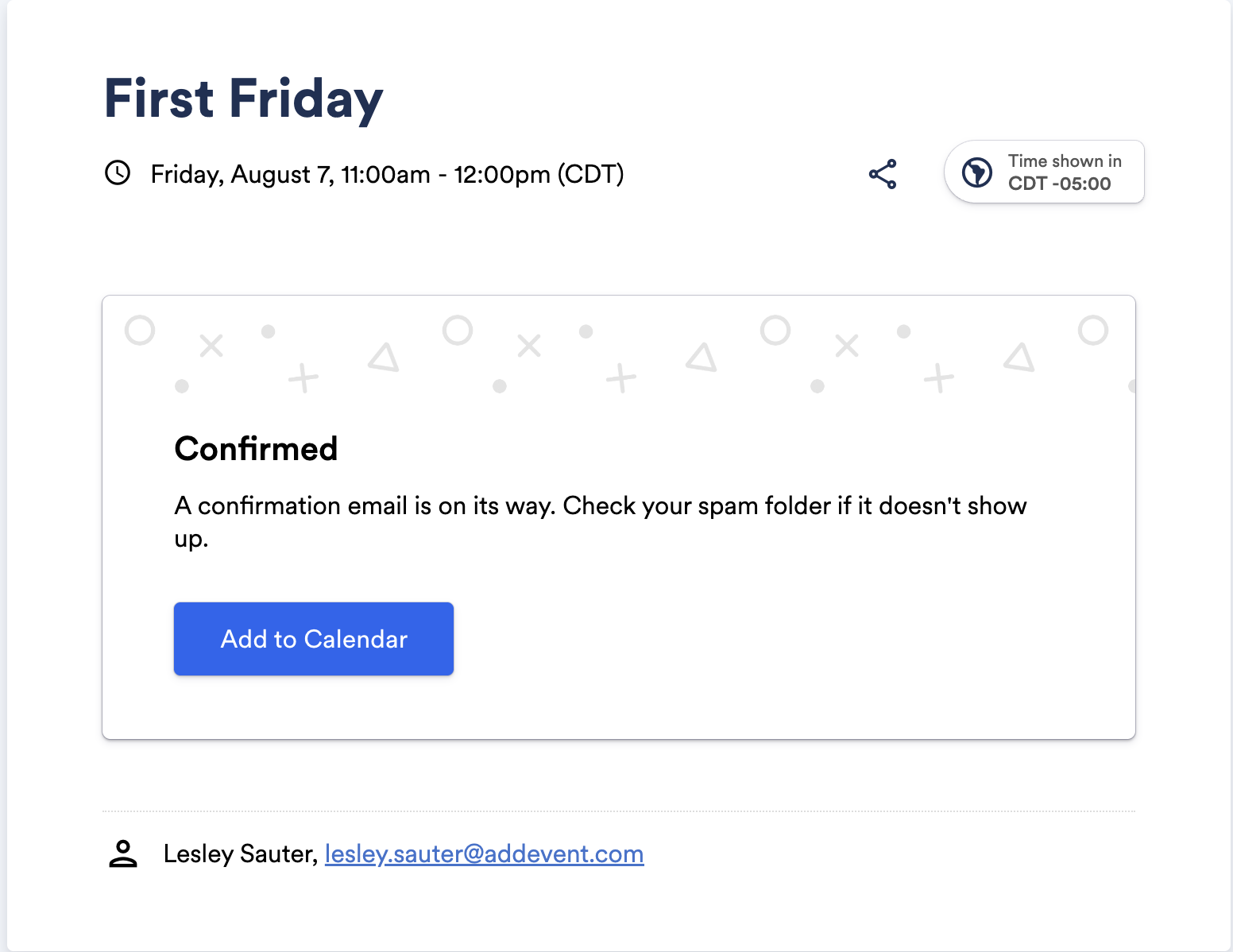
How to Edit the RSVP Confirmation Message Within Your RSVP Form's Settings
-
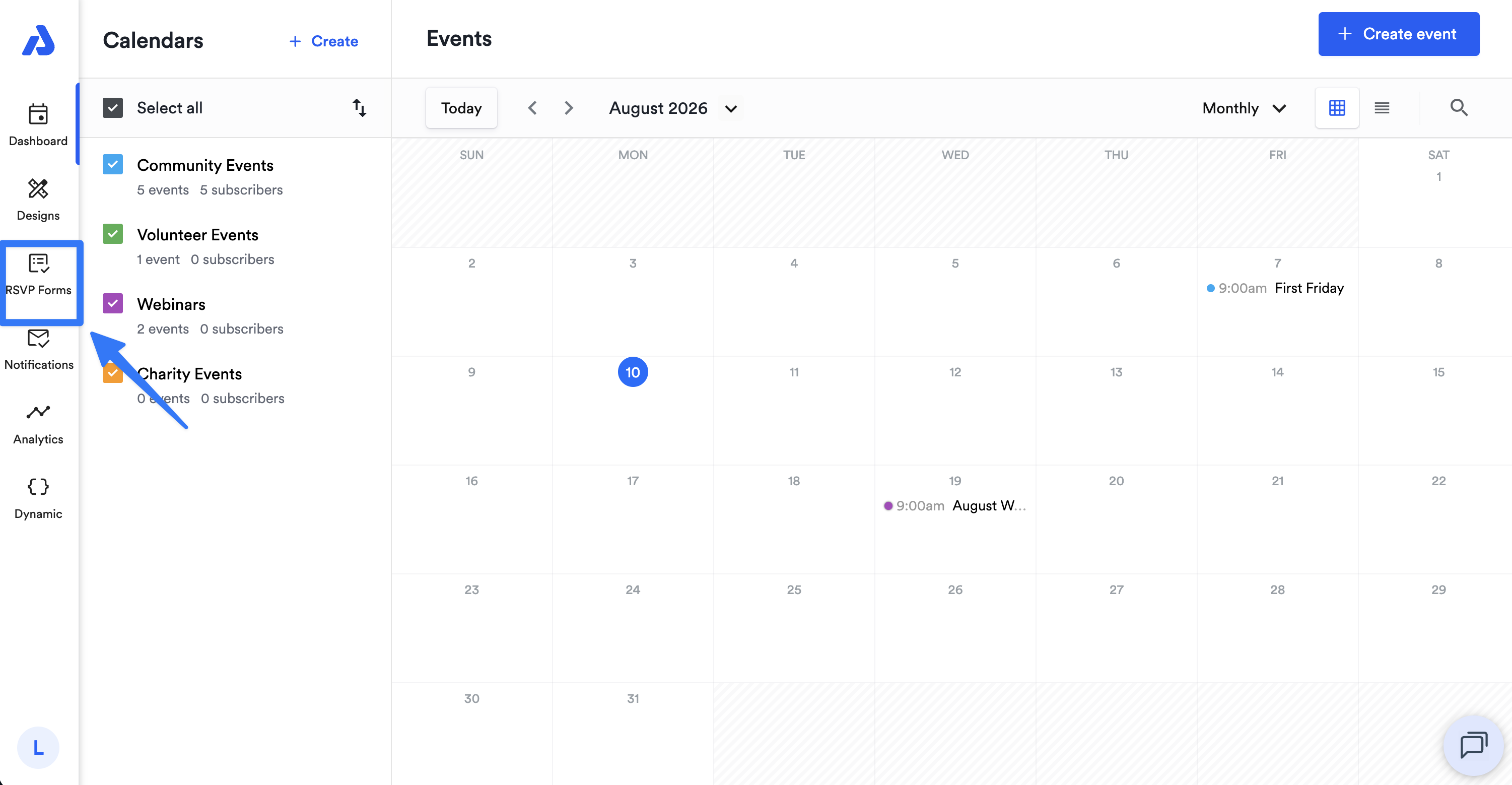
From the Dashboard, select the RSVP Forms tab located on the left-side navigation menu.
-
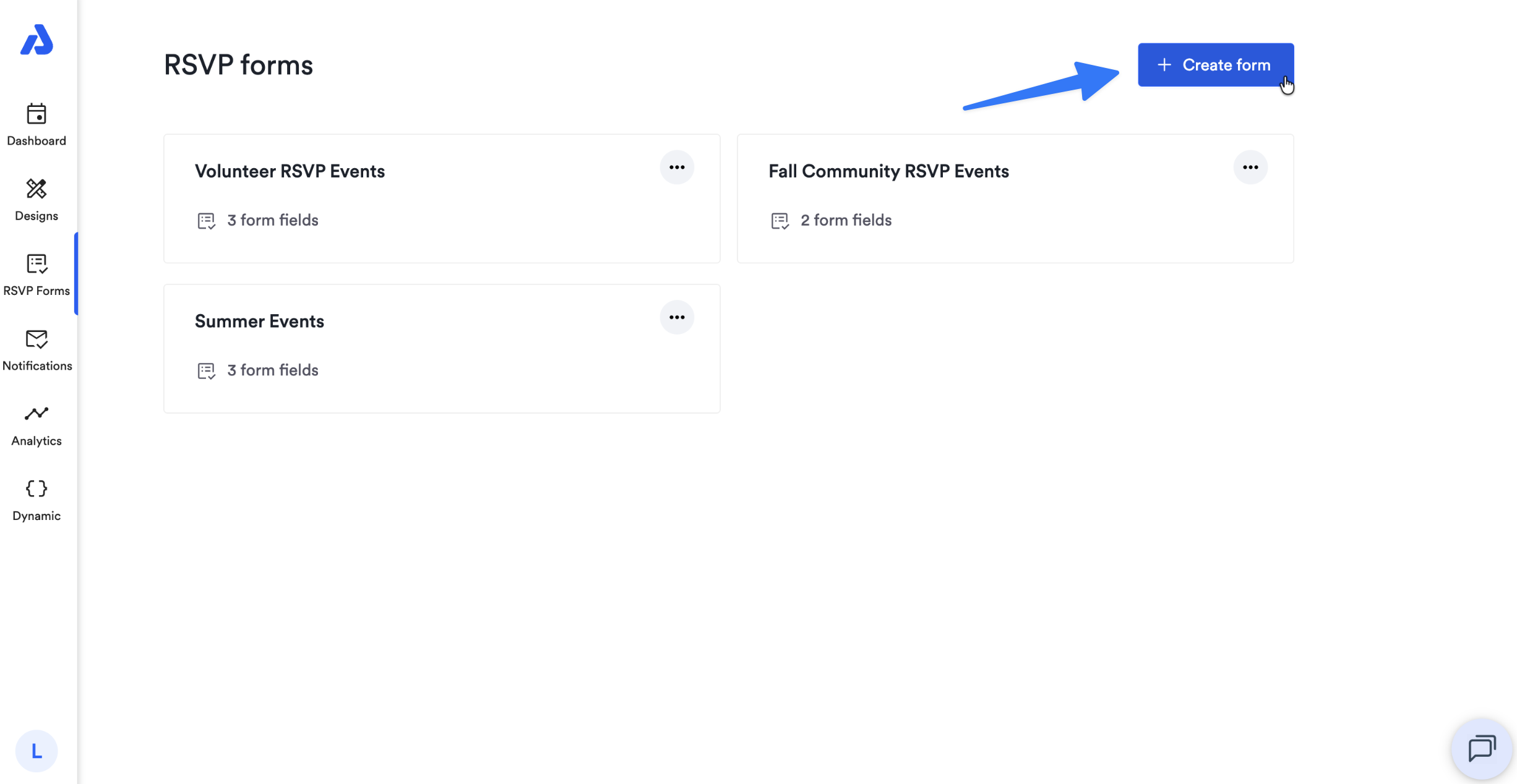
Click the + Create form button located on the top-right corner of the page, or click into an existing RSVP form to make edits.
-
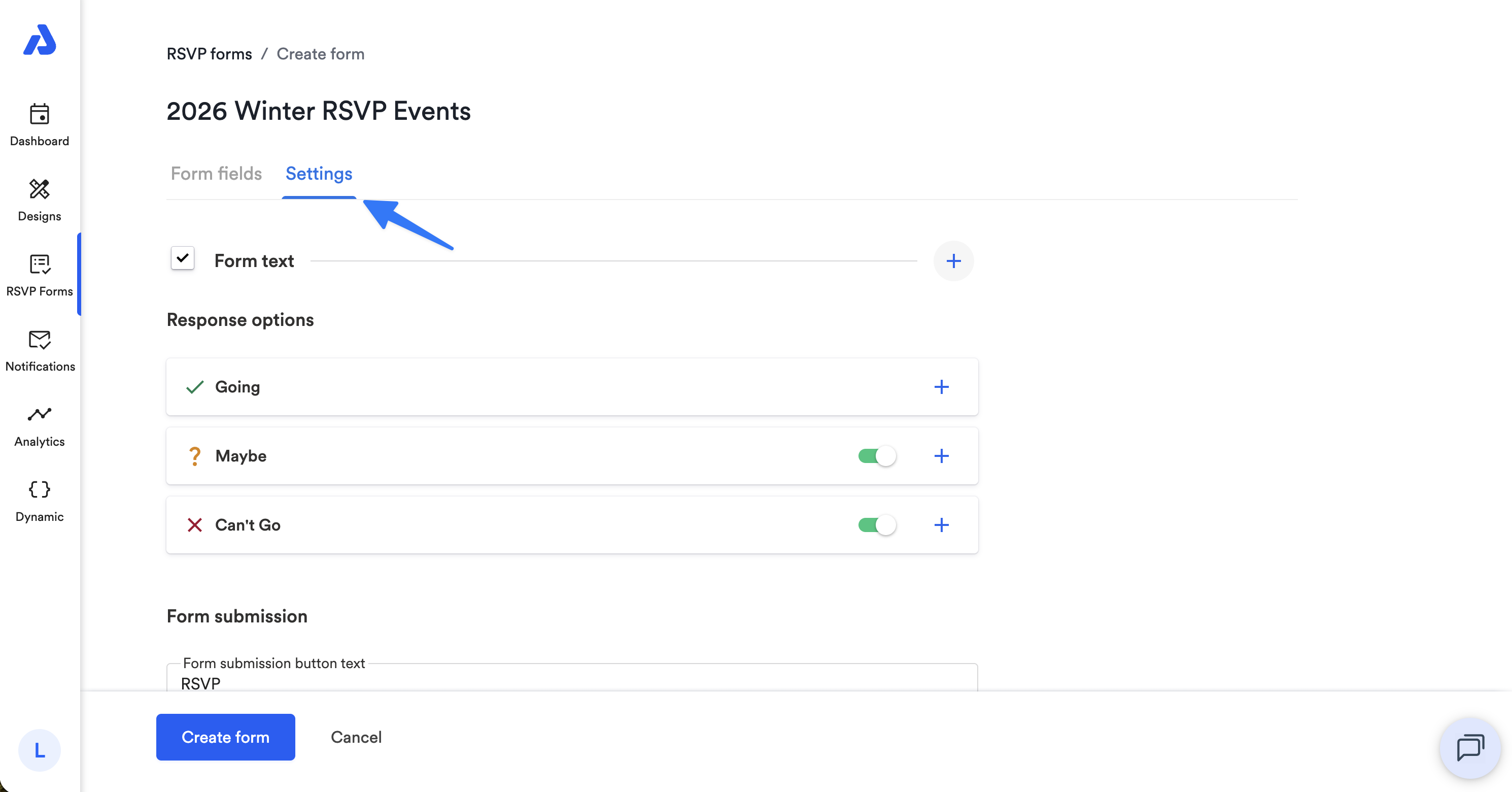
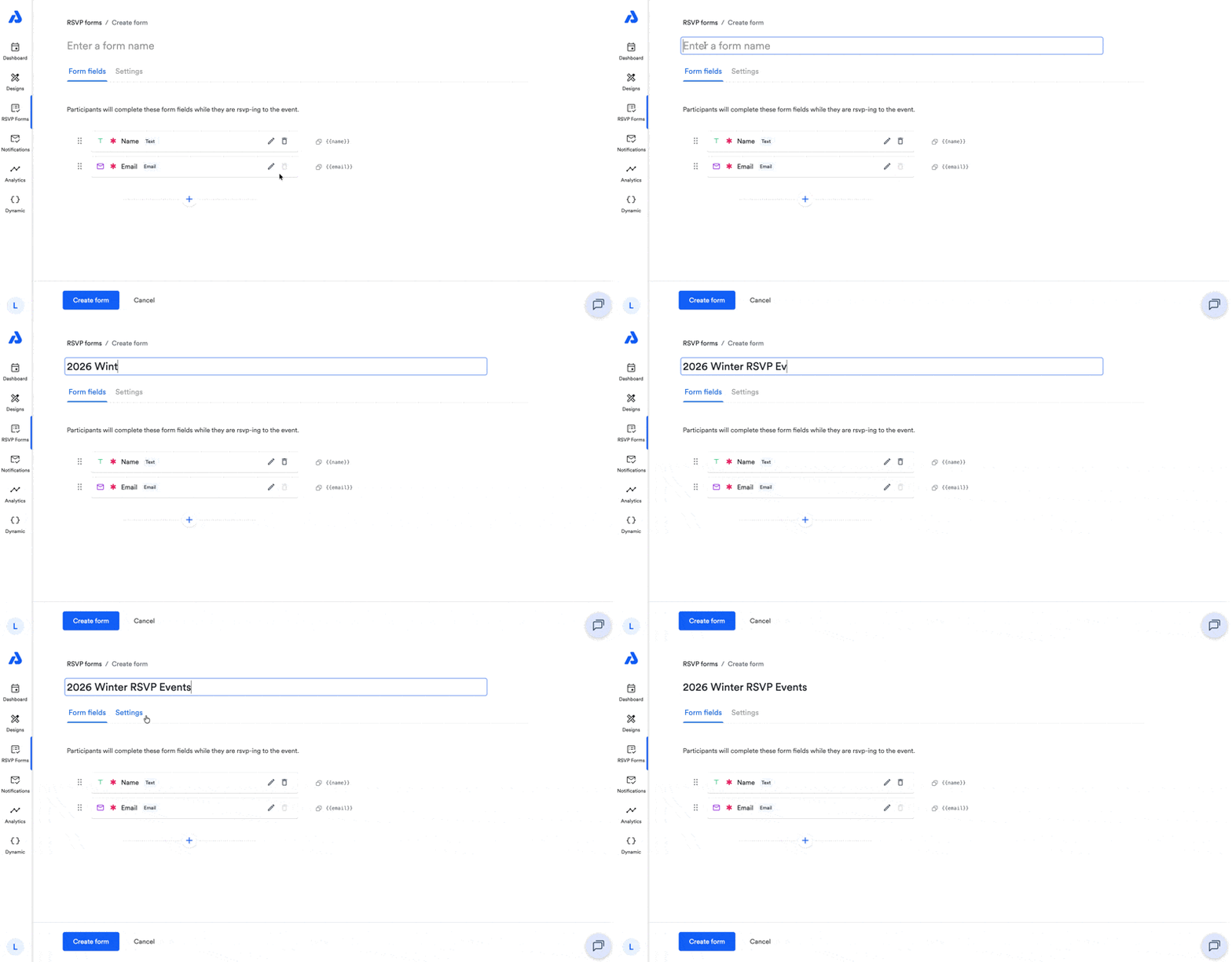
Select the Settings tab to configure your RSVP form's settings: form title and description, response options, confirmation messages, and form submission button text.
-
If creating a new RSVP form, input a title for your form at the top of the page.
-
-
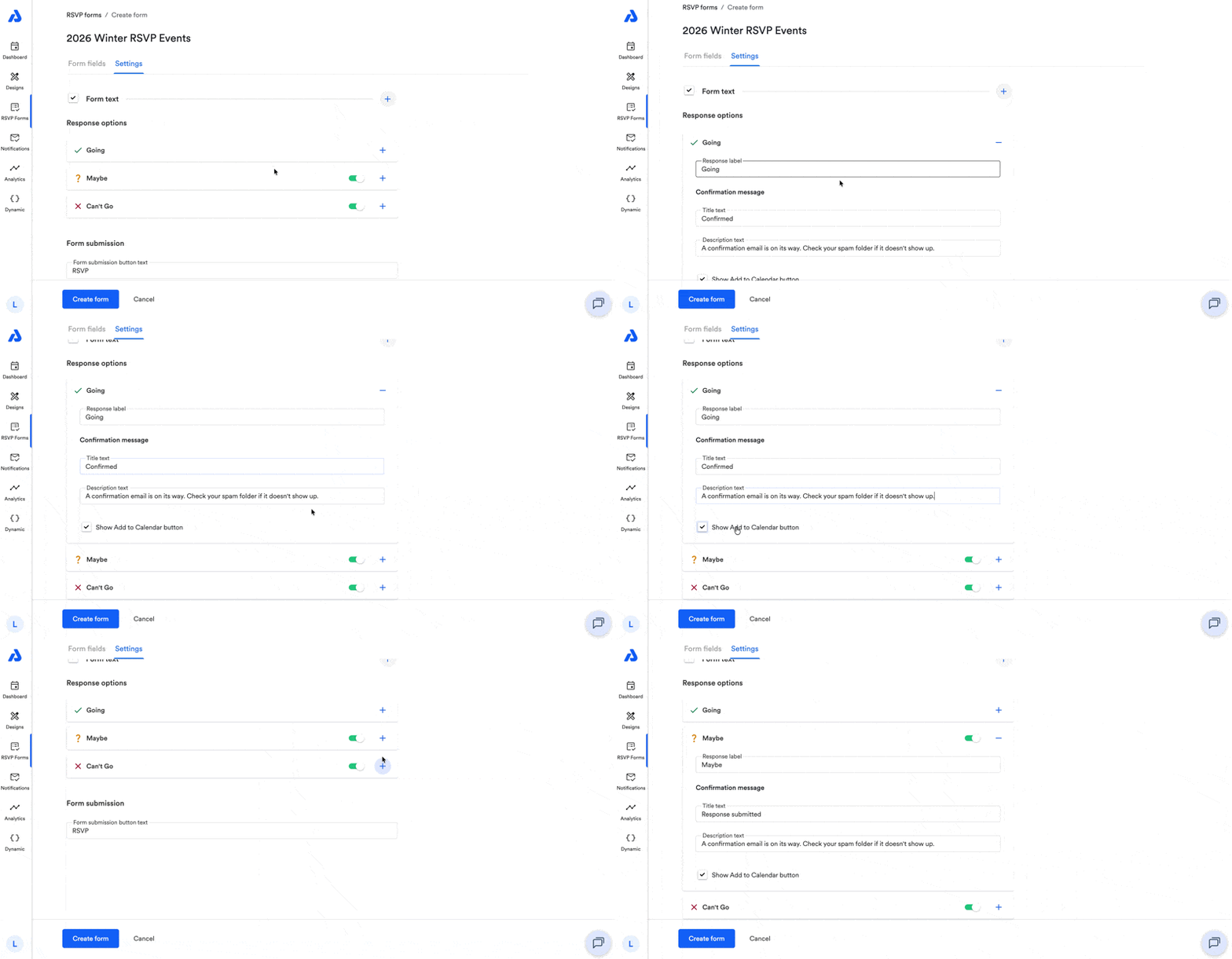
Scroll down to the Response options section.
-
Click the + icon next to each response option to edit the confirmation message.
-
You can also uncheck the box for "Show Add to Calendar button" if you do not want the Add to Calendar button to display after an attendee registers.
-
-
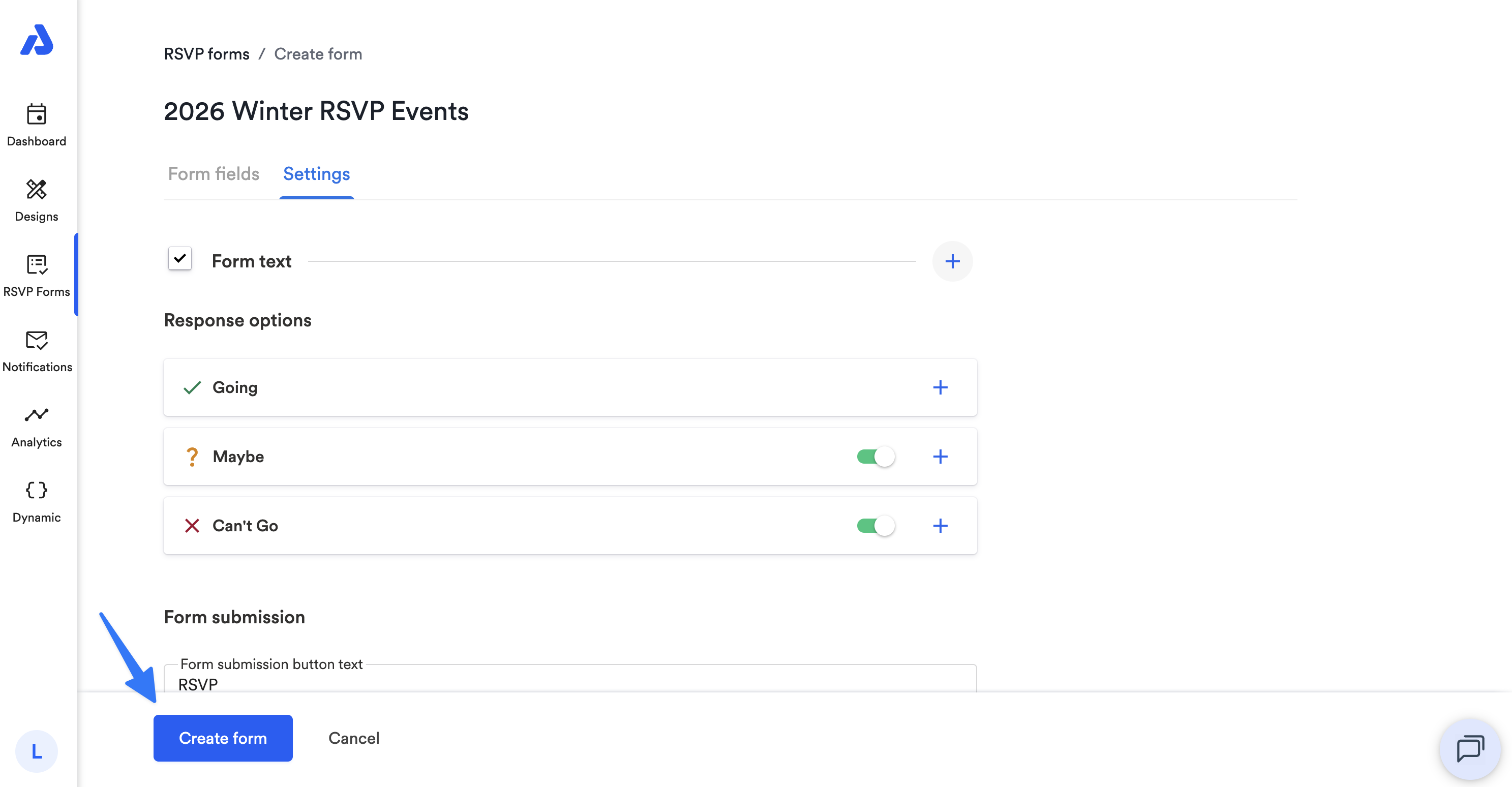
Once finished customizing your RSVP form response option labels and confirmation messages, click the Create Form / Save form button located at the bottom left-hand corner of the page.
-
Lastly, if you haven't already, apply the RSVP form to your event. For step-by-instructions, see our help doc here: Apply a Custom RSVP Form
Updated about 2 months ago