

How to Configure the Events Calendar App for Wix
To configure the Embeddable Events Calendar App for Wix, follow along with the following steps (if you prefer a video, please scroll down to the bottom of this help doc):
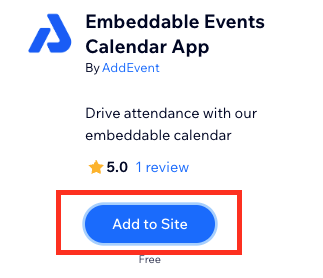
- From the Wix AppMarket, click Add to Site.
- Select the site you want to add the app to and then click Continue.
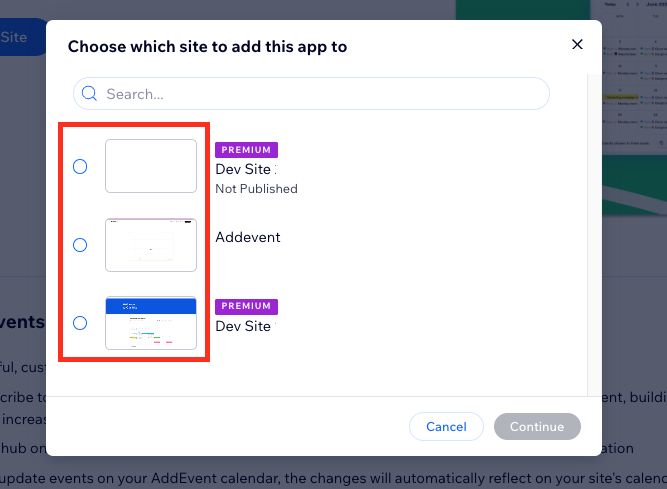
This will have your sites listed and won't match the sites in the image
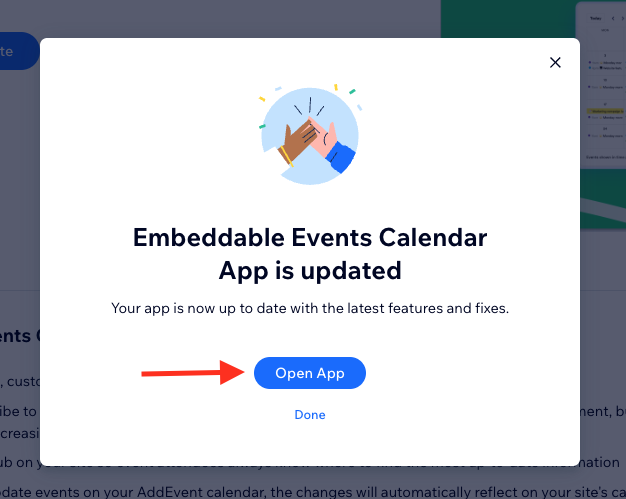
- Once you've added the app, click Open App.
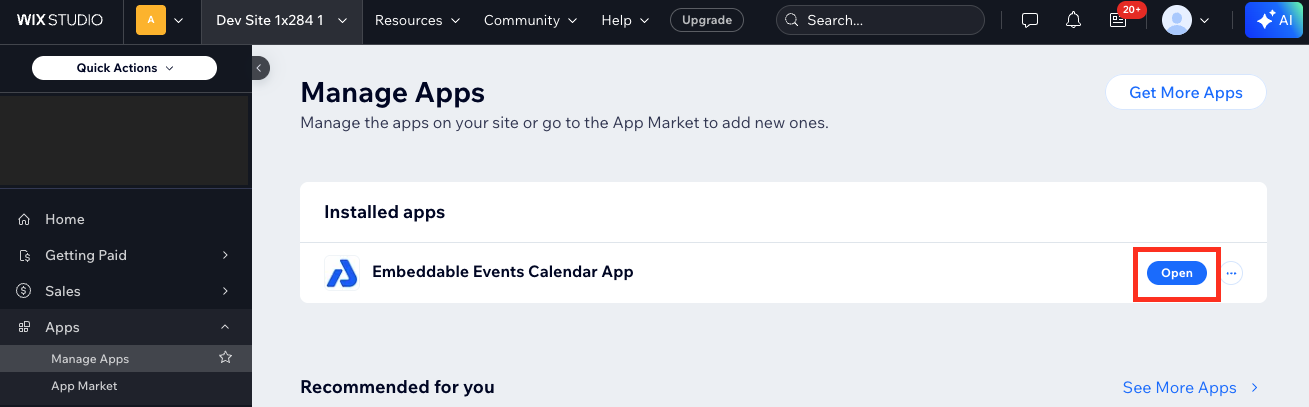
- From the Manage Apps section of WixStudio, click Open on the Embeddable Events Calendar App.
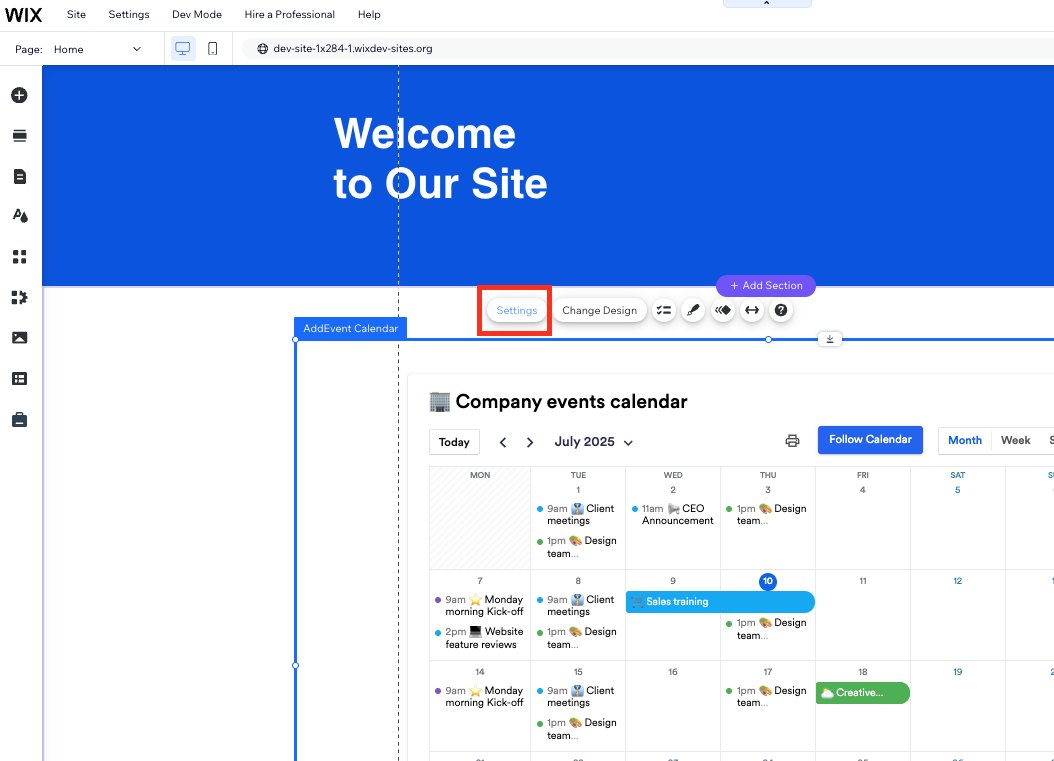
- If the settings panel doesn't immediately pop up, click Settings.
-
By default, a placeholder AddEvent Calendar is added in the Unique Key field. To change the calendar to your AddEvent Calendar, you will need to update the field with your Unique Key (covered in the next steps).
After you have updated your Unique Key, you can adjust the Calendar Settings as you see fit for any other customizations.
You will need to update this Unique Key for the block to display the calendar you would like.
-
To find your Unique Key, navigate to your AddEvent Dashboard, and click the calendar's title from the Calendars list.
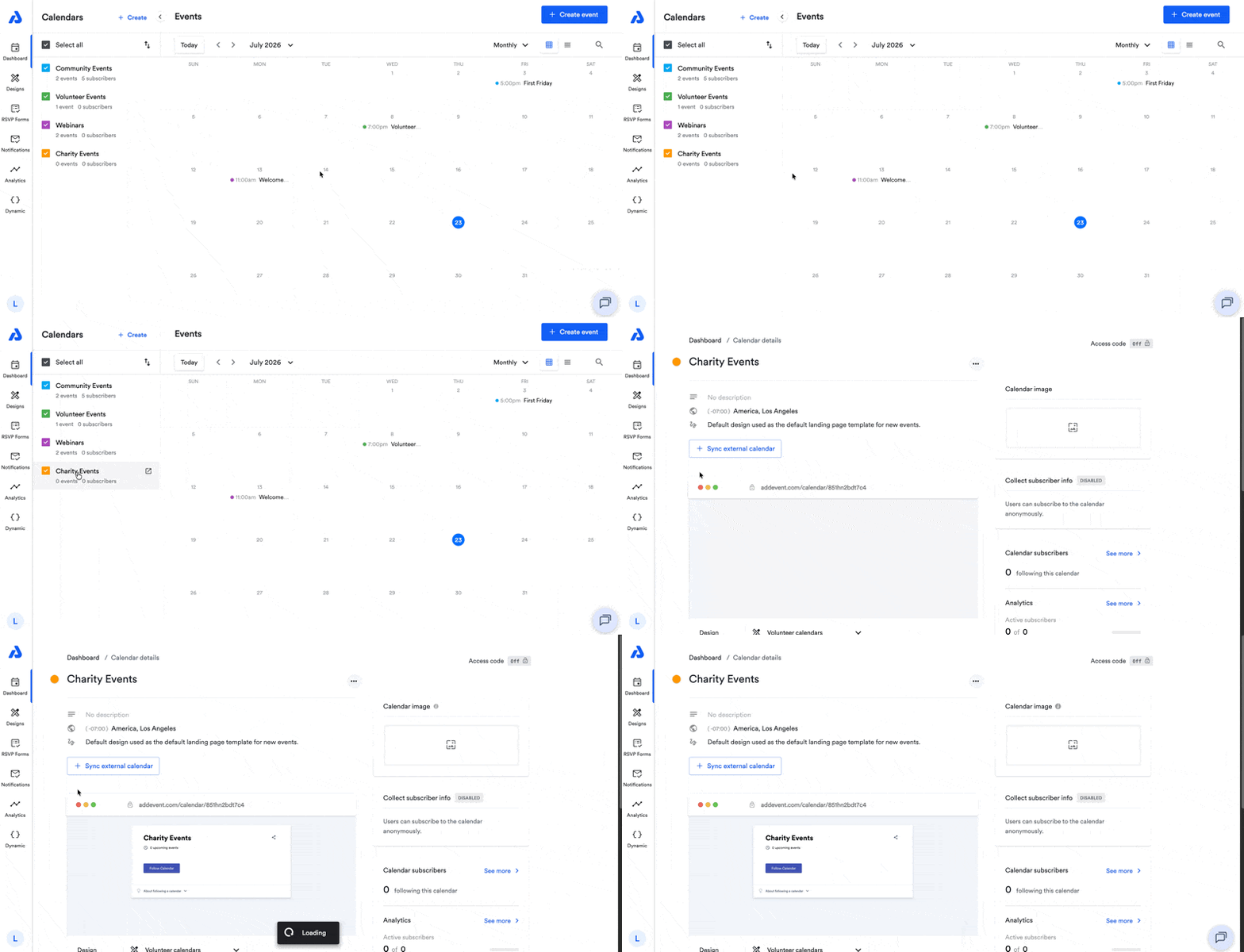
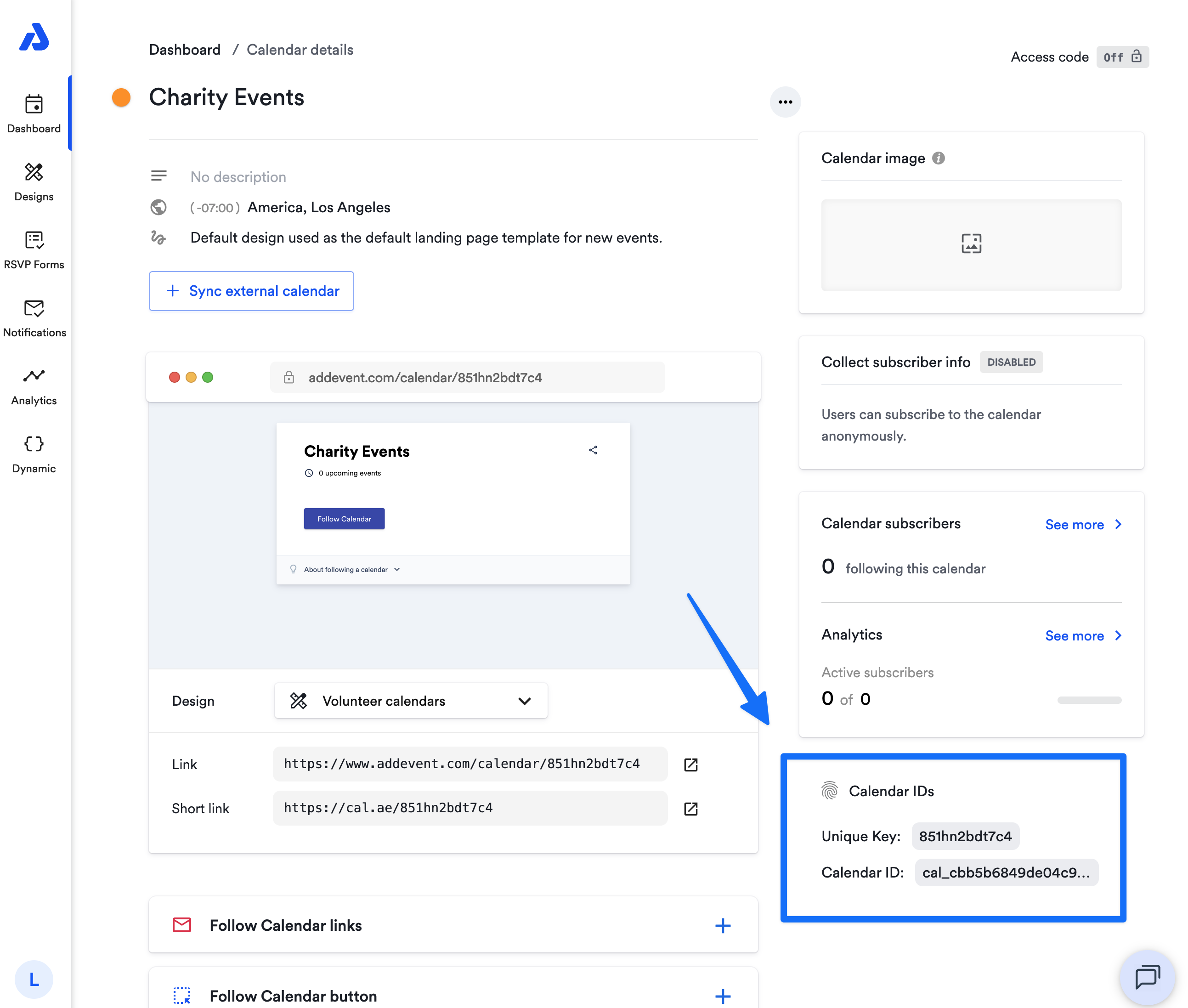
- On the following Calendar details page, look at the bottom-right of the page for the Calendar IDs section and copy the Unique Key.
-
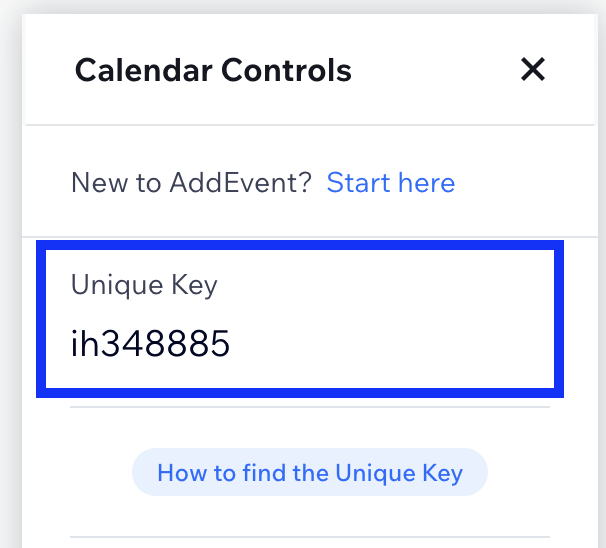
Open your Wix page and paste your Unique Key into the text box labeled as "Unique Key".
-
Click Publish and your calendar is ready to go!
Updated 3 months ago