

Remove the "Read more" link from Event/Calendar Descriptions
This help doc shares instructions on how you can remove the "Read more" link from truncated event/calendar descriptions on your landing pages by using a design template.
The below steps assume you are familiar with using design templates. If you're new to using design templates, please check out the following help docs:
How to Remove "Read more" from your Event/Calendar Descriptions
-
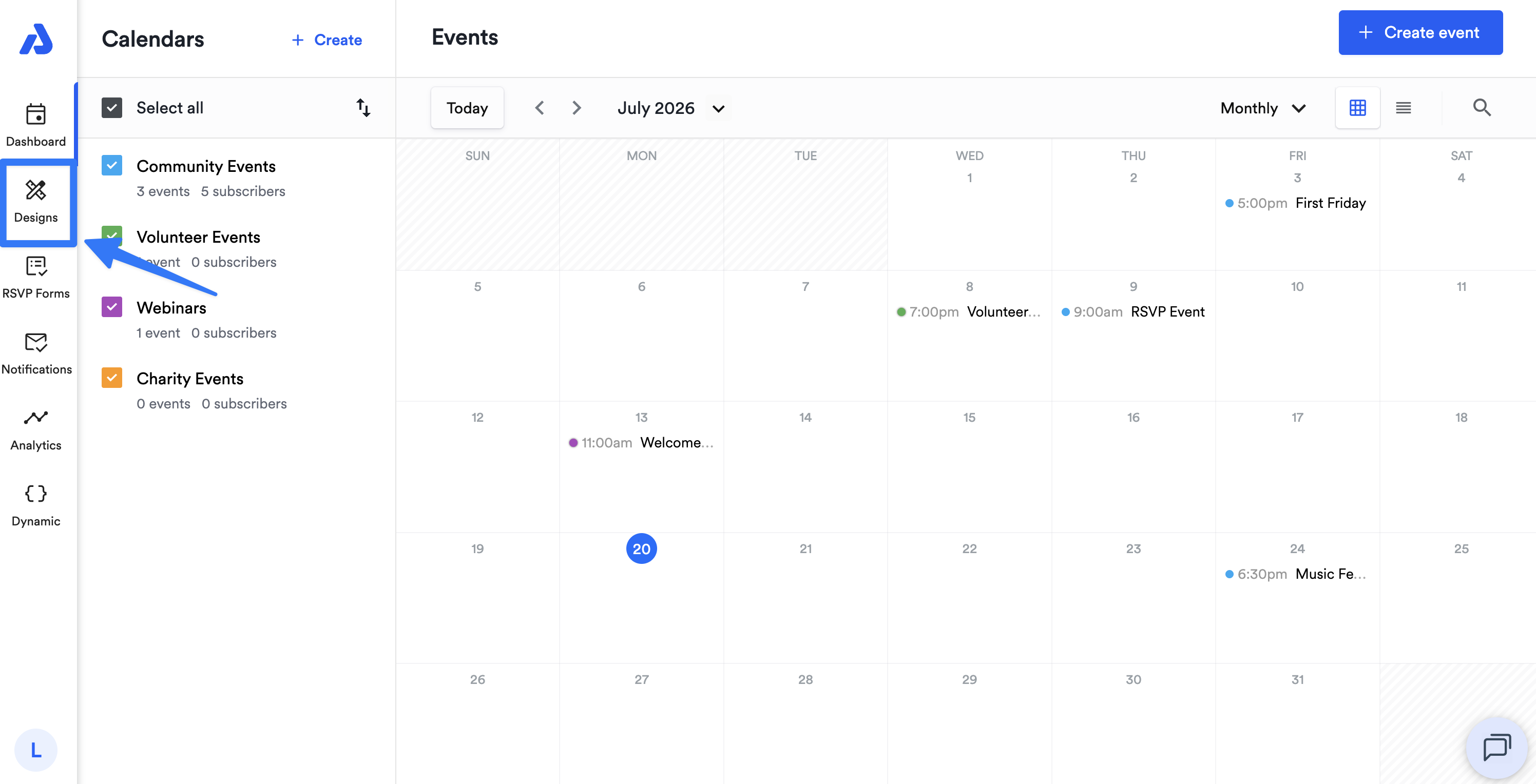
Select the Designs tab located on the left-side navigation menu.
-
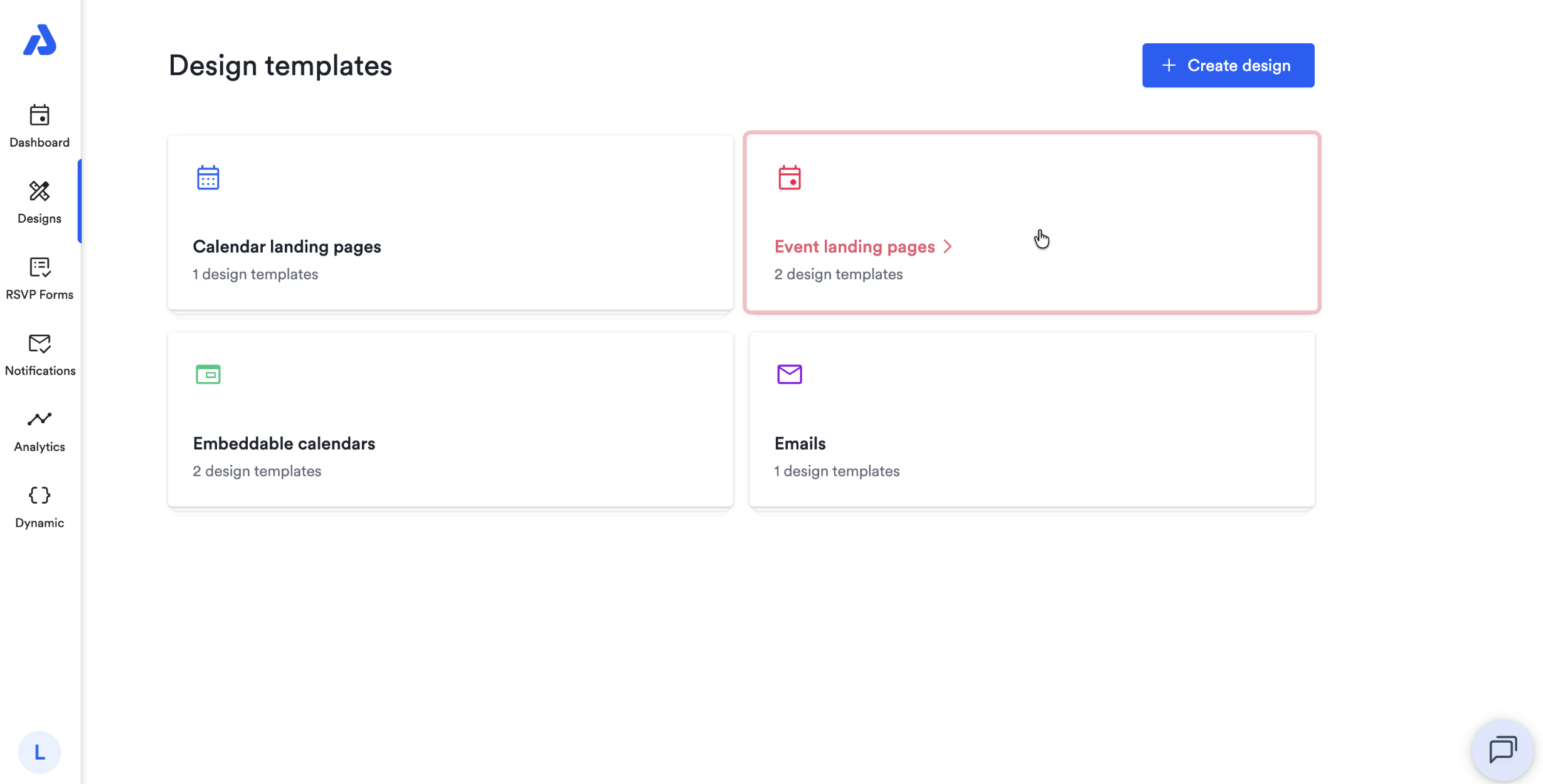
Select either the Event landing page or Calendar landing page option depending on whether you're wanting to remove the "Read more" link from a calendar landing page or an individual event's landing page.
-
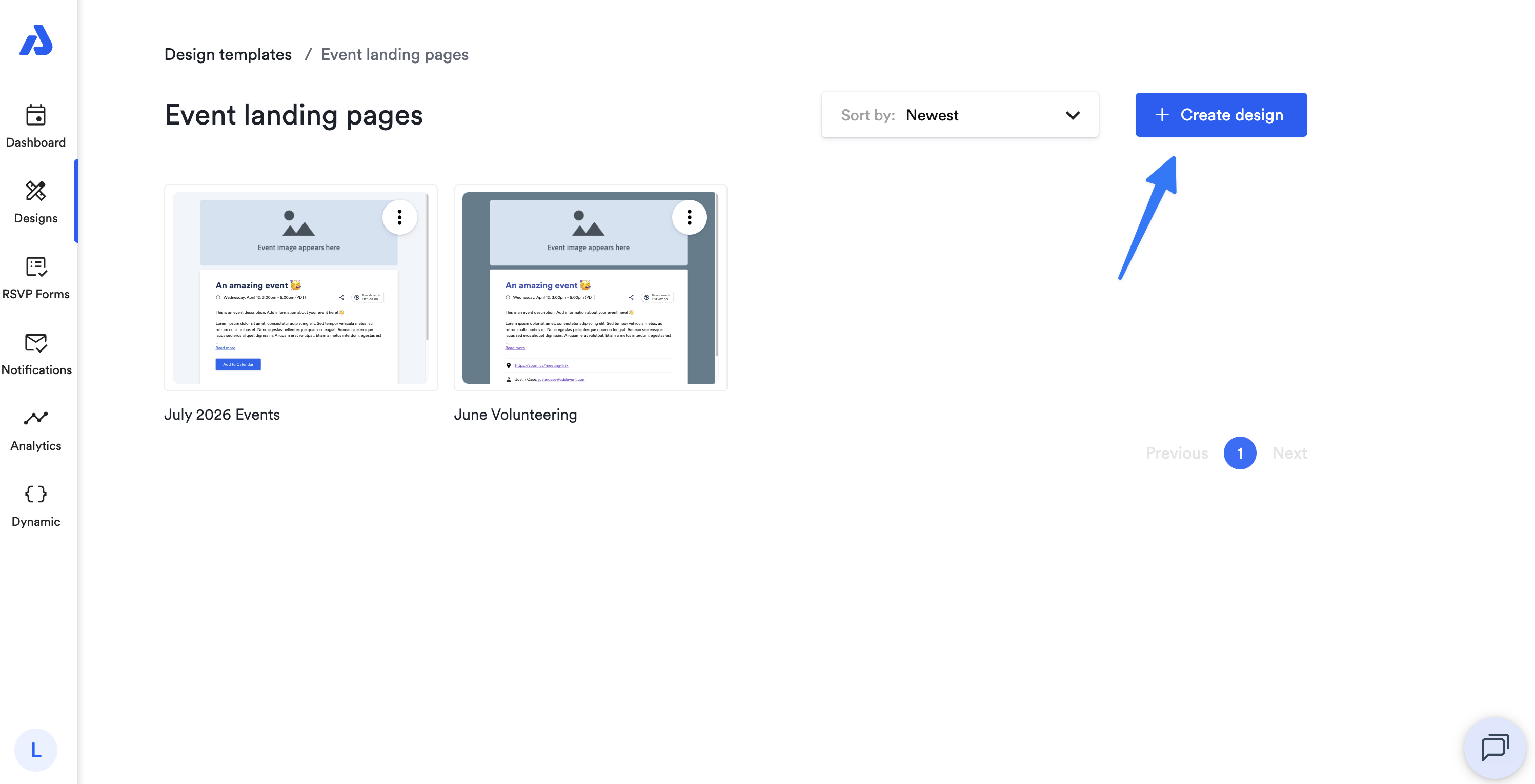
Select an existing design template or click the + Create design button to create a new design.
-
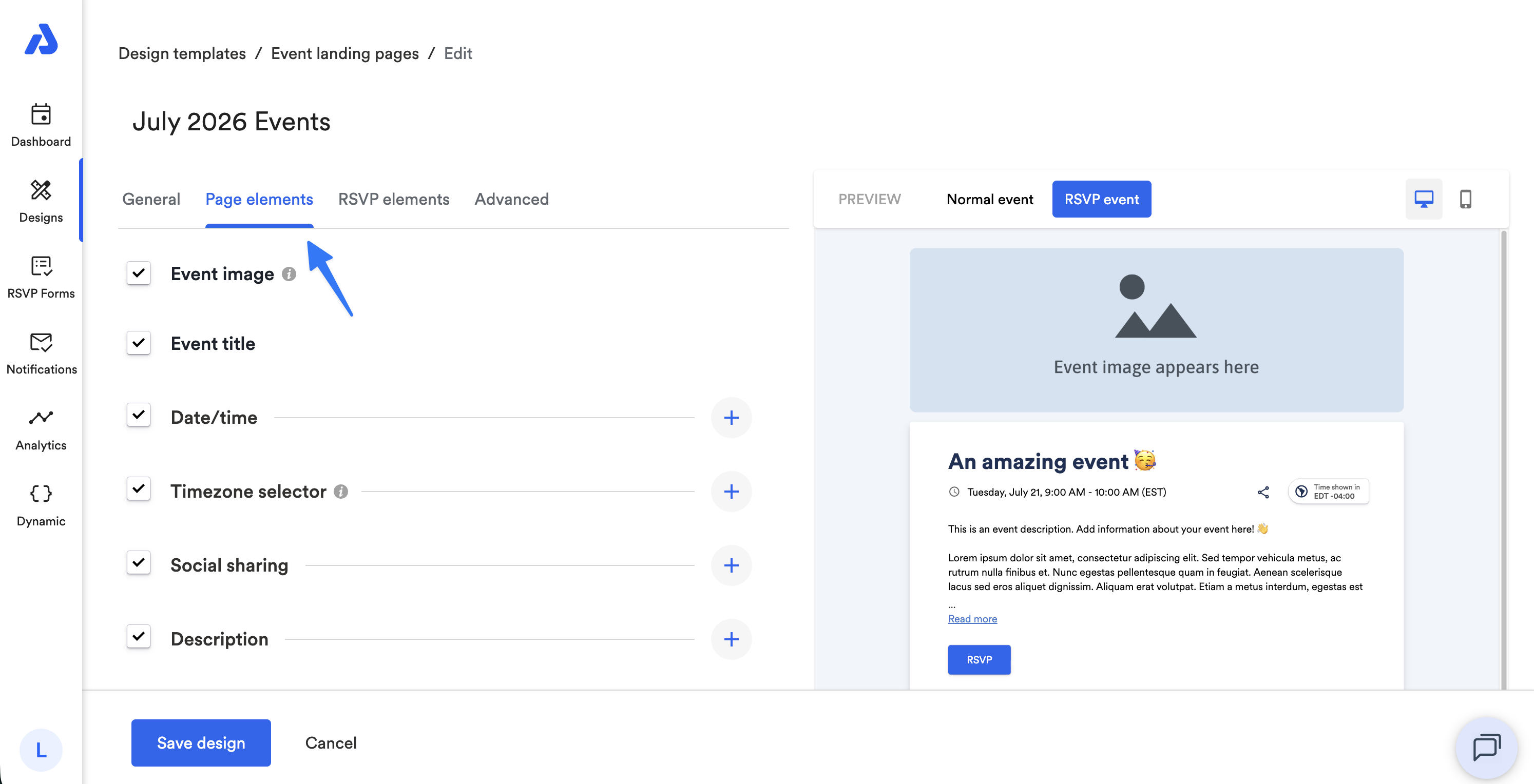
Once you're on the Create design / Edit page, select the Page Elements tab.
-
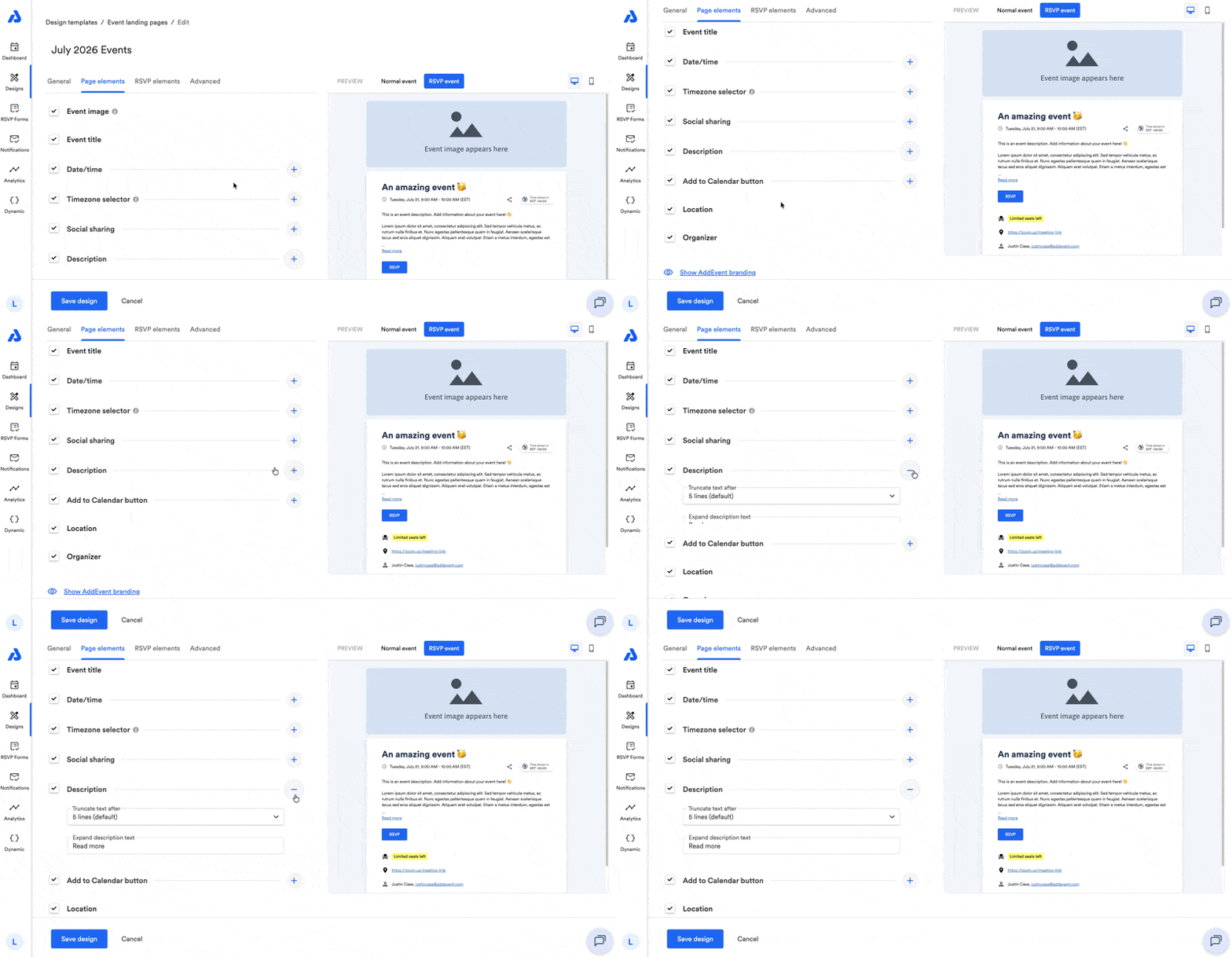
Scroll down to the Description element and select the + icon to the right to expand options.
-
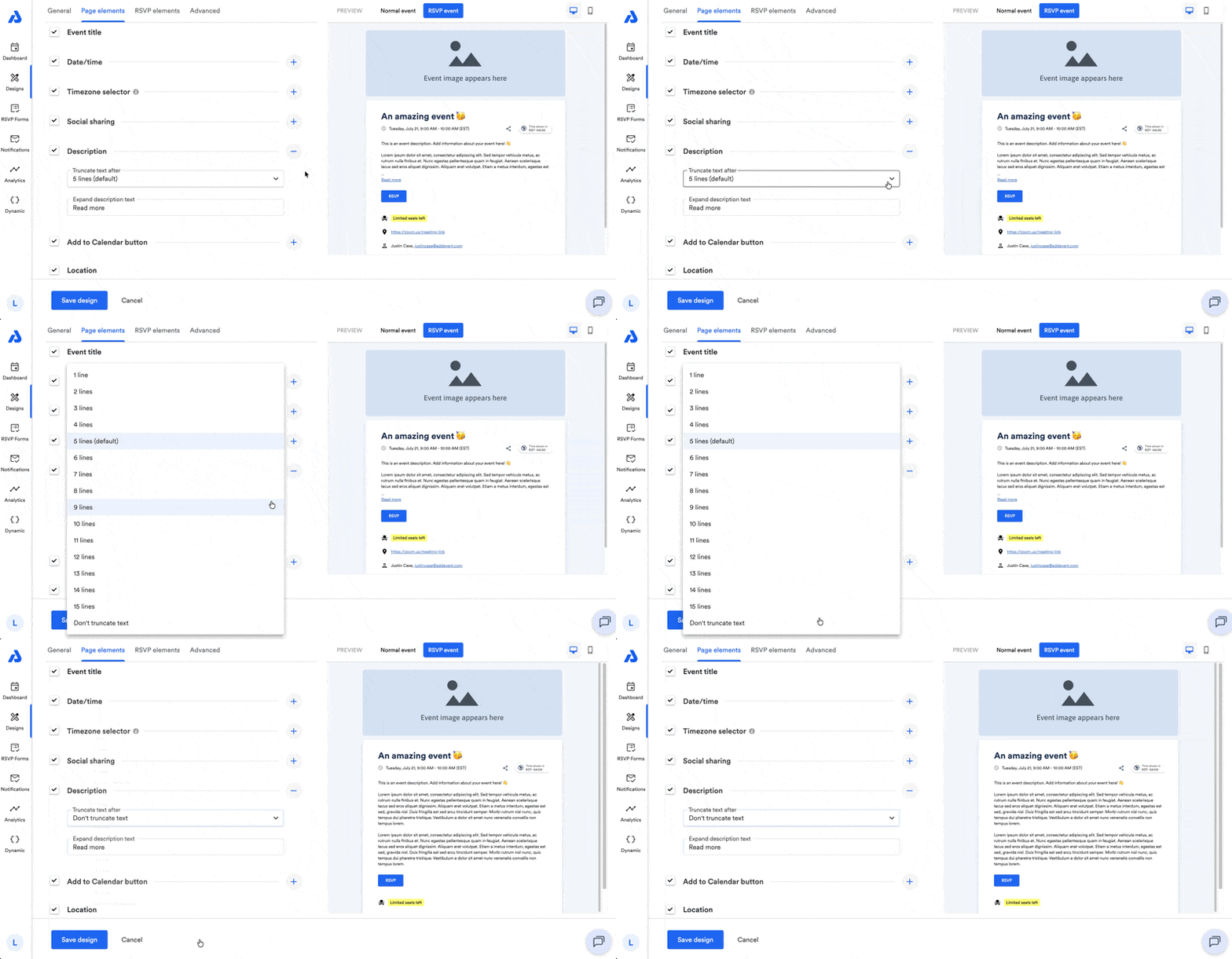
With the "Truncate text after" dropdown, select the "Don't truncate text" option.
-
Once you're finished making edits to your design, click the Save design / Create design button at the bottom of the page.
-
Lastly, apply the design template to your calendar or event.
If you're not familiar with how to apply a design template to your event or calendar, below are guides with step-by-step instructions:
Updated 3 months ago