

Notification Flows
Notification Flows let you automate email sequences for RSVP attendees based on triggers and timing. You can customize when emails are sent, who receives them, and what they say and then assign flows to RSVP events to handle confirmations, reminders, follow-ups, and other communications automatically.
Accessing Notification Flows
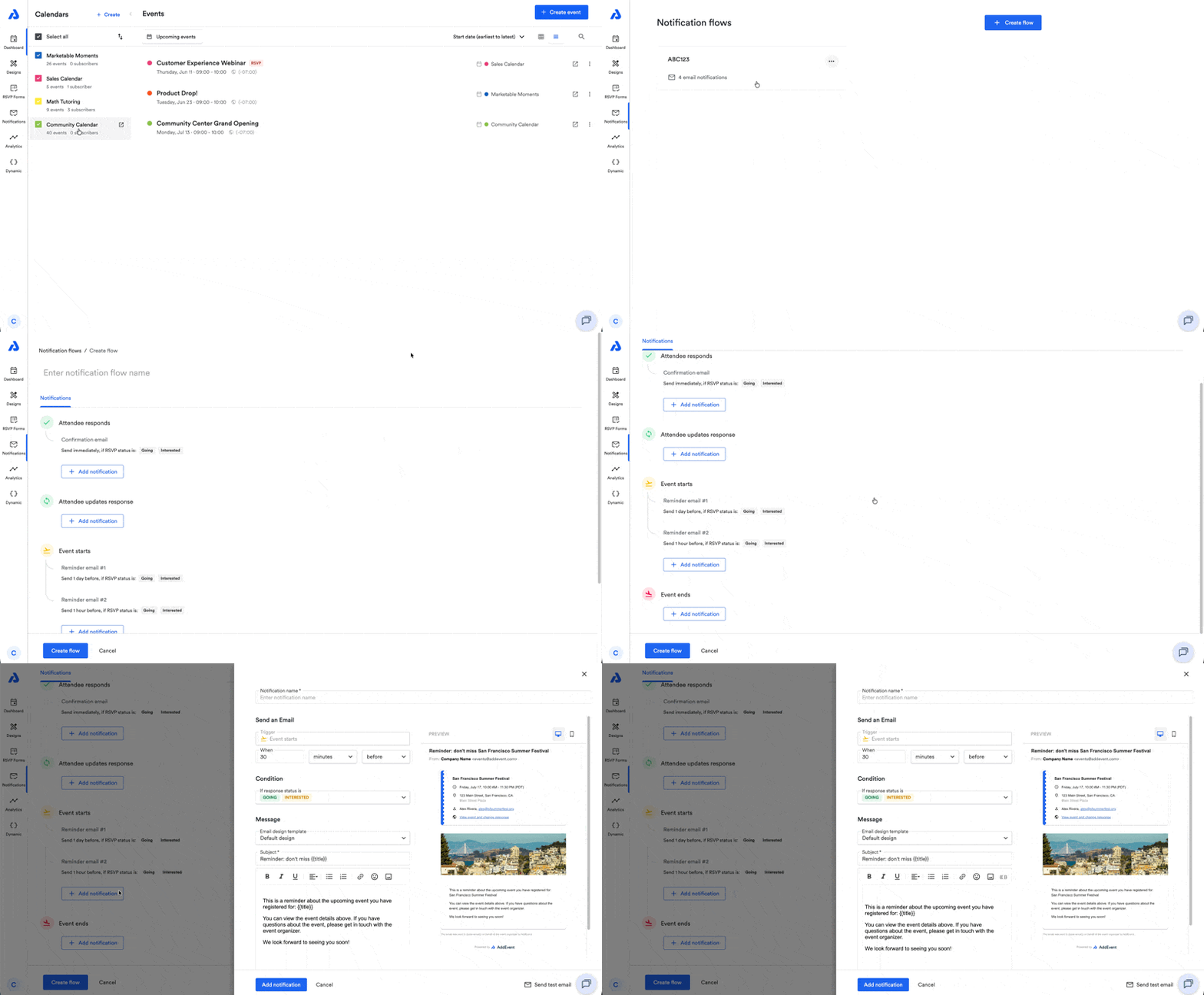
Notification Flows can be accessed from the Notifications tab in the left-hand navigation menu. From there, you'll be prompted to create a new flow or edit an existing flow.
Creating a Notification Flow
To create a new Notification Flow:
- Select the Notifications tab located within the navigation menu on the left-hand side of the Dashboard.
- Click the + Create flow button.
- Enter a Notification Flow name.
- Add or customize notifications.
- Click the Create flow button.
Notification Flow names are required before a flow can be created or saved.
Notification Triggers
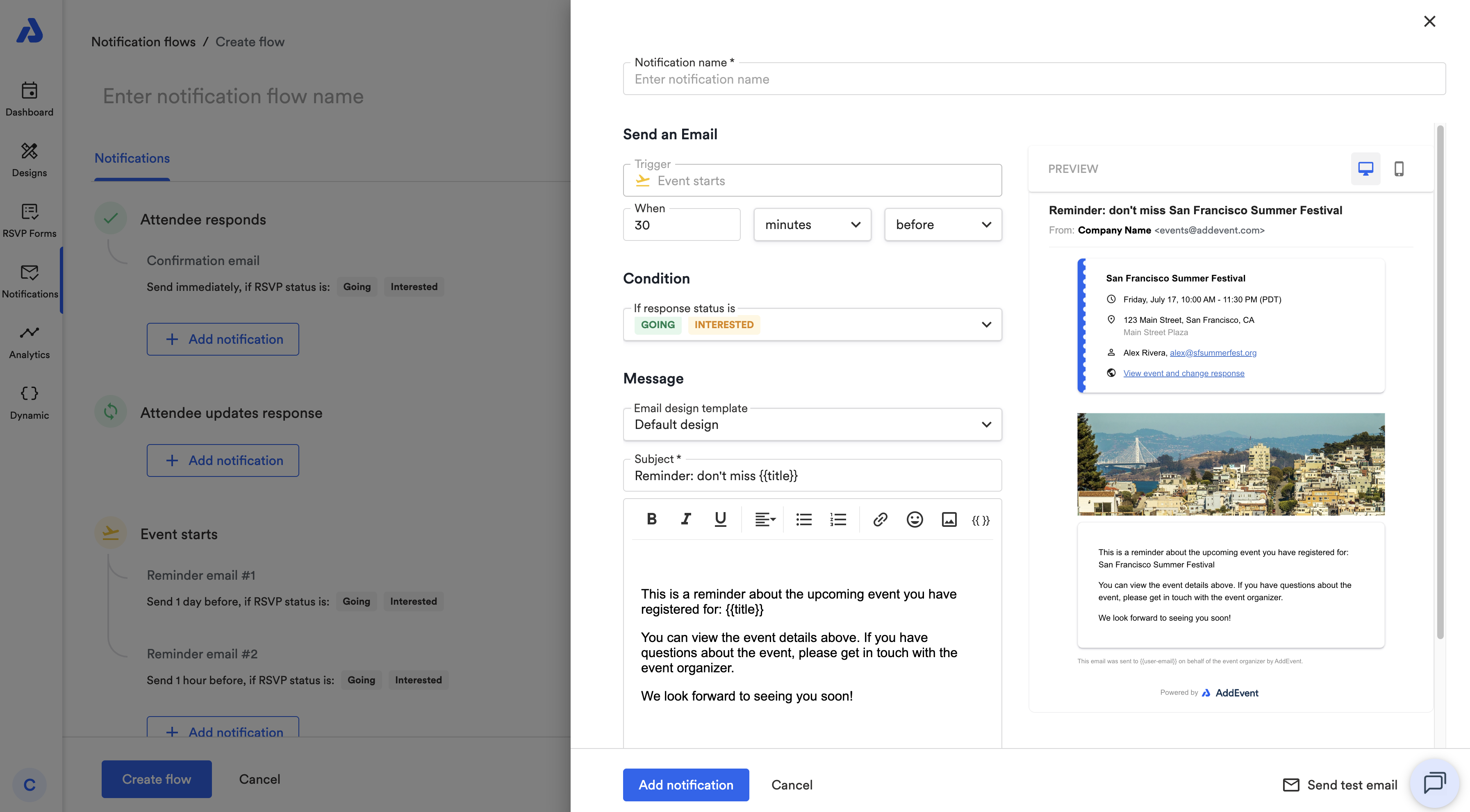
Each notification is grouped under a trigger that determines when the email is sent. For each notification, after choosing the trigger, you also choose the following settings: Timing (event starts and event ends triggers only) Design (by setting an email design template) Content (subject and body)
Available triggers include:
- Attendee responds
- Attendee updates response
- Event starts
- Event ends
Default Notification Under Each Trigger
New Notification Flows automatically include three default notifications:
- Confirmation email: Sent immediately after an attendee responds.
- Reminder email #1: Sent 1 day before the event starts.
- Reminder email #2: Sent 1 hour before the event starts.
These default notifications can be edited, removed, or expanded with additional notifications.
Notification Timing
Notifications can be configured to send before or after an event trigger.
For event-based triggers, you can choose intervals in:
- Minutes
- Hours
- Days
Examples include:
- 30 minutes before an event starts
- 1 hour after an event ends
- 7 days before an event starts
The maximum notification interval is 30 days.
Please note: Notifications tied to the attendee response triggers are always sent immediately after the action occurs and cannot be delayed.
Notification Conditions
Conditions allow you to control which attendees receive a notification based on their RSVP status.
Notifications can be sent to attendees marked as:
- Going
- Maybe
- Not going
At least one response type must be selected for every notification.
Editing Notification Content
Each notification includes customizable:
- Notification name (seen internally only)
- Subject line
- Email body
- Email design template
- Timing settings
- Conditions
The email body editor supports rich text formatting, including:
- Bold
- Italics
- Underline
- Text alignment
- Bulleted and numbered lists
- Links
- Emojis
- Images
Email Design Templates
Notification Flows support reusable email design templates. See our help doc here for Email Designs information.
When editing a notification, you can:
- Select an existing email design
- Preview available designs
- Create a new email design template
Desktop and mobile previews are available while editing notifications.
Variables and Replacement Tags
Notification emails support variables that dynamically populate event or attendee information.
Example variables include: {{title}}
Variables can be used in both the subject line and email body.
Custom RSVP field values can also be inserted using the RSVP field slug. See our help doc here for available merge tags.
Sending Test Emails
Each notification includes a Send test email option.
Test emails allow you to preview the current state of a notification before saving changes.
Test emails:
- Require a valid email address
- Reflect unsaved changes immediately
Assigning Notification Flows to Events
Notification Flows are assigned from the RSVP settings tab of an event.
Once assigned, attendees for that event will receive notifications based on the selected flow configuration.
Updating a notification flow automatically updates future notifications for attendees on events using that flow.
See here for instructions on applying a notification flow to an event.
Duplicating Notification Flows
Notification Flows can be duplicated from the more options menu.
Duplicated flows are created with the format: [Copy] Notification Flow Name
Deleting Notification Flows
Deleting a Notification Flow permanently removes it from the account.
- When a flow is deleted:
- Events using that flow automatically revert to the default notification flow
- RSVP attendees will receive notifications based on the default flow moving forward
- To confirm deletion, you must type:
Delete
Deleted notification flows cannot be restored.
Time Zone Behavior
Notification timing is based on the event’s configured time zone.
If an event does not have a time zone:
- The attendee’s time zone is used
- If unavailable, UTC/GMT is used
For all-day events:
- Start time is treated as
00:00:00 - End time is treated as
23:59:59
Watch This Tutorial!
Updated 5 days ago