

Embeddable Calendar: How to Include a Follow Calendar Button
If you're wanting to ensure that your embeddable calendar audience can click a Follow Calendar button to add the subscription calendar to their external calendar serivce, you can follow the steps below.
How to Include a Follow Calendar Button on Your Embeddable Calendar
-
Select the Designs tab on the left-side navigation menu.
-
Click on Embeddable Calendars and then click the + Create Design button. Or, if you've already created a design template, select the existing template to edit the settings.
-
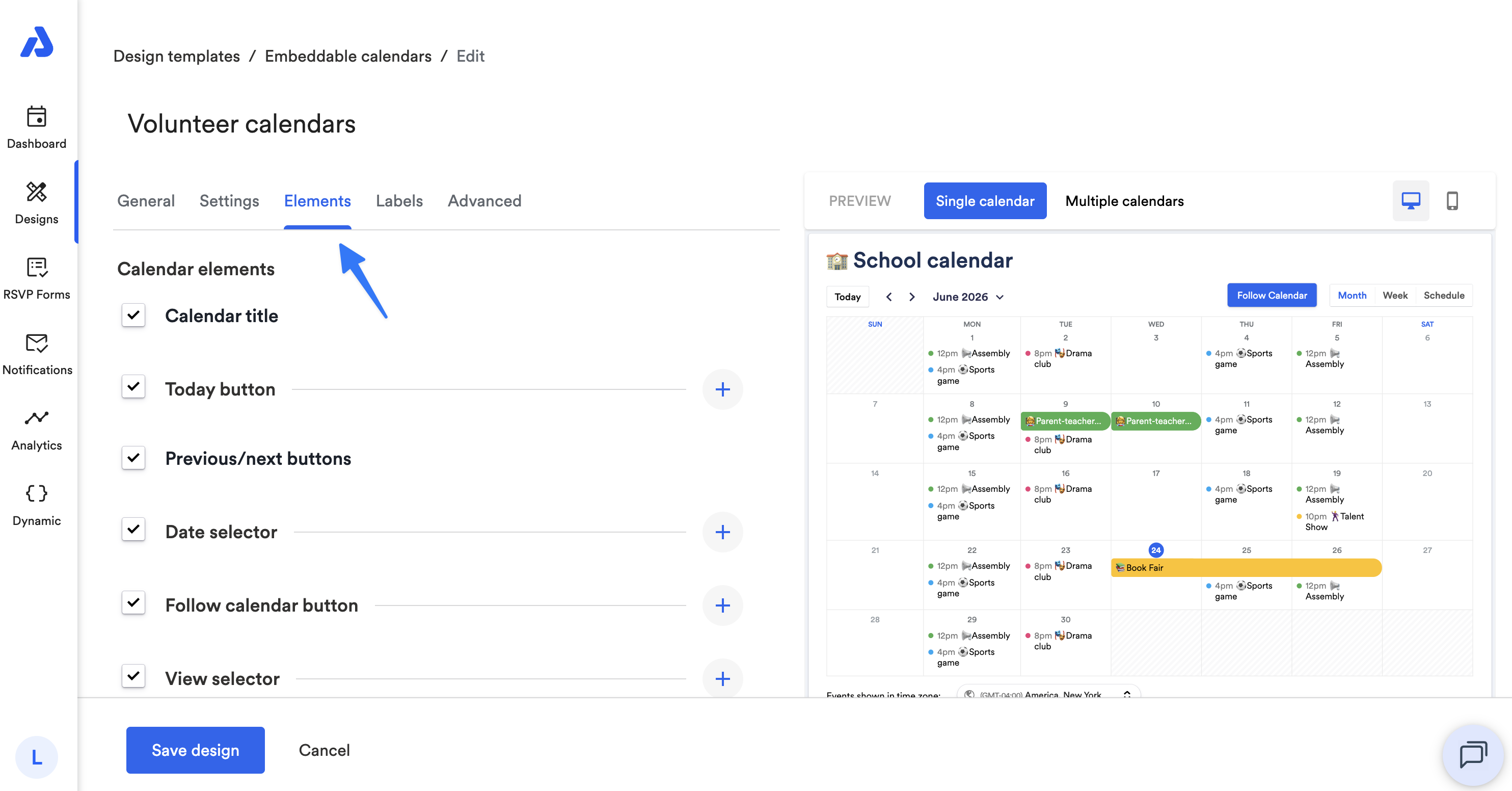
From the Create design/Edit page, select the Elements tab.
-
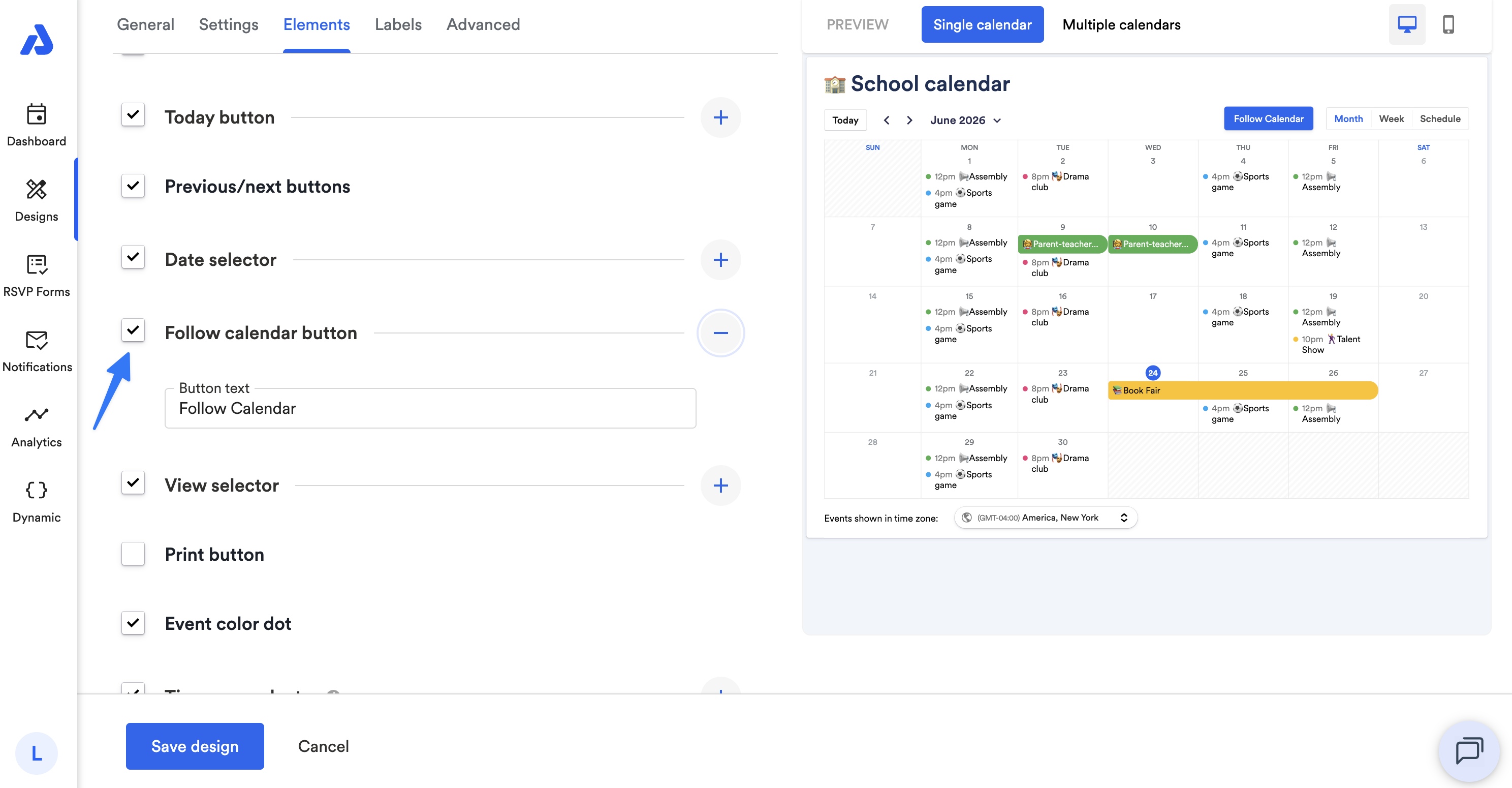
Scroll down until you see the Follow calendar button section.
-
Ensure the checkbox next to the Follow calendar button is checked to include the button on your embeddable calendar.
-
Click the Create design/ Save design button to save your changes.
-
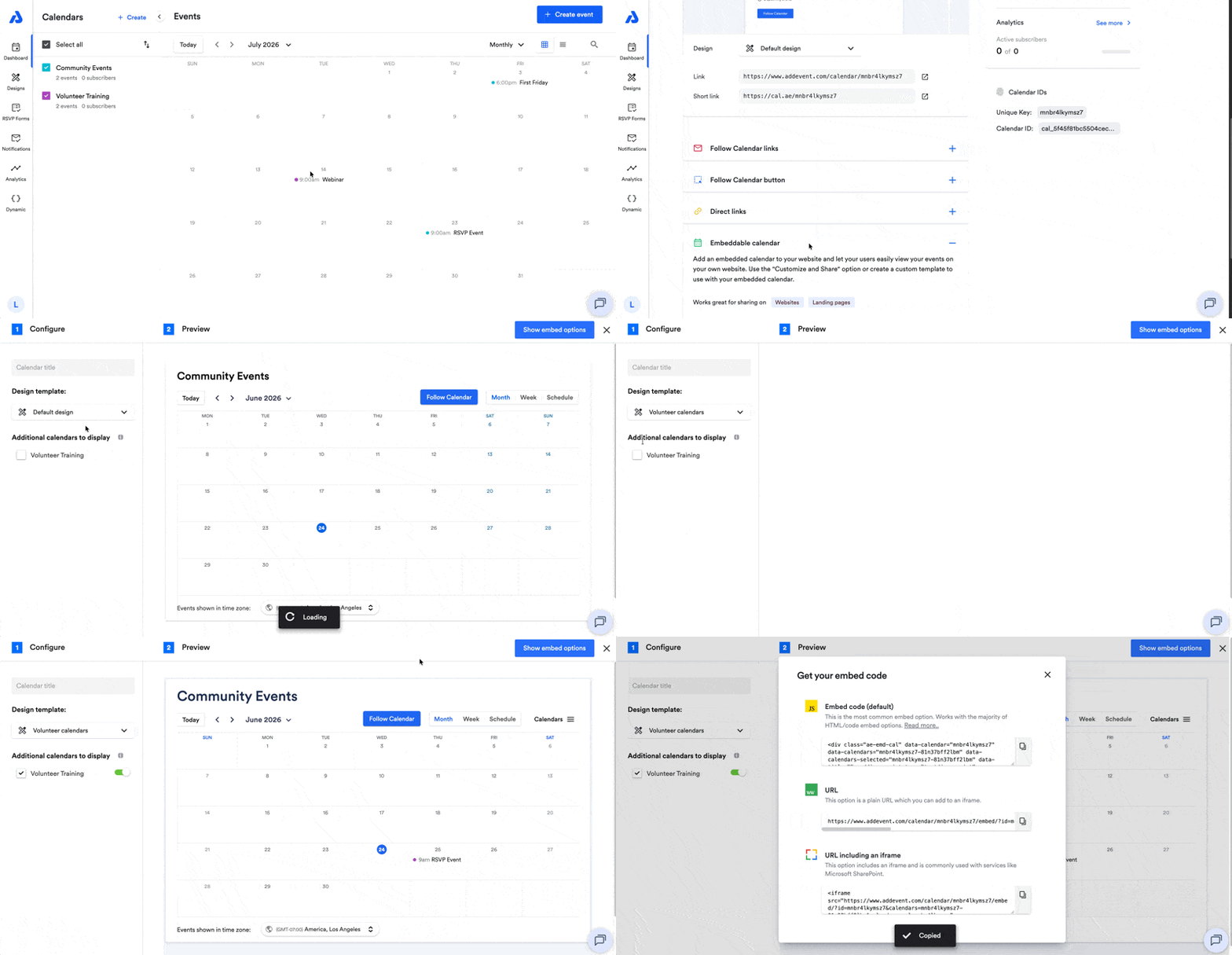
To apply the embeddable calendar design template to your calendar, click on the calendar's title from the Dashboard's calendar list.
-
Scroll down on the Calendar details page, and select the Embeddable calendar option to expand the section.
-
Click the Customize and Share button.
-
From the following page, select the design template from the dropdown.
-
Click the Show embed options button to copy the updated embed code to apply to your webpage.
To remove the Follow Calendar button from your embeddable calendar, you can follow the same steps, but you'll need to uncheck the box for the "Follow calendar button" option within the Elements tab in the design template.
Embeddable calendars and design templates are available on our Small Business, Professional, and Enterprise plans.
Updated 4 months ago