

RSVP Forms Settings
This help doc shares details about changes with RSVP Form settings that were released on Sept. 1st, 2026.
RSVP Form settings were previously located within Event Landing Page Designs, and as of Sept. 1st, 2026 those settings have been relocated. Any customizations for the RSVP Form's title and description, response options, confirmation messages, and form submission button text now can be edited within the RSVP Form's Settings tab.
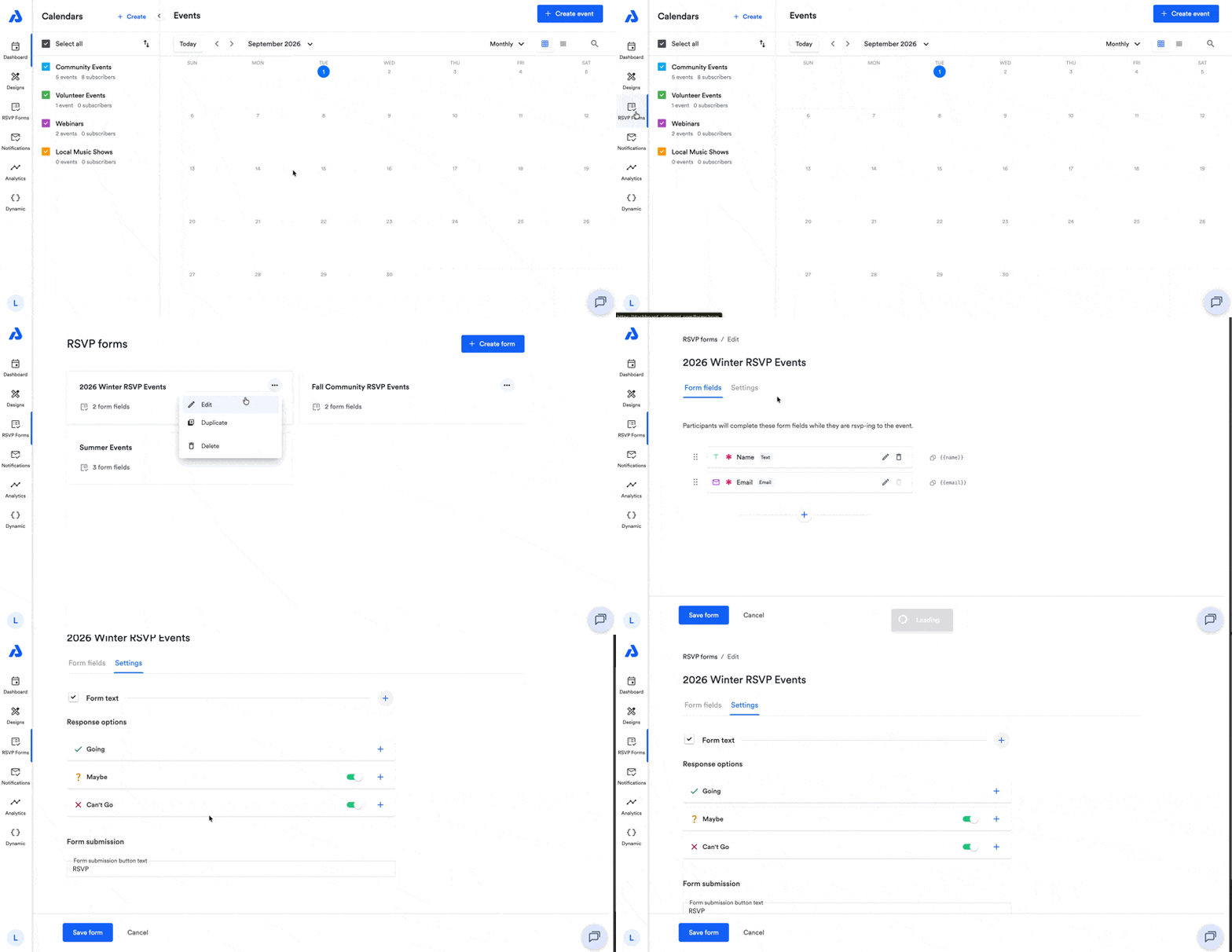
Below is a brief overview of each section available within your RSVP form's Settings tab.
Form Text
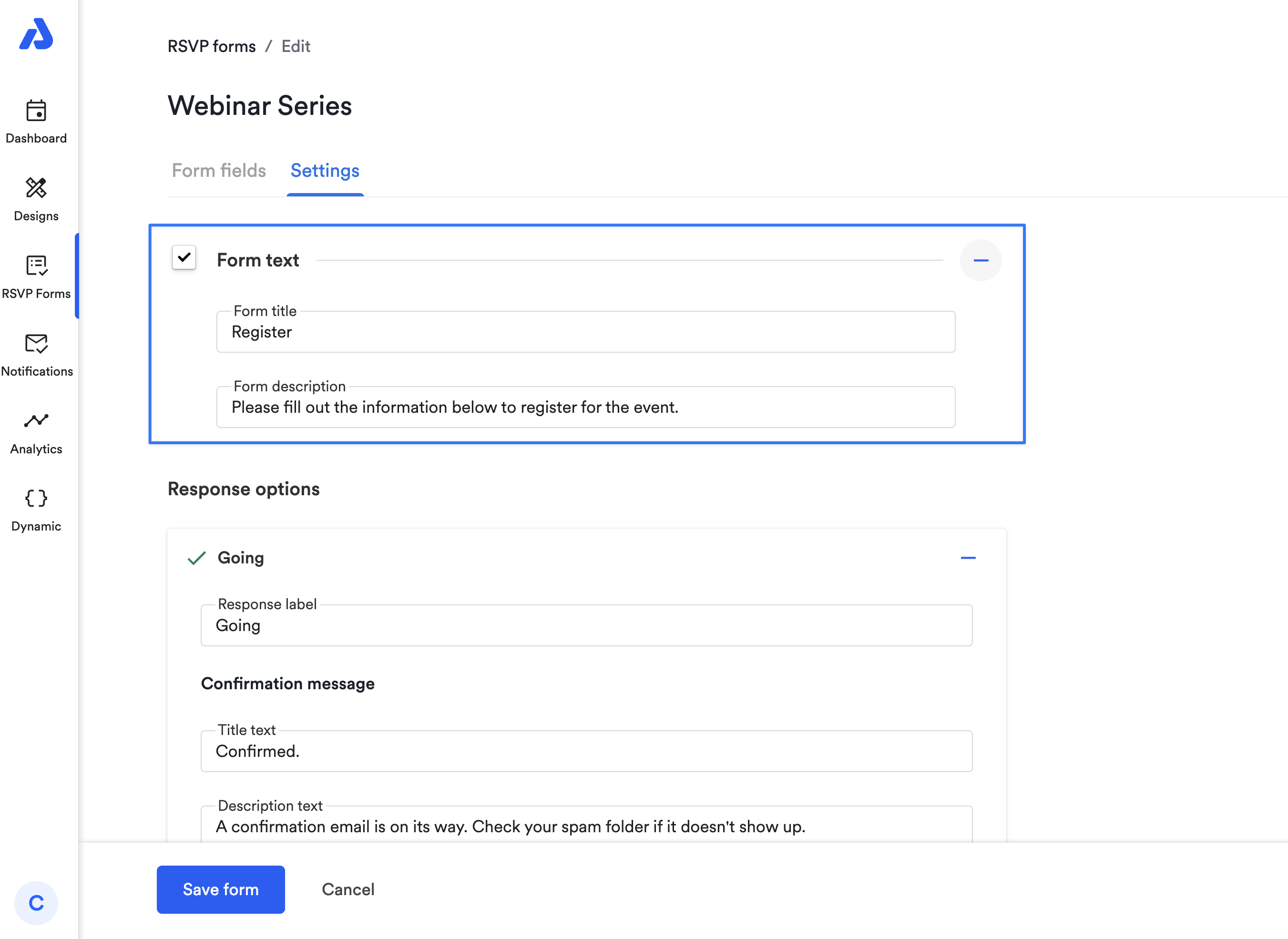
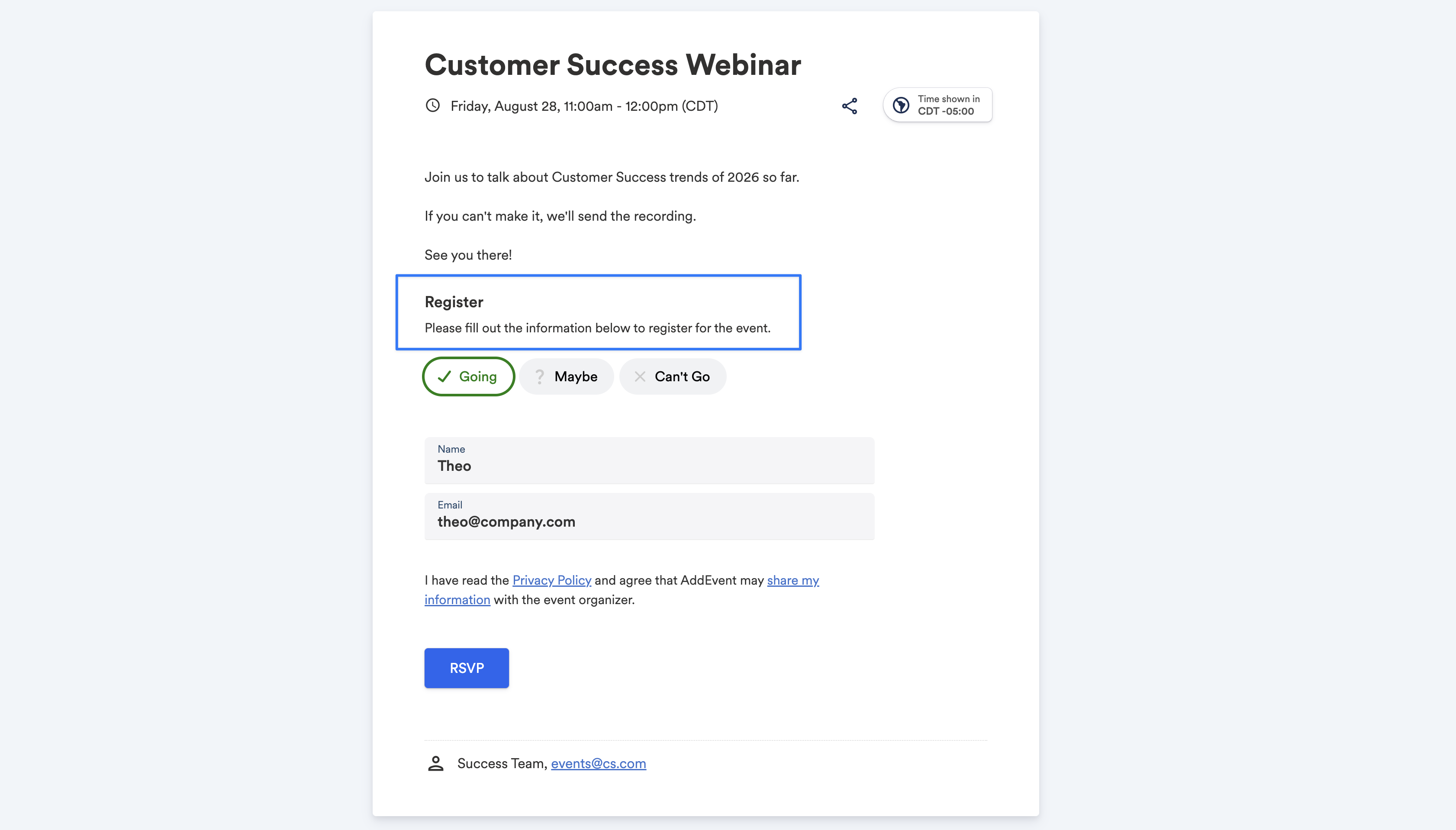
The form text is displayed on the event landing page or embedded RSVP event below the event's description. You can customize both the form title and the form description.
Response Options
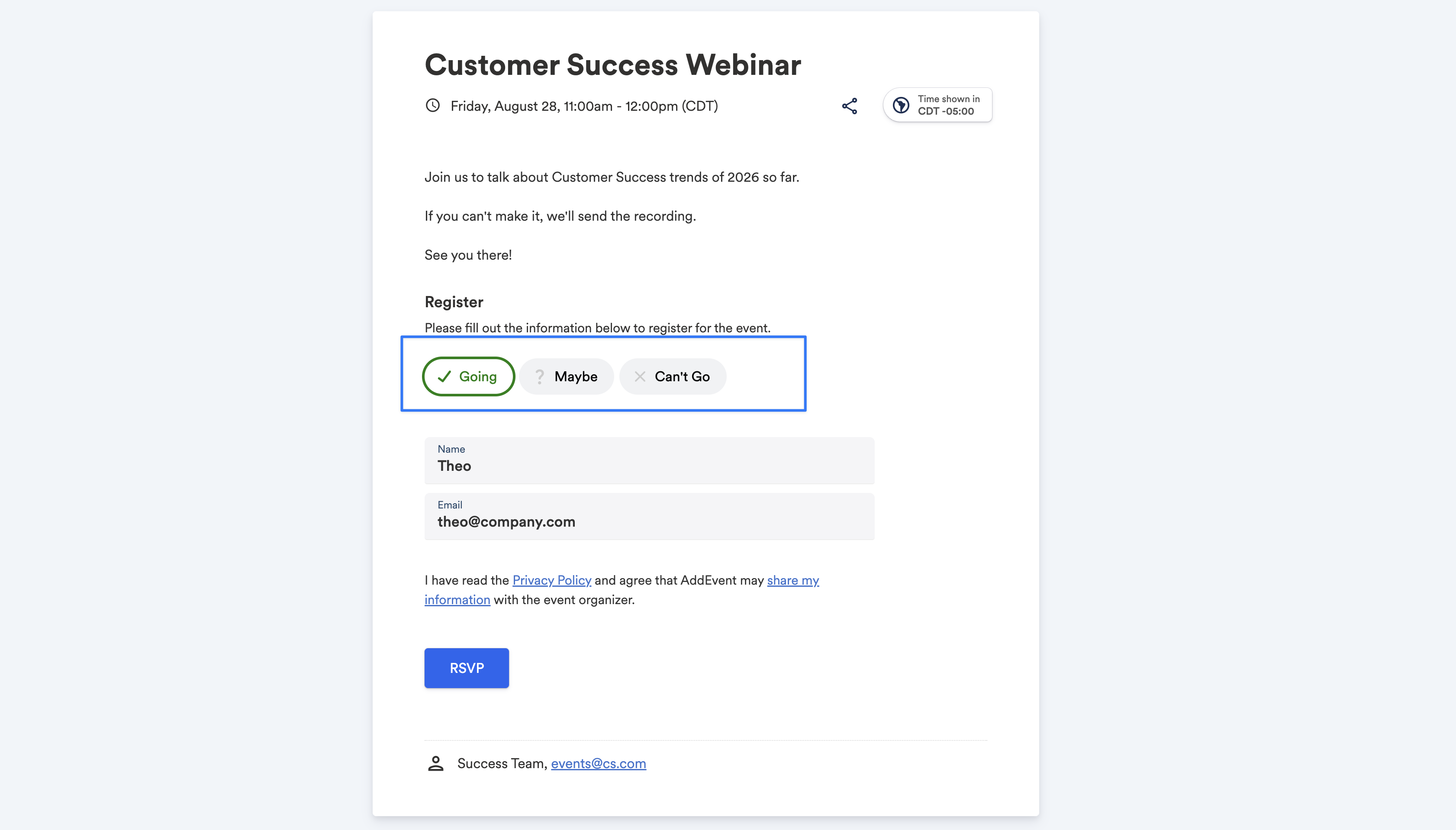
Default response options are:
- Going
- Maybe
- Can't go
What can be customized?
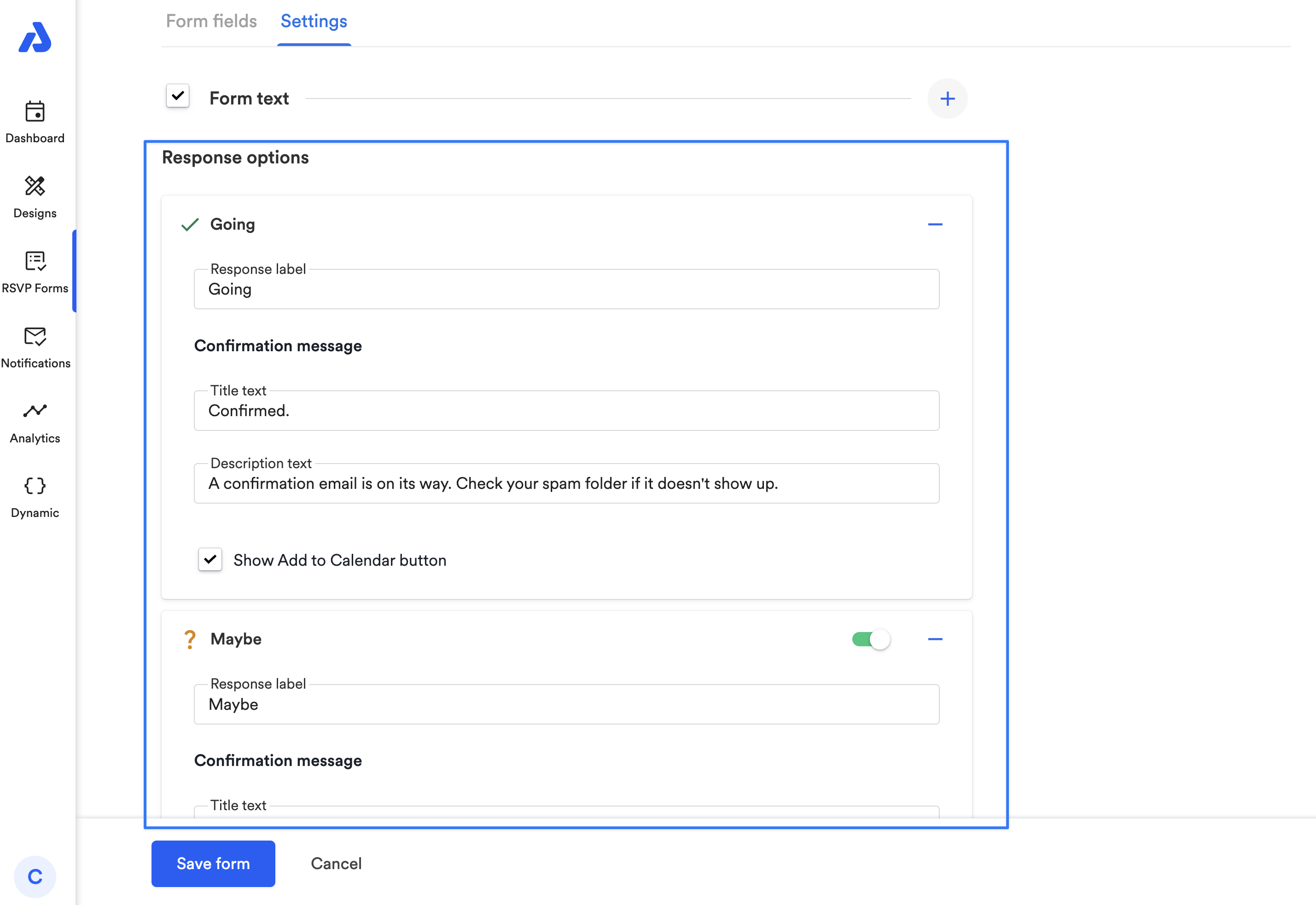
- Response Label and Confirmation Text: Each response's label and it's corresponding confirmation message's title and description can be customized. The confirmation message is what appears on the landing page or embedded event after an attendee submits their registration.
- Response options: By default, "Going" is enabled and required. You can remove the "Maybe" and "Can't go" response options from the RSVP form by clicking the toggle to the "Off" position.
- Add to Calendar Button: By default, after an attendee registers for an event, an Add to Calendar button is presented. You can uncheck the box next to "Show Add to Calendar button" to remove the button.
Form Submission
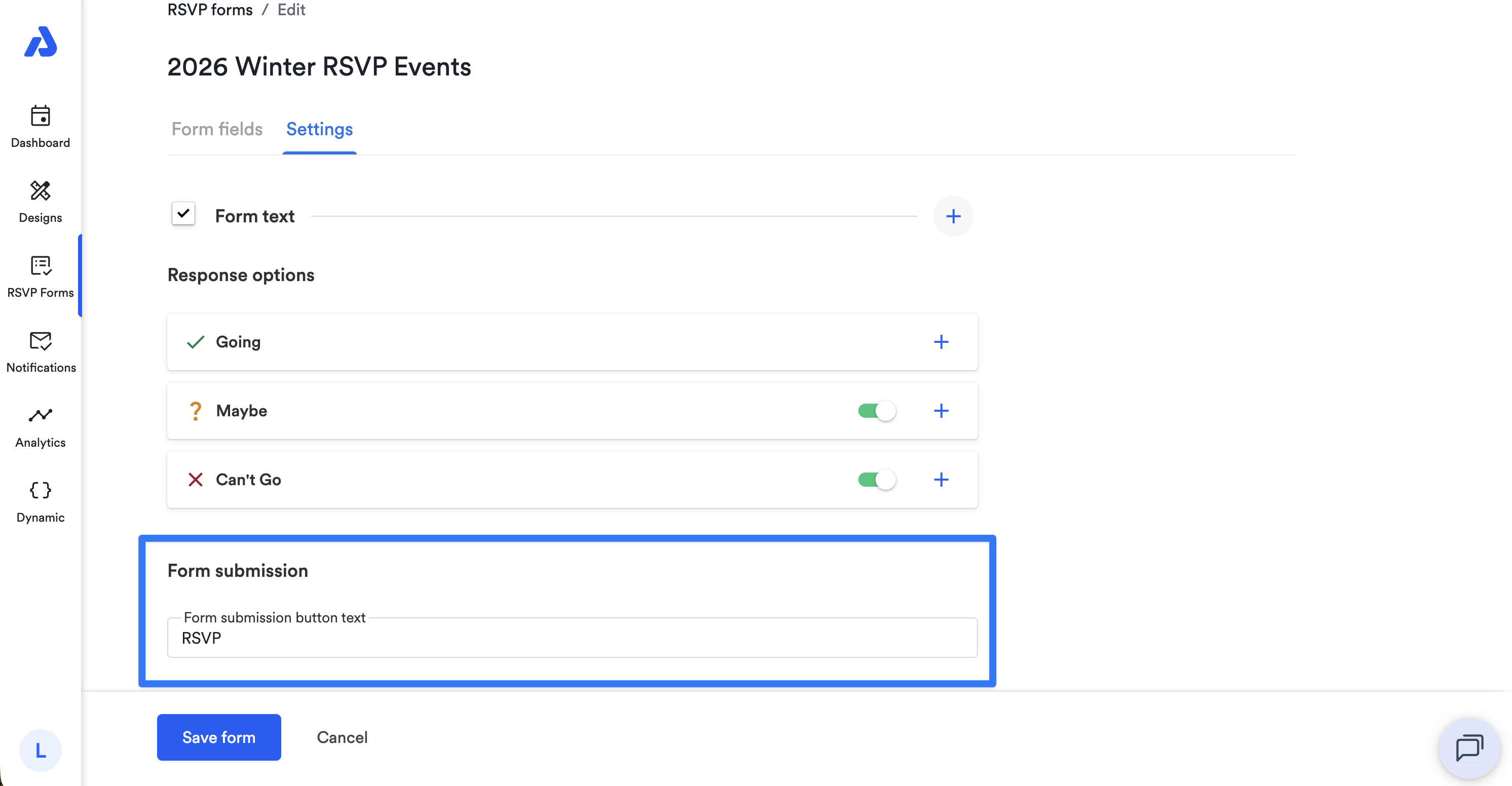
You can edit the text that is displayed within the RSVP button at the bottom of the Settings tab.
Updated 7 days ago