

Create an Event in AddEvent
This help doc shares how to create an event in the AddEvent dashboard. Creating events allows you to share events with your users and get those events onto their calendars.
How to Create an Event
There are two different ways to create a new event from the Dashboard:
-
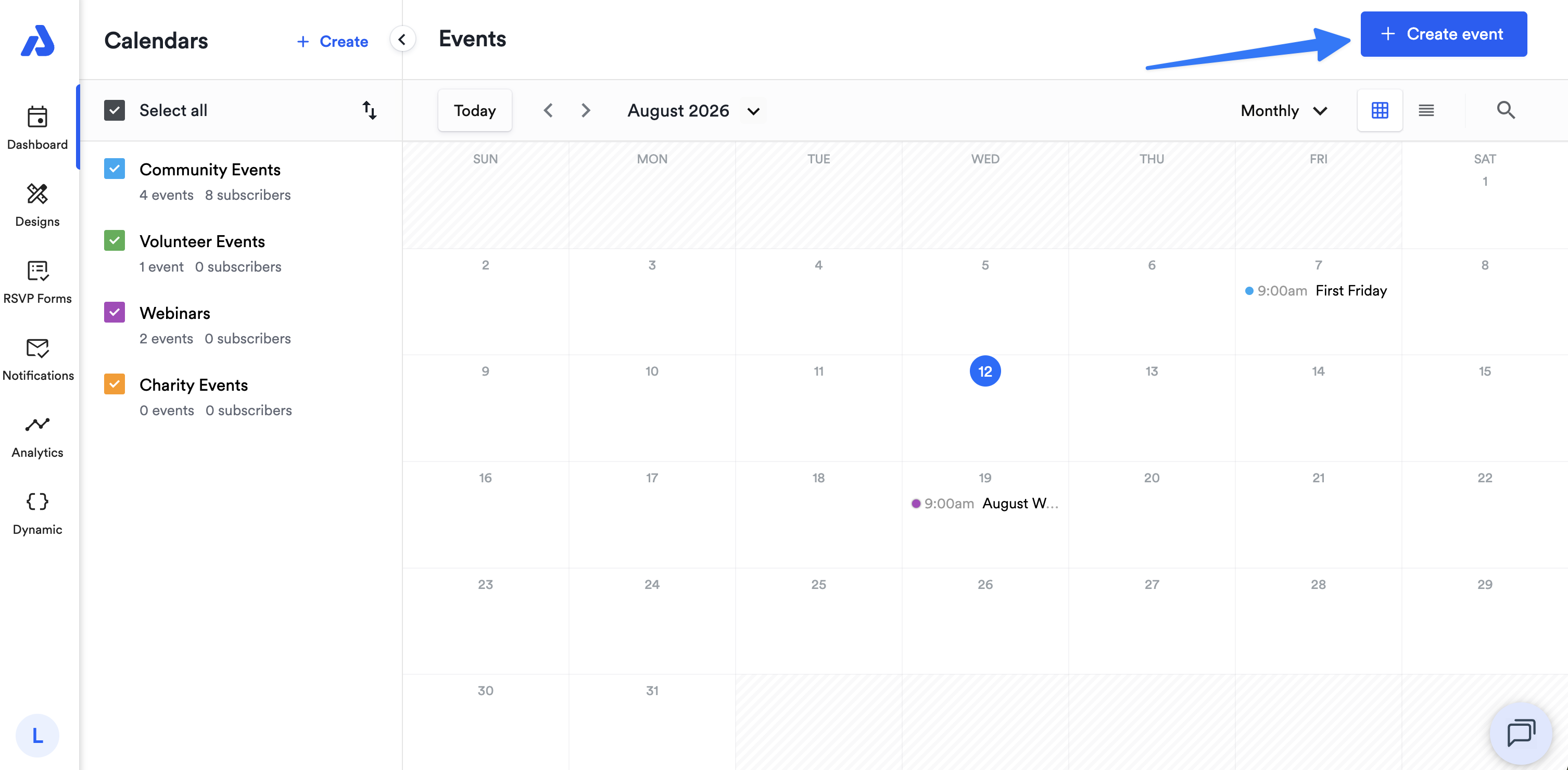
The first way to create an event is to click the + Create event button located on the upper-right hand corner of the Dashboard.
-
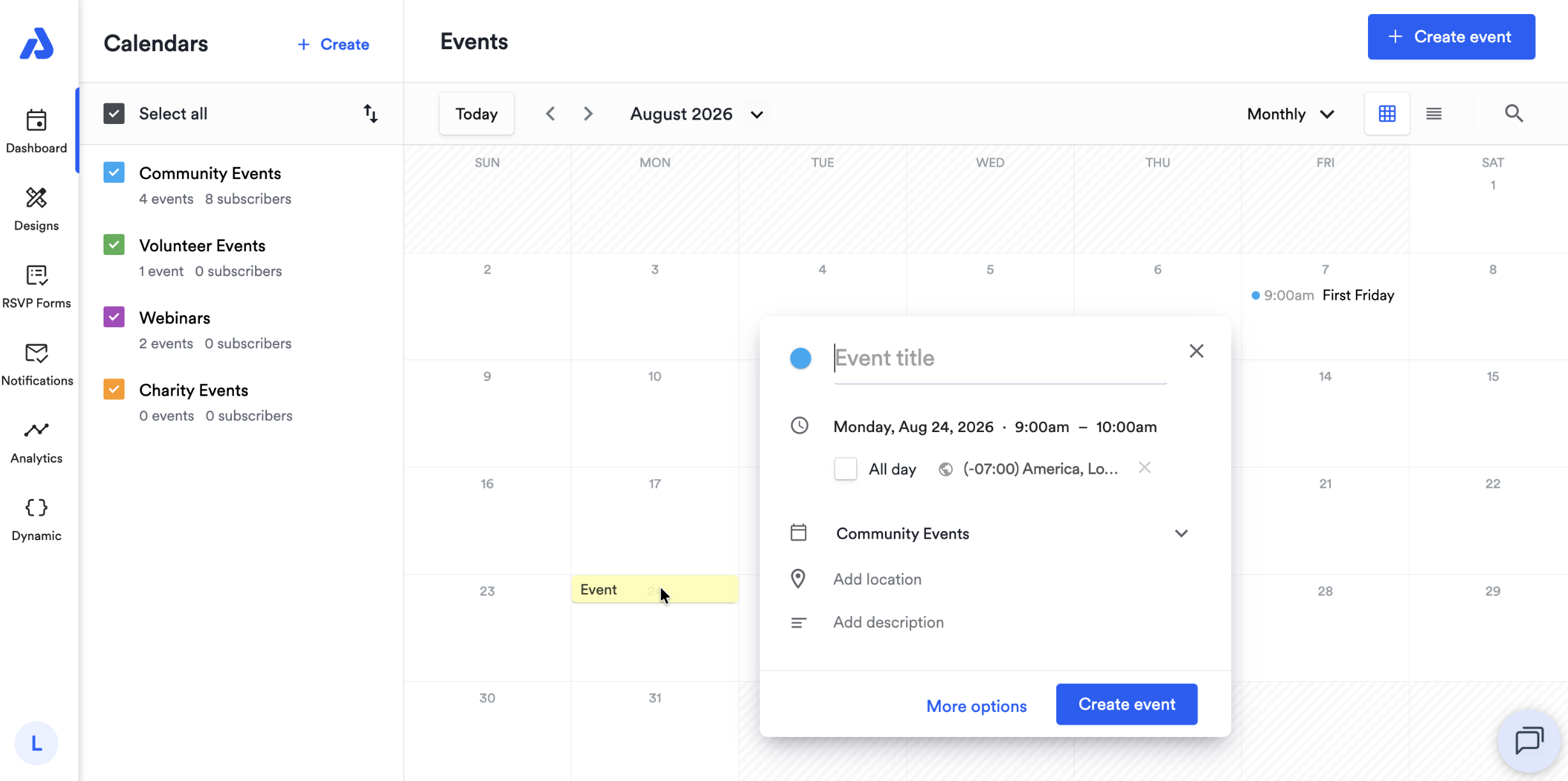
The second way to create an event is to click on the day within the Calendar view on which the event will occur. Fill out the details in the modal pop-up window, and click the Create event button, or select More options to input event details on the Create event page.
Customize Your Event
Below is the event creation page. You can customize all of the event details listed. The following section will outline each field on the Create event page.
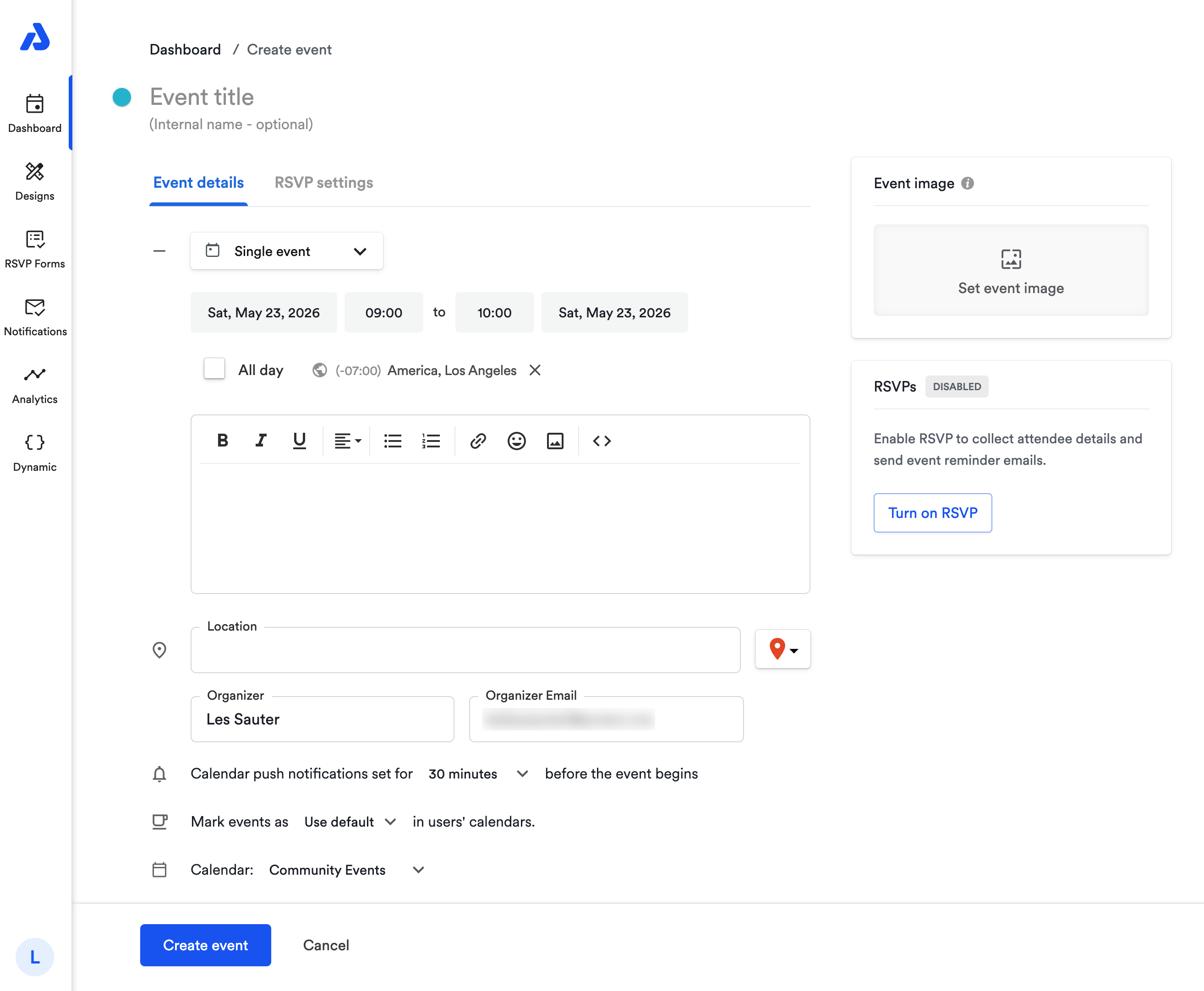
Title of Your Event
This is the title your users will see when they add it to their calendars. The best titles are brief and informative.
Internal Name of Event
Only you and your other account users (admin and editors) will see the internal name of the event. This is meant to help with internal organization, for instance, if you have many events with similar or identical titles.
Date and Time
Select the date of the event by clicking on the date box and clicking on the day of the event. Select the time by clicking on each start and end time box and scrolling through the dropdown menu of listed times. Alternatively, click on the box and type in the start and end times of the event.
To create an all-day event, click the All Day checkbox, and the time options will disappear, so then you will only need to select the start and end date of the event.
Time Zone
Select the appropriate time zone for the event. If you are unsure of the appropriate time zone, click the time zone and search based on the location of the event.
Event Image
You can include an event image for your event landing page by clicking Set event image to the right of the event's date and time details. Upload your brand images in the image gallery and your images can be reused across events.
Recurring Events
Recurring rules are supported by Apple, Google, Office365, Outlook, and Outlook.com. If you want to support Yahoo Calendar as well, we recommend that you create multiple events (e.g., a series of events) and share your calendar instead.
RSVP
You can enable RSVP to collect registrations and attendee details for your event.
If you want to learn how to create an RSVP event, see our help doc here.
Event Series
Events created in a series allow you to create multiple events at one time, but they are treated as individual events when shared. These events in series can be edited/deleted individually or collectively.
To learn more about event series, see our help doc here.
Description
The description of your event is what your end-users will view when you share the event's landing page with them. It will also be included in the event that is added to their calendars.
Location of Event
The location of the event can be a link, a physical address, a custom location, Zoom, Google Meet, GoToMeeting, Microsoft Teams, Hopin, or any other video conference link. You can leave this field blank if the event does not have a location.
To learn more about event locations, see our help doc here.
Organizer & Organizer Email
The contact person for the event. If you add an organizer and an organizer email, that information will appear on the event landing page.
To learn more about event organizer details, see our help doc here.
Push Notifications
Calendar alarms, or event notifications, can be enabled. These notifications are sent out by the various calendar applications before the event.
The calendar application will send the calendar alarm based on the notification setting your end-user has set. If no user setting is set, the calendar application will send the calendar alarm based on the notification timing you provide.
Event Landing Page
The landing page for the event includes all the event details, including the Add to Calendar button. You can create and use customized landing page design templates, or you can simply use the default landing page design.
To learn more about landing page designs, see our help doc here.
Busy/Free
Choose whether the time during the event is displayed as Busy or Free on your users' calendars. If you're unsure of what to choose, we recommend using the default setting so your users can choose for themselves.
Calendar
Select which calendar you'd like the event to be added to. The event will only be added to the calendar you select.
Once you've completed all of the essential fields for your event, click the Create event button. Now you're ready to share your event!
Updated 27 days ago