

Require an Access Code to View Your Calendar Landing Page
This help doc shares how to require an access code to view a calendar landing page. Requiring an access code provides additional privacy, allowing only those with the code to view your calendar's details, view upcoming events, and subscribe to your calendar.
How to Apply an Access Code to Your Calendar Landing Page
To apply an access code to your calendar landing page, follow the steps below.
-
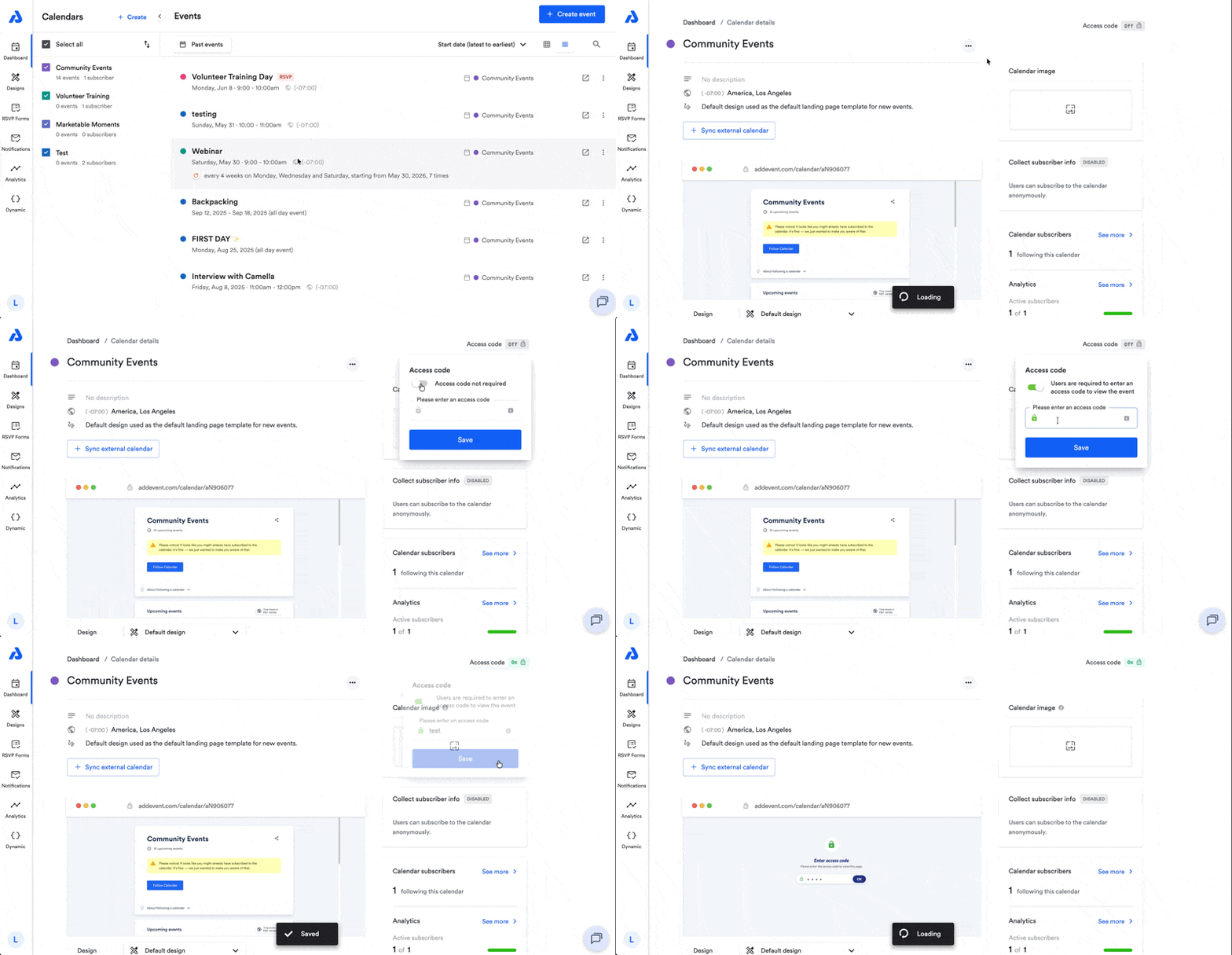
From the Dashboard, click on the calendar's title. You will be directed to the Calendar details page.
-
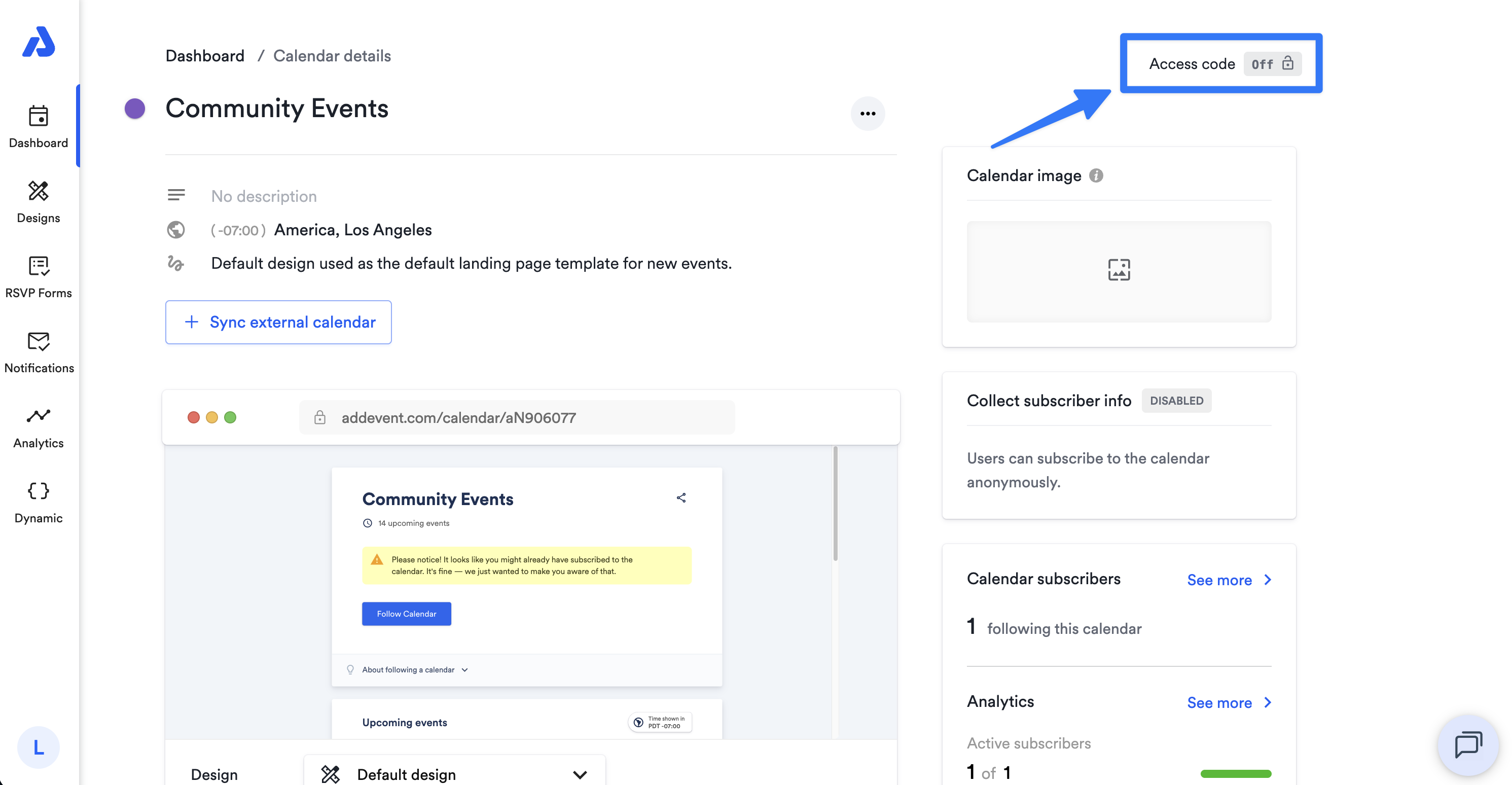
Click on the Access code option located on the top-right corner of the Calendar details page.
-
Toggle Access code to the On position and type in an access code.
-
Click the Save button.
The Calendar details page will indicate that an access code is enabled with the green "On" icon.
What Happens When an Access Code is Applied to a Calendar?
Calendars with an access code have enhanced privacy. Users attempting to access your calendar's landing page will be prompted to enter the access code before viewing the calendar's event details or RSVP options.
The Attendee Experience:
- Clicking the Follow Calendar button or links associated with the calendar will redirect users to the calendar's landing page.
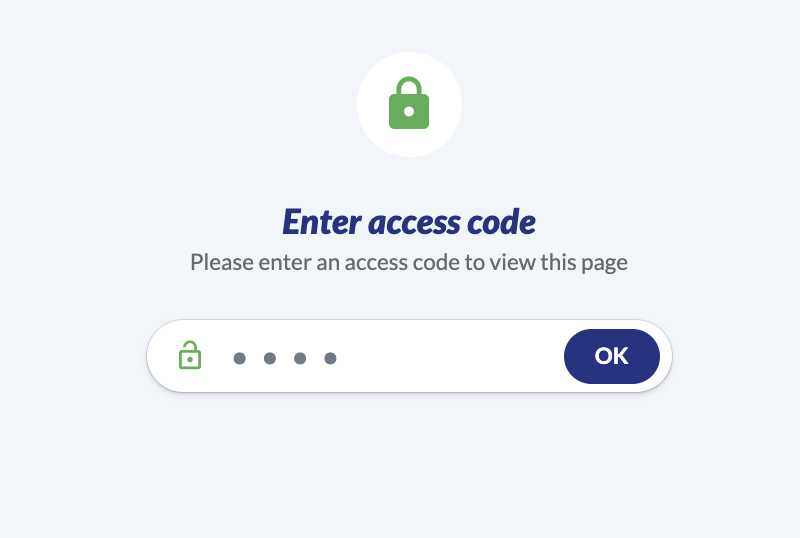
- Users must enter the access code to proceed and view the calendar landing page and its details.
- Without the correct access code, users cannot access the calendar details, the ability to subscribe with the Follow Calendar button, add upcoming individual events to their calendars, or register for upcoming RSVP events.
How the Access Code Works for Calendar Subscribers/Attendees
When an access code is enabled, anyone you share the calendar with will be redirected to the calendar’s landing page. To view calendar details and subscribe to events, attendees will need to enter the access code on the landing page.
Calendar subscribers' external calendars will continue to sync with the subscription calendar after the calendar organizer requires an access code and newly created events will continue to appear on their external calendar service after calendar syncs occur.
In other words, requiring an access code will only prevent attendees without the access code from viewing the calendar landing page or an embedded calendar/embedded events list.
Why Use an Access Code for Your Calendar?
Applying an access code helps maintain privacy and restrict access to your calendar. This is particularly useful for:
- Private Calendars and Events: Allows only invited attendees to view event details or RSVP.
- Confidential Information: Protecting events on the calendar that have sensitive content.
- Restricted Attendance: Controlling who can participate, especially for exclusive or high-profile events.
Adding an access code is an effective way to manage privacy and provide an extra layer of control over your calendar of events.
Updated about 2 months ago