

Delete or Block a Calendar Subscriber
This help doc provides the steps on how to delete subscribers from a subscription calendar via the Dashboard in AddEvent.
How to Delete or Block a Calendar Subscriber
How to Delete a Subscriber
-
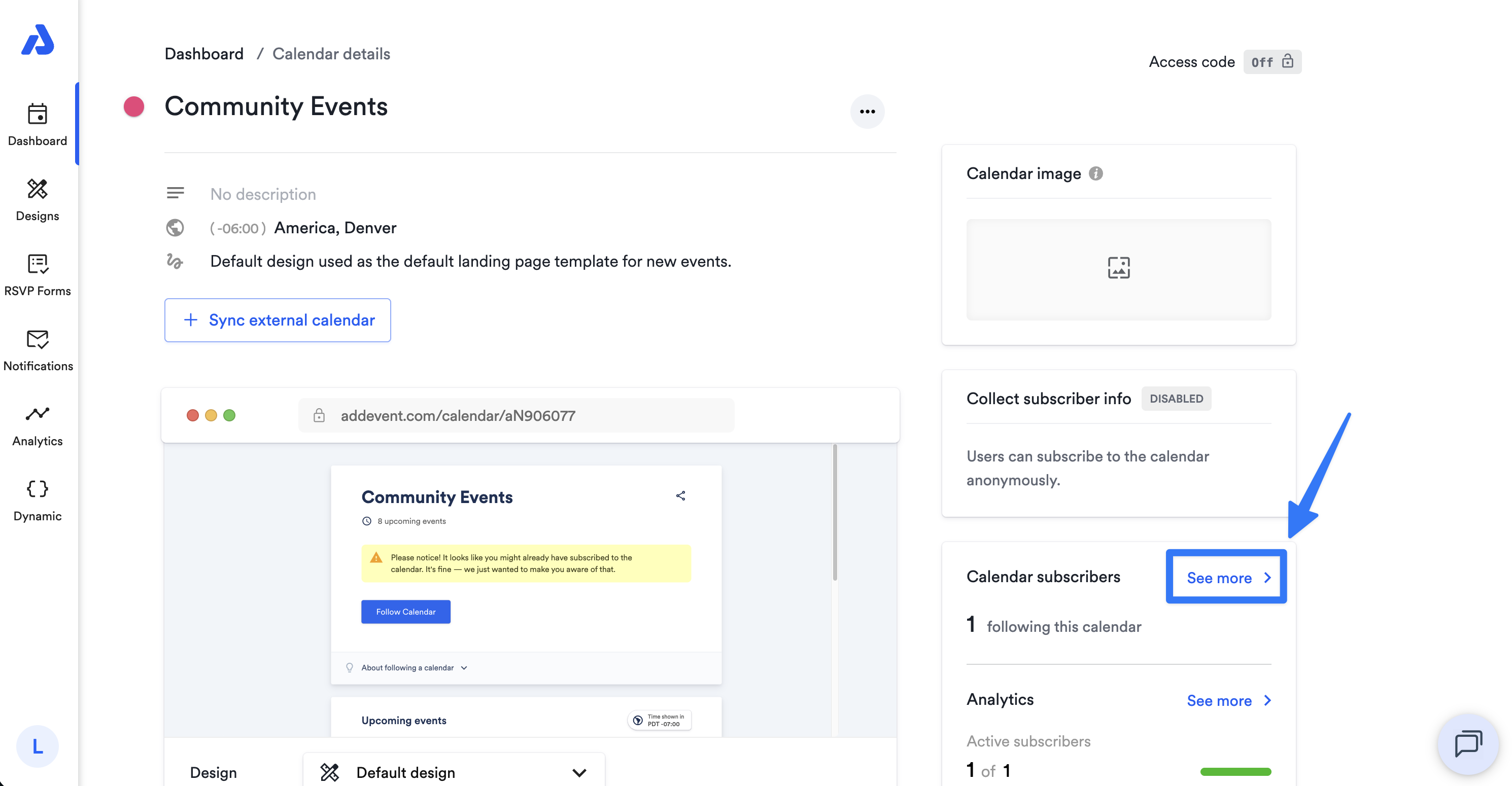
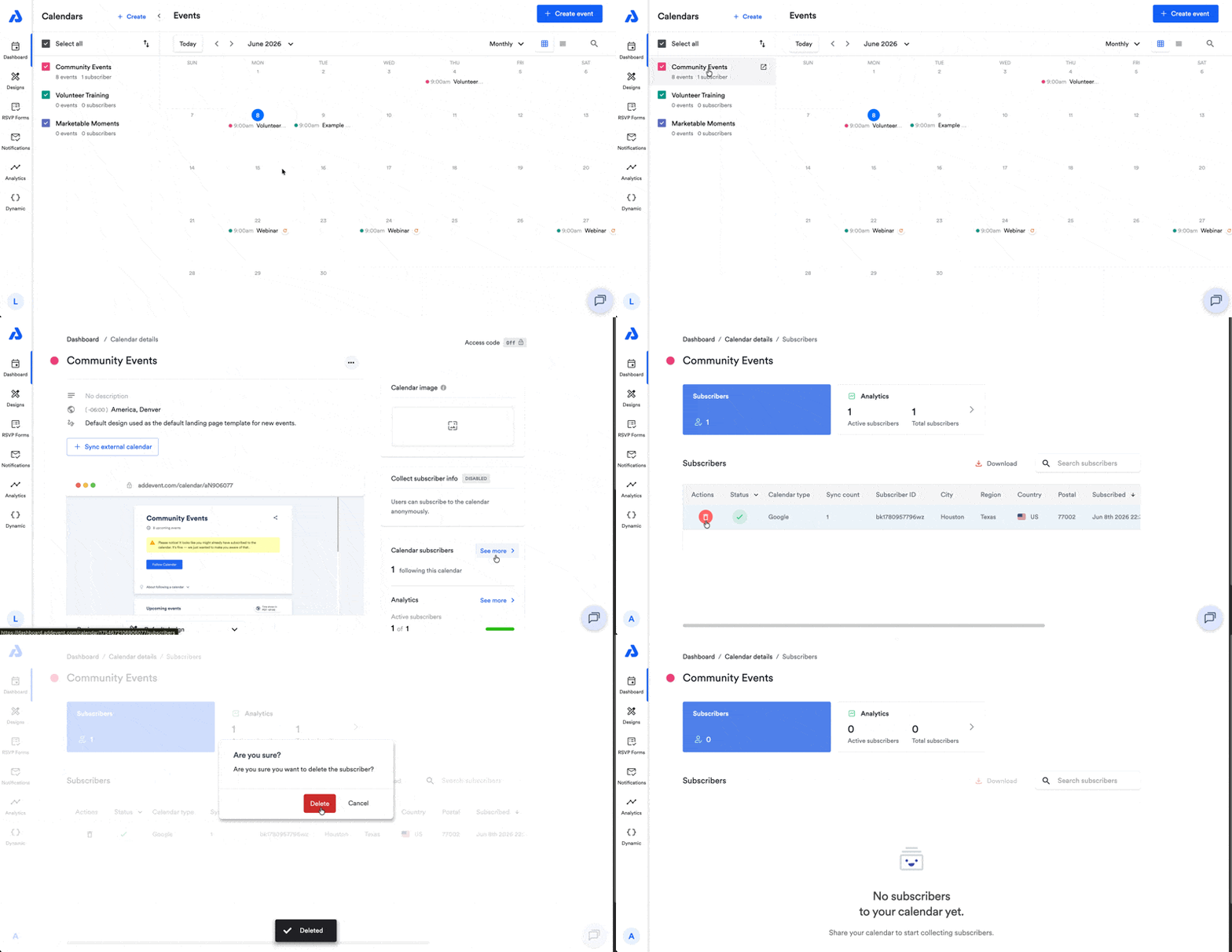
Click on the calendar's title from the Dashboard. You will be directed to the Calendar details page.
-
From there, click on the See more link located on the right side of the page within the Calendar subscribers section.
-
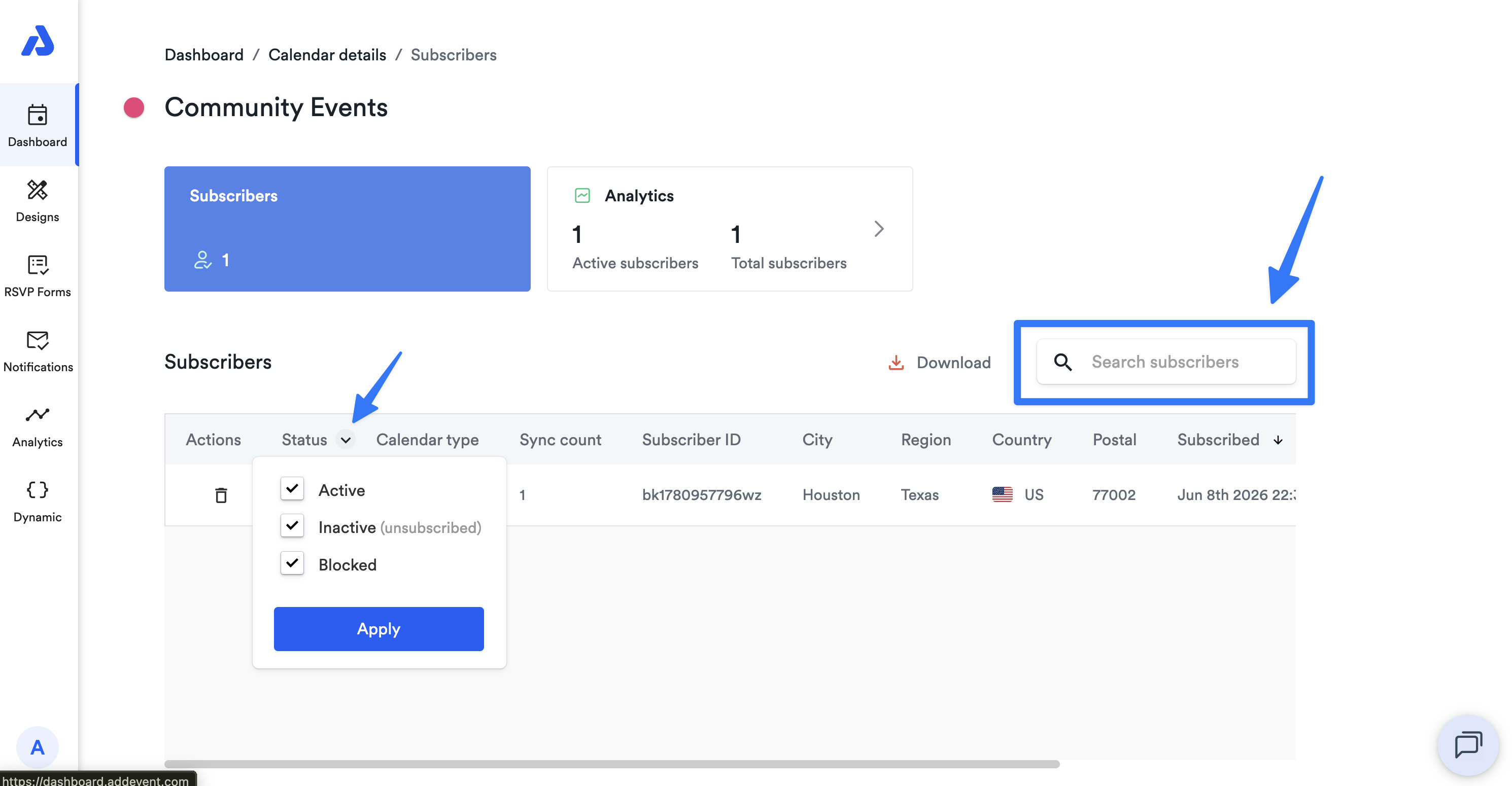
On the following Subscribers page, you will find the list of subscribers for the calendar. Within the subscriber list, search for the subscriber by either using the search field, narrowing down the list by selecting a specific Status group, or by simply scrolling through the list.
-
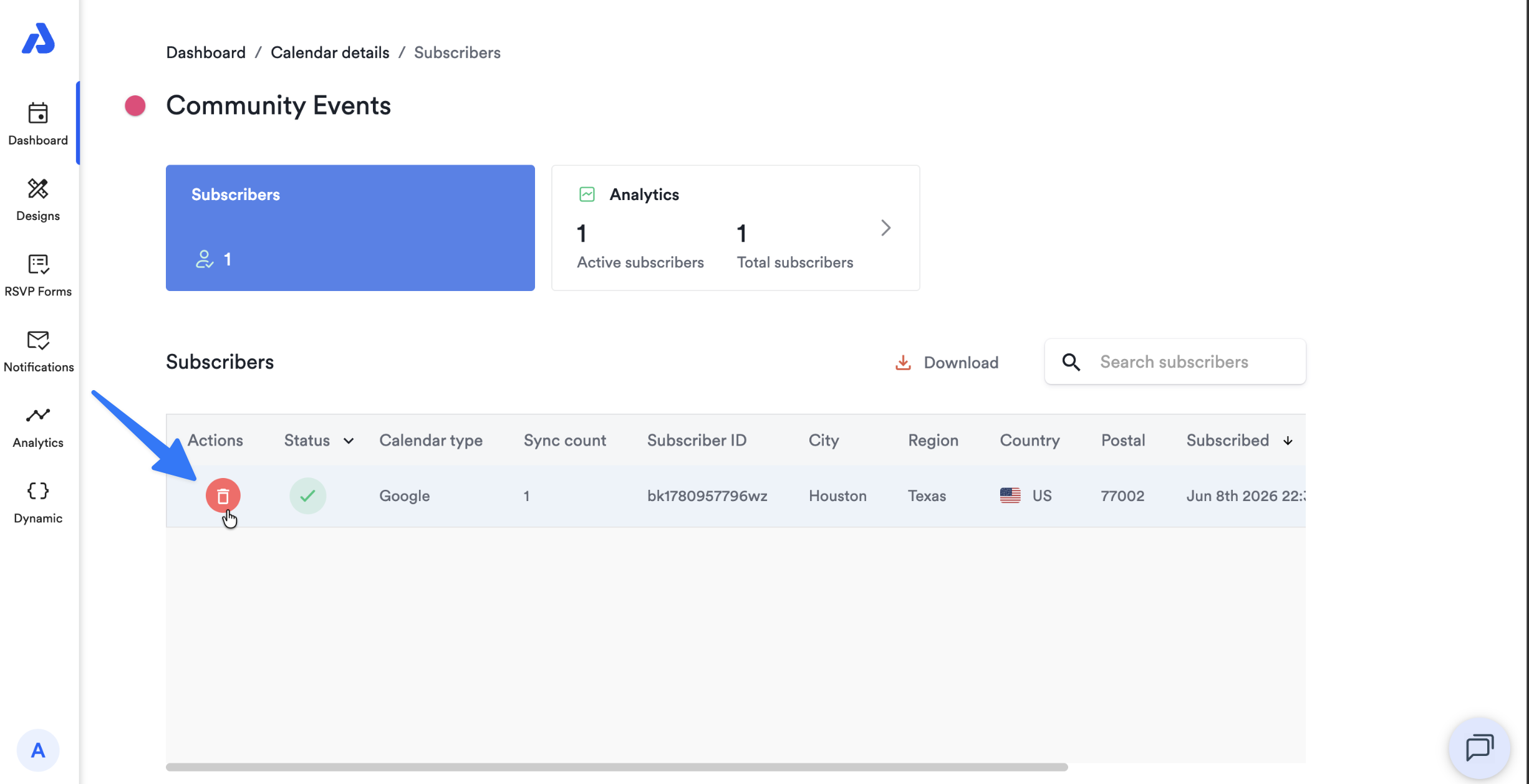
Once you've located the subscriber you would like to delete, click the trash can icon located within the first column on the left labeled "Actions":
-
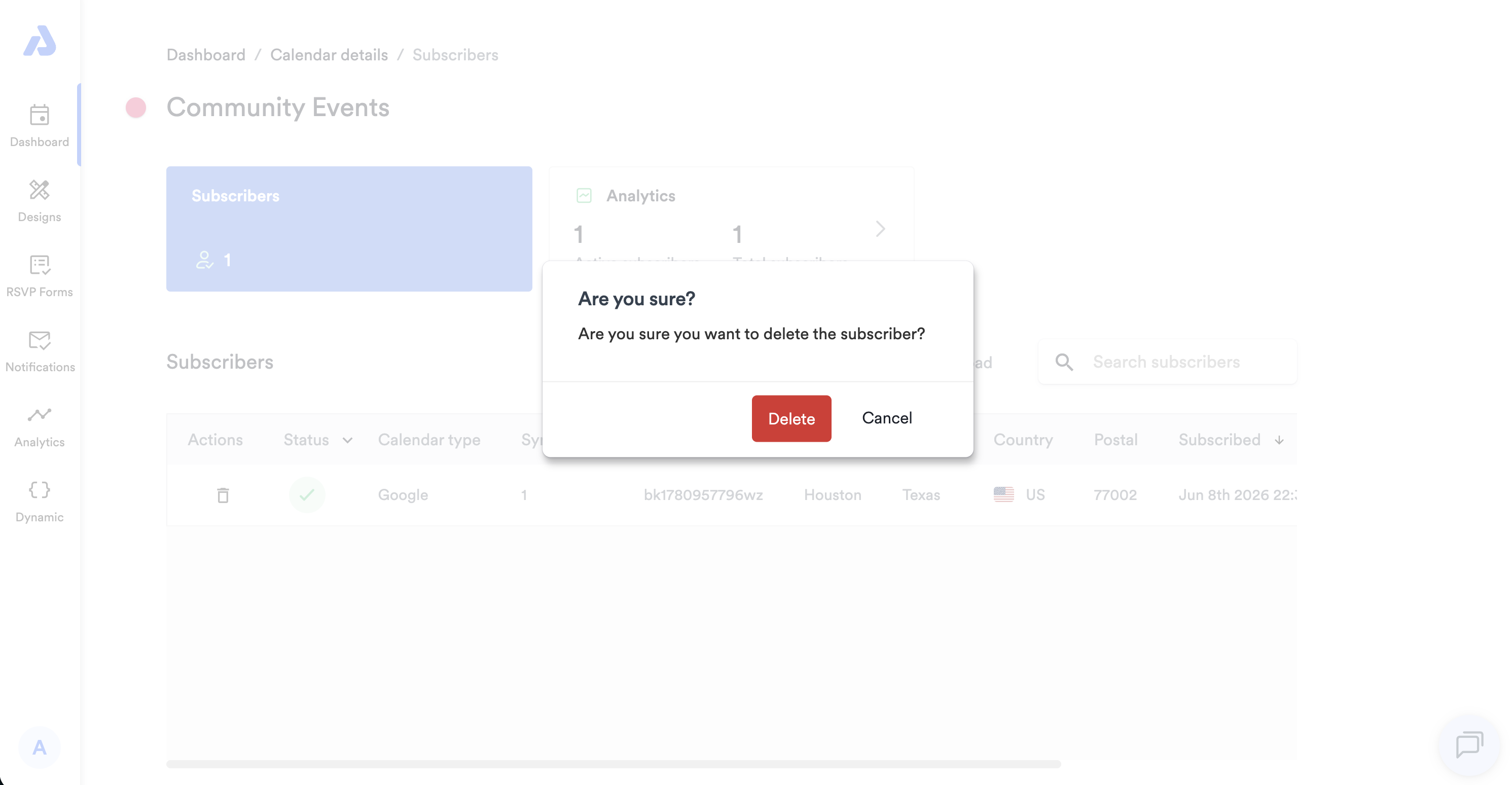
Confirm the deletion by clicking the Delete button in the following pop-up modal:
How to Block a Subscriber
-
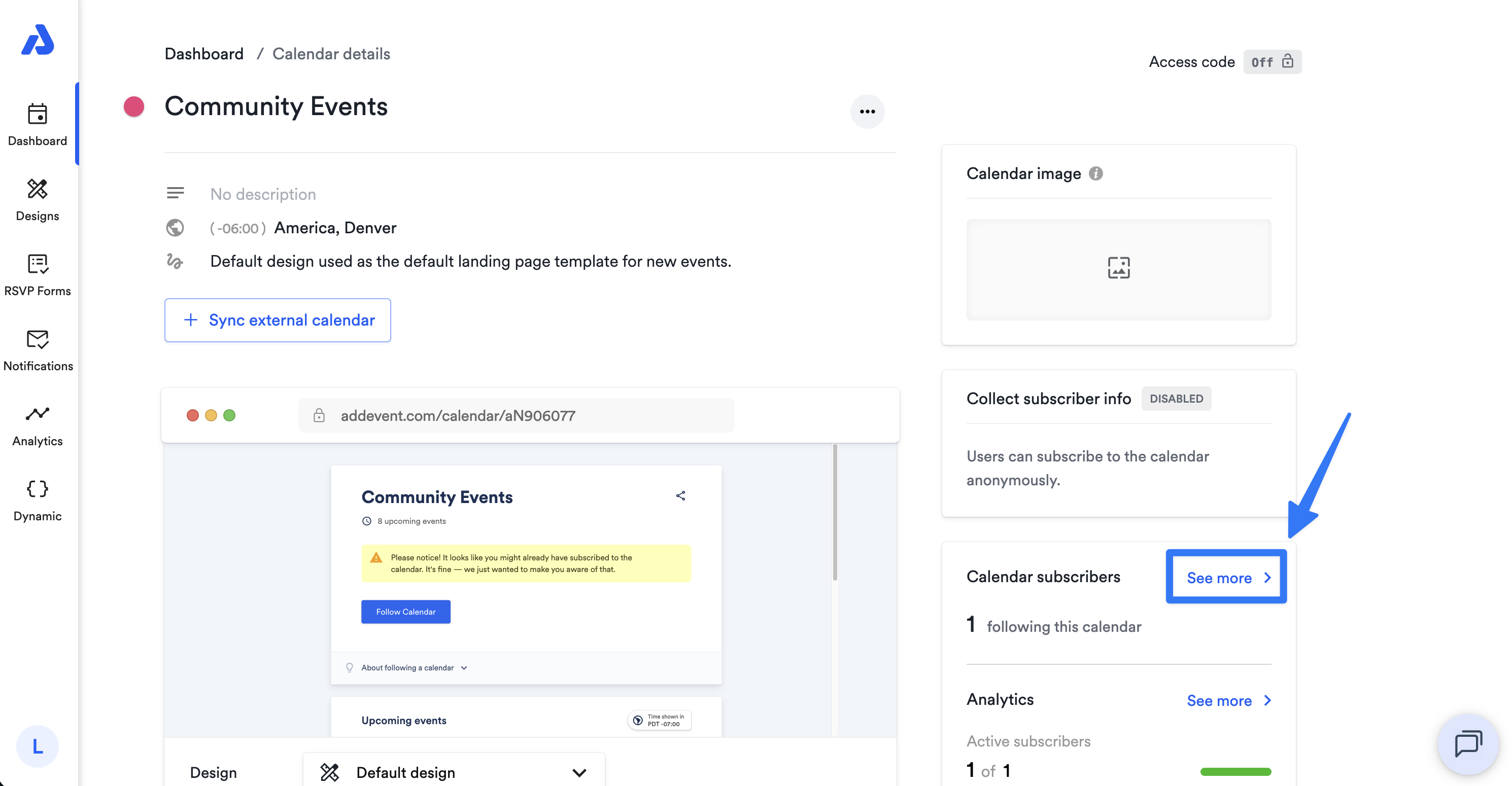
Click on the calendar's title from the Dashboard. You will be directed to the Calendar details page.
-
From there, click on the See more link located on the right side of the page within the Calendar subscribers section.
-
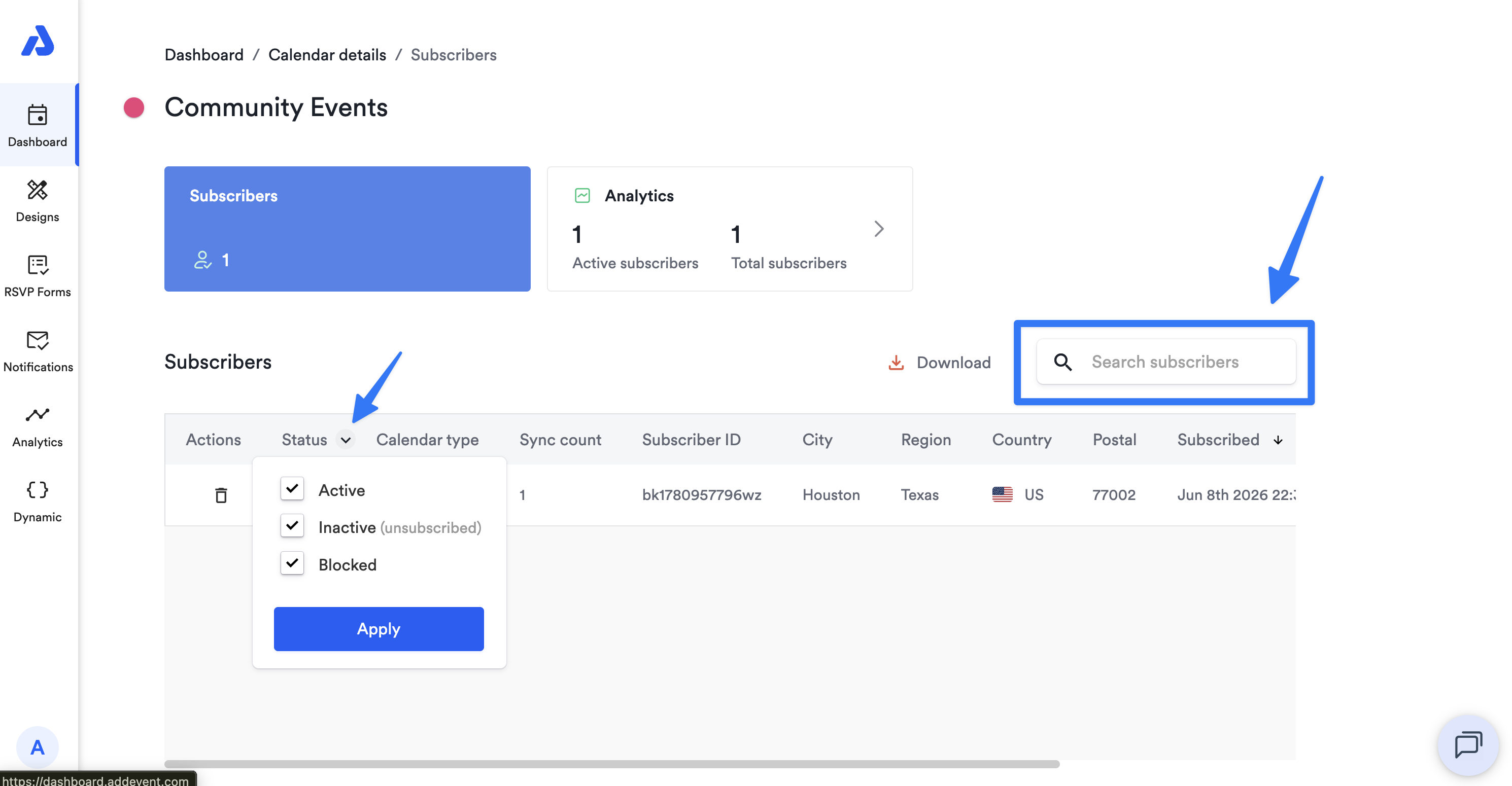
On the following Subscribers page, you will find the list of subscribers for the calendar. Within the subscriber list, search for the subscriber by either using the search field, narrowing down the list by selecting a specific Status group, or by simply scrolling through the list.
-
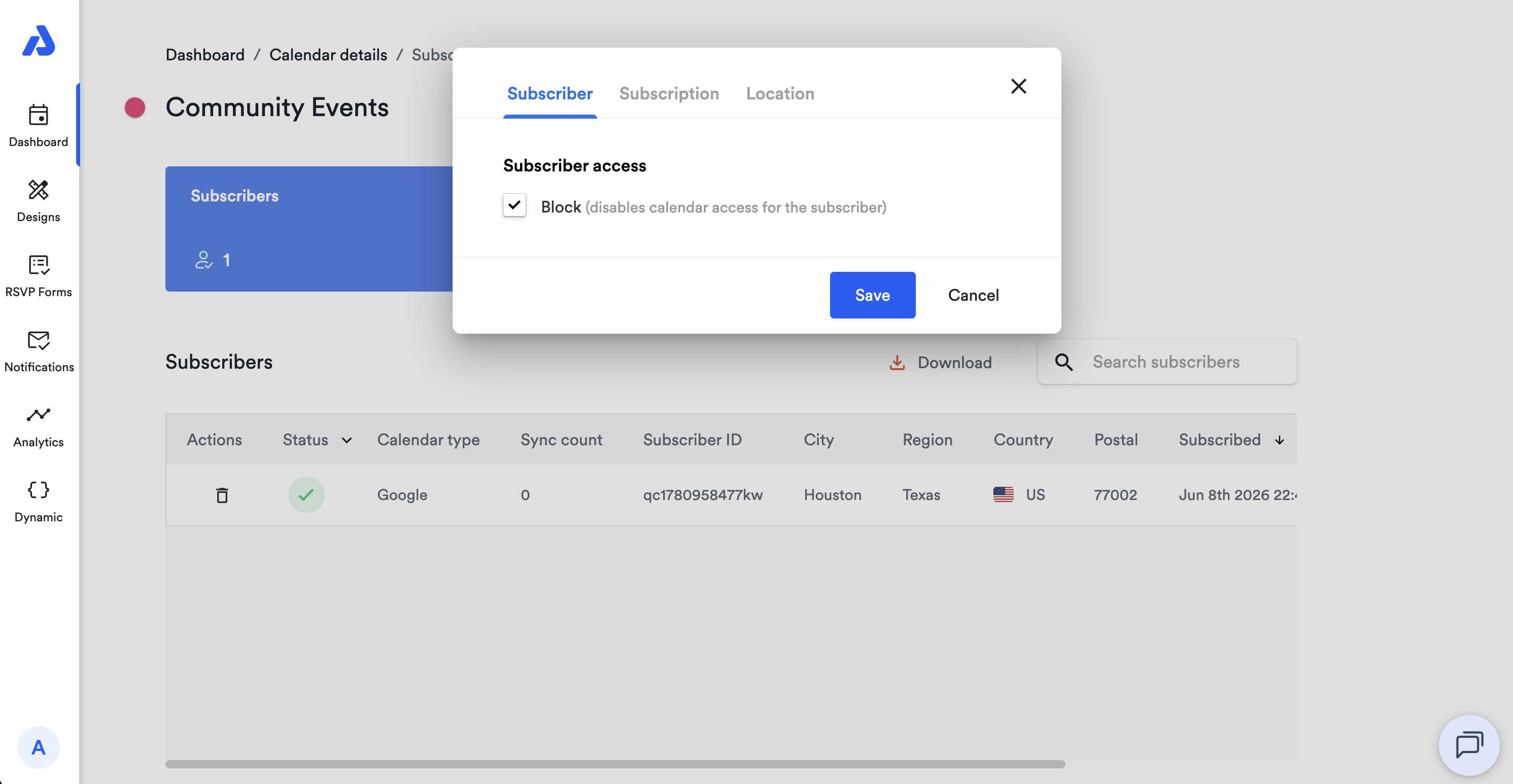
Once you've located the subscriber you would like to block, click on the subscriber from the list. A pop-up window will appear with an option to check the box to Block the subscriber's access to the subscription calendar.
-
After checking the box to Block the subscriber, click the Save button to confirm.
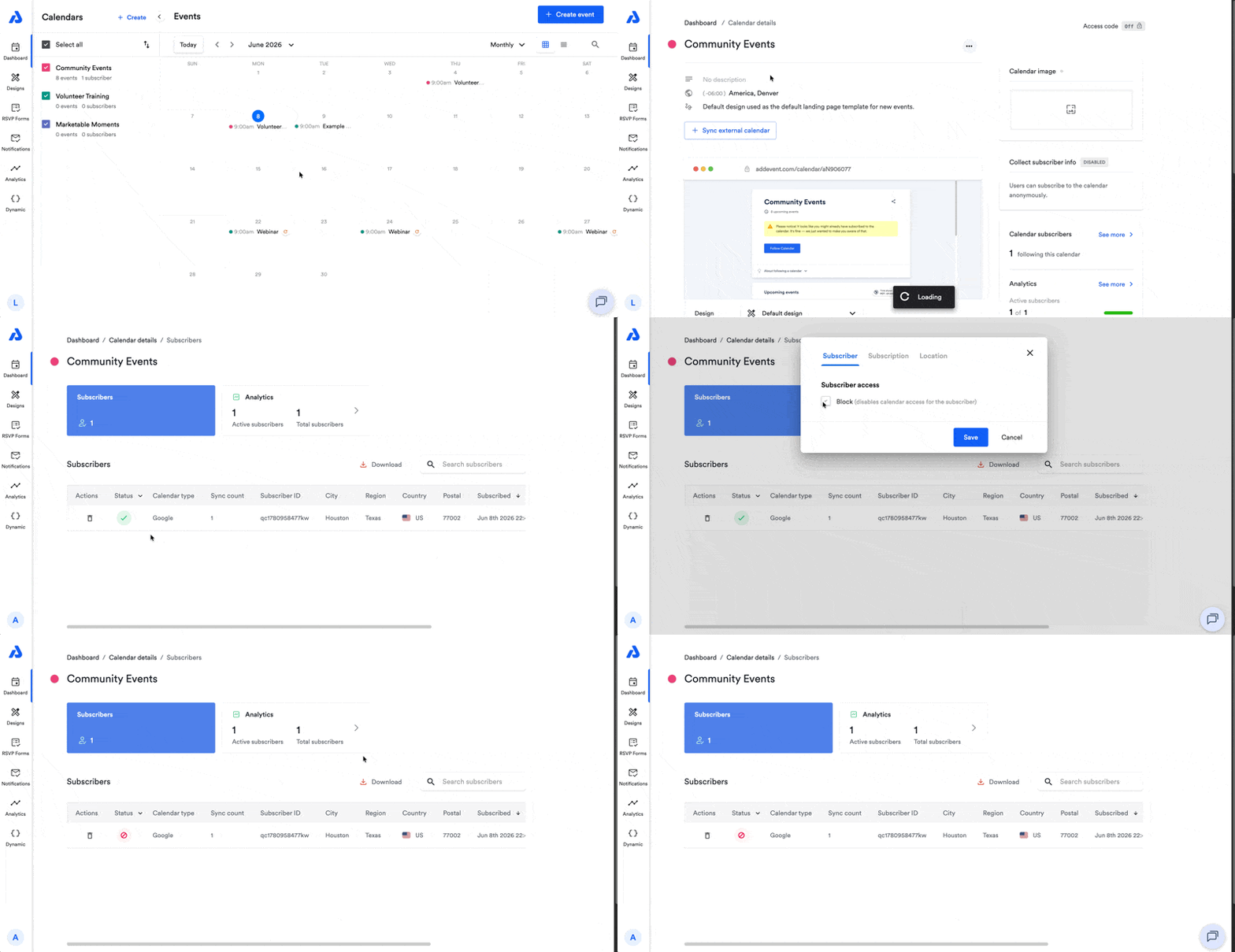
If you do not require subscribers to enter identifying information before subscribing, it may be challenging to determine which subscriber to delete. You can use any available details in the subscribers list, such as "City", "Region", or "Subscribed" (date) to help identify the correct subscriber.
What Happens When a Subscriber Is Blocked?
When a subscriber is blocked:
- The next time the subscriber's calendar attempts to sync, all events will be removed from their calendar.
- The calendar name will change to Calendar disabled, indicating that the subscriber no longer has access to the calendar.
What Happens When a Subscriber Is Deleted?
When a subscriber is deleted:
- The next time the subscriber's calendar attempts to sync, all events will be removed from their calendar.
- The calendar name will change to Calendar disabled, indicating that the subscriber no longer has access to the calendar.
Before deleting subscribers that appear as duplicates, you can check the "Calendar type" column to see if the subscriber is following your calendar on different calendar services (e.g., Google and Outlook). When subscribers follow your calendar on more than one calendar service, they will be counted as a subscriber for each additional calendar service.
Bulk Delete Calendar Subscribers
If you want to delete all of the subscribers on a calendar, you can delete the calendar itself to remove all of those subscribers.
If you want to delete subscribers before a certain date, you could look into using our API. The two relevant functions that you'll want to use are:
- list calendar subscribers: https://www.addevent.dev/documentation/calendar-api#anchor-subscribers-list
- delete a calendar subscriber: https://www.addevent.dev/documentation/calendar-api#anchor-subscribers-subscriber-delete
Please note that deleting calendar subscriber data is permanent and cannot be undone.
Updated 28 days ago