

Edit a Calendar
Editing a calendar in AddEvent allows you to update settings, sync events from external calendars, and configure subscriber options. Follow these steps to access the editing page and make the changes you need.
Accessing the Calendar Editing Page
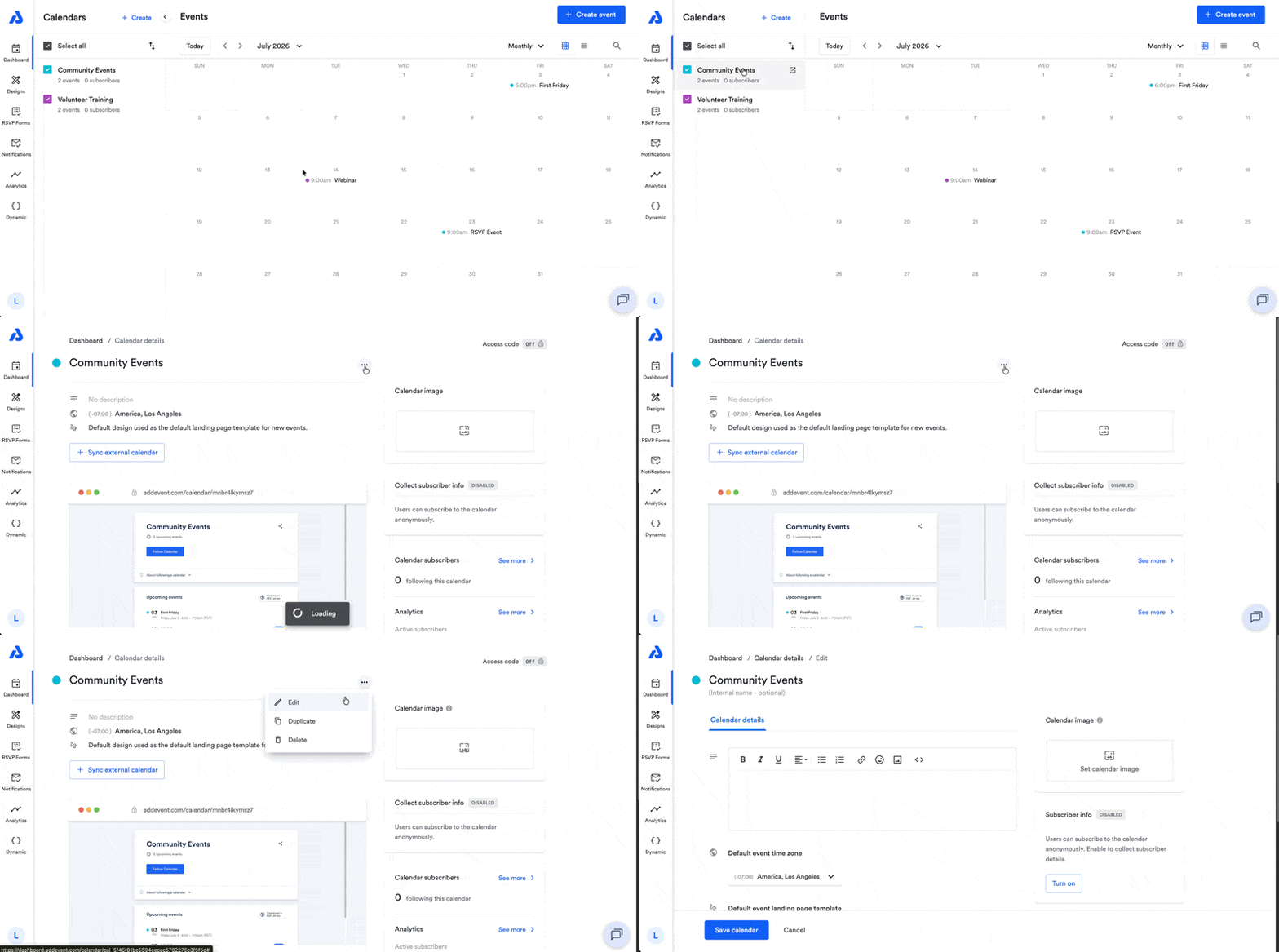
To access the Edit page for a calendar, follow the below steps.
- From the Dashboard, click on the calendar's title. You will be directed to the Calendar details page.
- From the details page, click the ellipsis icon (...) located to the right of the calendar's title
- Select the Edit option from the dropdown. You will then be directed to the calendar's Edit page.
What You Can Edit on a Calendar
Once you’re on the Edit page, you can modify various settings for the calendar:
- Title
- Internal title (optional)
- Description - displays on the calendar landing page
- Default event time zone
- Default event landing page design template
- Calendar subscribers - information collection setting
Updated about 2 months ago
Did this page help you?