

Event Landing Page Designs
This help doc provides an overview of the no-code Event Landing Page Designs.
Accessing Your Designs
-
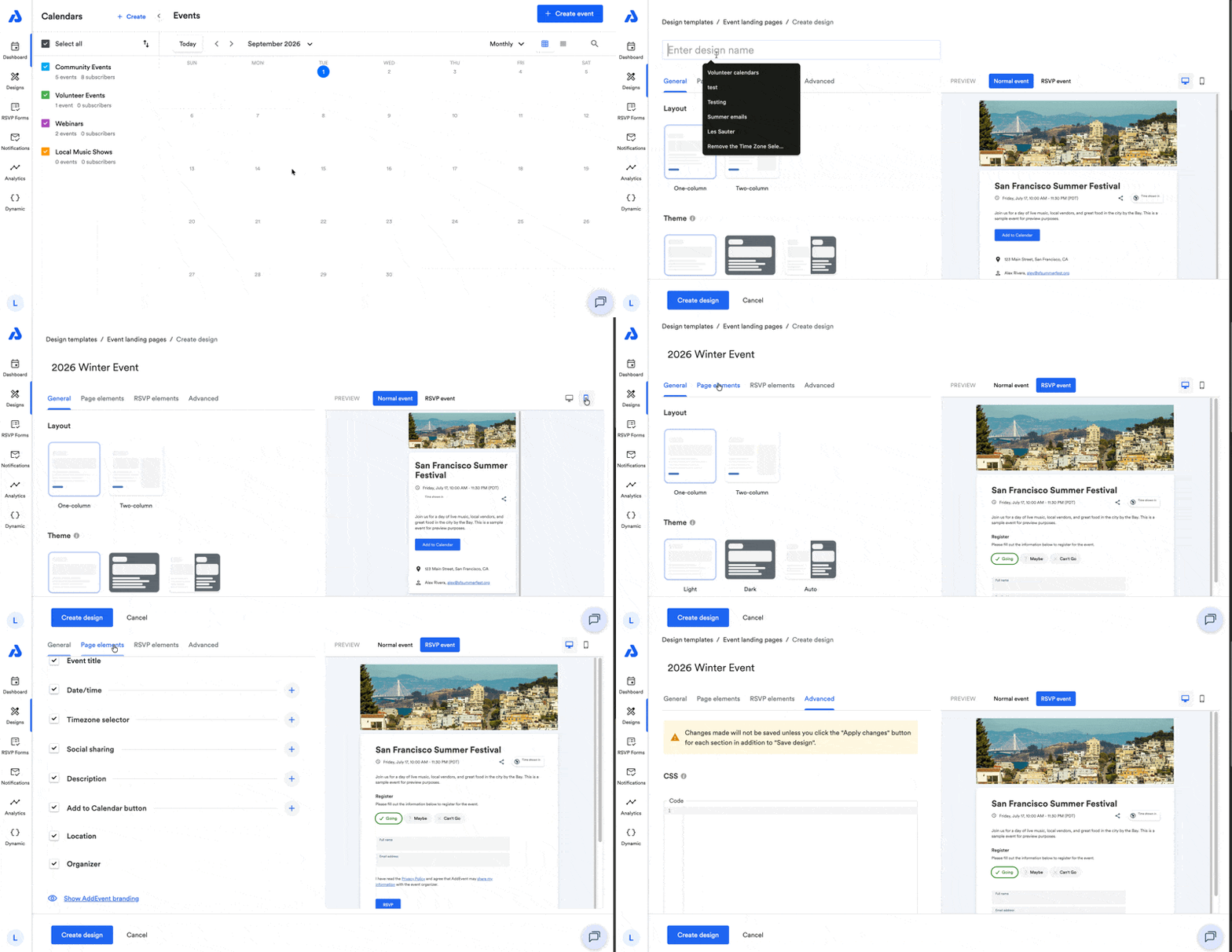
From the Dashboard, click the Designs tab located on the left-hand side navigation menu. (https://dashboard.addevent.com/designs)
-
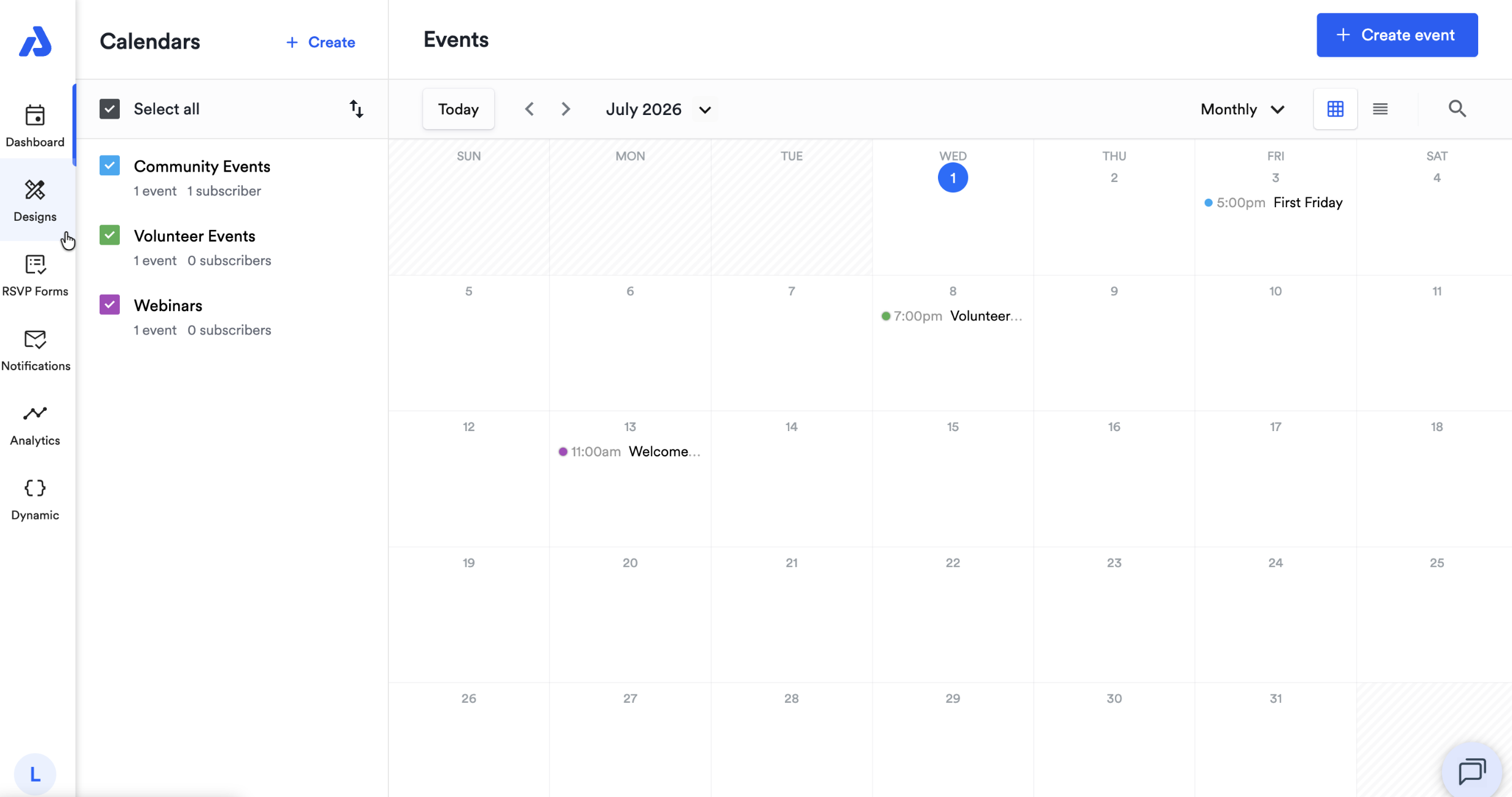
Click the Event landing pages option.
-
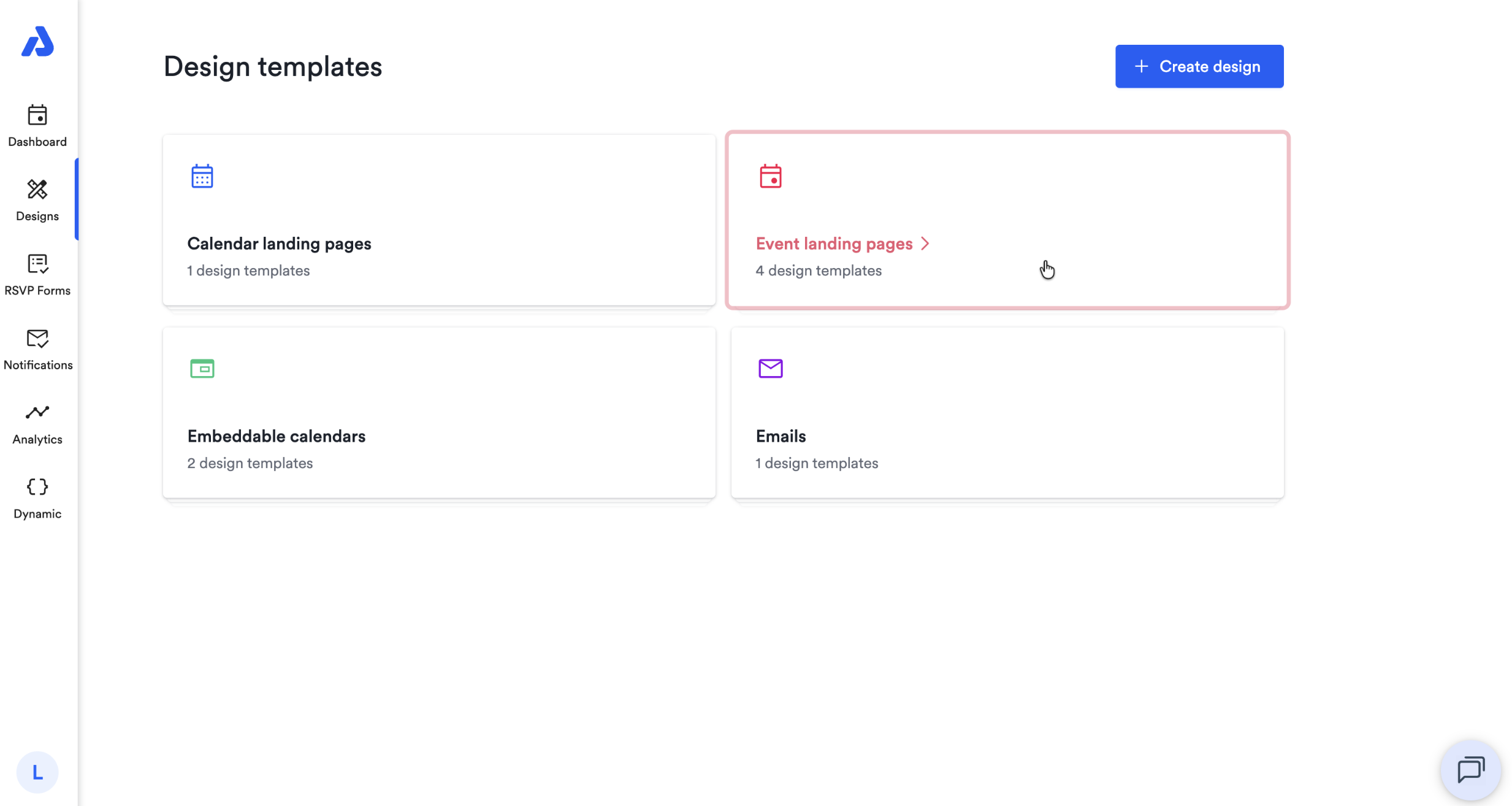
Select an existing design you wish to edit, or click the + Create design button to create a new Design from scratch.
Design Name
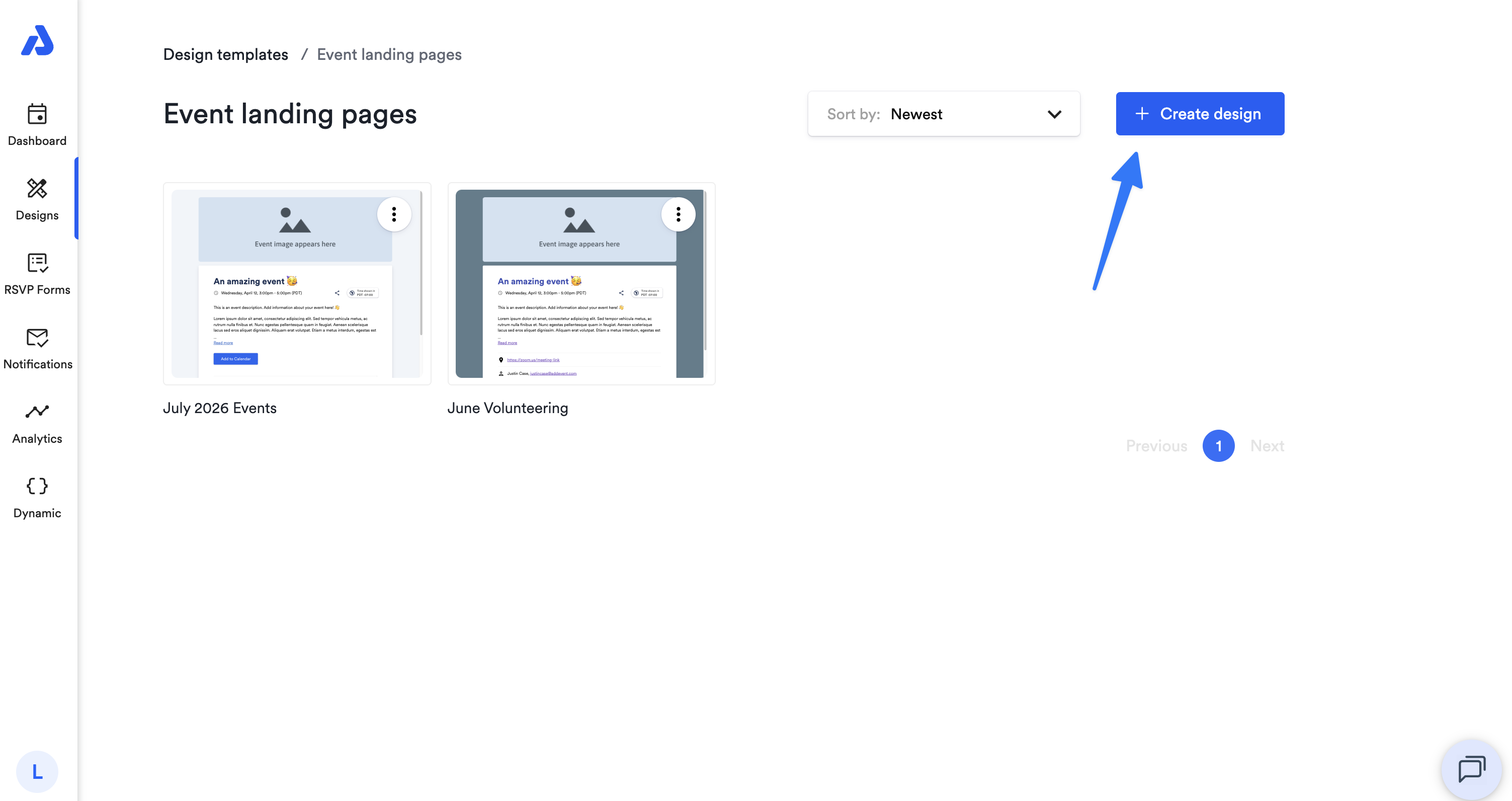
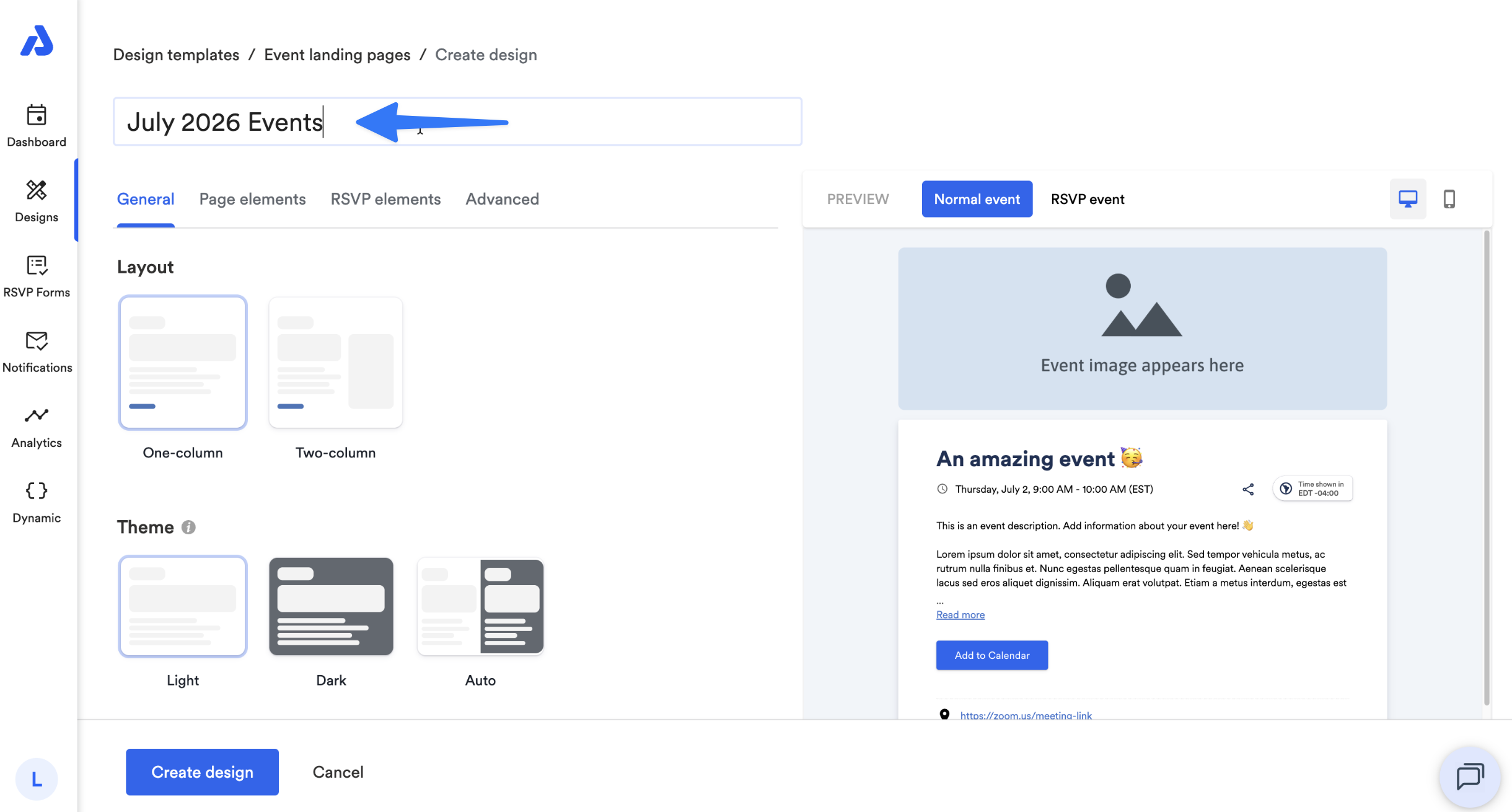
At the top of the Create Design page, enter a design name:
Tabs
Each tab underneath the Design's name contains different options and elements of the page design that you can customize. For more specifics on what each tab contains, check out the following articles:
- General Tab: Event Landing Page Design Template
- Page Elements Tab: Event Landing Page Design Template
- RSVP Elements Tab: Event Landing Page Design Template
Preview
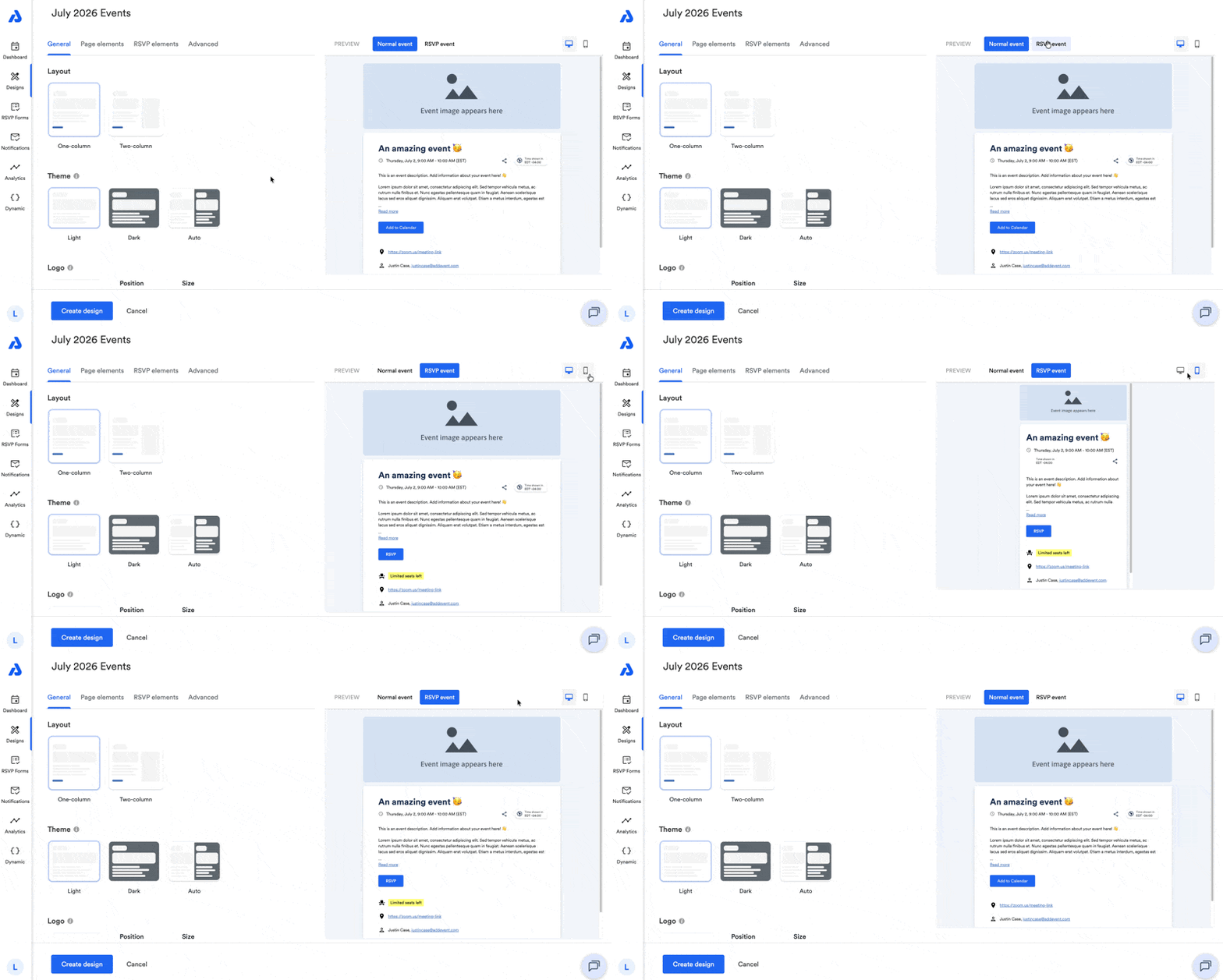
The preview area located to the right of the Design options allow you to see a live preview of what your event landing page design will look like when applied.
-
You can preview the design for a normal event or for an RSVP event.
-
You can preview how the design looks on a desktop or on a mobile device.
Create and Set Design
When you've finished creating your Design, click the Create Design button on the bottom of the page.
To apply the Design on your event, select the Design from the dropdown menu on the Event details page. To navigate to your event details page, click on the event's title from your Dashboard. On the Event details page, you will find the details of the event and sharing methods.
For step-by-step instructions on how to apply a design to your event, check out our help doc here: Apply an Event Landing Page Design Template to an Event
Watch this Tutorial!
Updated about 2 months ago