

Manage an Event Series
This help doc shares instructions on how to create an event series.
Creating an event series is perfect for when you want each event to be treated individually (unlike a recurring event). Below you'll see the three ways you can create the cadence for your event series.
Creating an Event Series
Note: It's not possible to edit an existing single event to update it to an event series. You can create an event series when initially creating the event.
-
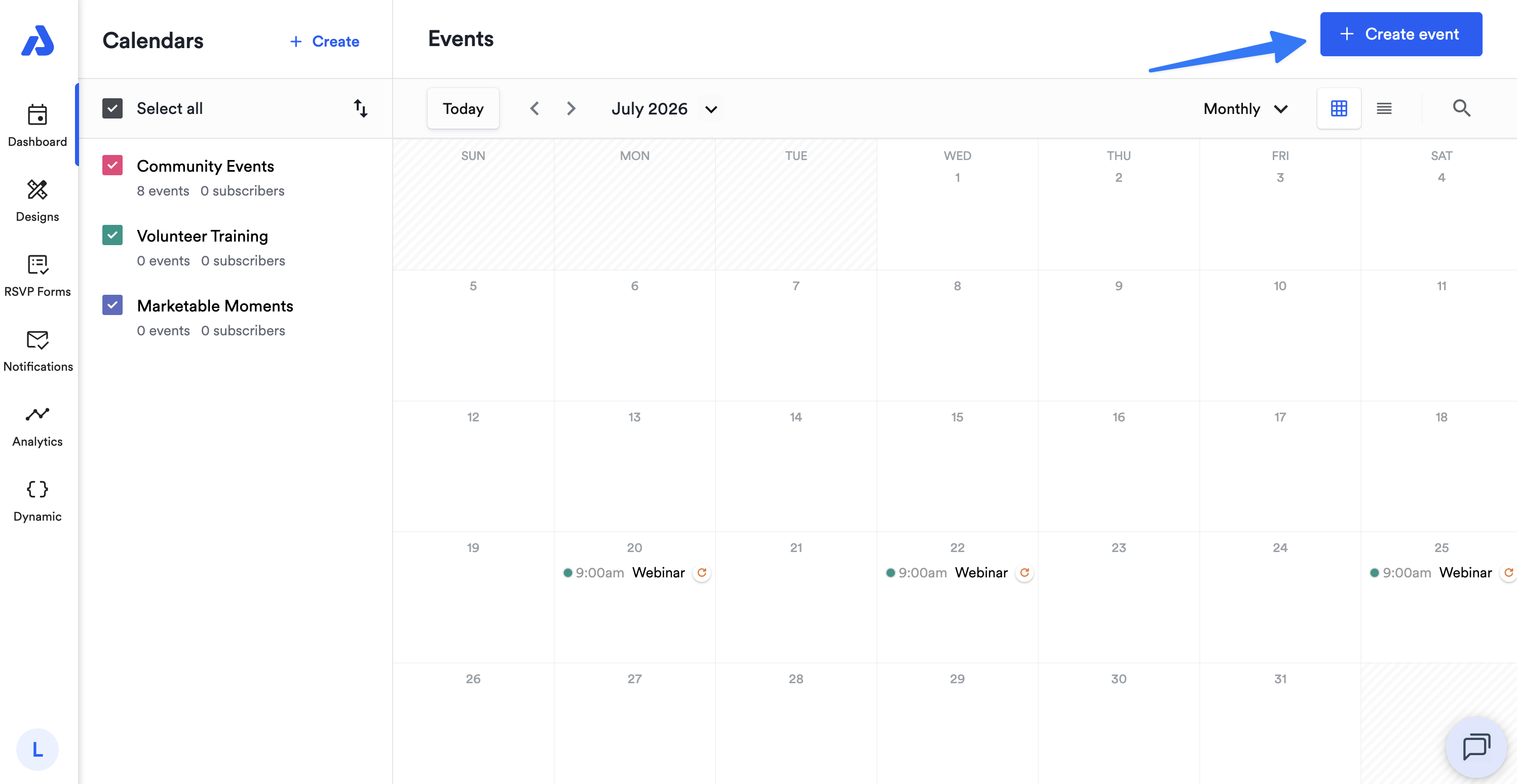
Click the + Create event button located on the upper-right corner of the Dashboard.
-
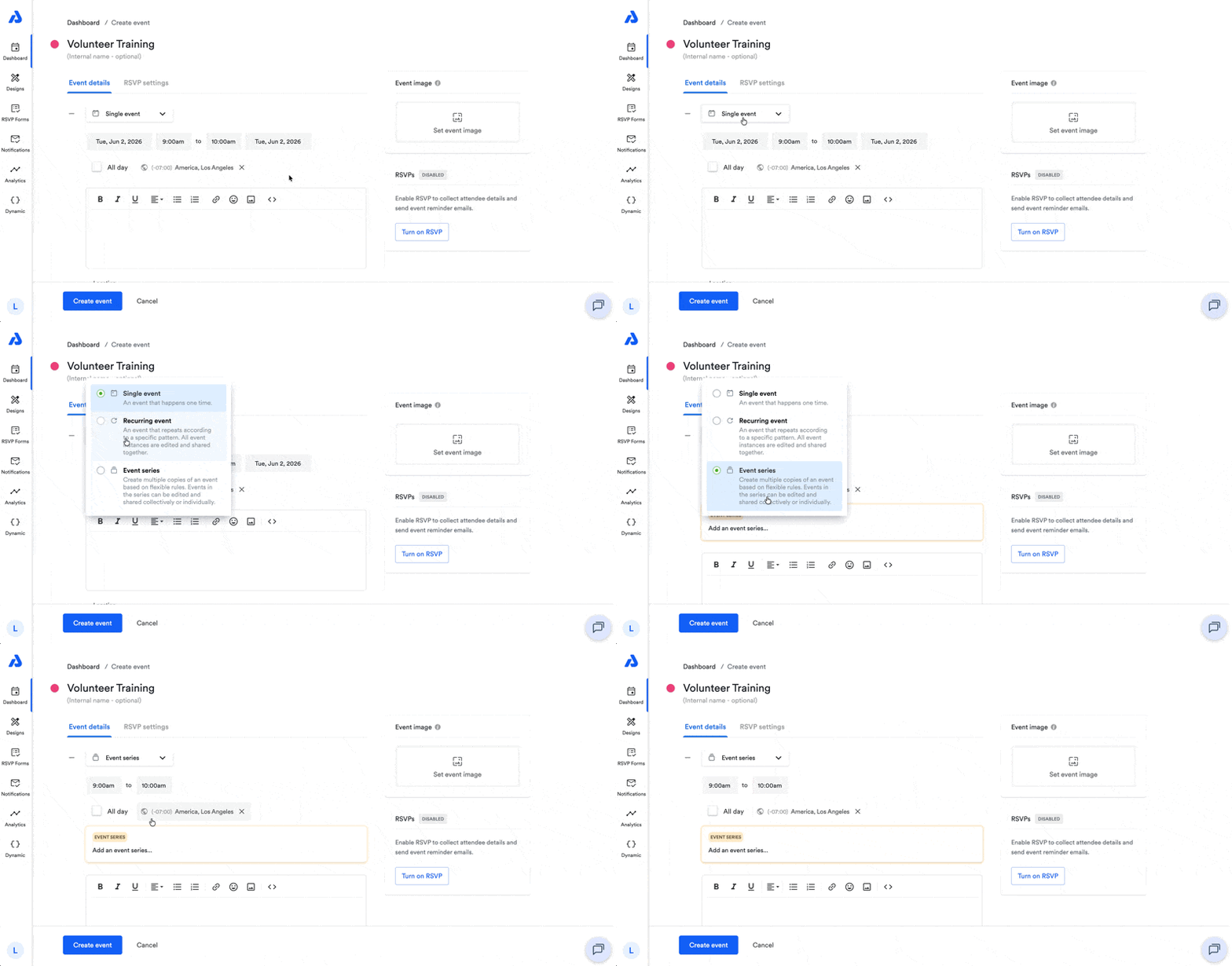
On the following Create event page, select the first dropdown option under "Event details", and select the Event series option.
-
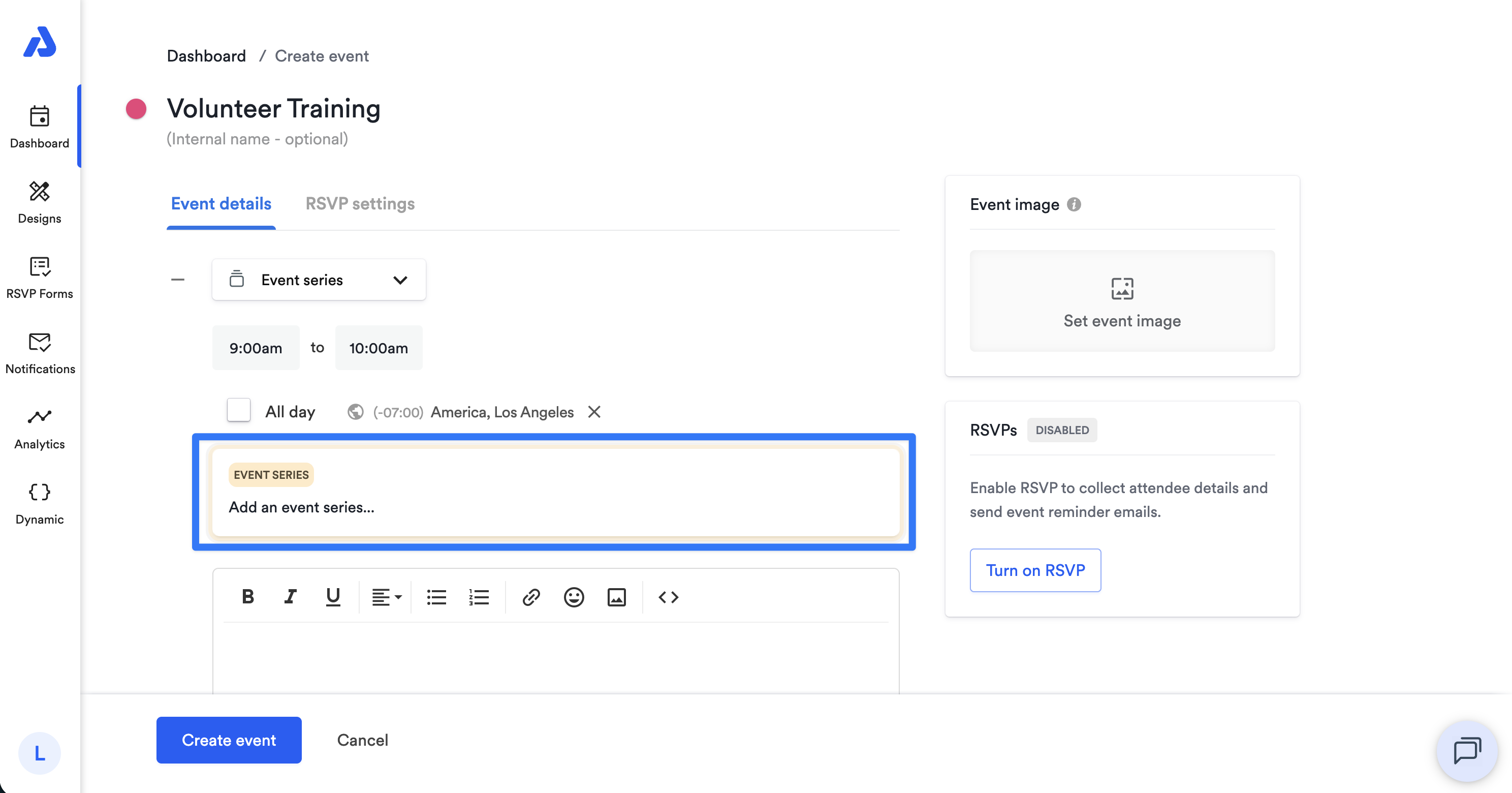
Click into the section labeled Event Series to customize the frequency of your events.
-
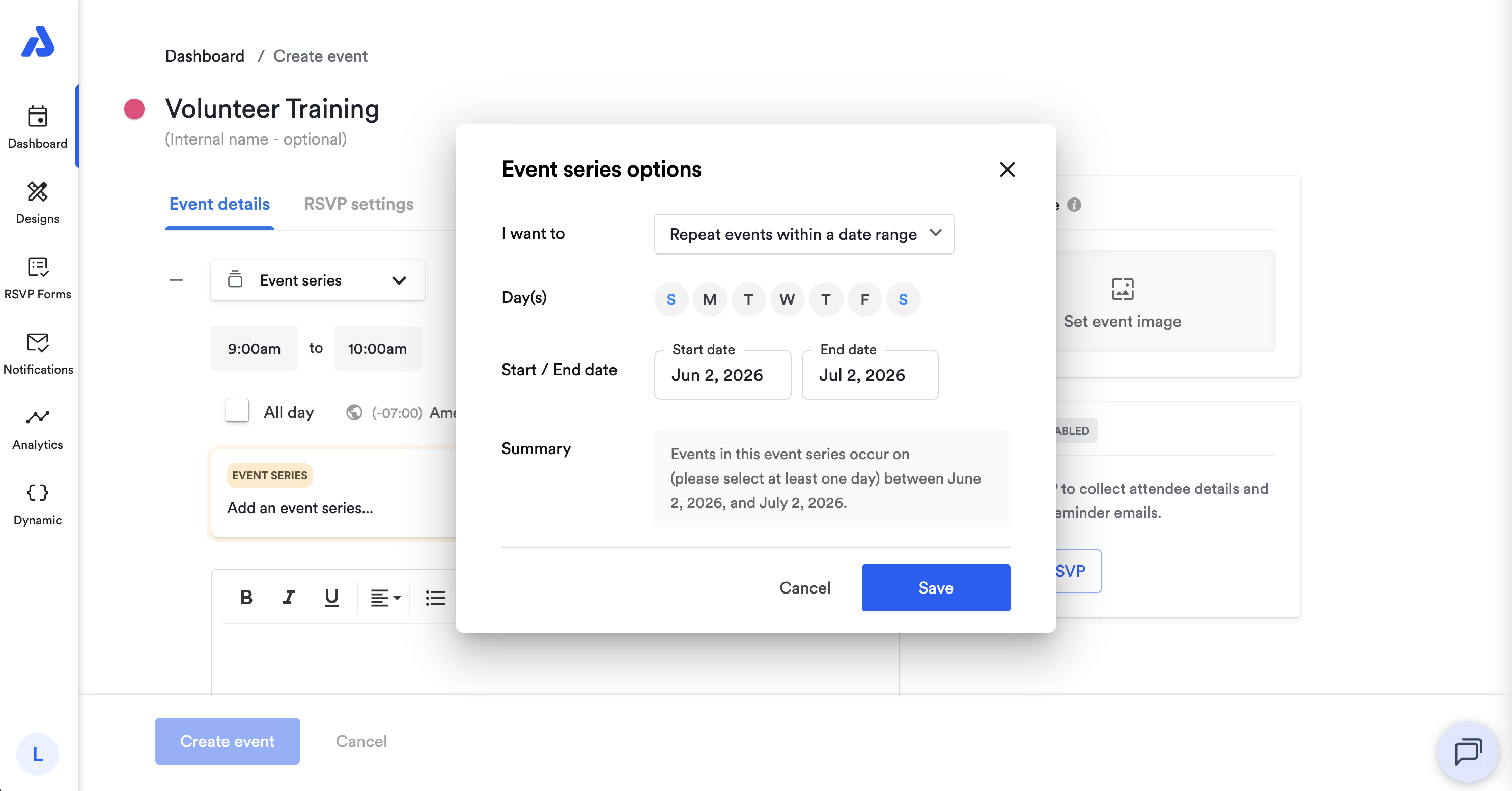
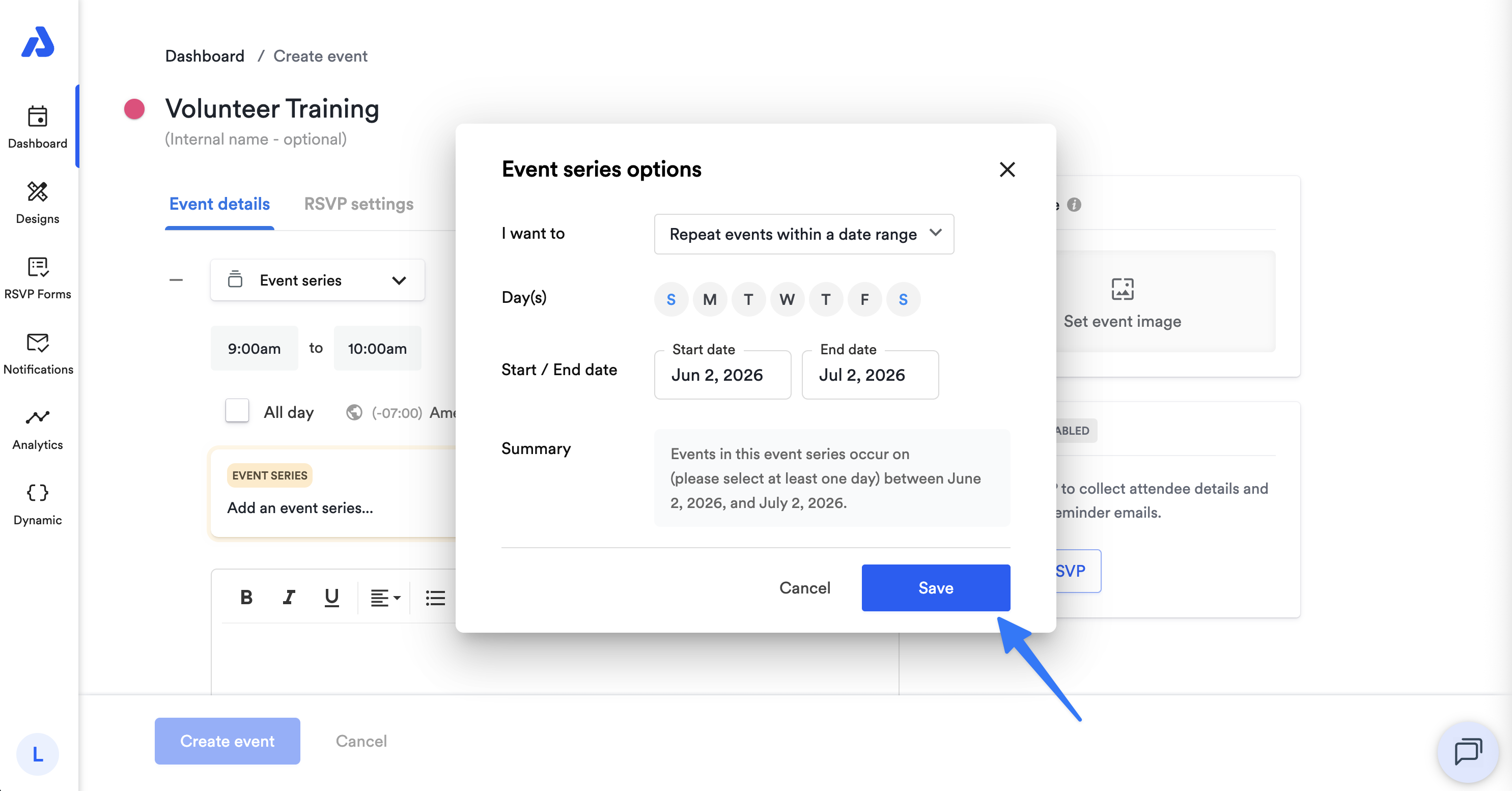
Configure your event series options in the following pop-up window.
-
Click the Save button in the pop-window.
-
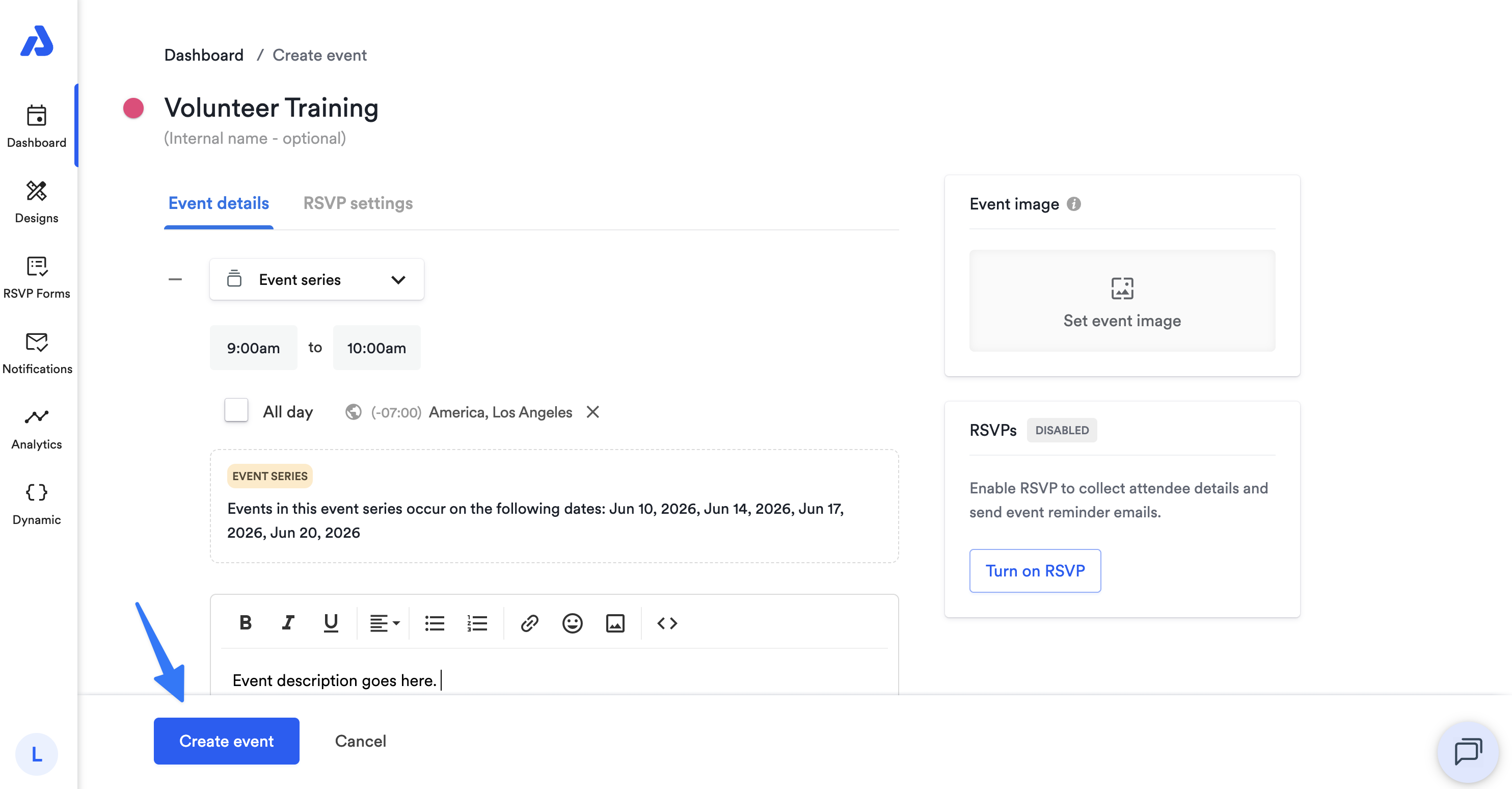
Once you're finished configuring the rest of the event details on the Create event page, click the Create event button to save the event series to your calendar.
Repeat Events Within a Date Range
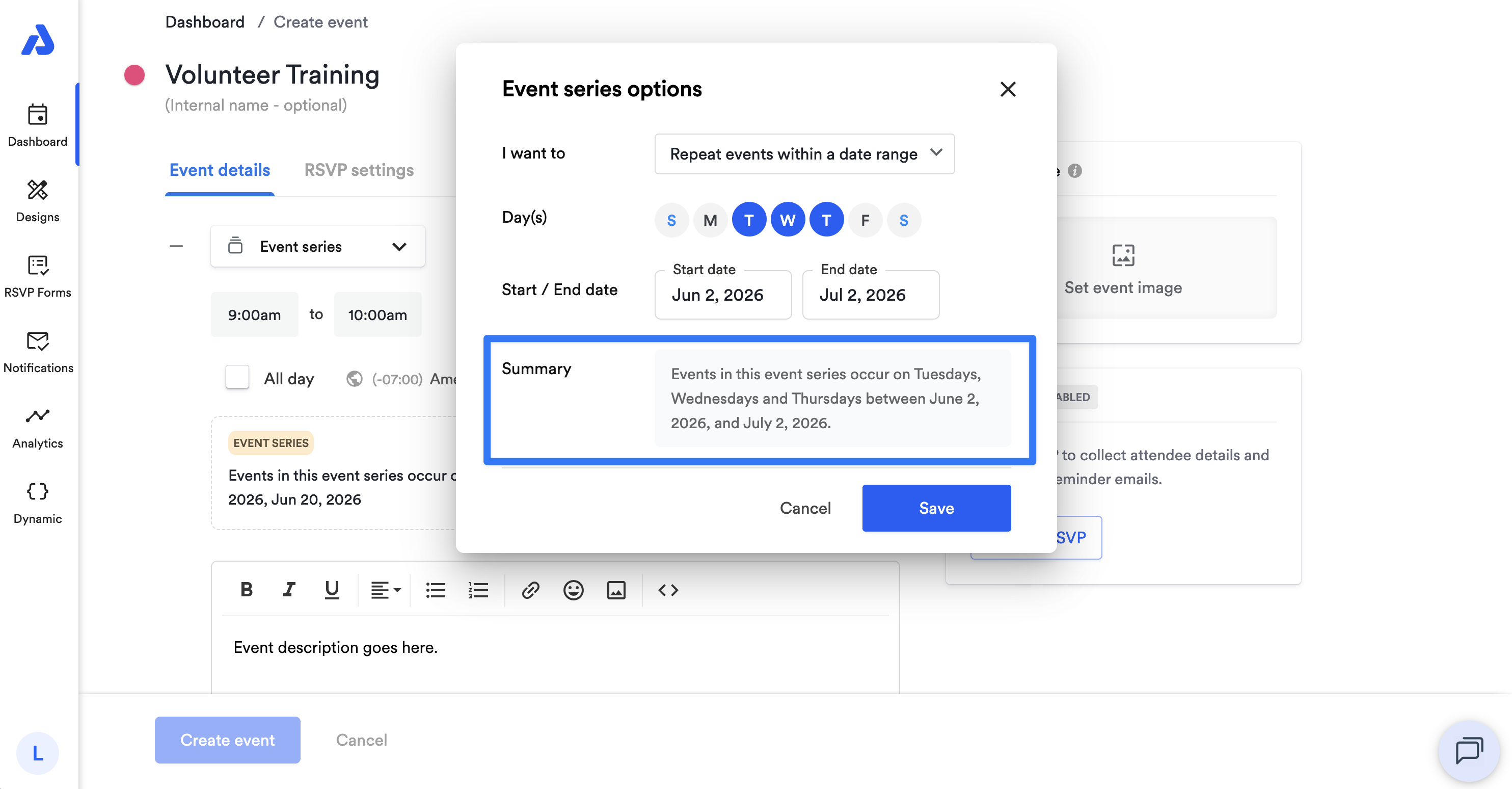
When you'd like to select days and have them duplicated until a specific date is reached, follow the below steps:
-
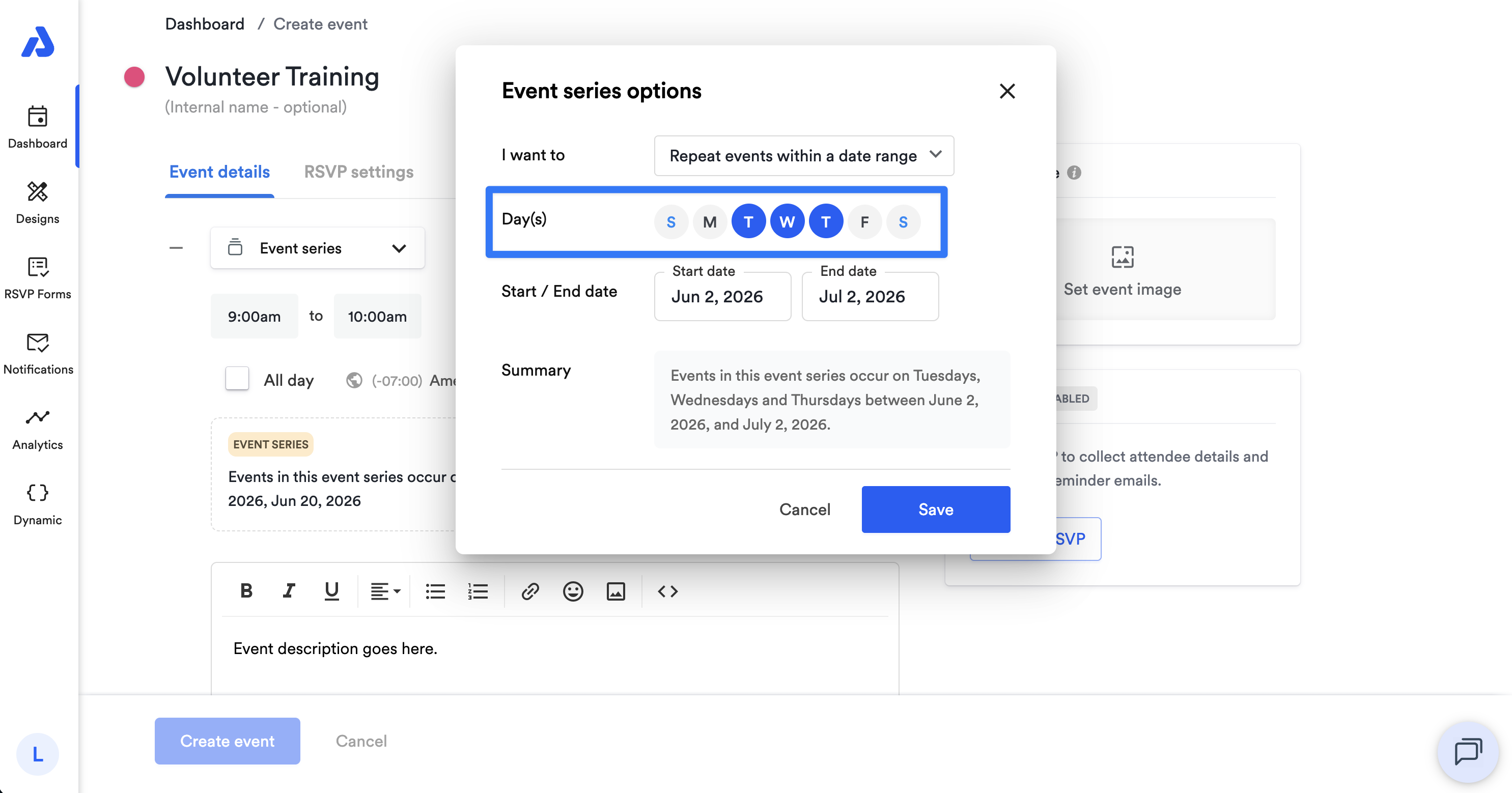
Select the days you'd like the event series to take place on.
-
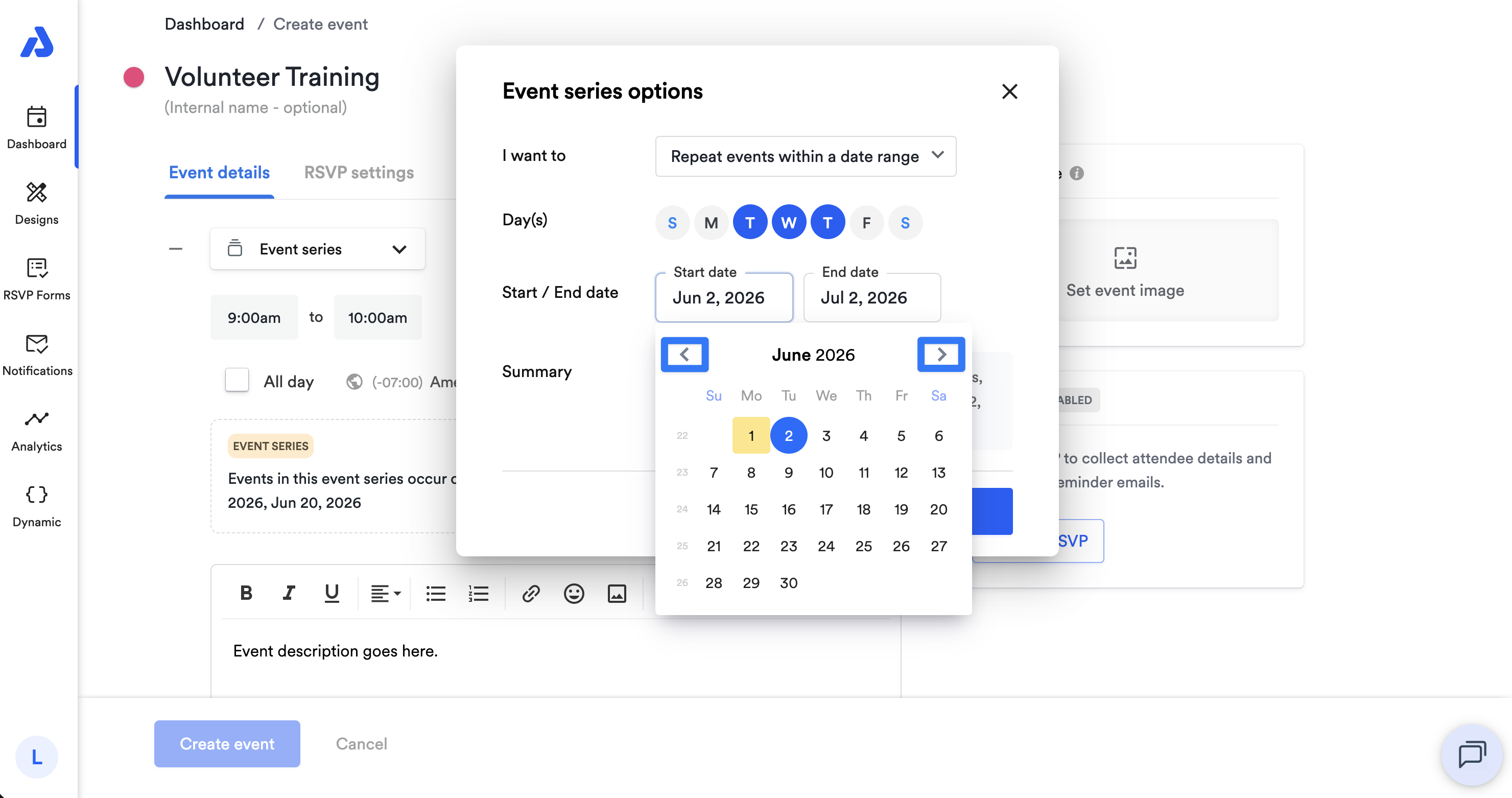
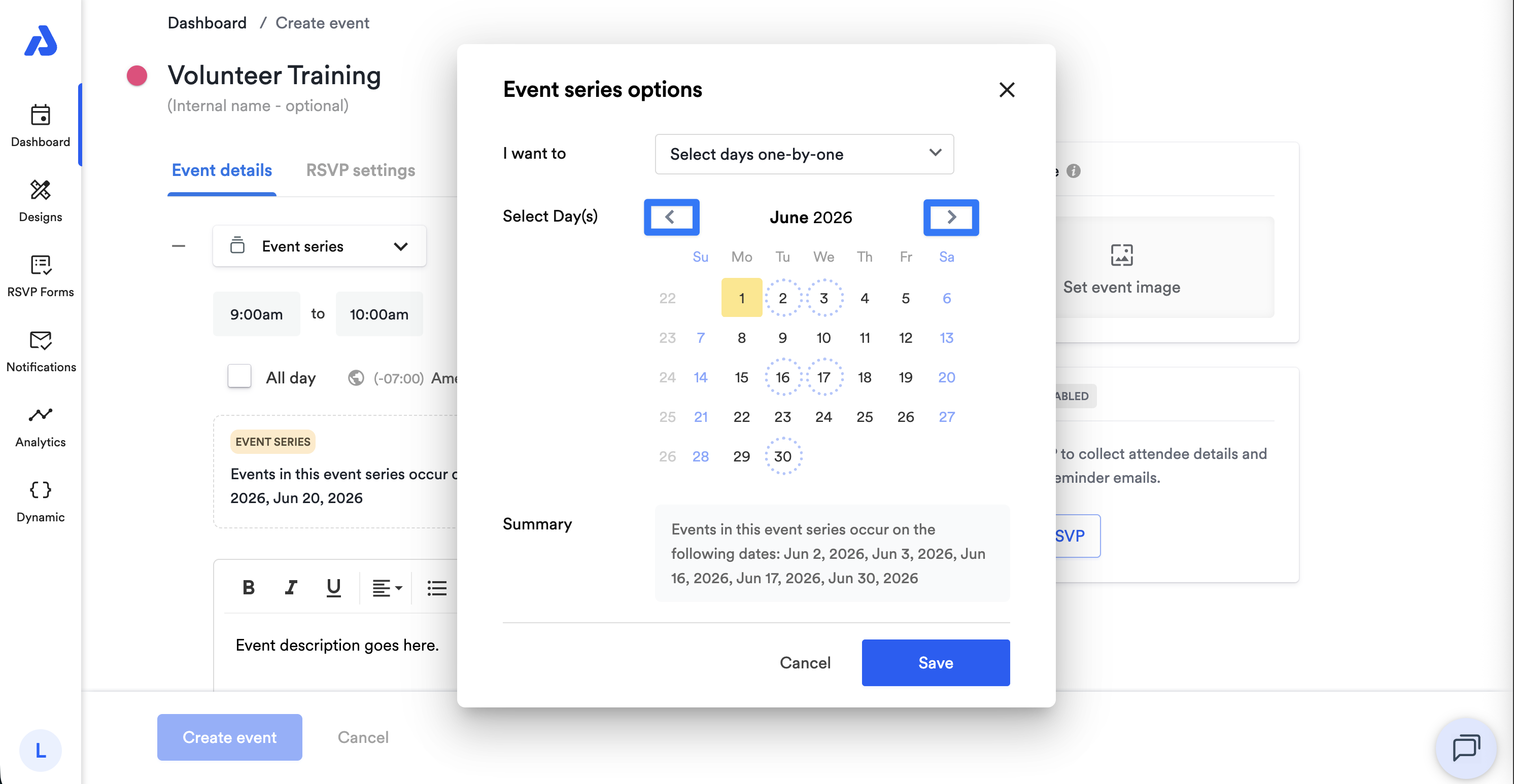
Select the date you'd like your event series to start and end by clicking each date on the calendar. You can use the left and right arrows located on each side of the month displayed to switch to a different month.
-
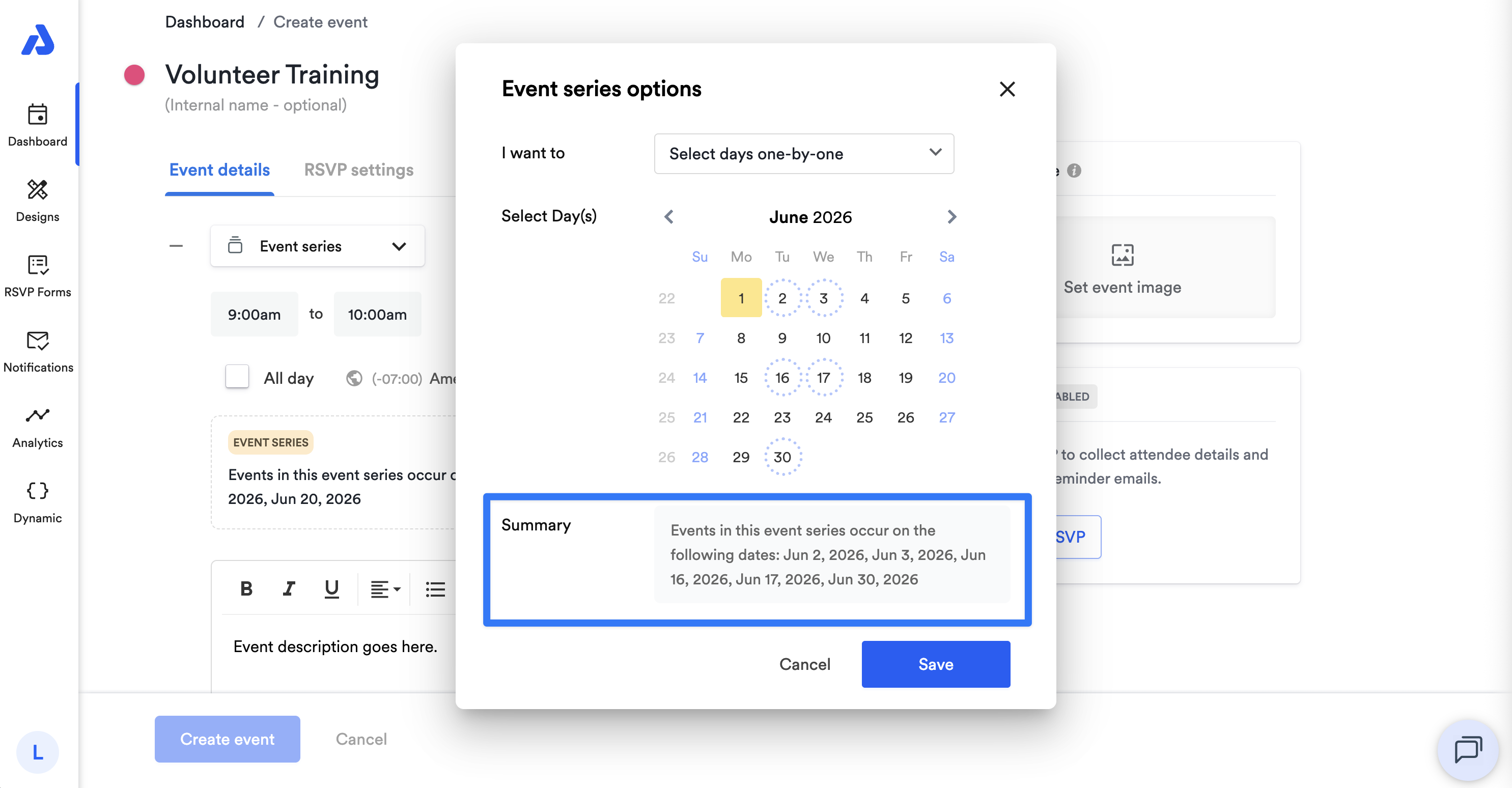
The summary at the bottom of the pop-up window will summarize how your event series will take place.
Repeat Events on Specific Weeks
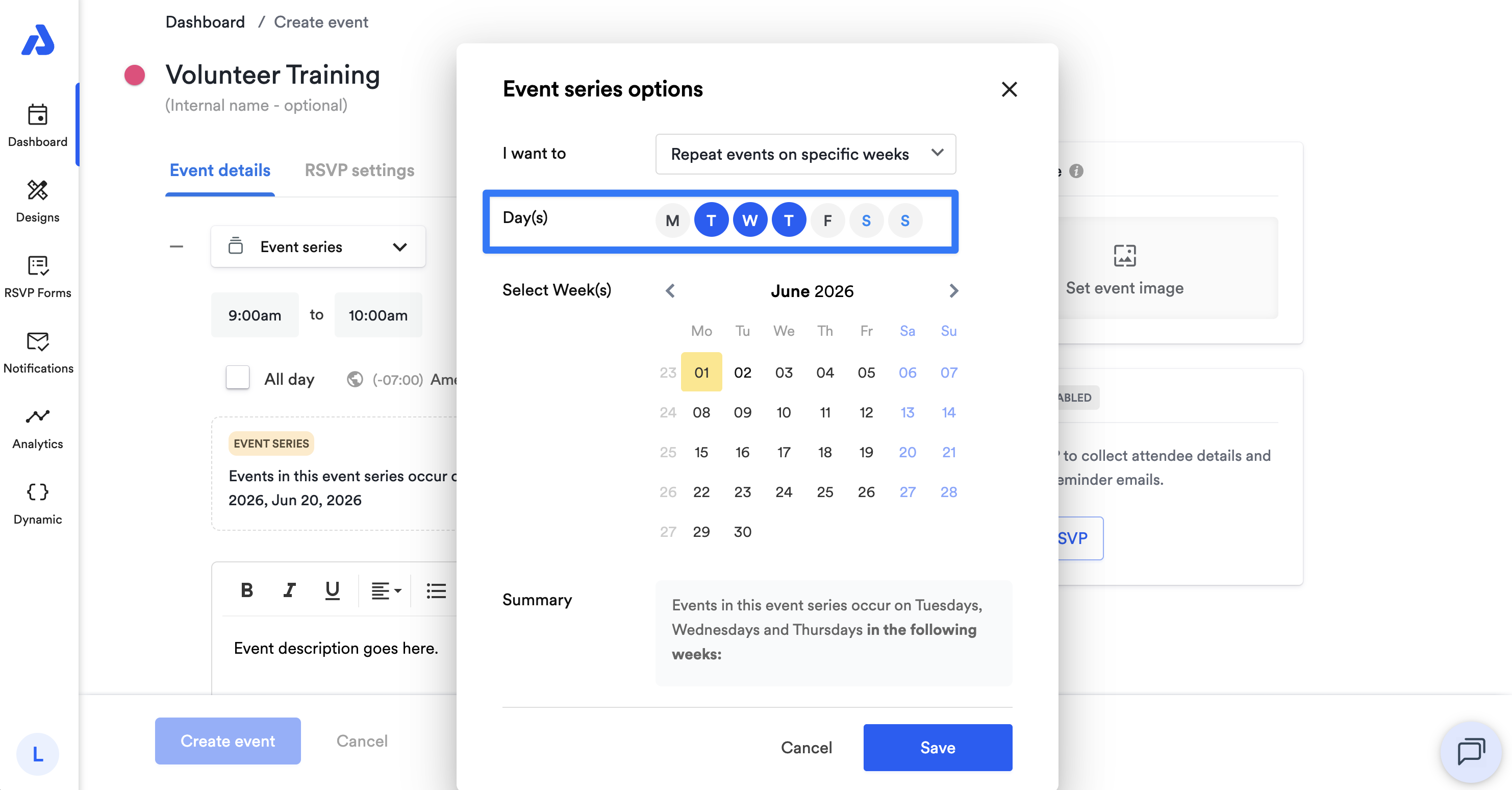
When you'd like to select days and have them duplicated for specific weeks, follow the below steps:
-
Select the days you'd like the event series to take on.
-
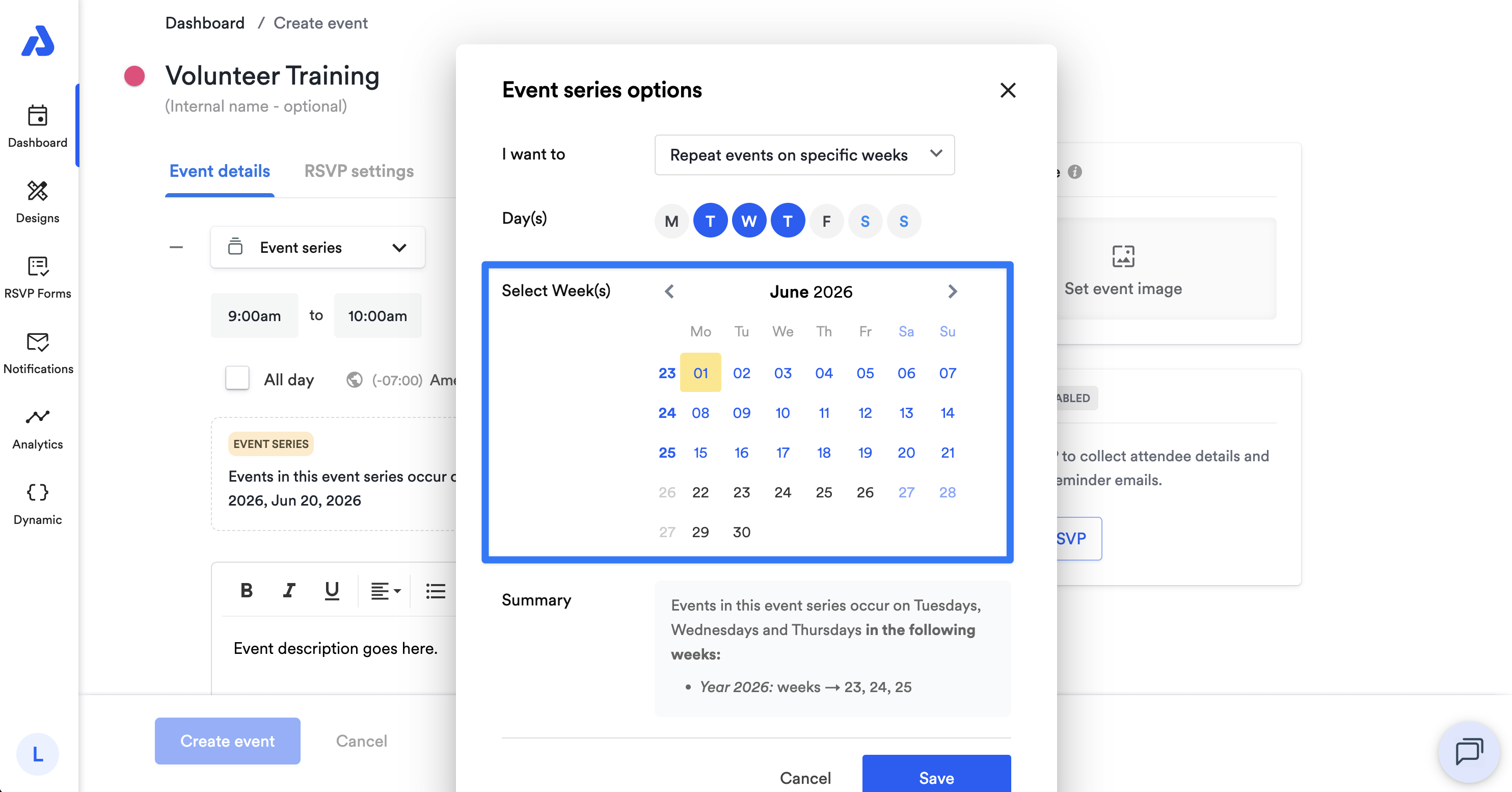
Select the weeks you'd like your event series to duplicate on. You can use the left and right arrows located on each side of the month displayed to switch to a different month, and you can select as many weeks as necessary.
-
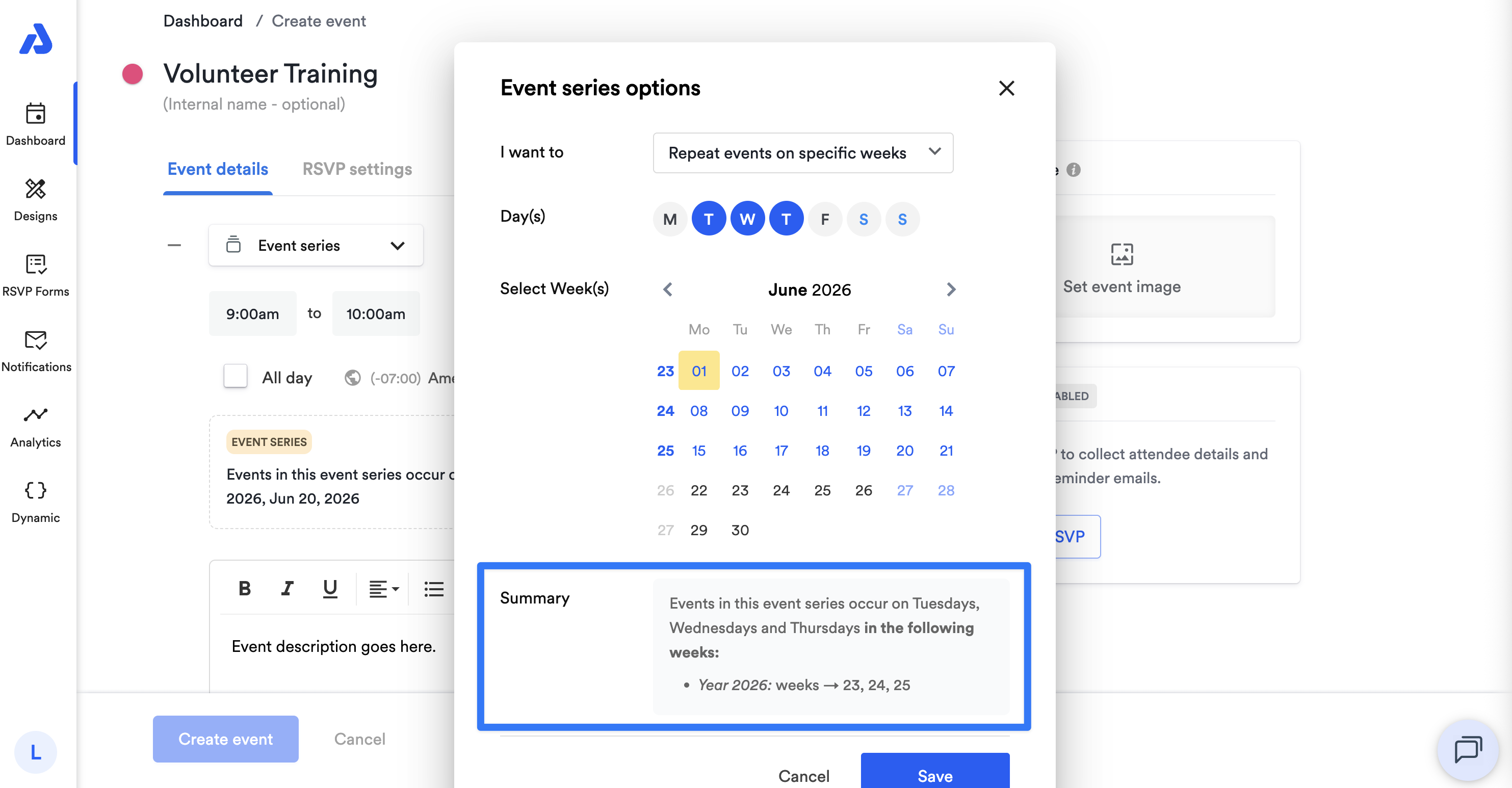
The summary at the bottom of the pop-up window will summarize how your event series will take place.
Select Days One-by-One
When you'd like to select days one by one, follow the below steps:
-
Select the days you'd like your event series to occur on. You can use the left and right arrows located on each side of the month displayed to switch to a different month.
-
The summary at the bottom of the pop-up window will summarize how your event series will take place.
Sharing an Event Series
Event series are individual events that are created at once. You can edit and delete them individually. Events in a series are shared one by one. If you want to share all events in a series at one time, you can do so by sharing a subscription calendar. See our help doc here for more details on subscription calendars.
Updated 14 days ago