

Share an RSVP Event in AddEvent
To share an RSVP event in AddEvent, open the event’s Event details page and choose one of four sharing options: Event Landing Page, RSVP Button, Direct Links, or Embeddable RSVP Form. For RSVP events, attendees register first by selecting Going, Maybe, or Not going and submitting any required information. After they register, they can use the Add to Calendar button to save the event to their personal calendar.
Choose how to share your RSVP event
Use the table below to choose the best sharing method for your RSVP event.
| Sharing option | Best for | What attendees see |
|---|---|---|
| Event Landing Page | Sharing the event on social media, in emails, or anywhere you want to show full event details | Attendees open the RSVP event landing page, review the event details, register, and then see the Add to Calendar button. |
| RSVP Button | Adding an RSVP call-to-action to a website or landing page | Visitors click the button, go to the RSVP landing page, register, and then see the Add to Calendar button. |
| Direct Links | Sharing links that route attendees based on whether they have already registered | Unregistered users go to the RSVP landing page. Registered users are directed to add the event to their calendar. |
| Embeddable RSVP Form | Letting attendees register directly on your website | Attendees complete the RSVP form without leaving your website, then see the Add to Calendar button. |
Before you share an RSVP event
Open the RSVP event from the Event details page in your AddEvent account. From there, you can choose the sharing option that fits where you want to promote the event.
For RSVP events, attendees must register before they add the event to their calendar.
Share the RSVP event landing page link
The RSVP event landing page is best for sharing on social media, in emails, or anywhere you want attendees to see the full event details before registering.
What attendees do on the RSVP event landing page
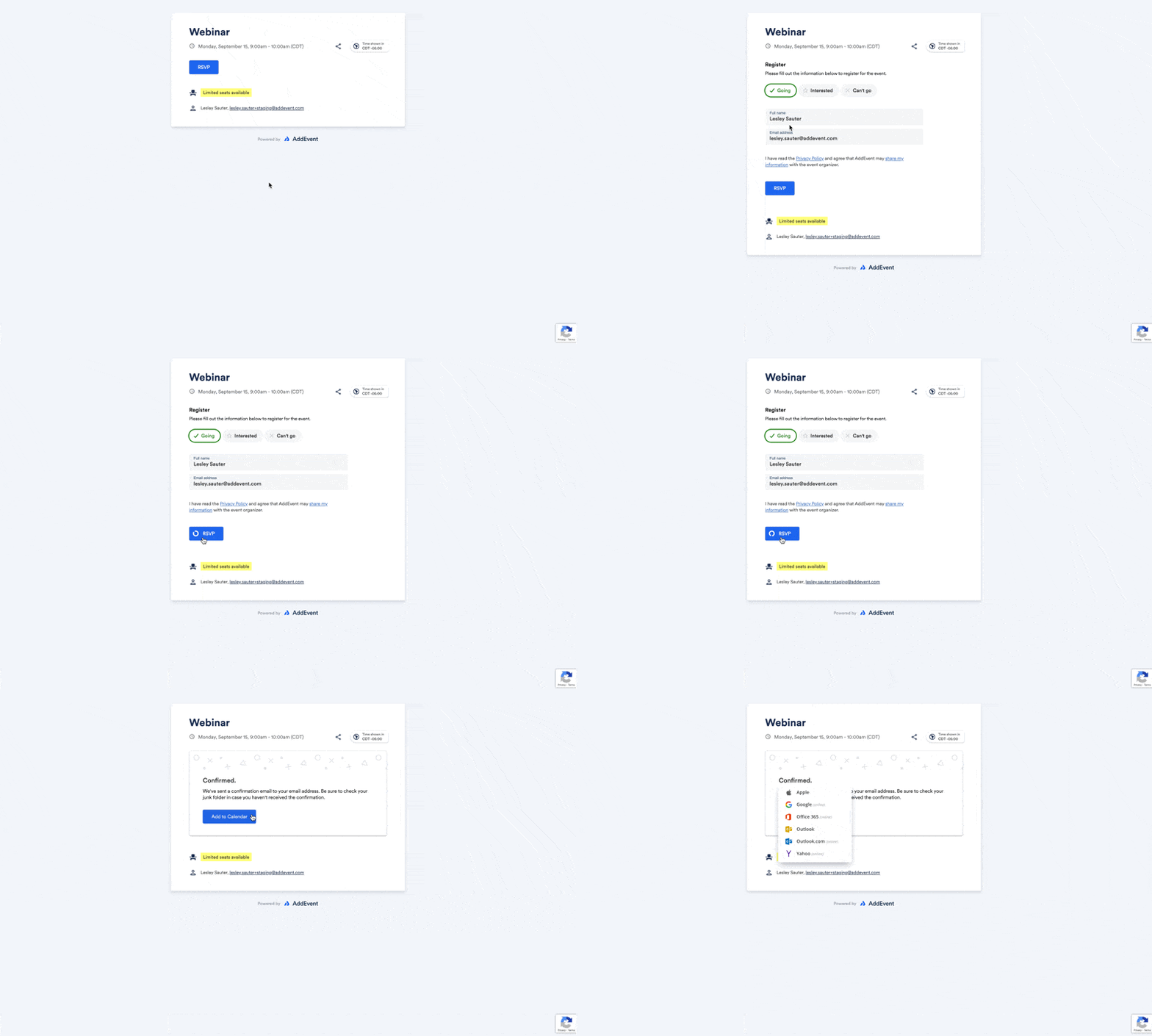
When attendees open the RSVP event landing page, they can review the event name, time, location, and description.
To register, attendees select Going, Maybe, or Not going and submit any required information. After registration, they see an Add to Calendar button that lets them add the event to their personal calendar.
Choose a design for the RSVP event landing page
You can choose a design template for the event landing page from the Design dropdown on the Event details page.
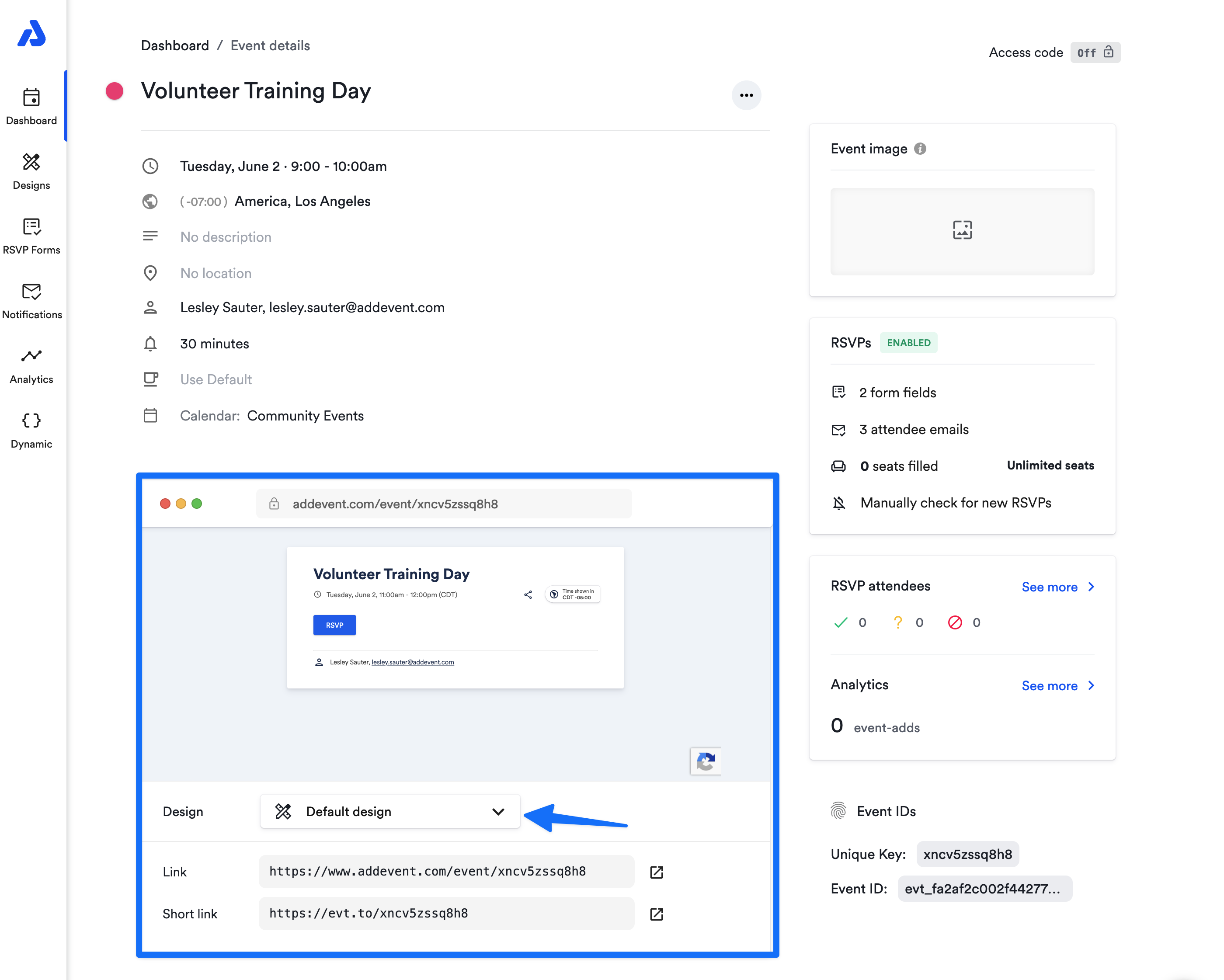
To learn how to create a landing page design, see Event Landing Page Designs.
Add an RSVP button to your website or landing page
An RSVP button is best when you want to add a clear RSVP call-to-action to your website, landing page, website builder page, or custom-built site.
What happens when visitors click the RSVP button
When visitors click the RSVP button, they are directed to the RSVP landing page. There, they can select Going, Maybe, or Not going and submit any required information.
After the attendee registers, the Add to Calendar button is displayed so they can add the event to their personal calendar.
Customize the RSVP button style
You can view RSVP button style options below the event landing page preview, or create your own custom style.
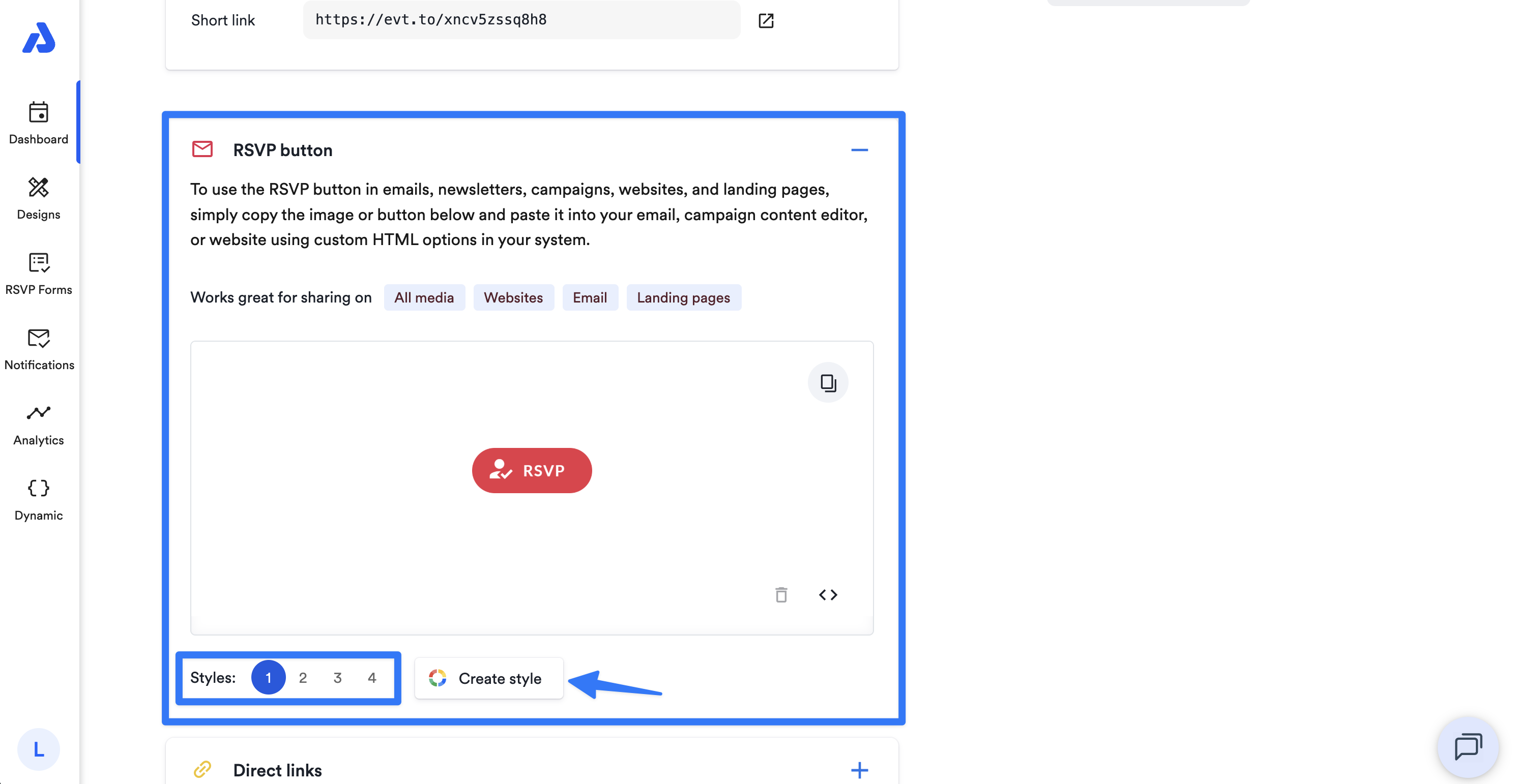
To learn more, see RSVP Buttons and Links for RSVP Events.
Use Direct Links for RSVP events
Direct Links are best when you want to share a link that sends attendees to the correct RSVP or calendar flow based on whether they have already registered.
How Direct Links work before and after registration
If a user has not registered for the RSVP event, the Direct Link sends them to the RSVP event landing page so they can RSVP.
If the user has already registered for the event, the Direct Link sends them directly to add the event to their personal calendar, like Direct Links for non-RSVP events.
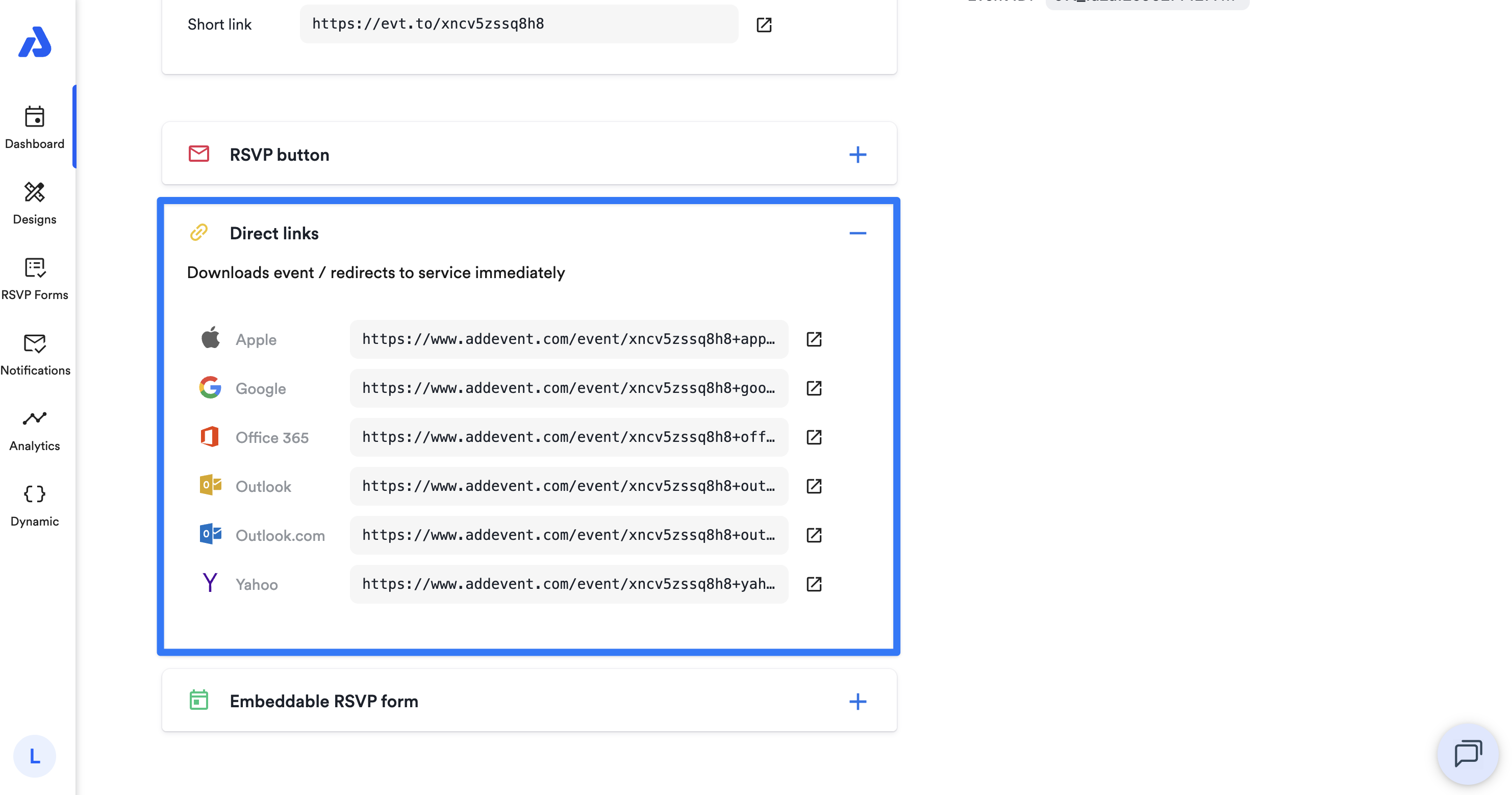
To learn more, see Direct Links for RSVP Events.
Embed an RSVP form on your website
An embeddable RSVP form is best when you want attendees to register without leaving your website.
What attendees can do in the embedded RSVP form
Attendees can register directly from the embedded RSVP form by selecting Going, Maybe, or Not going and submitting the required information.
The embedded RSVP form displays the event details. After registering, attendees see the Add to Calendar button and can add the event to their personal calendar.
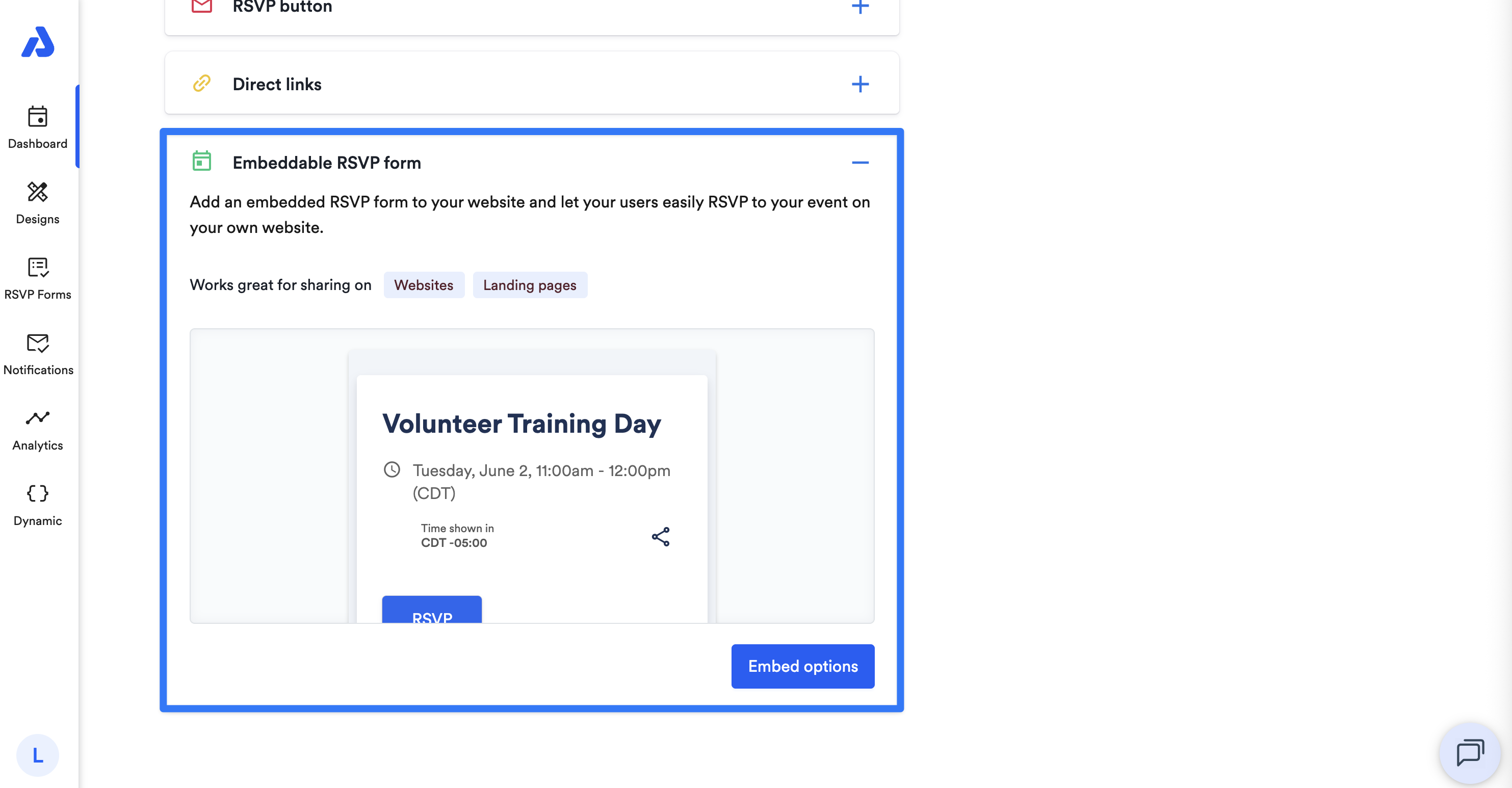
To learn more, see Embeddable RSVP Forms.
What happens when attendees RSVP to a recurring event
For recurring events, attendees who register are registered for all instances of the recurring event.
Troubleshooting RSVP event sharing
Why does a Direct Link open the RSVP landing page instead of adding the event to a calendar?
For RSVP events, Direct Links send users who have not registered to the RSVP event landing page first. After the user registers, they can add the event to their personal calendar.
Why do attendees see the Add to Calendar button only after registering?
RSVP events require attendees to register before adding the event to their calendar. After attendees select Going, Maybe, or Not going and submit any required information, the Add to Calendar button is displayed.
Updated 20 days ago