

Event Sharing Methods with AddEvent
This help doc explains the different ways you can share an event with your audience from the AddEvent app.
How to Share an Event
From the Event details page, you can share your event with attendees in several ways. Sharing your event helps keep your audience informed and makes it easy for them to save the event to their calendars.
To access the sharing options, go to your Dashboard and click the event title to open the Event details page:
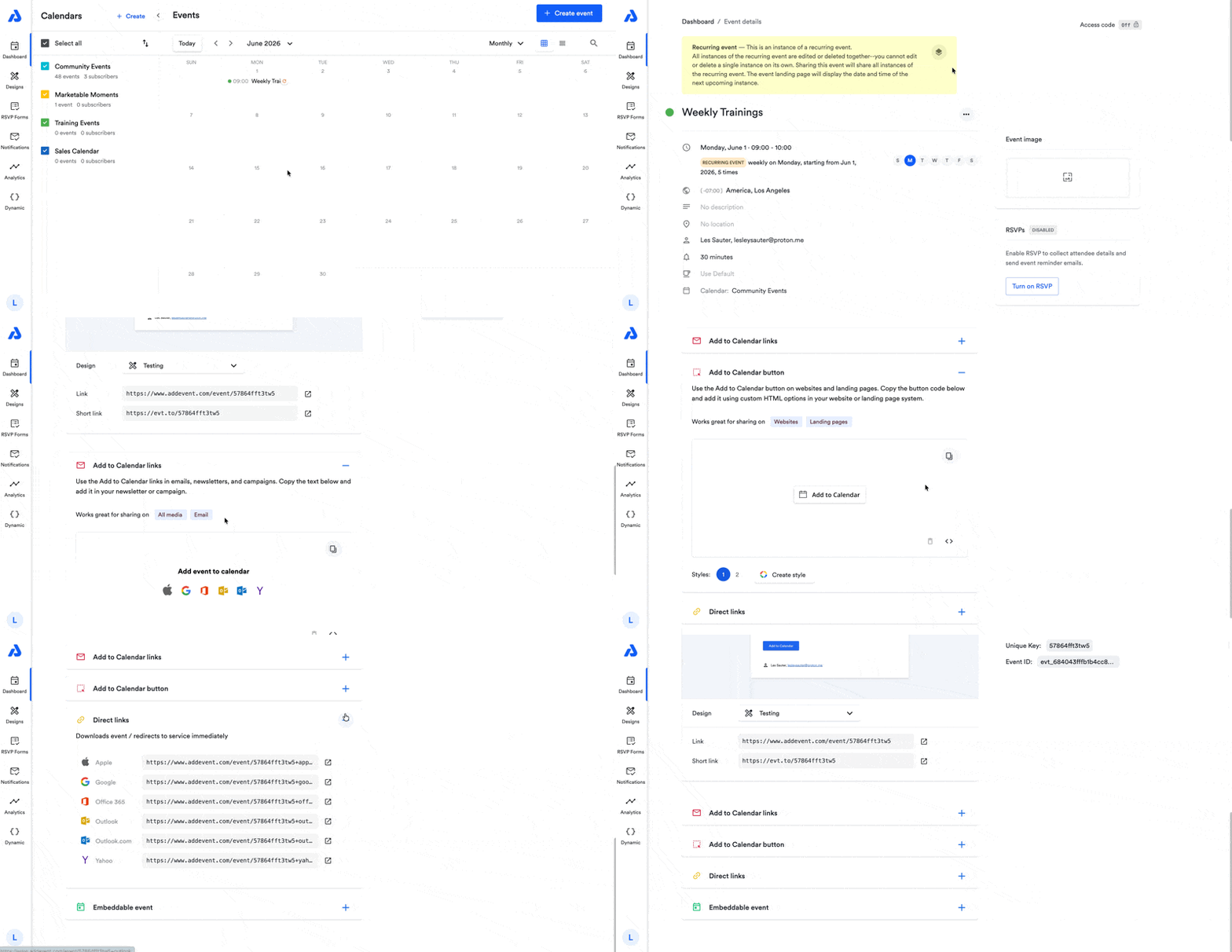
There are five ways to share an event from your AddEvent account:
- Event Landing Page
- Add to Calendar Links
- Add to Calendar Button
- Direct Links
- Embeddable Event Widget
Event Landing Page - Share the Event Landing Page URL
Each event automatically generates a unique landing page when it is created. This landing page includes two URL options: a standard link and a short link.
-
Copy either URL.
-
Paste the URL into an email, text message, social media post, or hyperlink it in a document, such as a PDF.
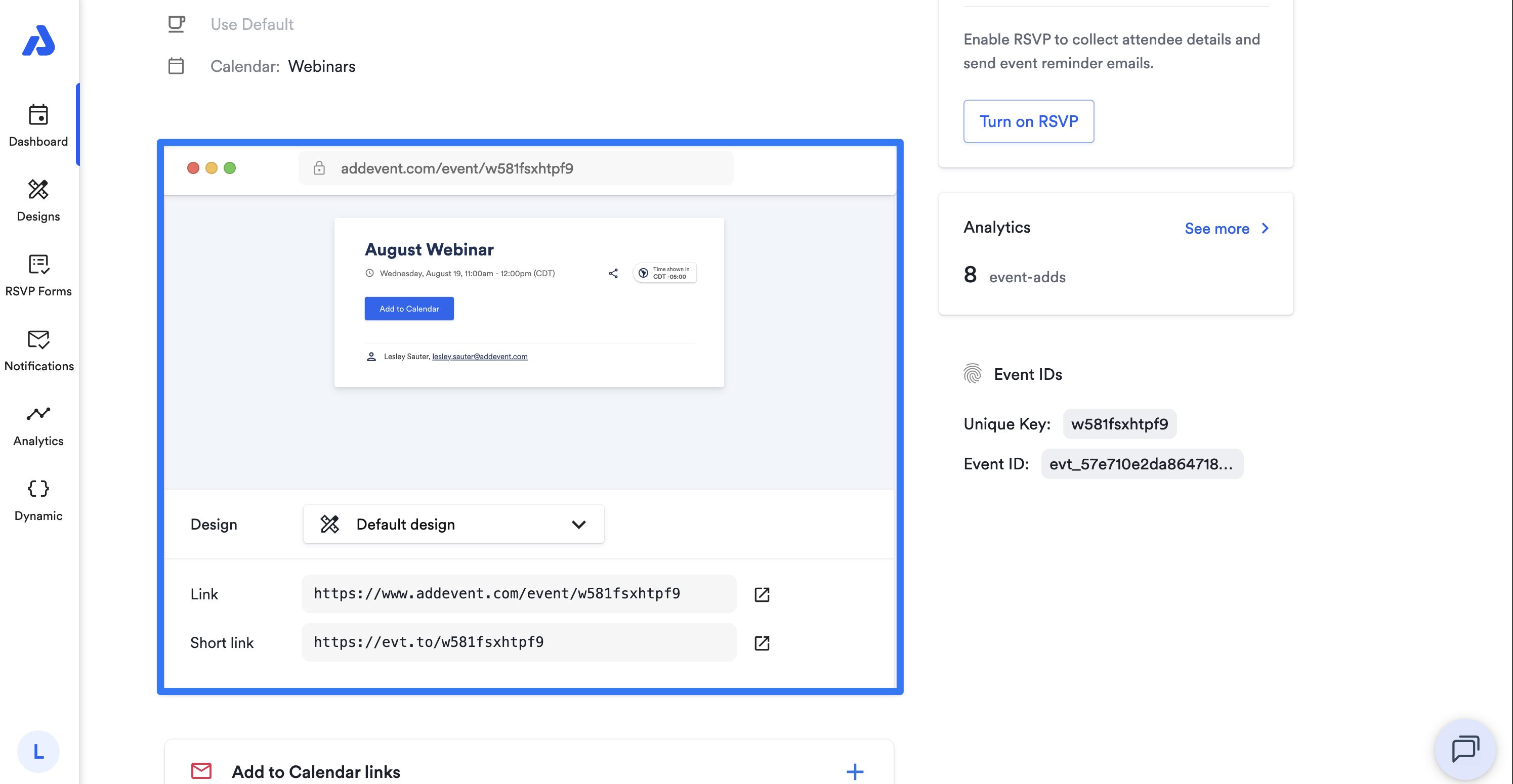
To learn more about event landing page links, see our help doc here.
Add to Calendar Links - Share via Email, Newsletter, or Campaign
Add to Calendar links are useful for sharing events in emails, newsletters, and marketing campaigns. They work well with platforms like Mailchimp, Marketo, Salesforce, and other campaign services.
To share Add to Calendar links:
- Choose one of the available link styles.
- Copy the text inside the tile.
- Paste it into the content editor for your email, newsletter, or campaign.
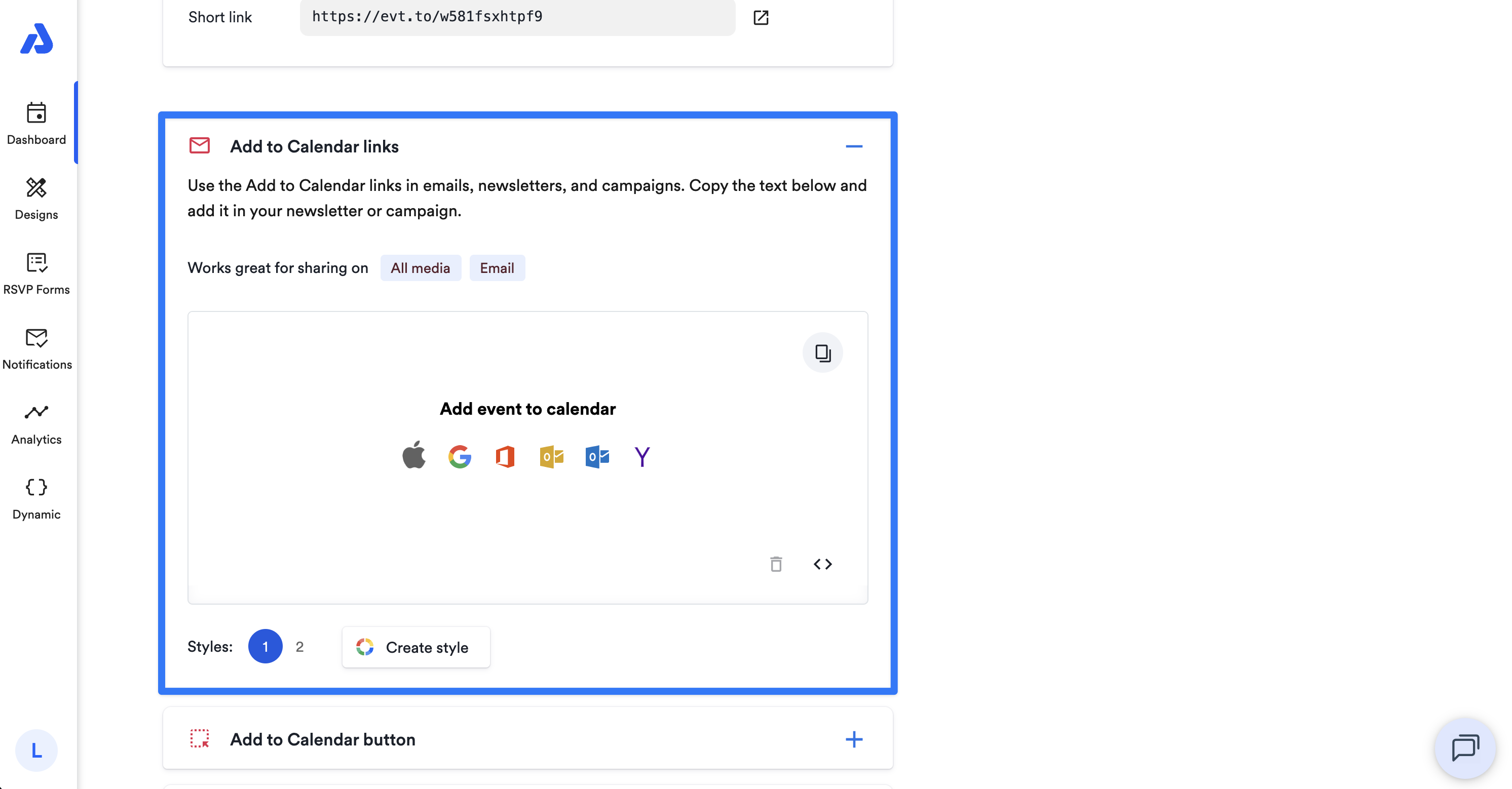
To learn more about using Add to Calendar links, see our help doc here.
Add to Calendar Button - Embed an Add to Calendar Button on a Website or Landing Page
The Add to Calendar button is ideal for embedding on websites and landing pages. It works across modern browsers, tablets, and mobile devices, and is compatible with Apple Calendar, Google Calendar, Office 365, Outlook desktop, Outlook.com, and Yahoo Calendar.
By embedding this button on your site, you make it quick and easy for visitors to save your event to their calendars.
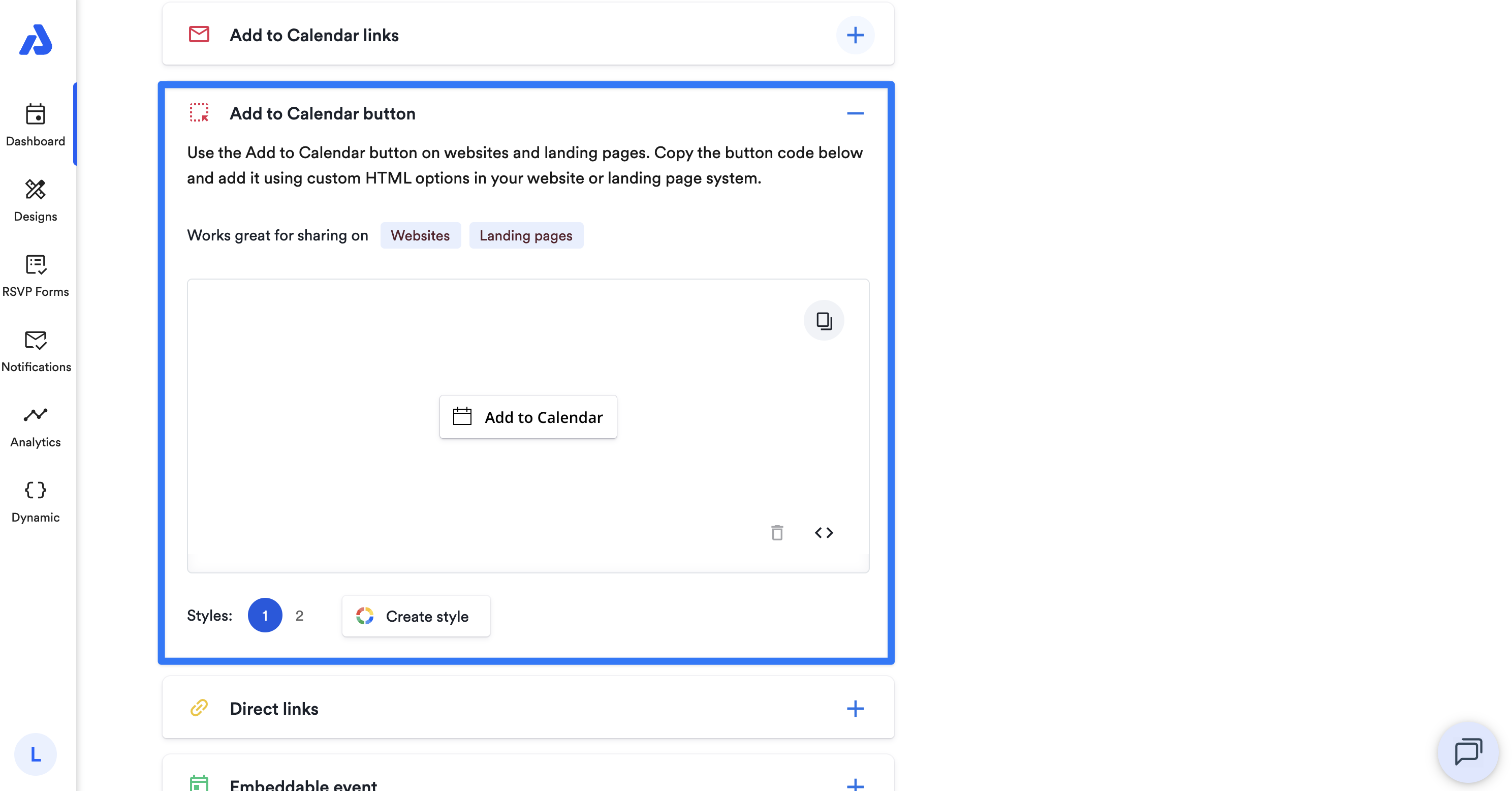
To learn more about using Add to Calendar buttons, see our help doc here.
Direct Links - Share a Direct Calendar-service Link
Direct Links let attendees immediately download the event or open the event in a specific calendar service. AddEvent provides a direct link for each available calendar service.
This sharing method is best when you know your attendees use the same calendar service, or when an attendee requests a direct link for a specific calendar.
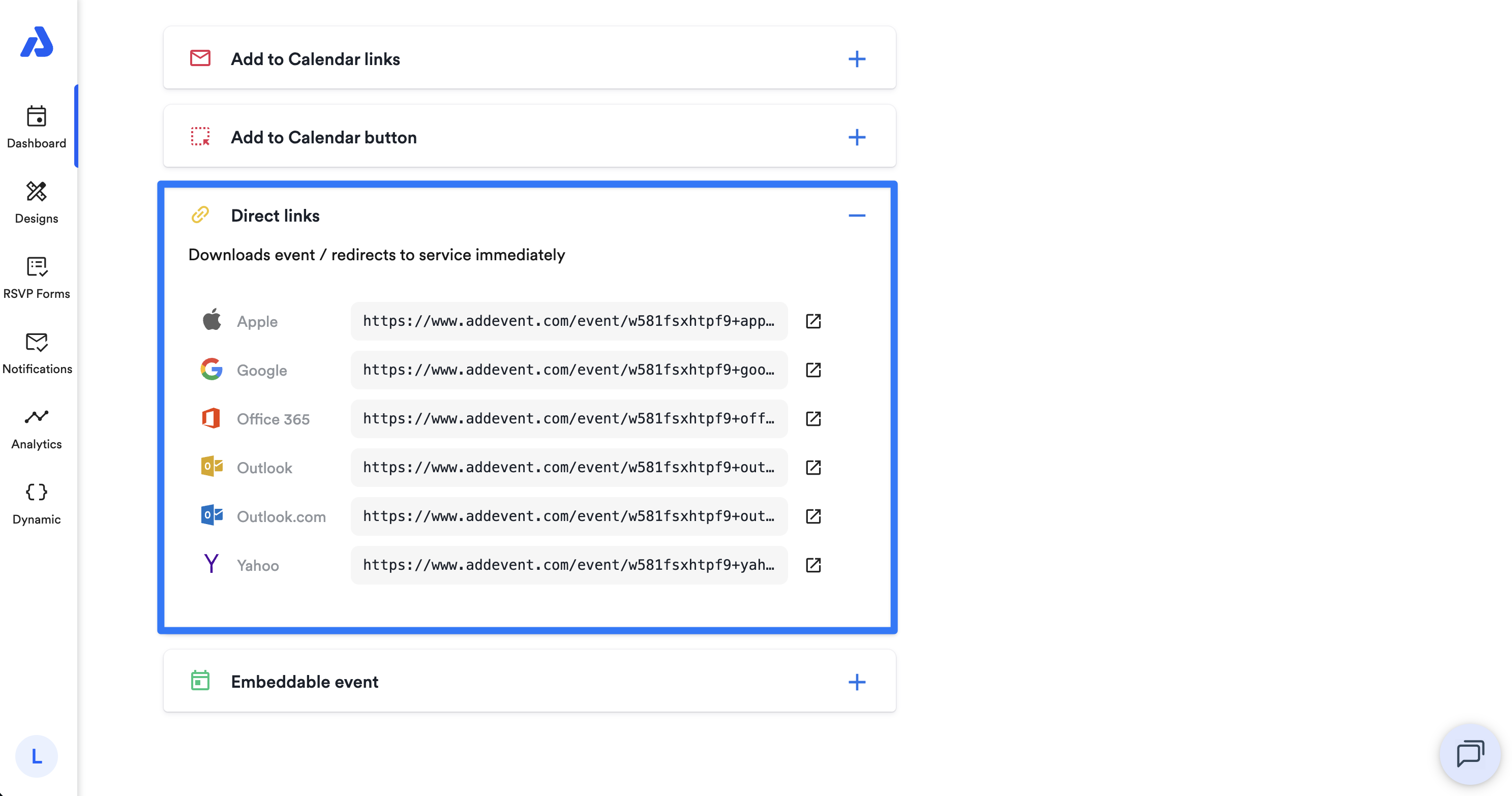
To learn more about using Direct Links, see our help doc here.
Embeddable Event Widget - Embed an Event widget on a Website
The Embeddable Event Widget lets you display a brief overview of your event directly on your website. The widget can include key event details such as the title, time, location, organizer, and description.
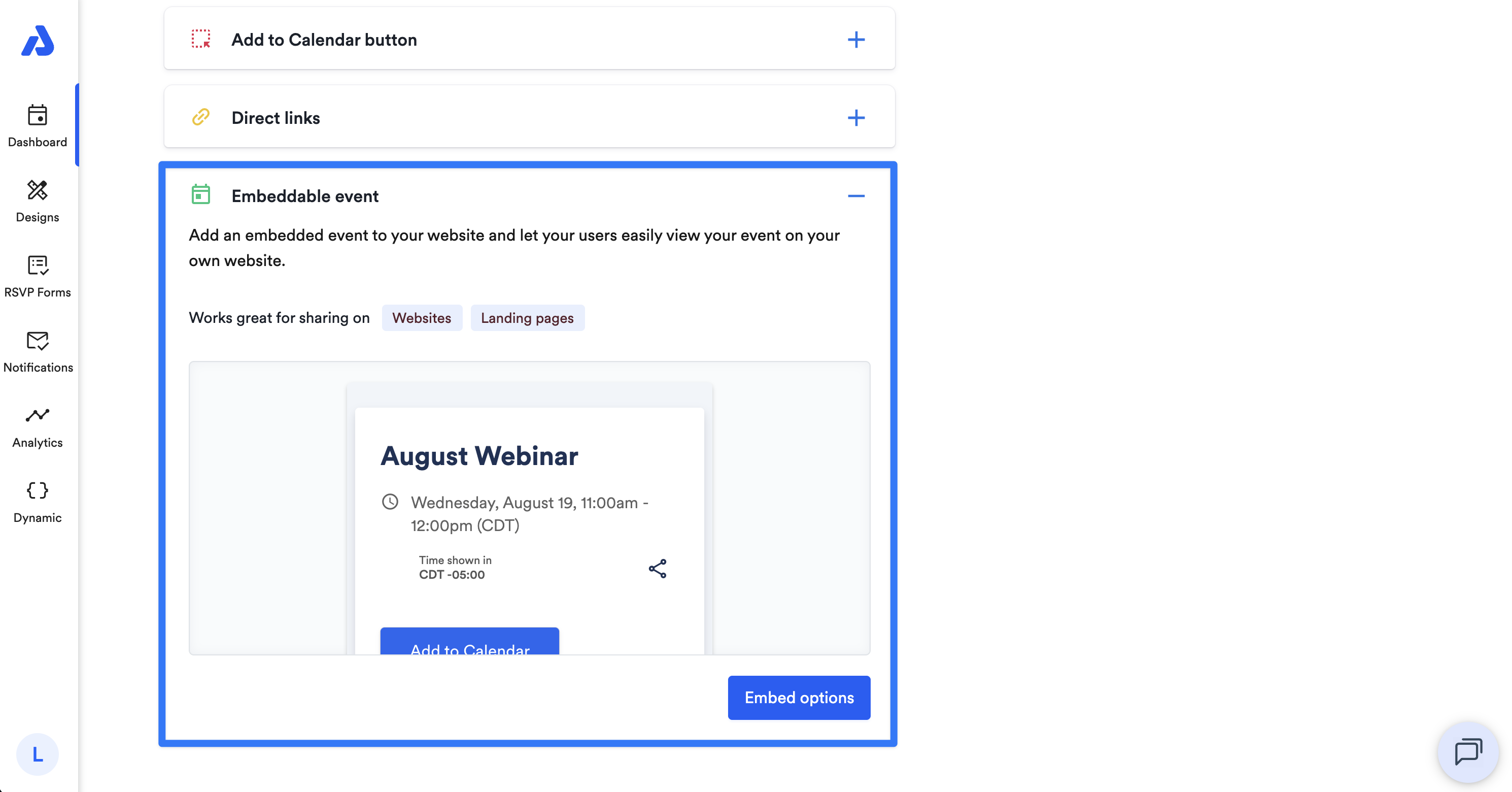
To learn more about using Embeddable Events, see our help doc here.
Updated 27 days ago