

Manage Recurring Events
AddEvent allows you to create custom recurring events. You can choose how frequently you'd like the event to be repeated, what days it will occur, and how many times the event will occur.
Recurring events allows you to create more than one event at a time and allows your attendees to add all instances of the recurring event to their calendars at once. Follow the steps below to create a recurring event.
How to Create a Recurring Event
-
Create a new event or select the event you want to edit.
- To create a new event, click the + Create event button located at the top-right corner of the Dashboard.
- To edit an existing event, see our help doc here.
-
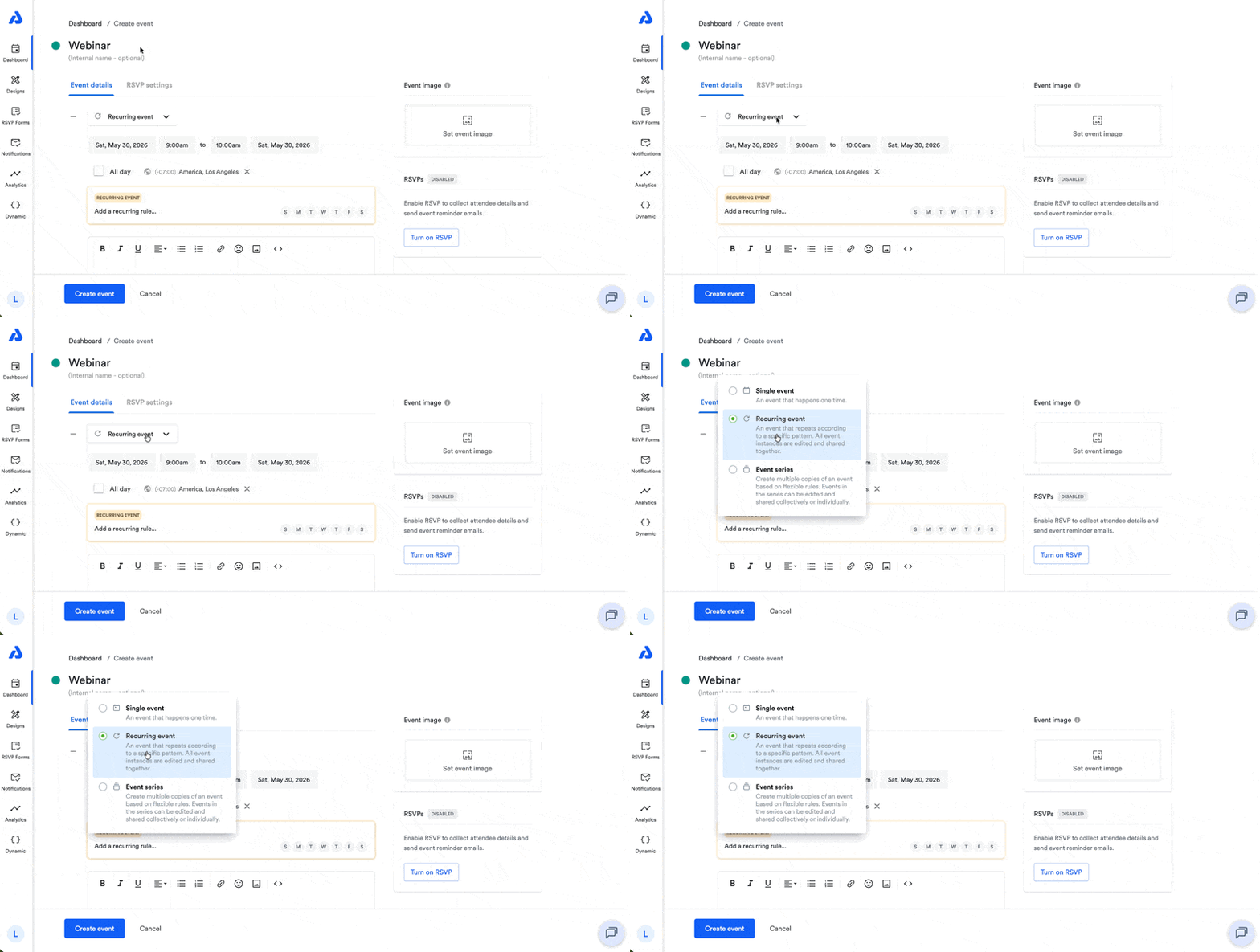
On the Create event/Edit page, select the first dropdown under "Event details", and select Recurring event.
-
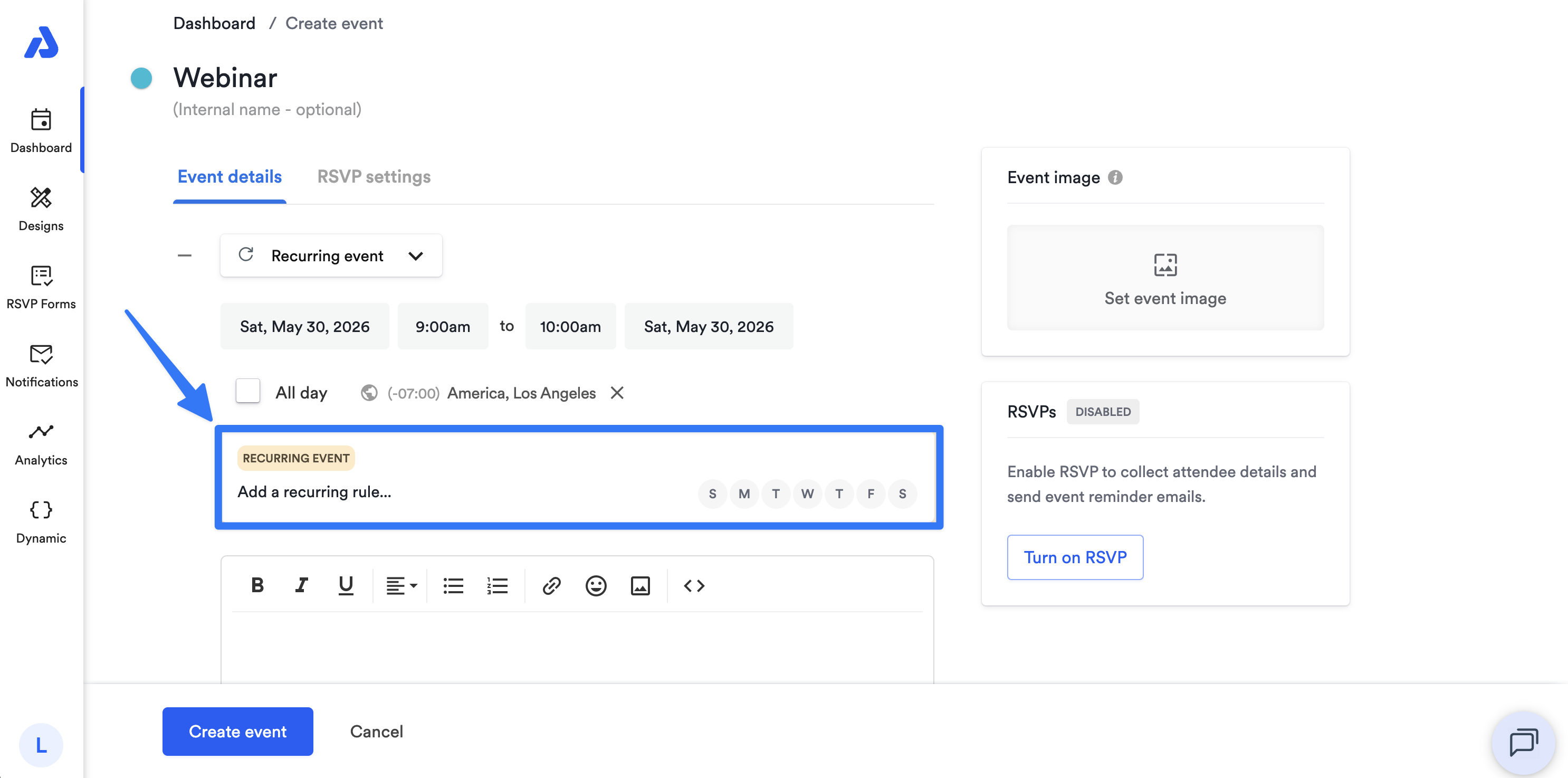
To choose how often the recurring event will repeat, click into the section labeled "Add a recurring rule...".
-
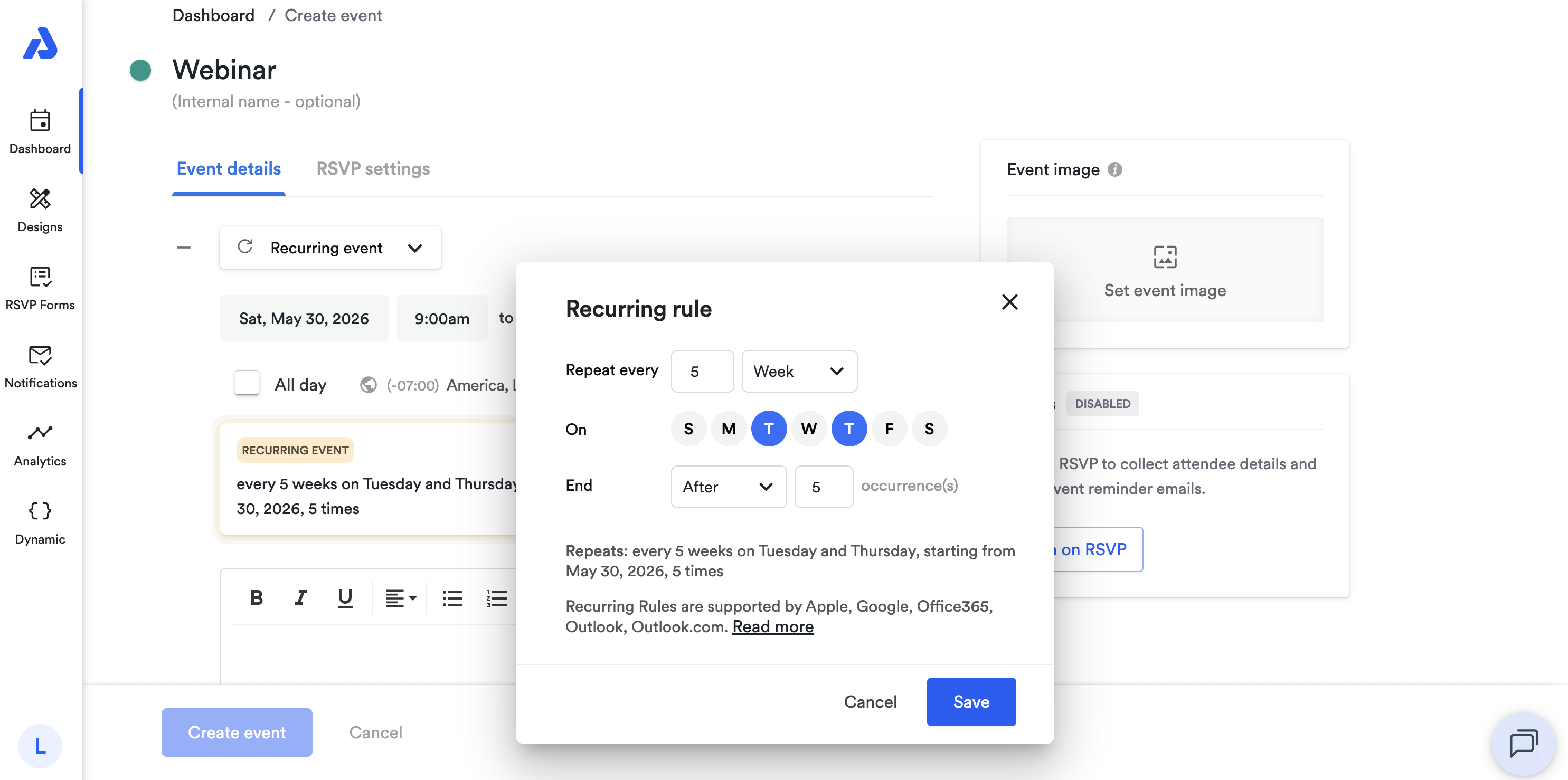
In the following pop-up window, configure how often your recurring event will repeat.
- Input a number or use the arrows. Maximum number allowed is 30.
- Select the frequency of which the recurring event will repeat from the dropdown.
-
Repeat options: Day, Week, Month, or Year
- Note: When selecting "Year", a number cannot be entered. If "Year" is selected, the event will recur annually.
-
-
When selecting "Week", you can click on each circle corresponding to the day of the week the event will recur. You can select one day, all days of the week, or anywhere in-between.
-
To select when the recurring event ends, choose between Never, After, or On date, and set the number of occurrences.
- "Never" refers to the event recurring indefinitely.
- "After" refers to ending the event after a specified number of occurrences.
- "On date" allows you to choose a specific date the recurring event will end.
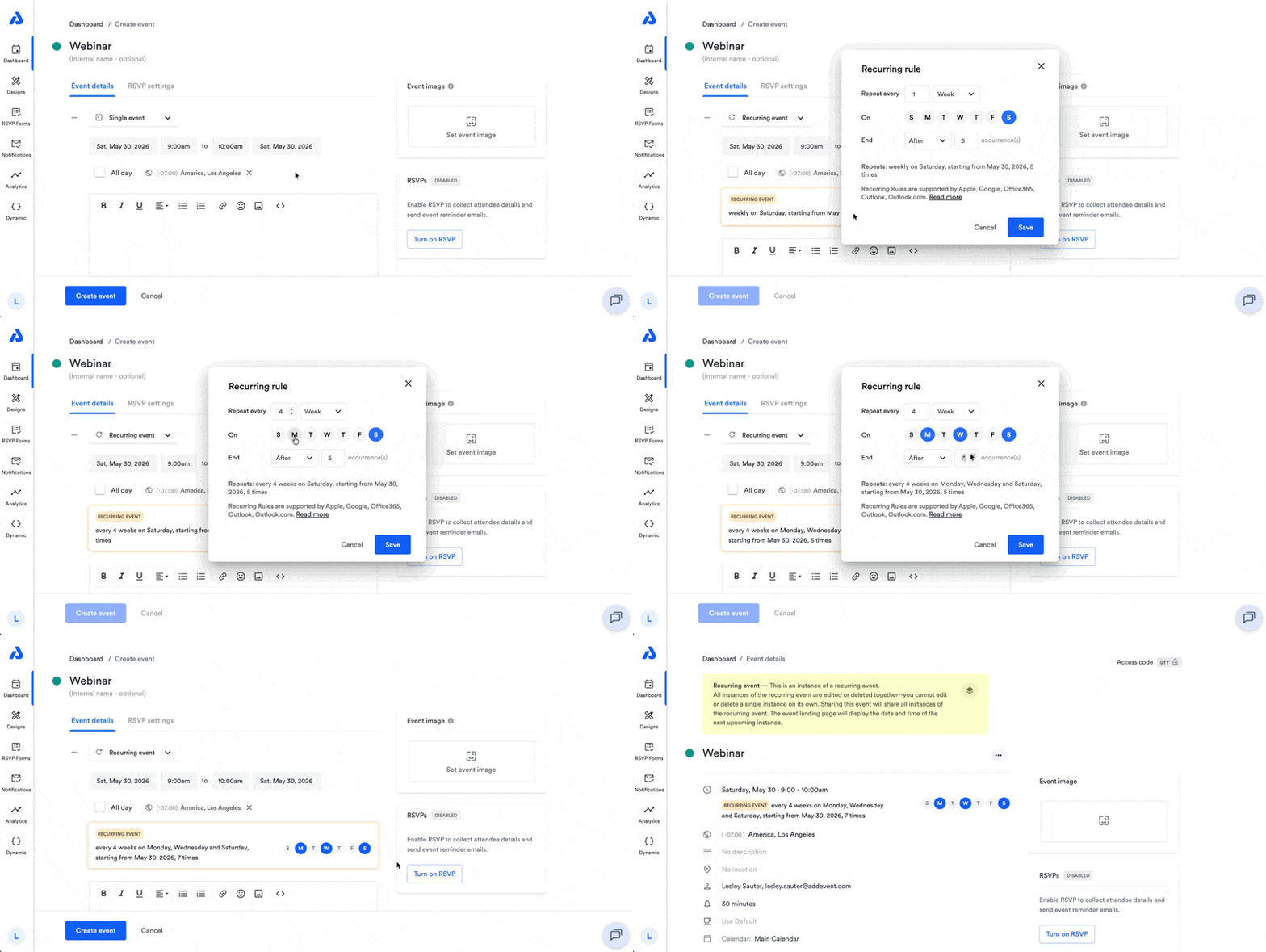
Once you click the Create event or Save event button on the Create event page/Edit page, you will be able to share the recurring event with your attendees. When an attendee adds the recurring event to their calendar, it will add every event that recurs, from the start date to the end date.
Note: If the start and end dates for the recurring event differ from the dates entered in the date and time field, the initial dates will be overruled, and the dates specified for the recurring events will be used.
Sharing a Recurring Event
When an attendee adds a recurring event to their calendar, all of the event's instances will be included, past and upcoming. This is due to how calendar services handle recurring events.
If you'd like to share a single instance of a recurring event, such as the next upcoming event date, you can do so by following the steps here in this help doc: Render a Recurring Event as a Single Occurrence. Please note that sharing a single instance of a recurring event can only be done with non-RSVP events.
Additional Notes
- If you want to create a large number of events at once but have them treated as individual events, check out our help doc which explains the difference between a recurring event and an event series.
- With older recurring events set with a start date that occurs long in the past, you may find that when adding the recurring event to your external calendar, the time of the event is off. If you edit the recurring event in AddEvent to have a more recent start date (e.g., within the current year), this should allow you to re-add the recurring event to your external calendar with the correct event timeframe.
- Individual event dates within a recurring event can not be deleted or edited to occur on a different date. The entire recurring event will need to be deleted and recreated. To avoid this in the future, you can consider creating an event series where individual dates can be edited/deleted.
Updated 14 days ago